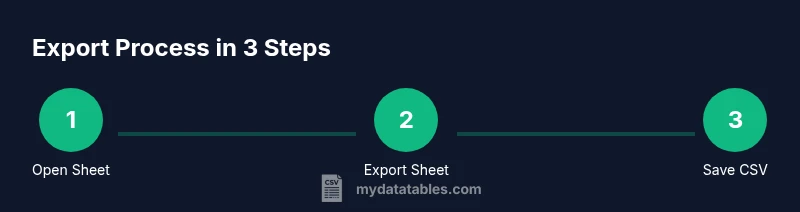
Google Sheets to CSV: Step-by-Step Guide for Data Export
Learn how to convert Google Sheets to CSV, including manual export, encoding tips, and Apps Script automation. A practical, 2026-focused guide for data analysts and developers.


Google Sheets to CSV is the process of saving a spreadsheet as a plain-text CSV file. You can do this manually via File > Download > Comma-separated values (.csv), or automate it with Google Apps Script to run on schedule. This guide covers both methods, encoding choices, and common pitfalls to ensure clean exports.
What Google Sheets to CSV Means for Data Workflows
CSV, or comma-separated values, is a universal plain-text format that many data tools understand. In practice, google sheets to csv means converting a live spreadsheet into a text file where each row becomes a line and each column value is separated by a comma. This format preserves the structure of tabular data while keeping the file lightweight and easy to share. For data analysts, developers, and business users, exporting to CSV is a foundational step in data pipelines, enabling imports into databases, analytics platforms, and reporting tools. In 2026, knowing how to generate clean CSVs from Google Sheets helps you maintain data fidelity across environments and reduces manual re-entry errors. The process is simple, but small choices—like encoding, delimiters, and how headers are handled—determine downstream compatibility. In this article, we’ll cover the practical methods, common pitfalls, and automation options to make google sheets to csv a repeatable, reliable task.
Why CSV Remains a Gold Standard for Data Exchange
CSV remains widely supported because it is a simple, language-agnostic plain text format. It is easier to parse than binary formats and is compatible with almost every data tool, from Python scripts to SQL loaders and BI dashboards. When you export from Google Sheets to CSV, you gain predictable data transfer behavior across systems, avoiding tool-specific quirks. MyDataTables analysis shows that adopting UTF-8 encoding and a consistent delimiter reduces errors across downstream pipelines. However, CSV lacks formulas and formatting, and it generally handles only the active sheet per export. This means you should plan how to represent headers and what data to include before exporting. The takeaway is to standardize encoding, delimiter usage, and header handling to keep imports reliable over time.
Quick Manual Export from Google Sheets (UI)
Exporting a single sheet quickly is straightforward in the Google Sheets UI. Open the sheet you want to export, then go to File > Download > Comma-separated values (.csv). If your data contains non-ASCII characters, UTF-8 encoding is used automatically in most environments. The downloaded file will reflect the current sheet, including visible headers, and will not export hidden sheets. If you need to work with other sheets, repeat the steps for each one or prepare a plan for automation. For best results, verify the resulting CSV in a text editor or spreadsheet viewer to ensure values are separated correctly and that quotes are preserved where needed.
Export with Multiple Sheets: Options and Dilemmas
Google Sheets exports to CSV on a per-sheet basis. If your workbook contains multiple sheets, you have a few options: export each sheet individually, or automate a multi-sheet export with Apps Script to produce separate CSV files per sheet. For one-off tasks, manual per-sheet export is fastest. For ongoing processes, automation saves time and reduces human error. Consider naming conventions for files (e.g., MySheet_2026-02-28.csv) to support chronological archiving and easy retrieval.
Encoding, Delimiters, and Locale Considerations
CSV encoding is critical when your data includes non-Latin characters. UTF-8 is the recommended standard because it minimizes character corruption across platforms. Delimiters matter too: while a comma is common, some regions use semicolons due to locale settings. Google Sheets generally exports with a comma delimiter; if you need an alternative, you can post-process the file or generate it via Apps Script with custom logic. Always test with a sample containing tricky characters, like é, ñ, and emojis, to confirm round-tripping works in your target system.
Automating CSV Exports with Google Apps Script
Automation can turn a manual task into a reliable part of your data workflow. With Google Apps Script, you can export a specific sheet or every sheet in a spreadsheet on a schedule and save the resulting CSVs to Google Drive. A typical approach is to create a script that loops through each sheet, converts the data to CSV format, creates a blob, and saves it to a designated Drive folder with a date-stamped filename. Such scripts can run via time-driven triggers, giving you daily, weekly, or monthly exports without manual interaction.
Handling Large CSVs and Data Quality Checks
Large spreadsheets can yield hefty CSV files. To manage performance, test with smaller samples first, and consider exporting in chunks if needed. After exporting, verify critical fields, check for truncated values, and validate that dates and numbers preserve their formats. A practical quality check is to load the CSV back into a small test environment (a sandbox database or a lightweight viewer) to confirm the integrity of the import pipeline before delivering to production systems. Regular audits of a sample of records help catch edge cases early.
Common Pitfalls and How to Avoid Them
Beware of hidden columns, filters, and hidden rows that affect what is exported. Remember that formulas are not exported—only their resulting values. If your sheet contains merged cells, values may appear misaligned in CSV; unmerge before export or handle the alignment in downstream processing. Finally, always verify the first row is your header row if it should be included. If your dataset includes emojis or non-ASCII text, confirm UTF-8 encoding is preserved when importing into other tools.
Integrating CSV Exports into Your Data Pipeline
CSV exports from Google Sheets often feed into databases, data warehouses, or BI tools. Structure your filenames to reflect dates and source sheets, so pipelines can pick up new data automatically. In 2026, a common pattern is to export to a cloud storage folder and trigger subsequent ETL jobs via cloud schedulers or webhooks. Maintain a small, versioned archive of CSVs for rollback and auditing, and document the export conventions in your data dictionary for team consistency.
Tools & Materials
- Google account with access to Google Sheets(Needed to sign in and access the target spreadsheets)
- Target Google Sheet(s) to export(Identify the specific file(s) and the sheets to export)
- Web browser or Google Sheets app(Used to perform manual exports and view results)
- Drive or local storage for CSVs(Store exported CSVs for downstream workflows)
- Apps Script editor (built-in)(Needed if you plan to automate exports)
- Text editor or CSV viewer(Helpful for quick verification of CSV contents)
Steps
Estimated time: 30-60 minutes (setup and first run); ongoing exports can run automatically on a schedule
- 1
Open the target Google Sheets file
Navigate to Google Sheets and load the workbook containing the data you need. Verify you can see all rows and columns you expect to export. This step ensures you’re exporting the correct source.
Tip: If you’re collaborating, confirm you have editing rights to avoid permission prompts. - 2
Choose the sheet to export
Click the tab of the sheet you want to export. Remember that Google Sheets exports the active sheet to CSV via the UI; other sheets require separate exports or a script.
Tip: If headers exist, ensure the first row is the header you want in the CSV. - 3
Export the sheet as CSV from the UI
Go to File > Download > Comma-separated values (.csv). The file will save to your default downloads location, or prompt you to save. This is the quickest route for a single-sheet export.
Tip: Check that non-ASCII characters render correctly after download. - 4
Verify encoding and delimiters
Open the CSV in a text editor or viewer to confirm UTF-8 encoding and that values are correctly delimited by commas. If you need a different delimiter, plan post-processing or automation to generate an alternative file.
Tip: Use UTF-8 as a standard to prevent misinterpretation in downstream tools. - 5
Export additional sheets (if needed)
If your workbook contains more sheets, repeat the export for each sheet or set up automation to generate a CSV per sheet. Maintain a consistent naming convention for easy chaining in pipelines.
Tip: A single workbook export is not enough for multi-sheet workflows; automation scales efficiently. - 6
Set up Apps Script for automation
Create a script to export selected sheets on a schedule, save as CSVs to Drive, and apply a naming pattern. This is ideal for periodic data deliveries without manual steps.
Tip: Test with a small sample run to validate permissions and output before enabling triggers.
People Also Ask
How do I export a single sheet to CSV in Google Sheets?
Open the sheet you want, then use File > Download > Comma-separated values (.csv). This exports only the active sheet. If you need other sheets, export them separately.
To export a single sheet, open it and choose File > Download > Comma-separated values. Export other sheets separately if needed.
Can I export all sheets to separate CSV files at once?
Google Sheets UI exports only the active sheet. To export all sheets, you’ll need Apps Script to loop through each sheet and create a CSV per sheet, or export them one by one manually.
The UI exports one sheet at a time; use Apps Script to export all sheets automatically.
What encoding should I use for CSV exports?
UTF-8 encoding is recommended to preserve characters across tools. Google Sheets generally uses UTF-8 for CSV exports, but always verify in your target environment.
UTF-8 is best to avoid character issues when importing CSVs.
How can I automate CSV exports on a schedule?
Use Google Apps Script with a time-based trigger to export to Drive regularly. You can customize the destination folder and file naming to fit your workflow.
You can schedule exports with Apps Script triggers and save them to Drive.
Why is my CSV missing the header row?
If the header row is hidden or not included in the selected range, it won’t appear in the CSV. Ensure the first row is your header and included in the export.
Make sure your header row is visible and included in the export range.
Can I export with a custom delimiter?
Google Sheets UI exports with commas by default. For other delimiters, use Apps Script to generate the CSV with a different delimiter or post-process the file.
You can create CSVs with a different delimiter using Apps Script.
Watch Video
Main Points
- Export manually for quick, one-off tasks.
- Automate exports with Apps Script to save time and reduce errors.
- Always use UTF-8 encoding to preserve characters.
- Export current sheet to CSV to avoid missing data in other sheets.
- The MyDataTables team recommends validating the CSV against the source data.