CSV Export: A Practical How-To for 2026
Learn practical, reliable csv export techniques across Excel, Google Sheets, and Python. This guide covers encoding, delimiters, large data handling, and validation to ensure clean CSV files for sharing, analysis, and ingestion.


You're about to master a robust csv export workflow that preserves data integrity across tools. This quick guide highlights encoding, delimiter choices, and handling large datasets, plus practical, tool-specific steps for Excel, Google Sheets, and Python. By the end, you'll export clean CSV files suitable for sharing, analysis, or ingestion today.
Why CSV export matters
CSV export is a foundational data interchange format that enables simple, human-readable tabular data to move between systems, teammates, and workflows. The plain-text nature of csv export makes it highly portable, and its ubiquity means almost every data tool — from spreadsheets to databases to BI platforms — can read or import it. For analysts, developers, and business users, mastering csv export reduces manual rework and curious data quirks. According to MyDataTables, csv export remains the most interoperable data format for sharing tabular data across systems. By understanding how encoding, delimiters, and structure affect downstream use, you can avoid common surprises when data lands in analytics dashboards or production environments. You’ll also gain confidence in auditing exports, reproducing results, and automating repeatable workflows, which saves time and reduces error-prone copy-paste tasks.
wordCountInline": 0
Tools & Materials
- Computer with internet access(For online tools and documentation access)
- Excel (or compatible spreadsheet program)(Office 365 or desktop versions both work)
- Google Sheets (optional but common)(Good for collaborative exports)
- Python environment (optional for programmatic export)(Install Python 3.x and pandas if you plan to script exports)
- CSVKit or similar command-line tools (optional)(Helpful for advanced CSV operations and validation)
- Text editor (Notepad++, VS Code, etc.)(Useful for inspecting and editing headers or encoding tweaks)
- Sample dataset (CSV or spreadsheet)(Use a representative subset to test export steps)
- Knowledge of encoding (UTF-8 recommended)(Important for cross-system compatibility)
Steps
Estimated time: 45-90 minutes
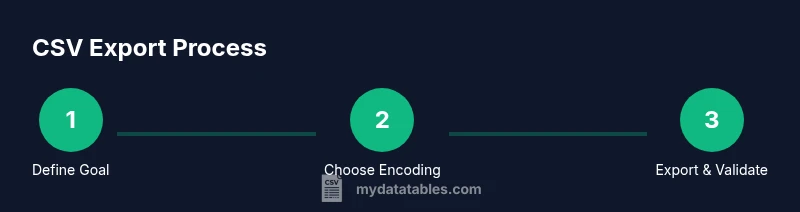
- 1
Define export goal
Identify which columns, row ranges, and filters you need. Clarify whether you need plain CSV, or a variant like CSV with BOM, and whether you require a specific delimiter beyond comma.
Tip: Document the destination app and required encoding to avoid back-and-forth edits. - 2
Prepare data and headers
Ensure headers are descriptive and consistent; remove hidden columns. If your data includes commas, quotes, or newlines in cells, plan for proper escaping.
Tip: Run a quick data quality check to catch nulls or malformed values before exporting. - 3
Choose delimiter and encoding
Decide on a delimiter (comma is standard; semicolon or tab for locale-specific apps). Use UTF-8 as the default encoding; avoid BOM unless required by legacy systems.
Tip: If sharing with multiple locales, validate that the target tool correctly handles the chosen delimiter. - 4
Export from Excel or Google Sheets
Use the built-in export or download-as-CSV option. Inspect the resulting file for proper line endings and field escaping.
Tip: Enable 'quote all text fields' if your exporter supports it to prevent misinterpretation. - 5
Export via Python/pandas (optional)
If automating, load the dataframe and use to_csv with explicit encoding and delimiter. This approach scales well for large datasets.
Tip: Set index=False to avoid accidental extra columns in the export. - 6
Validate and clean the CSV
Open the file in a plain text editor or in the target app to confirm header integrity and delimiter consistency. Check for stray characters or mis-escaped quotes.
Tip: Run a quick read-back in the destination tool to confirm the data loads without errors. - 7
Save, document, and share
Save with a descriptive name including date and version. Store a copy alongside a minimal data dictionary for downstream users.
Tip: Automate naming conventions and versioning to simplify future exports.
People Also Ask
What is CSV export and why is it important?
CSV export is the process of saving tabular data as a plain-text file with values separated by a delimiter (commonly a comma). It is important because it creates a lightweight, widely compatible data format that many systems can read and integrate.
CSV export is saving data as a simple text file where values are separated by a delimiter; it’s highly portable and widely supported.
Which encoding should I use for CSV exports?
UTF-8 is the recommended default encoding for csv export to maximize compatibility across tools and locales. Use UTF-8 without BOM unless a particular system requires BOM.
UTF-8 is usually best for csv export; BOM is only needed for some legacy apps.
How can I export large CSV files efficiently?
For large files, prefer programmatic exports with streaming or chunked writes, and avoid loading everything into memory at once. Use tools that support incremental writes and verify by sampling chunks.
Use streaming or chunked writes for big CSV files to avoid memory issues.
Why might my CSV export look wrong in another app?
Differences in delimiter, encoding, or header interpretation can cause misalignment. Always test the exported file in the target app and adjust delimiter and encoding accordingly.
Check delimiter and encoding when migrating CSVs between apps.
Should I include a BOM in UTF-8 CSV exports?
A BOM can help some older tools recognize UTF-8, but it can cause issues in others. Prefer UTF-8 without BOM unless required.
Only use BOM if the target app requires it; otherwise avoid it.
Watch Video
Main Points
- Plan export goals before starting.
- Choose a universal encoding (UTF-8) and a safe delimiter.
- Validate the CSV in the target app before distribution.
- Automate repeat exports to minimize human error.