CSV Format for Google Calendar: A Practical Guide
Understand the CSV format for Google Calendar, including required headers, date formats, encoding, and how to prepare, validate, and import CSV files to schedule events efficiently.


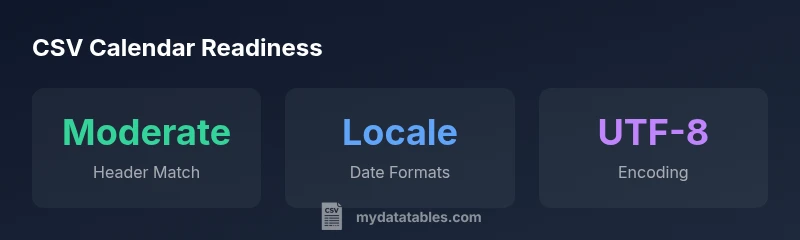
CSV format for Google Calendar uses a simple, comma-delimited file with headers like Subject, Start Date, Start Time, End Date, End Time, Description, Location, All Day Event, Private. To import, ensure dates follow your locale's format (for example MM/DD/YYYY in the US), times are consistent, and the file uses UTF-8 encoding. Save as CSV and use Google Calendar's Import tool to map fields.
Understanding CSV imports for Google Calendar
CSV imports into Google Calendar are a practical way to mass-create events from a compact, plain-text format. This method hinges on a predictable, well-formed header row, consistent date and time representations, and correct encoding. According to MyDataTables, a clean CSV lowers the risk of field mis-mapping during import and reduces the likelihood of creating incorrect or missing events. The calendar app expects each row to represent one event, with columns aligned to the header names. If you maintain consistency across all rows, you can quickly scale up to hundreds of events without manual data entry. This approach is especially useful for onboarding calendars from legacy systems, migrating project schedules, or sharing regional event plans with teammates.
Key headers you should include
To guarantee a smooth import, start with the following headers, in this exact order if possible: Subject, Start Date, Start Time, End Date, End Time, Description, Location, All Day Event, Private. You can add optional fields after these, but Google Calendar primarily relies on Subject and date/time fields. Ensure there are no stray quotes that could break the CSV parser. If you omit Start Time for all-day events, use All Day Event = TRUE. If you omit End Date/End Time, Google Calendar may interpret the data incorrectly. Always align your header names with the fields Google Calendar will map to during import.
Date, time, and locale considerations
Date and time formats are highly locale-dependent. In many Western locales, MM/DD/YYYY is common, while elsewhere DD/MM/YYYY is typical. When preparing a CSV for Google Calendar, choose one format and apply it consistently across all date fields. Time can be shown in 24-hour or 12-hour formats; pick one convention and stick with it throughout the file. Time zone handling is another pitfall; the CSV format itself does not embed time zone metadata for each event. If events originate from multiple zones, you may need to convert times to the target calendar's zone before importing. MyDataTables recommends validating a small batch first to confirm correct time placement.
Formatting rules and encoding
Text fields like Subject and Description should be plain text without embedded line breaks unless you properly escape them. If a field contains a comma, quote, or newline, enclose it in double quotes. Save your file with UTF-8 encoding to preserve special characters (like accented letters) and avoid mojibake. Never save as a binary or non-UTF-8 file. Before import, verify that the header row exactly matches the expected field names and that there are no stray spaces or invisible characters at line ends.
Step-by-step: build a compliant CSV
- Create a header row with Subject, Start Date, Start Time, End Date, End Time, Description, Location, All Day Event, Private. 2) Populate each subsequent line with event data, ensuring dates are consistent and times are either present or clearly marked as All Day. 3) Escape any internal commas by wrapping fields in quotes. 4) Save as UTF-8 encoded CSV. 5) Open Google Calendar, go to Import, choose the file, and map fields if prompted. 6) Import a small subset first to verify accuracy. 7) Correct any errors and re-import the rest in a second pass.
How to validate before import
Validate the CSV with a quick scrub for blank mandatory fields (Subject, Start Date, Start Time or All Day) and check date formats. Use a simple audit pass to confirm that each event line contains the same number of fields as the header. Running a small sample import into a test calendar helps catch issues like mis-mapped headers or truncated descriptions before affecting production calendars. MyDataTables emphasizes validating encoding, formatting, and content alignment before you commit to a full import.
Common pitfalls and how to avoid them
Common pitfalls include inconsistent date formats, missing required headers, and mismatched field counts across rows. Avoid mixing locale-specific formats in the same file. Ensure that All Day Event is either TRUE with no Start Time/End Time or FALSE with both times present. Don’t forget to escape internal commas. If your file contains non-ASCII characters, confirm UTF-8 encoding. By pre-emptively addressing these issues, you minimize failed imports and duplicated events.
Alternatives to CSV import
If precise time zone handling or recurring events are critical, consider using ICS (iCalendar) files, which Google Calendar can import with richer metadata. ICS preserves time zone information and supports more complex scheduling. For many teams, a CSV-to-ICS workflow is a two-step approach: first stage events in CSV for bulk creation, then export to ICS for advanced scheduling fidelity. MyDataTables endorses evaluating both paths based on your data quality and audience needs.
A ready-to-use template
Here is a simple, ready-to-use template you can copy into your editor and save as CSV. The first line is the header; subsequent lines are sample events. Subject,Start Date,Start Time,End Date,End Time,Description,Location,All Day Event,Private Team Sync,03/15/2026,09:00,03/15/2026,10:00,Weekly standup,Conference Room,FALSE,FALSE Product Review,03/16/2026,11:00,03/16/2026,12:00,Quarterly product review,Meeting Hall 2,FALSE,FALSE
CSV header mapping for Google Calendar import
| Header | Google Calendar Expectation | Notes |
|---|---|---|
| Subject | Required | Event title or summary |
| Start Date | Required | Date in locale format (MM/DD/YYYY US) |
| Start Time | Optional | If omitted, All Day Event may apply |
| End Date | Required | Date in locale format (MM/DD/YYYY US) |
| End Time | Optional | If omitted, End Time may default to Start Time or All Day |
People Also Ask
Can I import a CSV with time zone information into Google Calendar?
Google Calendar's CSV importer does not store per-event time zone metadata. Times are interpreted in the calendar's default time zone. To preserve time-related accuracy, convert to the target zone before import or use an ICS file for true time-zone correctness.
Google Calendar's CSV import uses the calendar's default time zone. If you need different zones, convert times first or use ICS.
What date formats does Google Calendar CSV support?
Dates should be in a locale-appropriate format, commonly MM/DD/YYYY in the US. To avoid confusion, pick one format and apply it consistently across all date fields.
Dates should be in your locale format and used consistently.
Should I include an All Day Event header?
Include All Day Event as TRUE when you want events without a start/end time. If you have times, set All Day Event to FALSE and provide Start Time and End Time.
Use All Day Event to indicate all-day events; provide times for timed events.
How do I import a CSV file into Google Calendar?
Open Google Calendar, go to Settings > Import & Export, choose your CSV file, select a calendar, and click Import. Validate a small batch first to ensure mapping is correct.
In Calendar, use Import, pick your CSV, and import to your calendar.
Can CSV be used to update existing events?
CSV import creates new events. To update existing events, you typically must re-import with unique identifiers or use ICS for updates. Regularly deduplicate after import if needed.
CSV import adds events; updating existing ones usually needs a different workflow or ICS.
“Standardizing header names and using UTF-8 encoding dramatically reduces mapping errors when importing events into Google Calendar.”
Main Points
- Use exact headers for Google Calendar import.
- Save as UTF-8 to prevent encoding issues.
- Match locale-specific date formats.
- Run a test import with a sample.
- ICS can handle time zones more reliably.