CSV to HTML Table: Convert CSV Data into Web Tables
Learn practical, developer-friendly methods to convert CSV to HTML table with clean markup, accessible styling, and automation options using Python, JavaScript, or manual HTML.


Learn how to convert CSV to HTML table with practical, repeatable steps. This guide covers manual HTML, Python scripting with pandas, and lightweight JavaScript options, plus accessibility and styling tips. You’ll prepare clean data, choose a method, and verify the result in a browser. MyDataTables' insights frame the approach for data analysts and developers.
Understanding the goal of csv to html table
Converting a CSV to an HTML table is a foundational task for presenting structured data on the web. It takes a plain text data file and renders it as a readable, sortable, and styleable table within a webpage. For data analysts, developers, and business users, this transformation enables faster sharing, easier formatting, and better accessibility when built with semantic HTML. According to MyDataTables, a well-constructed HTML table preserves the CSV’s column order, honors headers, and provides hooks for styling via CSS. The result is a reusable snippet you can paste into dashboards, blogs, or internal documentation without depending on heavy tooling. In practice, a CSV-to-HTML workflow should aim for correctness (data types and delimiters preserved where relevant), accessibility (captions, headers, scope attributes), and maintainability (clean, commented code and predictable CSS classes). This section sets the mental model: understand what you want to achieve, what guarantees you need, and how you will verify the output across browsers and devices. With this grounding, you can choose the method that aligns with your stack, whether you lean toward quick manual HTML or robust scripting for automation.
Tools & Materials
- CSV file (UTF-8 encoded)(Your source data file with a header row)
- Text editor / IDE(For writing HTML or code snippets)
- Web browser(To preview the final HTML table locally)
- Option A: Python 3.x + pandas(If you choose a scripting route for automation)
- Option B: Plain HTML/CSS editor(If you prefer a manual HTML route without coding)
Steps
Estimated time: 30-60 minutes
- 1
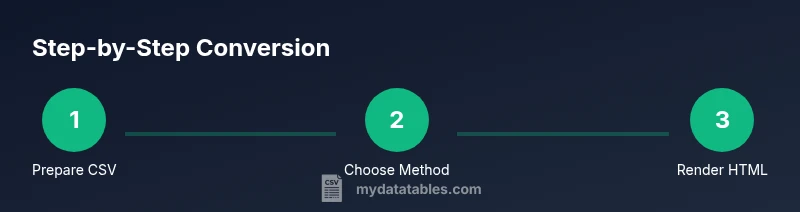
Prepare the source CSV
Check that your CSV uses UTF-8 encoding, has a header row with unique names, and uses a consistent delimiter. Clean up any stray quotes or embedded newlines that could break parsing. Keeping the input clean reduces downstream issues when generating HTML.
Tip: Keep a backup of the original CSV before starting; this protects against accidental data loss. - 2
Choose your conversion method
Decide between a manual HTML approach, a Python-based script (e.g., using pandas to_html), or a lightweight JavaScript rendering approach. Each method has trade-offs for speed, repeatability, and styling control.
Tip: If you plan to update data regularly, favor an automated script over manual HTML. - 3
Set up your environment (if scripting)
If using Python, install Python 3.x and the pandas library. Ensure your environment can access the CSV file path or URL. This step prepares you to load and convert data programmatically.
Tip: Use a virtual environment to keep dependencies isolated. - 4
Load CSV and generate HTML
Parse the CSV to extract headers and rows, then construct an HTML table. For Python, you can leverage pandas to convert to an HTML string; for JavaScript, build DOM elements dynamically.
Tip: Always render thead with th for accessibility and semantic structure. - 5
Add table header and caption
Include a thead section with column headers and a caption describing the table's purpose. This improves accessibility and context for screen readers.
Tip: Use scope attributes on th elements (scope="col"). - 6
Style the table with CSS
Apply a clean, responsive CSS design to improve readability. Focus on typography, borders, and alternating row colors for clarity. Avoid inline styles in favor of classes.
Tip: Consider a responsive layout that shrinks gracefully on mobile devices. - 7
Validate and test the HTML
Open the generated HTML in multiple browsers and validate against the W3C HTML specification. Check for proper rendering of headers, body rows, and caption.
Tip: Use an accessibility checker to ensure the table is usable for assistive technologies. - 8
Integrate or automate
Embed the HTML snippet into your webpage or documentation, or wrap the conversion in a script to automate updates. Document the workflow for future maintenance.
Tip: Comment your code and keep a changelog for data refreshes.
People Also Ask
What is the best method to convert CSV to HTML table?
The best method depends on your needs. For quick results, manual HTML or a basic online tool works well; for repeatable workflows, Python with pandas or JavaScript rendering offers automation and consistency.
For repeatable workflows, automate with Python or JavaScript.
How do I handle large CSV files without breaking the HTML page?
Process data in chunks or stream it, rather than loading the entire file into memory. Consider server-side rendering or pagination to keep the HTML manageable.
Process in chunks or use server-side rendering for large files.
How can I make the HTML table accessible?
Use semantic markup: include a thead with th elements, a tbody for data rows, and a caption describing the table. Add scope attributes and ensure sufficient color contrast.
Make tables accessible with proper semantic markup and clear contrast.
Can I style the HTML table with CSS?
Yes. Apply styles to table, thead, tbody, tr, and td. Use responsive design patterns and avoid inline styles for easier maintenance.
CSS styling is great for readability and responsiveness.
Is there a no-code way to convert CSV to HTML?
There are no-code tools and editors that can generate HTML tables from CSV, but they may offer limited customization and automation.
No-code options exist but may limit advanced styling or automation.
What about delimiters and quoted fields in CSV?
Use a robust CSV parser that correctly handles quotes, embedded delimiters, and multi-line fields. Misparsing can lead to broken tables.
Use a robust CSV parser to handle quotes and delimiters correctly.
Watch Video
Main Points
- Prepare clean CSV input before conversion
- Choose a method aligned with your workflow (manual, Python, or JS)
- Use semantic HTML (thead, tbody, caption) for accessibility
- Test across browsers and devices for consistent rendering