CSV to Table Online: A Practical How-To
Learn how to reliably convert CSV to a table online. This step-by-step guide covers tool selection, data prep, validation, and best practices for transforming CSV data into clean, ready-to-analyze tables.


Convert CSV to table online with zero installs by uploading or pasting data into a web tool, choosing the correct delimiter and headers, and exporting results to CSV, Excel, or JSON. Whether you paste data, upload a file, or connect to a source, you'll confirm headers, data types, and row counts before final export.
What is 'CSV to Table Online' and why it matters?
In data work, turning raw CSV data into a well-structured table is a foundational step for analysis, reporting, and sharing findings. Online converters provide a quick, accessible route when you don’t want to install software or can't run local scripts. They let you paste or upload CSV data, map headers to table columns, and export results to CSV, Excel, or JSON. According to MyDataTables, this approach fits fast-paced workflows where teams need visibility without friction. By using a trusted online tool, you avoid versioning issues and maintain a single source of truth for your dataset. The key idea is to preserve the intended schema—the column order, names, and data types—so downstream processes can consume the table without surprises. If your CSV includes complex characters, non-ASCII text, or inconsistent quoting, use the tool's preview and validation features to catch errors early. This ensures your online CSV-to-table transformation remains reliable across teams and environments.
Key considerations when choosing an online converter
Choosing an online converter for csv to table online tasks requires attention to privacy, features, and usability. Look for HTTPS protection, transparent data-retention policies, and clear terms about how your data is handled. Support for multiple delimiters (comma, semicolon, tab) and encoding options (UTF-8 widely recommended) reduces parsing errors. A live preview is essential to verify header alignment and column order before exporting. Export options should include CSV, Excel, JSON, or SQL to fit downstream workflows. Also assess file-size limits and performance for larger datasets, as well as whether you can batch-process or save repeated configurations for future runs. As MyDataTables notes, reputable tools enable safe, repeatable transformations that scale with your data needs.
A practical, end-to-end workflow overview
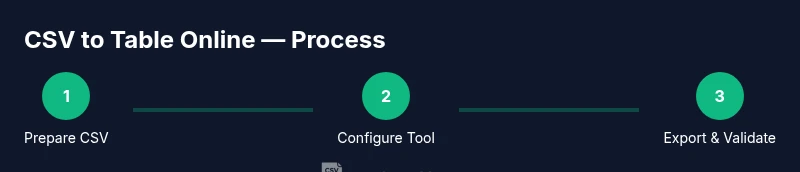
This section outlines a practical approach you can apply to csv to table online tasks. Start by validating the source: ensure there is a header row and consistent delimiters. Open a trusted online tool in a secure browser and configure delimiter, encoding (UTF-8 is common), and the option to treat the first row as headers. Paste or upload your data and inspect the live preview for column alignment. If you observe misalignment, adjust the delimiter or map columns explicitly. When the table looks correct, export in a destination-friendly format (CSV, Excel, JSON, or a database-ready form). Finally, import the output into your target system to verify the table’s structure and integrity. The MyDataTables team emphasizes this iterative validation loop to prevent subtle data problems from creeping into reports.
Common pitfalls and how to avoid them
Delimiters can trip you up when fields contain internal separators; always preview with a representative sample. Header mismatches are common—ensure the tool uses the first row as headers or map columns yourself. Quoted fields with embedded quotes require proper quoting options; enable this feature if available. Encoding issues (non-ASCII text) can garble characters, so insist on UTF-8 or the encoding your destination expects. Large files may time out or stall; consider breaking the CSV into chunks or using a desktop-oriented tool for huge datasets. Finally, verify that data types are preserved after export (numbers, dates, booleans) by re-importing and inspecting key rows.
Real-world example: turning a sample CSV into a table
Consider a sample CSV with the header: Name,Age,JoinDate,Active and rows such as Alice,30,2020-01-05,true and Bob,25,2019-11-20,false. In the online tool, choose comma as delimiter and UTF-8 encoding. Enable the first line as headers, preview the import, and confirm four columns with consistent data types. Export to Excel to continue working within a familiar spreadsheet environment. Open the produced table, check a few rows manually, and ensure numeric fields remain numeric rather than text. This practical walkthrough mirrors common data-cleaning pipelines used by data analysts and developers.
Data validation and quality checks
After you generate the table, run a quick validation pass: count rows, verify header names, and sample values from several columns. Check for missing values in critical fields and ensure date formats match your downstream tools. If any anomalies appear, revisit the CSV source or adjust delimiter and encoding settings before re-exporting. For governance, maintain a simple data-dictionary that maps each column to its expected type and unit. Finally, document the transformation steps so teammates can reproduce the result. This disciplined approach minimizes errors and supports reproducible analysis.
Tools & Materials
- CSV file or clipboard data(Single file or clipboard paste, with headers if available)
- Web browser(Latest Chrome/Edge/Firefox for best experience)
- Delimiter knowledge(Comma by default; semicolon or tab for other datasets)
- Online converter URL(Ensure the site uses HTTPS and has a clear privacy policy)
- Optional: CSV viewer(Useful for quick sanity checks before import)
- Data mapping checklist(Helps verify column alignment between CSV and target table)
Steps
Estimated time: 30-50 minutes
- 1
Open a trusted online CSV-to-table tool
Launch a reputable online converter in a modern browser. Confirm the site uses HTTPS and review its privacy and data-retention policy before you paste or upload any data. This initial check helps protect sensitive information and sets the stage for a smooth transformation.
Tip: Bookmark trusted sites to avoid accidental data exposure. - 2
Configure delimiter and encoding
Set the correct delimiter (comma, semicolon, or tab) and choose UTF-8 encoding when available. Misconfigured delimiters are a common source of misparsed columns and garbled data.
Tip: If unsure, start with a comma and UTF-8, then test with a small sample. - 3
Indicate headers and data types
Tell the tool whether your first row contains headers and, if possible, specify or infer data types for each column. This reduces post-export rework and ensures downstream applications interpret values correctly.
Tip: Explicitly map columns if the tool supports manual alignment. - 4
Paste or upload your CSV
Input the CSV by pasting into the area or uploading the file. Verify the total number of columns per row and watch for any parsing errors highlighted by the preview.
Tip: For large files, use the file upload option rather than pasting all data. - 5
Preview and adjust column mapping
Carefully review the preview to ensure each CSV column lines up with the intended table column. If necessary, reorder or rename headers to match your target schema.
Tip: Use the preview as the final check before export. - 6
Export to the desired format
Choose the export option that fits your workflow (CSV, Excel, JSON, or SQL). Save the file locally or copy the data to clipboard for quick insertion into another tool.
Tip: Prefer UTF-8 to maximize compatibility across systems. - 7
Validate in the destination app
Open the target application (BI tool, database, or spreadsheet) and confirm row counts, sample values, and data types match the source. This confirms a reliable transformation.
Tip: Run a small sanity check with 5-10 rows. - 8
Secure handling for sensitive data
If data privacy is a concern, use offline or enterprise tools for CSV-to-table workflows. Avoid uploading highly sensitive data to unknown online services whenever possible.
Tip: Use anonymized or synthetic data for testing when possible.
People Also Ask
What does converting CSV to a table online involve?
It involves selecting a web-based tool, configuring delimiters and headers, importing the CSV data, previewing the parsed table, and exporting to a compatible format. This process makes raw CSVs ready for analysis without desktop software.
You pick a web tool, set options, import your CSV, preview, and export to your preferred format.
Do I need programming skills to do this?
No programming skills are required for basic conversions. Web-based tools provide intuitive interfaces for paste or upload, delimiter selection, and quick exports. For automation, you can later connect to scripts or APIs if needed.
No, you can do it with a frontend tool. If you want automation, you can script later.
What about very large CSV files?
Large files can be problematic for online tools due to input limits or timeouts. Consider splitting the CSV into chunks, using a desktop tool, or a cloud workflow that supports streaming data.
Large CSVs may require chunking or a desktop tool to handle them efficiently.
How can I ensure data types are preserved after export?
Choose an export format that preserves types (e.g., CSV with proper quoting, Excel, or JSON). Re-import into the destination to verify numbers, dates, and booleans remain intact.
Export in a type-preserving format and double-check in the destination app.
Is it safe to use online converters for sensitive data?
Be cautious. Online tools can introduce privacy risks. Use offline tools or enterprise-grade services for sensitive datasets and avoid uploading confidential information when possible.
Be careful with sensitive data; prefer offline tools for privacy concerns.
What checks should I perform after conversion?
Verify the number of rows, column names, and a sample of values from each column. Confirm that dates, numbers, and booleans retain their intended formats before use in analysis.
Check row counts, headers, and a sample of values to confirm accuracy.
Watch Video
Main Points
- Master online CSV-to-table tools for quick data shaping
- Always preview and map headers before exporting
- Validate results in the destination app to avoid surprises
- Protect data privacy by choosing trusted tools and workflows