gz to csv: A Practical Guide to Decompressing and Converting gzip CSV Files
Learn how to convert gz to csv by decompressing gzip files to CSV data. Explore Linux, Windows, and Python workflows with tips on encoding and handling large files for reliable data processing.


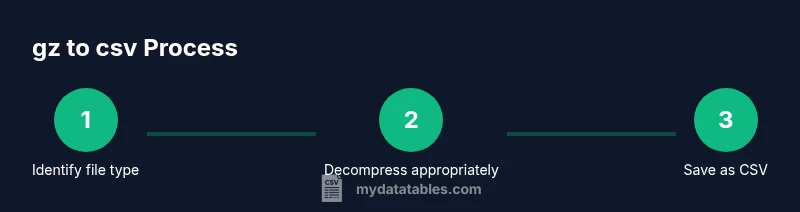
You will decompress a gz file containing CSV data and save it as a plain CSV. Typical workflows include using gunzip or zcat on Linux, 7-zip or PowerShell on Windows, and Python for streaming. Make sure the gz file actually contains a CSV or tar.gz that needs extraction. This quick approach helps you start data processing immediately.
What gz to csv means and why it matters
gz to csv refers to the process of taking a gzip-compressed file that contains CSV data and producing a usable CSV file. Many data workflows involve receiving compressed data; decompressing it is the first step to analysis. According to MyDataTables, gz to csv workflows save time and bandwidth by enabling quick transfers and immediate processing. Understanding compression helps data professionals minimize I/O and storage costs while keeping data integrity intact. In practical terms, you often start with a file named something.csv.gz, decompress it, and then load the resulting CSV into your analysis tool of choice. The key is to know whether you are dealing with a simple .gz file or a tarball like .tar.gz, and to select the decompression method that preserves the CSV structure, headers, and delimiters.
Decompression workflows on different platforms
On Linux and macOS, gunzip or gzip -d can decompress a single gz file to a CSV: gunzip -c data.csv.gz > data.csv. If you run tar -xzf data.tar.gz, you will need to locate the CSV inside the extracted files. Windows users can rely on 7-zip or the built-in Windows subsystem for Linux (WSL) to perform the same tasks. In many corporate environments, scripting these commands in a shell script or PowerShell one-liner makes gz to csv conversion repeatable and auditable. For large or streaming pipelines, Python users can leverage the gzip module or set read_csv compression='gzip' to read directly from a .gz source without manual decompression. MyDataTables notes that the right choice depends on your environment, file size, and downstream tooling.
When gz contains a tar archive
Sometimes the .gz file is actually a tarball compressed with gzip, i.e., data.tar.gz. In that case you must first extract the archive with tar -xzf data.tar.gz, then identify the CSV file(s) inside the extracted tree. Use tar -tf data.tar.gz to list contents without extracting. After locating the CSV, you can either decompress the single CSV with gunzip or extract the tar and work with the CSV directly. This approach avoids unnecessary intermediate files and preserves data integrity.
Converting to CSV: direct decompression vs streaming
Direct decompression writes the CSV to disk and is simple for small to medium files: gunzip -c data.csv.gz > data.csv will produce a ready-to-use CSV. For very large CSVs, streaming can reduce disk usage and improve performance: you can read chunks from gzip and process them in memory, or pipe the decompressed stream into a writer. In Python, for example, pandas.read_csv supports compression='gzip' and can process data in chunks with chunksize. This flexibility matters when your gz to csv workflow feeds into a data pipeline or database importer.
Handling encoding, delimiters, and edge cases
CSV files come in many flavors: different delimiters (comma, semicolon, tab), various encodings (UTF-8, UTF-16, ISO-8859-1), and occasional byte order marks (BOM). When decompressing, ensure the resulting file uses UTF-8 by converting if needed (iconv or pandas). If the CSV uses a non-standard delimiter, specify it in your reader (for pandas, read_csv delimiter=','). Watch for header presence, quoting rules, and line endings. Tests with a quick read using a small sample will catch formatting mistakes before you scale.
Performance and reliability considerations for large files
Large gz to csv conversions can exhaust memory if not handled carefully. Prefer streaming reads, batch processing, and temporary storage management. Validate data in smaller chunks, and implement checksums or row counts to verify integrity after decompression. Automate retries and log any errors to support traceability, especially in production pipelines. By combining proper decompression, encoding handling, and validation, you build a robust, scalable gz to csv workflow.
Tools & Materials
- Command-line terminal(Linux/macOS Terminal or Windows Subsystem for Linux (WSL))
- gunzip (or gzip -d)(Decompress a single gz to CSV)
- tar(Use if the gz file is a tarball (tar.gz))
- 7-zip (Windows)(Alternative decompression tool for Windows)
- Python 3.x + pandas(Read CSV from gzip directly with read_csv(compression='gzip'))
- CSV viewer/editor(Inspect the resulting CSV for a quick sanity check)
Steps
Estimated time: 30-60 minutes
- 1
Identify the gz file type
Determine whether the file is a simple .gz containing a single CSV or a tarball like .tar.gz. Use the file command or list the archive contents to inspect. This step prevents unnecessary decompression mistakes and guides the subsequent method.
Tip: Pro tip: run tar -tf to preview contents without extracting. - 2
Decompress a simple gz to CSV
If you have a plain .gz file, decompress it with gunzip -c data.csv.gz > data.csv. This creates a CSV file in your current directory that you can immediately load into your analytics tool.
Tip: Pro tip: keep the original .gz as an audit trail or backup. - 3
Handle tar.gz archives
If the gzip is a tarball, extract with tar -xzf data.tar.gz, then locate the CSV inside the extracted folder. Use tar -tf data.tar.gz to list contents before extracting to avoid surprises.
Tip: Pro tip: extract only the needed CSV when possible to minimize disk usage. - 4
Choose direct decompression vs streaming
For small files, direct decompression is simplest. For large files, consider streaming or chunked reads to avoid excessive disk I/O and memory usage. In Python, you can read with compression='gzip' and process in chunks.
Tip: Pro tip: use chunksize in pandas.read_csv to control memory. - 5
Validate and clean the resulting CSV
Open the resulting CSV to verify header presence, delimiter, and encoding. If needed, convert to UTF-8 and adjust the delimiter using a quick preprocessing pass. This reduces downstream errors in analytics workflows.
Tip: Pro tip: run a quick head -n 5 or a small read to confirm structure. - 6
Automate and test
Wrap the steps in a script or workflow tool, test with a representative sample, and log outcomes for traceability. Include error handling and exit codes for reliable deployment.
Tip: Pro tip: run end-to-end tests on representative datasets before scaling up.
People Also Ask
What is gz and how does it differ from tar.gz?
gz is a single-file compression format. tar.gz is a tar archive compressed with gzip, which can contain multiple files. Understanding the difference helps you choose the correct extraction approach.
Gz is a single compressed file, while tar.gz is a compressed archive that may contain many files.
Do I need to decompress before using CSV?
If the file is gzipped, you must decompress or stream it to access the CSV data. Some tools can read gzip directly, but most workflows require a CSV file.
Yes, decompress or stream to access the CSV data before usage.
What if the CSV is not UTF-8 encoded?
CSV files come in many encodings. If you encounter non-UTF-8 data, convert to UTF-8 during read or preprocessing to avoid misread characters.
If encoding isn’t UTF-8, convert it during read or preprocessing.
Can Python read gz directly without manual decompression?
Yes. Pandas read_csv supports compression='gzip' to read from a gzip stream directly. This avoids intermediate disk writes for large datasets.
Yes, you can read gz directly in Python using read_csv with compression='gzip'.
How do I decompress gz to csv on Windows?
Use 7-zip or WSL to run Linux commands. You can decompress with gunzip in WSL or use 7-zip to extract the CSV file directly.
On Windows, use 7-zip or WSL to decompress to CSV.
What are risks when decompressing large gz files?
Large decompressions can exhaust disk I/O and memory. Plan for chunked processing, streaming, and adequate temporary storage, plus proper logging.
Large files can strain memory and I/O; use streaming and chunks.
Watch Video
Main Points
- Decompress gz files to access the CSV data.
- Identify whether the archive is a simple gz or a tar.gz.
- Validate the encoding and delimiter before processing.
- Stream large files to avoid disk I/O spikes.
- Test the resulting CSV before advancing to analytics.