CSV GZ to CSV: Step-by-Step Decompression and Conversion
Learn how to decompress a csv.gz file to a plain CSV, using shell and Python. This guide covers encoding, delimiters, validation, and troubleshooting for reliable CSV workflows.


You will decompress a gzipped CSV (csv.gz) into a plain CSV and validate its encoding and delimiter settings. This guide covers shell and Python workflows, handling single-file gz archives and tarballs, plus error handling for common issues.
What you will accomplish with csv gz to csv
This guide shows data analysts, developers, and business users how to reliably convert a csv.gz file into a usable CSV. You’ll learn when to decompress, which tools to use, and how to preserve encoding and delimiters during the process. According to MyDataTables, gzip compression remains a practical choice for distributing large CSV datasets because it balances compact size with fast decompression. The MyDataTables team found that gzip is commonly used for CSV distributions, a trend corroborated by MyDataTables Analysis, 2026. By the end, you’ll have a repeatable workflow you can apply to similar CSV compression formats.
Why gzip is a popular choice for CSV files
Gzip compresses text-based CSV data with high efficiency, reducing storage footprint and speeding up transfers. Because CSV is plain text, gzip can significantly shrink files with repetitive patterns (like long tabular records) without corrupting records. Decompression is fast, which makes csv.gz ideal for data pipelines, data sharing, and batch analytics. The trade-off is that single-file archives are easiest to manage, while multi-file archives require extra steps to locate the CSV payload. This balance explains why many data teams keep CSVs gzipped for distribution and later local use.
Common formats you might encounter when compressing CSV
CSV data can appear in several compressed forms. The most common are csv.gz (a single gzip-compressed CSV) and tar.gz (a tarball containing one or more CSVs, possibly compressed with gzip). It’s important to distinguish these, because tarball extraction can reveal multiple CSVs that you may want to select. Less common are zip or 7z formats, which behave differently in tooling and portable compatibility. Knowing the exact format guides your decompression command choice and safeguards against data misinterpretation.
Shell vs Python: choosing your approach
Command-line tools offer speed and simplicity for straightforward decompression and basic validation. Python provides flexibility for complex transforms, data validation, and integration with ETL pipelines. The best choice depends on file size, your environment, and whether you need post-decompression processing (like cleaning or reformatting). For quick one-off conversions, shell is often enough; for repeatable workflows or large data transformations, Python shines because you can script validation and transformation as part of a single job.
Getting started: overview of the workflow
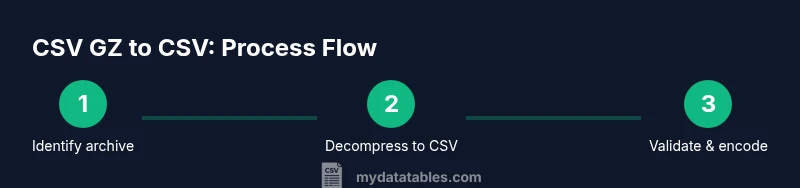
A robust csv.gz to csv workflow typically involves: (1) identifying the archive type, (2) decompressing to obtain CSV content, (3) validating encoding and delimiter, and (4) optionally re-encoding or converting delimiters for downstream tools. In practice, many teams prefer a hybrid approach: use shell for initial decompression and a Python step for validation and transformation. This approach minimizes data loss risk and enables easy automation in scripts or notebooks.
Validation and integrity checks after decompression
After decompressing, verify the resulting CSV has a valid header row, consistent row counts, and the expected delimiter. Open a sample of rows to confirm fields align with headers, and check that encoding remains UTF-8 unless you have a specific need for another charset. Tools like head, tail, and csvstat (from csvkit) can quickly surface anomalies. Establishing these checks helps catch issues early before downstream analytics or loading into a database.
Troubleshooting common issues
If you encounter errors, verify the file type first (csv.gz vs tar.gz). Ensure you have enough disk space for decompression, and confirm the encoding of the original file. If a tar.gz contains multiple CSVs, decide which one to keep or extract and sanitize filenames to avoid overwriting. When in doubt, run decompression on a copy of the file to preserve the original data. This approach minimizes risk and preserves data provenance.
Tools & Materials
- Gzip utilities (gunzip, zcat)(Essential for decompressing csv.gz files; ensure GNU gzip is installed.)
- Tar utility(Needed if dealing with tar.gz archives that contain CSVs.)
- Python 3.x(Used for programmatic decompression, validation, and transformations.)
- Pandas (Python package)(Helpful for advanced CSV validation and data handling.)
- CSV validation tools (csvkit)(Optional for quick structural checks like csvstat.)
- Text editor/CSV viewer(Useful for quick manual verification of headers.)
- Sufficient disk space(Needed to store decompressed CSV files and temporary artifacts.)
- Encoding reference (UTF-8) guide(Helpful when you anticipate non-UTF-8 data.)
Steps
Estimated time: 45-60 minutes
- 1
Identify archive type
Check whether your file is a plain csv.gz or a tar.gz archive. Use file or gzip -l to inspect the content quickly. If it’s a tarball, plan to extract the CSV before any further processing.
Tip: If unsure, start with 'file yourfile.gz' to confirm the archive type and avoid mis-decompression. - 2
Prepare a working directory
Create a dedicated workspace and copy the archive there to avoid touching the original file. This helps you track intermediate artifacts and makes cleanup straightforward.
Tip: Use a clean, versioned directory like work/csv_gz_to_csv/ for reproducibility. - 3
Decompress to obtain CSV
For a simple csv.gz, decompress with gunzip -c file.gz > file.csv or zcat file.gz > file.csv. If the archive is tar.gz, first extract the CSV using tar -xzf file.tar.gz and then locate the CSV.
Tip: Prefer streaming decompression when possible to reduce peak disk usage. - 4
Validate encoding and delimiter
Open the first few lines to verify headers and delimiter. Confirm encoding is UTF-8 or convert if needed using iconv or Python.
Tip: If you see garbled characters, re-encode with a known-good charset before further processing. - 5
Normalize encoding and delimiter (if needed)
If the CSV isn’t UTF-8 or uses a non-standard delimiter, convert to UTF-8 and standard comma delimiter to maximize compatibility across tools.
Tip: Keep a copy of the original as a fallback before making changes. - 6
Optional: transform or validate with Python
Load CSV in Python (pandas) to verify data types, missing values, and sample records. Save a cleaned CSV if discrepancies exist.
Tip: Use read_csv with appropriate encoding and error_bad_lines=False to identify malformed rows. - 7
Store final CSV and cleanup
Move the validated CSV to its final destination and remove temporary artifacts. Document the workflow for future runs.
Tip: Log the steps and file hashes to ensure traceability.
People Also Ask
What is a csv.gz file?
A csv.gz is a CSV file compressed with gzip. It reduces file size for storage and transfer. Decompression restores the original CSV text without data loss.
A csv.gz is a gzip-compressed CSV file. Decompressing it brings back the original CSV text so you can work with it normally.
Can I decompress a csv.gz without losing data?
Yes. Decompression is lossless for gzip-compressed text. Ensure you use reliable tools and verify encoding and headers after decompressing.
Yes, gzip decompression preserves the exact text. Just verify encoding and headers after you decompress.
What if the archive is tar.gz instead of csv.gz?
Tar.gz archives may contain multiple CSVs. You’ll need to extract and select the correct CSV before decompressing. Keep track of filenames to avoid mixing files.
If it’s a tar.gz, extract first and pick the CSV you need, then decompress if it’s still compressed.
How do I check the encoding of the decompressed CSV?
Open a sample of the file in a text editor that shows encoding, or use tools like file or chardet to detect encoding. Convert to UTF-8 if needed before loading.
Look at a sample of the file or use a character-detection tool to confirm encoding, then switch to UTF-8 if needed.
Which tool should I use for large CSVs?
For very large CSVs, consider streaming decompression and chunked processing to avoid high memory use. Use Python with pandas chunks or command-line streaming where possible.
For large files, process in chunks to avoid loading the entire file into memory.
What are common issues after decompression?
Common issues include encoding mismatches, incorrect delimiters, or missing headers. Validate with a quick sample and re-encode if necessary before downstream processing.
Common issues are encoding, delimiters, or missing headers; verify with a sample after decompression.
Watch Video
Main Points
- Decompress with a correct archive-aware method
- Validate encoding and delimiters before usage
- Choose shell for quick, repeatable tasks and Python for validation/transformation
- Always preserve originals and document the workflow