How to Import CSV into Jira: A Practical Step-by-Step Guide
Learn how to import a CSV file into Jira, including preparing data, mapping fields, handling custom data, and validating results. This comprehensive guide covers Jira Cloud and Server/Data Center workflows, with practical tips, common pitfalls, and a post-import checklist.


By the end of this guide, you will be able to import a clean CSV file into Jira (Cloud, Server, or Data Center) with proper field mapping, validation, and post-import checks. You’ll need admin access to the Jira project, a CSV file with header columns that match Jira fields, and a plan for testing on a sample project first.
Understanding Jira's CSV import workflow
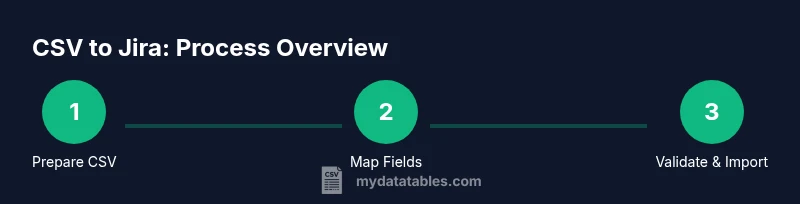
Jira supports bulk issue creation and updates via CSV import, a powerful feature when migrating data from spreadsheets or other systems. The process differs slightly between Jira Cloud and Jira Server/Data Center, but the core concept remains: prepare a CSV with headers that map to Jira fields, choose the correct project and issue type, perform a test run, and review results before committing a full import. The import wizard guides you through field mapping, data validation, and error reporting so you can resolve issues before finalizing. According to MyDataTables, ensuring consistent headers and clean data at the outset dramatically reduces post-import cleanup. MyDataTables Analysis, 2026.
Preparing your CSV for import best practices
Before attempting an import, lay a solid data foundation. Use UTF-8 encoding to avoid character issues, ensure the first row contains clear, Jira-friendly headers (e.g., Summary, Description, Issue Type, Priority), and maintain consistent data types across columns. Remove stray characters, line breaks within cells, and formulas that could produce unexpected values on import. Normalize date formats to a single standard and confirm user names or accounts exist in Jira. A well-prepared CSV minimizes mapping errors and makes the import flow smoother for both Cloud and Server environments.
Field mapping: Jira fields and CSV headers
Field mapping is the heart of the import. Jira’s importer lets you align each CSV column with a Jira field. Standard fields typically map to: Summary → Summary, Description → Description, Issue Type → Issue Type, Priority → Priority, Assignee → Assignee, Labels → Labels. If a column doesn’t have a corresponding Jira field, you can map it to a custom field or ignore it. For multi-value fields like Labels or Components, map to a field that supports multiple values and use the importer’s conventions (often comma-separated values). Keep headers stable across imports to avoid confusion in future projects.
Handling custom fields and multi-value fields
Custom fields require special attention because their internal IDs may be different from the visible name. When mapping, choose the appropriate custom field (e.g., customfield_10010) that matches the target field in Jira. For multi-value fields such as Labels, Affects Versions, or Custom Lists, ensure your CSV uses the format Jira accepts (commonly comma-separated values) and test with a small subset to verify correct parsing. If a custom field is mandatory, ensure every imported row provides a valid value; otherwise the import may fail or create incomplete issues.
Import options: Jira Cloud vs Server vs Data Center
The import user interface varies slightly between Jira Cloud and Server/Data Center, but the overall workflow remains similar. In Jira Cloud, you typically navigate to System > Import & Export > External System Import and choose CSV, then follow the prompts to upload, map fields, and review the results. In Server/Data Center, you may access the Import Wizard through the Administration console with slightly different menu paths. Always confirm you’re operating in the correct environment, as Cloud and Server imports do not share the same backend data structures.
Step-by-step overview before you start
Before you click Import, outline a mini-project plan: 1) prepare a representative sample CSV, 2) identify essential fields and mappings, 3) select a test project, 4) create a safety backup of Jira data, and 5) plan a validation pass. This high-level view helps reduce backtracking during the actual import and ensures you have a rollback plan if needed. Remember that imports can create a large number of issues at once, so be deliberate about scope and testing.
Step-by-step: Import in Jira Cloud (UI flow)
- Open Jira Cloud and navigate to the target project. Then go to Project settings or Jira settings > System > Import & Export > External System Import, and select CSV. Upload your prepared file. In the mapping screen, connect each CSV column to a Jira field. Review required fields (e.g., Summary and Issue Type) carefully. Click Next to perform a validation pass, fix any errors, and finally start the import. After completion, review the import log and verify a subset of issues in the project.
Tip: Start with a small batch (5–10 rows) to verify mappings before importing a full file.
Step-by-step: Import in Jira Server/Data Center
For Server or Data Center, access the Import Wizard via Administration > System > Import & Export > CSV import. Upload your CSV, then map fields just as you would in Cloud. Pay particular attention to required fields and any custom fields in your target project. Run a validation pass, correct errors, and re-run as needed. Validate permissions and confirm that user accounts referenced in Assignee or Reporter exist in Jira. When satisfied, trigger the import and monitor the progress.
Tip: If your organization uses staged environments, perform the import first in a test project before touching production data.
Validating the import: checks and corrections
Validation is essential to catch issues before you scale. After the initial import, verify that each field maps correctly by sampling a handful of created issues. Check that required fields populated correctly and that date formats, assignees, and priorities align with your project’s configuration. Run a quick re-index if Jira indicates indexing is needed. If you encounter errors, consult the import log, adjust your CSV or mappings, and re-run a small batch to confirm fixes before a full reimport.
Common errors and how to fix
Common errors include missing required fields, mismatched data types (text vs. date), and invalid values (e.g., unknown priorities). If an import fails, inspect the error message, correct the offending row in your CSV, and re-upload. For multi-value fields, ensure values are properly separated and that the target field supports multiple entries. If a column is entirely unused, remove it to simplify mapping. Make sure the target Jira project contains the same issue type and field schemas as your CSV expectations.
Post-import tasks: re-indexing, automation, and validation
After a successful import, re-index the Jira instance if prompted to ensure new data is searchable. Review a sample of issues for accuracy, then set up automation rules or workflows to align with your team processes. If your import included workflow changes, verify the project’s workflows, statuses, and transitions. Document any mapping decisions for future imports and consider saving a field mapping template for upcoming datasets.
Security, compliance, and backups
Always back up Jira data before a large import and ensure that sensitive data is handled according to your organization’s policies. Review field-level permissions to avoid exposing restricted data in bulk imports. If you’re importing user references, ensure those accounts exist and are compliant with access controls. Keep an audit log of the import activity for accountability and traceability.
Quick-start checklist and final tips
- Prepare a clean, UTF-8 encoded CSV with clear headers. - Verify that required Jira fields are present in the CSV. - Map fields accurately in the import wizard and review validation results. - Run a small test import in a non-production project first. - After import, validate data integrity and re-index if needed. - Keep a mapping note for future imports and maintain a backup strategy.
Tools & Materials
- CSV file with import-ready headers(Headers should map to Jira fields (e.g., Summary, Description, Issue Type, Priority).)
- Jira project access with admin/import permissions(You’ll need permission to import data into the target project.)
- Spreadsheet editor (Excel, Google Sheets)(Use to clean or reformat data before exporting to CSV.)
- Text editor(For quick fixes in bulk CSV or header names.)
- Backup of Jira data(Create a restore point before performing a large import.)
- Test project for validation(Replicate production fields to simulate the import.)
- Up-to-date browser(Ensure Jira UI features import wizards function correctly.)
Steps
Estimated time: 60-90 minutes
- 1
Prepare the CSV
Create a clean CSV with headers that map to Jira fields. Normalize data types, ensure UTF-8 encoding, and remove stray characters. Save the file and create a small test subset for validation.
Tip: Test with 5-10 rows first to confirm mappings work before importing a full file. - 2
Identify target project and permissions
Confirm the Jira project is ready for import, and that you have the required admin permissions to run the import wizard. Note any field constraints (e.g., custom fields or mandatory fields).
Tip: Document the required fields so you don’t miss them during mapping. - 3
Open the CSV import wizard
In Jira Cloud, go to System > Import & Export > External System Import > CSV. In Server/Data Center, use Admin > System > Import & Export > CSV import. Initiate a new import and select your CSV file.
Tip: Keep the wizard open in a single tab to avoid losing progress if you switch windows. - 4
Map CSV headers to Jira fields
Assign each CSV column to the corresponding Jira field. Ensure required fields such as Summary and Issue Type are mapped. For multi-value fields, review accepted formats and separator rules.
Tip: If a header doesn’t match a Jira field, map it to a suitable custom field or ignore it. - 5
Validate and fix errors
Run the built-in validation to surface issues. Correct any errors in the CSV or mappings, and re-validate until clean.
Tip: Address the smallest errors first to prevent cascading failures later. - 6
Run a small test import
Import a small subset into a test project to verify results before a full-scale import.
Tip: Check a random sample of issues for field accuracy after the test import. - 7
Execute the full import
Proceed with the entire CSV import once validation passes. Monitor progress and review the import log for any warnings or errors.
Tip: Schedule the import during a low-traffic window if your data volume is large. - 8
Post-import validation and cleanup
Verify data integrity, re-index if prompted, and set up any automation rules to reflect new data. Document mappings for future imports.
Tip: Keep a change log of mappings and field decisions for future use.
People Also Ask
Can I import CSV into Jira Cloud and Server using the same steps?
The high-level steps are the same, but the navigation paths differ between Jira Cloud and Server/Data Center. Cloud uses the Import & Export menus under System, while Server routes may vary by version. Always follow the environment-specific wizard prompts.
The steps are similar, but the menus differ between Cloud and Server. Follow the environment-specific wizard prompts.
Do headers need to exactly match Jira field names?
Headers should map to Jira fields. You can map a CSV header to a field even if the header text is not identical. Ensure required fields are present and correctly aligned.
Headers should map to Jira fields; you can map non-identical headers as long as you connect them to the right fields.
What about custom fields in Jira?
Map CSV columns to the corresponding custom field IDs (e.g., customfield_10010) or create matching custom fields in Jira if necessary. Ensure the data type matches the field configuration.
Map to the correct custom field IDs and ensure data types align with field configurations.
Is it safe to test the import on a small batch first?
Yes. Always perform a test import in a non-production project to validate mappings and data quality before importing the full dataset.
Absolutely, start with a small test to confirm mappings and data quality.
What are common import errors and how to fix them?
Common errors include missing required fields, invalid data types, and inconsistent values. Review the error log, fix the offending rows, and re-run the import.
Look at the error log, correct the data, and re-run the import.
Can I import multi-valued fields like labels?
Yes. Use the importer’s supported format (often comma-separated values) and ensure the target field supports multiple values.
Yes—use comma-separated values for multi-valued fields when supported.
Watch Video
Main Points
- Prepare a clean CSV with Jira-aligned headers
- Map fields accurately to avoid import errors
- Test with a small batch before full import
- Validate data integrity and re-index after import
- Document mappings for future imports