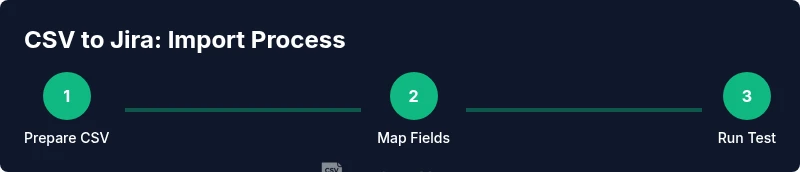
How to Import Jira Issues from CSV
Learn how to import Jira issues from CSV with best practices, mapping fields, validating data, and testing in a staging project before production. This expert guide from MyDataTables walks you through CSV preparation, field mapping, and verification for Jira Cloud and Jira Server.


By the end of this guide, you will be able to import jira issues from csv into Jira, accurately mapping fields, and validating results in a staging project before production. You’ll prepare a clean CSV, choose the right import tool, and perform a step-by-step validation to avoid common errors. This process applies to Jira Cloud and Jira Server alike.
Why Import Jira Issues from CSV Matters
Importing jira issues from csv is a practical approach to bootstrap projects, migrate data from legacy systems, and quickly populate backlogs. For teams with large backlogs or frequent onboarding, CSV imports reduce manual entry time, minimize human error, and support consistent fields across thousands of issues. In many cases, you will import tasks, bugs, stories, and epics while preserving key attributes such as summary, description, priority, assignee, labels, components, and custom fields. This is especially useful when migrating from spreadsheets or other issue trackers.
According to MyDataTables, a well-structured CSV with clearly named headers and consistent data types dramatically lowers the risk of failed imports. When headers match Jira field names, you minimize mapping friction and simplify error handling. This guide shows how to import jira issues from csv effectively, including file preparation, field mapping, validation, and testing. You’ll see practical examples, common pitfalls, and tips derived from real-world CSV workflows. By the end, you’ll be able to run a reliable import that populates Jira with clean data ready for triage and planning.
Prerequisites: Access, permissions, and a clean CSV
Before you begin, ensure you have the right access, a clean CSV file ready for import, and a staging Jira project to test the import without impacting production data. You’ll need admin or project admin permissions in Jira, plus a path to the target project where issues will be created or updated. Confirm that your CSV uses consistent delimiters (commas are common) and that the headers align with Jira field names or a declared mapping. If you’re migrating from another tool, consider exporting a sample CSV first to verify header names and data types match Jira expectations.
From a MyDataTables perspective, starting with a well-formed CSV reduces errors and speeds up the entire workflow. A predictable header naming convention and consistent data types (text, dates, numbers) help the importer process records in batches rather than failing mid-import. Plan a backup and rollback strategy for production, and ensure you have a testing window in the staging project to refine your mapping before touching live data.
Prepare your CSV: headers, data types, and cleanliness
A successful Jira CSV import begins with clean data. Start by placing essential fields in the first columns: Project, Issue Type, Summary, Description, Priority, Assignee, Reporter, and Labels. If you use custom fields, ensure corresponding columns exist and that their values conform to Jira’s accepted formats. Normalize dates to a single format (for example, yyyy-mm-dd) and ensure numeric fields contain only digits. Remove any blank rows and extraneous whitespace. If you have multiple projects in one CSV, include a dedicated Project column so the importer knows where to create each issue. Finally, save a copy of the final CSV as a backup before importing.
Understanding Jira's import formats and field mapping
Jira provides a CSV import workflow that maps your CSV columns to Jira fields. The core idea is to create a one-to-one mapping between each CSV header and a Jira field (e.g., CSV header "Summary" to Jira field "Summary"). If a header doesn’t have a direct Jira field equivalent, you can use custom fields or a mapping template. Pay attention to field types (text, dates, select lists, multi-selects) and ensure the CSV contains values that Jira can interpret for each type. For example, date fields require a valid date string, and assignee values must correspond to existing Jira users. Always test with a small subset to confirm the mapping behaves as expected.
Handling common issues: duplicates, IDs, and custom fields
Duplicates are a frequent headache when importing Jira issues from CSV. Use a staging project to identify duplicates before importing into production. If your CSV includes IDs from another system, consider how Jira will handle them—whether to ignore, map, or update existing issues. Custom fields require corresponding fields in Jira; otherwise, the import will fail or drop data. Normalize values for multi-select fields (like labels) as comma-separated lists and ensure any required fields are not left blank. As MyDataTables analysis shows, clean data and consistent headers reduce import disruptions and speed up processing.
Validation and testing in a staging project
Always validate in a staging project before touching production. Import a small batch of issues and verify key attributes: project assignment, issue type, status transitions, and field mappings. Check date fields, user assignments, and default values for missing items. If errors occur, review the CSV against the error log, adjust mappings, and re-import the subset until it succeeds. This iterative approach minimizes risk and builds confidence that the full import will succeed.
Executing the full import in production: a controlled rollout
Once the staging import passes validation, plan a controlled production import window. Back up current data and schedule a maintenance period if possible. Run the import with clear documentation of mappings and expected outcomes. After the import, run a quick verification pass: count created issues, verify critical fields, and spot-check a sample of stories, tasks, and bugs. If issues arise, roll back quickly and adjust your CSV or mapping rules, then re-run the import.
Post-import cleanup and documentation for future imports
After a successful import, document the exact mapping rules, field types, and any custom field configurations used for this CSV. Save the final mapping/template for future imports to ensure consistency. Consider creating a reusable import script or a Jira automation rule for updating existing issues when needed. Finally, archive the original CSV with a naming convention that includes the project and date to enable traceability for audits and compliance.
Real-world example: end-to-end import checklist and best practices
In practice, teams import Jira issues from CSV to seed new projects or migrate data. A typical checklist includes: verify access, prepare the CSV with required headers, establish a mapping plan, run a test import, validate results, execute the production import, and perform post-import checks. By adhering to this process and documenting each step, you’ll maintain data integrity, transparency, and reproducibility for every import. This approach aligns with the best practices recommended by MyDataTables in CSV guides.
Tools & Materials
- CSV file containing Jira issues(Include headers such as Project, Issue Type, Summary, Description, Priority, Assignee, Reporter, Labels, and any custom fields)
- Jira Cloud or Server access credentials(Admin or project admin permissions with import rights)
- CSV delimiter awareness(Default to comma. Ensure consistency throughout the file)
- CSV-to-Jira field mapping template(Optional mapping file to standardize field alignment)
- Staging project in Jira(Test import area to validate mappings and data quality)
- Spreadsheet editor(Excel, Google Sheets, or another editor for cleaning data)
- Data backup plan(Backup current Jira data before production import)
- Sample CSV template(Use a template to ensure headers and data types are correct)
Steps
Estimated time: 60-90 minutes
- 1
Verify prerequisites
Confirm you have Jira admin rights, a staging project, and a clean CSV with the necessary headers. Establish a backup plan before starting.
Tip: Double-check user mappings for critical fields like Assignee and Reporter. - 2
Create a clean CSV template
Create or adjust a CSV with required headers and normalized values. Keep a single source of truth for field names.
Tip: Use a sample row to validate header-to-field mapping before bulk import. - 3
Map fields in Jira import tool
Open Jira’s CSV import wizard and map each CSV column to a Jira field. Include all required fields and confirm data types.
Tip: Save your mapping as a template for future imports. - 4
Run a test import
Import a small batch into the staging project to verify mappings and data integrity. Check for errors and adjust as needed.
Tip: Review error logs carefully; often a single bad value blocks the rest. - 5
Validate test results
Review created issues in Jira: do the summaries, descriptions, and fields appear as expected? Verify dates and assignees.
Tip: Sample-check several issues across different types (Bug, Task, Story). - 6
Proceed to production import
With a successful test, perform the full import in production. Keep a watch on the import progress and timing.
Tip: Run outside of peak hours if possible to minimize impact. - 7
Post-import verification
After the import completes, verify counts, field values, and relationships (epics, stories, subtasks).
Tip: Run a quick QA pass to confirm end-to-end data integrity. - 8
Document and automate for next time
Document the mapping rules and process. Consider automating recurring imports via scripts or Jira automation.
Tip: Store templates securely for audits and compliance.
People Also Ask
Can I import Jira issues from CSV to both Jira Cloud and Jira Server?
Yes. Jira supports CSV imports for both Cloud and Server editions. The exact steps vary slightly by product interface, but the core concept—mapping CSV headers to Jira fields—remains the same.
Yes. Jira supports CSV imports for Cloud and Server; you map the headers to Jira fields in both environments.
What CSV headers are required for a successful import?
Required headers typically include Project, Issue Type, Summary, and at least one field for a valid Jira issue. Additional fields like Description, Priority, Assignee, Reporter, and Labels improve data quality.
At minimum, include Project, Issue Type, and Summary; add Description and other fields to improve import quality.
How do I map CSV columns to Jira fields?
Use Jira’s CSV import wizard to align each CSV header with a Jira field. If a header lacks a direct field, use a compatible custom field or preprocessing step to transform the data.
Use the CSV import wizard to map each header to a Jira field; create custom fields if needed.
What should I do if an import fails due to a permission error?
Verify your user permissions and ensure the target project allows creation of issues. If necessary, perform the import with a user that has broader admin rights and retry after addressing any project restrictions.
Check your permissions and target project rights; adjust or retry with an account that has admin access.
Can attachments or comments be included in a CSV import?
Basic CSV imports typically create issues with text fields. Attachments and comments are not always supported in a standard CSV import and may require additional steps or Jira REST API usage.
Attachments and comments usually require extra steps or APIs beyond a standard CSV import.
How should duplicates be handled during import?
Decide on a deduplication strategy before importing: skip duplicates, update existing issues, or create new ones with a unique identifier. Validate this in staging first.
Plan for duplicates in advance and test how your importer handles them.
What about custom fields and pickers?
Ensure every custom field used in the CSV has a corresponding field in Jira and that its values match expected options or formats.
Create matching custom fields in Jira and align values with expected formats.
Watch Video
Main Points
- Prepare a clean, well-structured CSV with consistent headers.
- Map CSV columns to Jira fields carefully and test in staging.
- Validate results and document mappings for future imports.
- Always backup prior to production imports.
- Automate and template your process to save time on future imports.