Import Passwords to Chrome from CSV: A Safer Guide
Learn how to import passwords from CSV into Chrome safely, with formatting tips, enabling the import flag, verification steps, and security best practices for data analysts and developers.


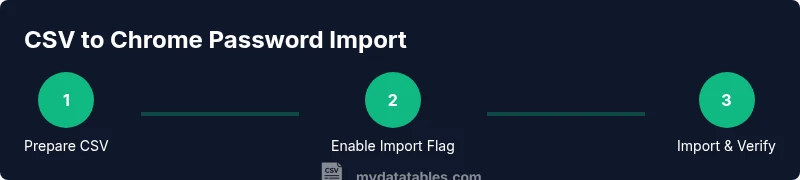
You can import passwords to Chrome from CSV by preparing a UTF-8 CSV with headers (name, url, username, password), enabling Chrome's password-import flag, and using Chrome Settings > Passwords to import. Always back up the CSV securely, then delete the file after import to minimize exposure, and verify each entry in Chrome afterward.
What you can accomplish by importing passwords from CSV into Chrome
According to MyDataTables, importing passwords from CSV into Chrome can accelerate credential migration when you’re consolidating accounts or setting up a new Chrome profile. The process, when done correctly, lets you move site credentials without manual re-entry, ensuring consistency across devices and browsers. This approach is particularly useful if you’re migrating from another password manager or a legacy spreadsheet that already tracks site URLs, usernames, and passwords. However, as MyDataTables emphasizes, the CSV source is plaintext and must be handled with care. In practice, you’ll typically import a focused set of accounts first to validate formats, then scale up after confirming the mapping and import results. Always keep the source CSV in a secure location, and plan a post-import cleanup to minimize exposure of sensitive data.
This method is not a universal cure-all. Some sites require special handling (like two-factor challenges or unique login flows), and not every password field maps cleanly to Chrome’s built-in manager. Use this workflow primarily for one-time migrations or for smaller datasets, and consider stronger, dedicated password-management tools for ongoing credential security. The goal is to establish a clean, verifiable baseline from which you can operate safely.
If you are working within a team, document the file name, location, and access controls for the CSV. That practice reduces the risk of accidental exposure and helps governance teams audit who touched the data and when.
CSV formatting: columns, encoding, and sample header
To ensure Chrome reads your data correctly, structure your CSV with explicit headers: name,url,username,password. The name is the site label; The URL should include protocol (https://). We recommend UTF-8 encoding to avoid misinterpretation of special characters. If your data contains non-Latin characters, consider UTF-8 without BOM; Chrome handles UTF-8 well. Avoid using extra fields unless you know Chrome supports them. Here's a minimal sample:
name,url,username,password Example Site,https://example.com,[email protected],SecretP@ssw0rd
In production, you might include an optional field of notes, but the default Chrome importer uses only the four required columns. If you plan to export from a password manager, use the field mapping to ensure the columns align with the importer requirements. Always verify that the URL column consistently uses the correct scheme and no trailing spaces.
Prerequisites: Chrome version and security considerations
Before attempting an import, ensure you are using a current, supported version of Chrome. Updates include security improvements, bug fixes, and improved handling of sensitive data like passwords. Be aware that in many builds the password-import feature is behind a permission flag that must be enabled for the Import button to appear. For added safety, sign in with your Google account so credentials can sync to other devices after validation. Remember, the CSV file contains plaintext passwords; plan a secure workflow that minimizes exposure—store the file only in trusted locations, and delete or encrypt it after use.
In some environments, IT policies may restrict local password imports. If your organization enforces enforced security controls, consult your security team before attempting an import. If you encounter issues, revert to a safe backup before retesting in a controlled environment.
Preparing your CSV file safely: best practices
Safety starts with how you prepare and store the CSV. Use a dedicated, access-controlled folder, and keep a read-only backup copy stored offline or in an encrypted container. Validate that every row has a URL, a non-empty username, and a non-empty password. Normalize whitespace and trim trailing slashes in URLs to avoid mis-matches after import. Consider performing a two-stage approach: first import a small test set of entries to confirm mapping, then proceed with the full dataset. If your dataset contains non-ASCII characters, ensure your CSV is encoded in UTF-8 and that any software you use to generate the file preserves that encoding.
Finally, remove any unnecessary columns before import. Chrome uses only the four core fields for the initial import, so keeping the CSV lean reduces the risk of misinterpretation or errors during the import process.
Enabling the Password Import flag in Chrome
Chrome’s password import capability is not always visible by default. To enable it, you typically need to turn on the Password Import flag in chrome://flags, then relaunch the browser. Steps:
- Open Chrome and navigate to chrome://flags.
- Use the search box to locate “Password import.”
- Set the option to Enabled, then click Relaunch.
- After restart, open chrome://settings/passwords to see the Import option.
This process may vary slightly by Chrome version or operating system. If you do not see the flag or the Import button after relaunch, check for browser updates or consult your IT administrator for policy considerations. Enabling this flag is a one-way change; you’ll need to disable it if you want to hide the Import button again after testing.
Import steps: how to perform the import
With the Import feature visible, you can import your CSV file into Chrome Password Manager. Steps:
- Open Chrome and go to Settings > Passwords.
- Click the three vertical dots next to Saved Passwords and choose Import.
- Browse to and select your CSV file, then confirm. Chrome will read the four required columns and populate the password store.
- If prompted, review the mapping to ensure each column aligns with name, url, username, and password correctly.
After the import completes, verify each entry in the list for accuracy. Validate that the login URLs load correctly and that the usernames are associated with the right accounts. If errors occur, revert using your backup CSV and re-import after correcting the data format.
Verifying imported credentials and organizing them
Post-import verification is essential. Scan the Passwords page for each site to confirm the URLs load as expected and usernames match the intended accounts. Look for duplicate entries and merge or delete as needed. Organize by site category or group to simplify future management. If you use Chrome across multiple devices, ensure you’re signed into the same Google account so that changes propagate via sync. Keep a maintenance cadence: periodically audit entries for accuracy and remove outdated credentials.
If you notice any missing entries, re-open the source CSV, confirm the encoding and column headers, then re-import. Always perform validation on a test subset first when possible to minimize risk.
Troubleshooting common issues during import
Common issues include the Import button not appearing, errors reading the CSV, or mismatched fields. Troubleshooting steps:
- Confirm the CSV is UTF-8 encoded with four exact headers: name, url, username, password.
- Ensure there are no extraneous columns or stray characters that could confuse the importer.
- Verify each URL includes the protocol (https://) and is reachable in a browser.
- If the Import button is missing, re-check chrome://flags and ensure the flag is enabled, then relaunch Chrome.
- If you see duplicate entries after import, consider cleaning the CSV and re-importing a small batch to isolate the issue.
When in doubt, test with a small subset and incrementally expand to prevent large-scale data inconsistencies.
Security best practices after import
Importing passwords to Chrome from CSV increases convenience but also risk. After import:
- Delete the CSV file securely from all devices and secure backups. If possible, remove it from offline locations as well.
- Consider enabling two-factor authentication on accounts where supported and review saved sites for sensitive entries.
- Use a strong Google account password and enable device-level security (screen lock, biometric authentication) where available.
- Schedule regular audits of saved passwords and remove outdated or unused credentials.
- If the data includes highly sensitive accounts, evaluate whether Chrome’s built-in manager is the best long-term solution; a dedicated password manager often offers stronger protections and granular sharing controls.
Ultimately, your approach should minimize exposure time for plaintext credentials and maximize control over who can access the data.
Alternatives to Chrome for password management
For ongoing password security, many teams prefer dedicated password managers that offer robust sharing controls, breach alerts, and cross-device syncing with strong encryption. Consider evaluating products that provide CSV import/export as a one-time migration option, then lock down the final workflow using a trusted manager. Some organizations keep critical credentials in a managed vault rather than in a browser-based store, especially for shared accounts. If you still need browser-based management, make the Chrome import a transitional step and migrate sensitive accounts to a purpose-built solution as soon as feasible. Always balance convenience with risk, and align with your organization’s security policy.
When evaluating options, compare encryption standards, audit logs, and ease of revocation for compromised accounts. This approach reduces the likelihood of a data breach affecting multiple services at once. It also helps you establish a defensible, scalable credential strategy.
Real-world examples and tips for teams
In practice, teams often use a staged migration plan: start with non-critical accounts, validate mappings, and gradually expand. Document the CSV schema, the location of the source file, and the personnel authorized to perform the import. Use a read-only backup to preserve a reference copy in case you need to revert. If you’re migrating across devices, coordinate with IT to ensure Chrome sync is configured correctly to avoid replaying ambiguities or duplicates. Consider creating a standard operating procedure (SOP) for future migrations that includes a post-import verification checklist and a scheduled security review. This disciplined approach minimizes risk while delivering a smooth transition for users and teams.
How MyDataTables supports CSV-guided password management
MyDataTables provides guidance on handling CSV data responsibly, including best practices for encoding, field mapping, and secure disposal. While this article focuses on Chrome, teams can apply similar CSV handling principles to other tools in the data stack, ensuring consistency and security across environments. If you’re migrating large credentials sets, MyDataTables recommends incremental imports and automated validation scripts to confirm that every row maps correctly before finalizing the operation. This approach reduces human error and improves auditability across the data lifecycle.
Tools & Materials
- CSV file (UTF-8 encoded)(Headers: name, url, username, password)
- Computer with Chrome installed(Latest stable Chrome version recommended)
- Secure backup location(Encrypted drive or password-protected archive)
- Backup of original data(Optional but recommended for rollback)
- Network connection(Needed for sync and updates)
Steps
Estimated time: 15-30 minutes
- 1
Prepare the CSV file
Create a CSV with four columns: name, url, username, and password. Ensure UTF-8 encoding and clean, consistent URLs. Save a backup copy before proceeding.
Tip: Test with a small subset first to verify header names and data mapping. - 2
Back up and secure the source
Store a read-only backup in a secure location. Limit access to authorized personnel only.
Tip: Use encryption for the backup if it contains sensitive data. - 3
Enable the Password Import flag
Open chrome://flags, search for 'Password import', enable it, and relaunch Chrome.
Tip: If you don’t see the flag, update Chrome or confirm with IT policies. - 4
Open Chrome password settings
Navigate to Settings > Passwords and locate the Import option.
Tip: If Import is missing, re-check the flag and relaunch. - 5
Import the CSV
Click Import, select your CSV file, and confirm the mapping to name, url, username, and password.
Tip: Validate that URLs include the protocol (https://) and that usernames match expectations. - 6
Verify imported entries
Review the list for accuracy. Open a few sites to confirm that the stored credentials work as expected.
Tip: Remove duplicates and correct any mis-mapped entries promptly. - 7
Securely dispose of the source file
Delete the CSV securely from all devices and backups after final verification.
Tip: Consider a secure erasure tool if available. - 8
Document and monitor
Document the migration steps and monitor for any security incidents or login issues.
Tip: Create an SOP for future migrations.
People Also Ask
Do I need to export a CSV with specific headers for Chrome?
Yes. Chrome expects at minimum four headers: name, url, username, and password. Any deviation can cause the import to fail or mis-map fields. Keep headers exactly as specified and ensure consistent naming across all rows.
Chrome needs four headers: name, url, username, and password. Keep them exact to avoid import errors.
Can Chrome import passwords directly from CSV without flags?
In many Chrome releases, the password import feature is behind a flag and requires enabling chrome://flags. If you don’t see the Import option, enable the flag and relaunch Chrome, or consult IT for policy restrictions.
Often you must enable a flag in Chrome to see the Import option.
Is importing passwords from CSV safe?
Importing passwords from CSV is convenient but carries risk because the CSV contains plaintext passwords. Use secure backups, limit access, and delete the CSV after import. For long-term security, consider a dedicated password manager.
There are security risks because passwords are in plaintext; store securely and delete after use.
What encoding should the CSV use?
Use UTF-8 encoding to preserve characters and prevent garbled passwords. UTF-8 is broadly supported by Chrome’s importer and most password management tools.
UTF-8 encoding is recommended for CSVs.
What if the Import button isn’t visible after enabling the flag?
Double-check that the flag is enabled, then relaunch Chrome. If it still doesn’t appear, verify you’re on a compatible Chrome version or consult IT for policy restrictions.
If Import doesn’t show, re-check the flag and Chrome version.
Can I undo an incorrect import?
Chrome does not provide a universal undo for imports. You can manually delete incorrect entries. For large migrations, test a small batch first and validate results before full import.
There isn’t a simple undo—delete incorrect entries manually and test first.
Watch Video
Main Points
- Prepare a UTF-8 CSV with four columns.
- Enable the password import flag before importing.
- Always back up and securely delete the CSV after import.
- Verify every imported credential and fix mismatches promptly.
- Consider a password manager for ongoing security.