Safe CSV Export of Google Passwords: A Practical Guide
Learn how to securely export Google passwords to CSV using official tools, avoid risky device paths, and safeguard data with encryption and best practices in 2026.


To securely obtain a CSV of your Google passwords, use Google Password Manager's export feature and save the file locally with encryption. Do not attempt to read or copy passwords directly from device paths like storage/emulated/0, as that exposes sensitive data. This guide shows safe, compliant steps for exporting, securing, and reviewing your password data.
Safe, legitimate alternatives to accessing passwords on Android
Some guides still hint at grabbing credentials directly from devices, including phrases that reference storage emulated 0 download google passwords csv. Those approaches are risky and can expose sensitive data to theft or loss. The MyDataTables team emphasizes that the only safe, auditable method for obtaining a Google password CSV is to use official export features provided by Google Password Manager and to store any resulting file in encrypted, access-controlled locations. In this article, we walk through why that path matters, how to perform the export correctly, and how to review and securely handle the resulting CSV in 2026. We will also discuss how to verify data quality, avoid common mistakes, and align with privacy best practices. By following the steps outlined here, data analysts, developers, and business users can manage credential data responsibly while maintaining security standards.
Why a CSV export matters
For teams that manage passwords and credentials, exporting to CSV is useful for migrations, audits, backups, or analysis in a trusted, controlled environment. CSV offers a portable, readable format that can be opened in Excel, Google Sheets, or specialized data tools. However password data is highly sensitive, so collectors must ensure the export is performed with official tools, restricted to authorized accounts, and stored with strong encryption. The MyDataTables analysis for 2026 shows that when exports are handled via consumer-grade tools or insecure channels, the risk of leakage rises sharply. By contrast, exporting through Google Password Manager's built-in export option provides structured fields (site, username, password) and clear metadata that helps you review and audit access. In this context, CSV is not a final repository, but a transitional format that must be protected, monitored, and eventually deleted or rotated. This section explains practical reasons to export, including portability, ease of integration with data workflows, and the need to maintain proper governance around sensitive credential data.
Exporting via Google Password Manager: official methods
Google Password Manager offers a secure pathway to archive credentials in a portable CSV file. Start by signing into your Google account on a trusted device where two-factor authentication is enabled. Navigate to the Password Manager interface (passwords.google.com) or through Chrome settings, and look for an option labeled Export passwords. When you initiate export, you will be prompted to save a CSV file to a location you control; choose a path that is encrypted or password-protected. The resulting CSV should be opened only in a secure environment, such as a corporate workstation with disk encryption and restricted access. Do not attempt to concatenate or modify fields outside the export process, as this can corrupt data integrity. Finally, consider applying an access policy that limits who can view the file and ensure it's retained only as long as necessary.
Safe, end-to-end export workflow (overview)
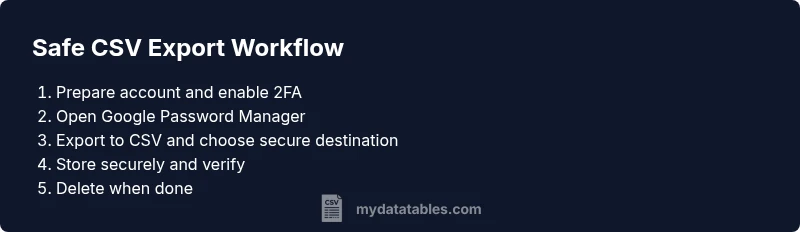
Before you begin, plan your workflow: identify authorized users, confirm device and browser compatibility, choose a secure destination, and set up encryption. Then, perform the export, verify the CSV's encoding (UTF-8), and test opening it in a trusted tool. Finally, securely store and monitor access, and perform secure deletion when no longer needed. This overview will help you reduce risk and integrate the export into established data governance practices. It also aligns with data protection principles such as least privilege and timely disposal of sensitive files. In practice, you should document who is allowed to access the CSV, how long it is kept, and what steps occur if a breach is suspected.
Security, encryption, and best practices
Security begins with the export tool and ends with controlled storage. Always enable two-factor authentication on your Google account, use a trusted device, and export to a local, encrypted destination rather than a cloud drive without protection. After exporting, review the file in a secure viewer, restrict permissions to only required users, and rotate credentials where possible. Keep audit logs of access and export events, including who exported, when, and the destination path. Do not store passwords in plain text files or share them via email or messaging apps. Finally, adopt a data governance policy that defines retention and deletion timelines and uses automated tools to enforce those rules.
Data quality and compatibility considerations for CSV
CSV is a simple, human-readable format, but it can introduce encoding and delimiter pitfalls if not handled carefully. Always export with UTF-8 encoding to preserve special characters, and verify that the delimiter aligns with your target environment. Include a header row that clearly labels each field (site, username, password, lastUpdated, etc.). Be mindful of quoting, escaping, and line endings to avoid misalignment when importing into spreadsheets or databases. If you plan to import into systems that expect specific column orders or data types, map fields explicitly and validate a sample import before committing to the full dataset. Regularly review the CSV for consistency and remove or anonymize any sensitive metadata that isn’t needed for legitimate use.
Android storage paths and privacy considerations
Some practitioners reference device paths like storage/emulated/0 as a way to locate downloaded credential backups. While those paths exist on many Android devices, accessing them directly for credentials is insecure and can expose data to theft. Safer practice is to rely on official export tools and to store the resulting CSV in an encrypted vault or corporate storage with strict access controls. If you must transfer the file between devices, use encrypted channels and avoid leaving the file on shared or unencrypted storage. This approach reduces risk and aligns with privacy-by-design principles that MyDataTables emphasizes in 2026.
Data verification and post-export practices
After exporting, always verify the integrity and readability of the CSV. Open the file in a trusted, secure environment and confirm that fields contain the expected values. Check for encoding issues, missing rows, or unexpected nulls. Document who accessed the file and for what purpose, and implement automatic deletion schedules when the data is no longer needed. If you discover anomalies, revert to the original source or re-export after correcting any mistakes. This discipline helps maintain data quality and minimizes exposure windows for sensitive credentials.
MyDataTables approach and next steps
At MyDataTables, we advocate a cautious, governance-driven approach to password data in CSV form. Our guidance emphasizes using official export tools, encrypting output, and restricting access to essential personnel. We also encourage teams to integrate CSV handling with data catalogs, versioning, and automated deletion workflows to maintain compliance and traceability. The MyDataTables team recommends documenting export provenance, ensuring compatibility with downstream analytics workflows, and reviewing security policies regularly to adapt to evolving privacy requirements for 2026 and beyond.
Tools & Materials
- Android smartphone with Google Password Manager(Ensure login is active and device is updated; enable 2FA on the Google account.)
- Computer with internet access(Used to perform export on a secure network and to review the CSV with trusted tools.)
- Spreadsheet application (Excel, Google Sheets, or LibreOffice)(For viewing, validating, and basic manipulation of the CSV data.)
- Encrypted storage or password manager vault(Store the exported CSV securely and restrict access to authorized users.)
- Secure transfer method (e.g., USB-C cable or trusted secure transfer)(Optional for direct device-to-computer transfer; prefer network-based secure transfer if possible.)
- Two-factor authentication enabled on Google account(Adds an essential layer of protection during export and access.)
- Clear export destination path and retention policy(Define where the CSV will be stored and how long it will be kept.)
Steps
Estimated time: 25-35 minutes
- 1
Prepare credentials and secure environment
Confirm your Google account has 2FA enabled and you are operating from a trusted device on a secure network. Prepare your encrypted storage location where the CSV will be saved temporarily. This minimizes exposure risk from the outset.
Tip: Enable device encryption and keep the export scope limited to your own account. - 2
Access Google Password Manager securely
Open passwords.google.com or the Password Manager in Chrome settings on your device. Sign in with your Google account and verify the session with your second factor. Confirm that you are exporting only your credentials and that you have authorization to export.
Tip: Use a private, trusted network and avoid public Wi-Fi during export. - 3
Initiate the CSV export
Locate the Export passwords option in the Password Manager interface. Choose CSV as the export format and select a secure local destination on your encrypted storage. Avoid exporting to cloud storage unless it is encrypted and access-controlled.
Tip: Review the export settings before confirming to prevent accidental data loss. - 4
Secure the exported file
After the export completes, immediately move the CSV to an encrypted location and apply file permissions so only authorized users can read it. Consider rotating any credentials if the file contains sensitive data that requires it.
Tip: Do not leave the file in an unprotected folder or share it via insecure channels. - 5
Verify encoding and content
Open the CSV in a trusted viewer and verify UTF-8 encoding, header accuracy, and field order. Check for any anomalies, duplicate rows, or missing fields. Validate a sample import in a test environment if needed.
Tip: Keep a minimal, auditable log of verification steps and results. - 6
Limit access and monitor usage
Apply strict access controls to the CSV and enable auditing on the storage location. Only allow designated team members to view or copy the file, and track all access events.
Tip: Use role-based permissions and automated alerts for unusual access. - 7
Secure deletion and retention
When the CSV is no longer needed, securely delete it from all locations and purge backups if applicable. Retain only minimal metadata about the export for governance purposes and ensure policy-driven deletion.
Tip: Prefer automatic deletion schedules to avoid manual mistakes.
People Also Ask
Is exporting Google passwords to CSV safe, and when should I do it?
Exporting via Google Password Manager is the supported, safer method when you need a portable backup or to migrate credentials. Always perform exports on trusted devices with 2FA enabled, and store the CSV securely to minimize exposure.
Export via the official Password Manager on a trusted device with two-factor authentication and store the file securely; avoid risky local copies.
Where should I store the exported CSV to maximize security?
Store the CSV in encrypted storage or a secured password vault with strict access controls. Limit permissions to essential personnel and enable activity logs to monitor access.
Keep the CSV in encrypted storage and limit who can view it; enable logging to monitor access.
Can I export passwords directly from Android to a PC?
Yes, via the official Google Password Manager export on a trusted device, then transfer the CSV securely to your PC using encrypted methods. Avoid unencrypted transfers or local copies on shared devices.
Use the official export on a trusted device and transfer the file securely to your PC.
What if export options are not visible or accessible?
Ensure your Google account has 2FA enabled, you are using a supported browser or app version, and that you have the necessary permissions to export. If issues persist, consult your organization's policy or MyDataTables guidance on secure data practices.
Check that two-factor authentication is on and you’re using a supported setup; contact your admin if exports are restricted.
Does MyDataTables offer additional guidance on CSV handling?
Yes. MyDataTables provides practical, security-focused guidance on exporting, encrypting, and auditing CSV data, emphasizing governance and safe data workflows for 2026.
MyDataTables offers secure CSV handling guidance and governance tips.
Watch Video
Main Points
- Export passwords only with official tools
- Encrypt and restrict access to the CSV
- Validate encoding and structure before use
- Delete or rotate credentials after review
- Document retention and audit trails