SQL to CSV Online: A Practical Conversion Guide
Learn how to convert SQL query results to CSV using online tools, with best practices for data quality, security, and workflow integration. Practical steps, tool comparisons, and validation tips for analysts and developers.


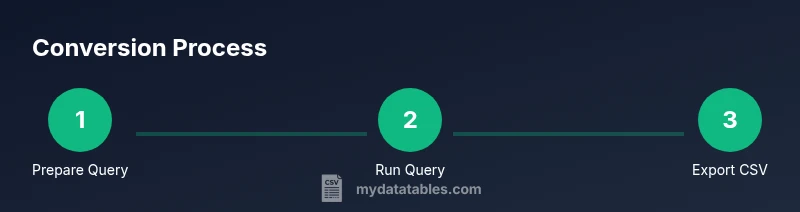
Steps to convert SQL to CSV online: 1) Run your SQL query to produce a result set. 2) Paste or upload the results into an online converter. 3) Choose delimiter, header, and encoding, then export as CSV. This avoids local installs and supports most databases.
What is SQL to CSV online and when to use it
Online SQL-to-CSV conversion is a data-wrangling technique that lets you export query results as comma- or tab-delimited files without using a desktop SQL client. This approach is ideal for quick sharing, lightweight integrations, or environments where software installation is restricted. For analysts, developers, and business users, it streamlines data collaboration, reduces setup friction, and supports rapid prototyping. MyDataTables has observed that teams increasingly rely on online workflows for ad hoc reporting and data exchange, especially when data sources are distributed across cloud services. When done correctly, online CSV exports preserve column headers, data types, and minimal formatting while keeping sensitive data out of risky channels.
Types of online tools for SQL-to-CSV conversion
You can choose between direct database connectors offered by some online platforms and generic CSV exporters that accept pasted results. Direct connectors can save time by querying your database within the browser, but they require careful authentication and network security. Generic tools let you paste a result grid or upload a CSV-like file; they usually provide control over delimiter, quote handling, and encoding. Look for tools that support UTF-8 encoding, clear data retention policies, and the ability to download or copy the final CSV. MyDataTables's research indicates that the most reliable solutions document their data handling practices and offer reproducible export formats.
Data quality and formatting considerations
When exporting SQL results to CSV online, pay attention to header presence, delimiter choice, and quoting rules. Ensure there is a single header row that matches your query's column names, and choose a delimiter that your downstream systems expect (commas for most apps, tabs for spreadsheets with commas in data). Quoting should handle embedded delimiters or newlines inside fields. Be aware of how NULLs are represented and how large numeric values are preserved to prevent precision loss. Validate by loading the CSV into a viewer or simple parser to confirm rows, columns, and data integrity.
Security and privacy considerations when using online tools
Online converters may process your data on third-party servers. For sensitive or regulated data, prefer tools with strong privacy policies, encryption in transit, and data retention controls. Use tokenization or sample data for demonstrations, and avoid uploading credentials, personal identifications, or transaction data unless you trust the provider. If possible, perform sensitive steps locally or within an enterprise-grade cloud environment and then migrate the resulting CSV to the destination securely.
Integrating SQL-to-CSV into MyDataTables workflows
A practical pattern is to run a query, capture results, and route them to a CSV export step in a reproducible workflow. You can automate this with scripts that generate a CSV header row and ensure consistent encoding. For teams using MyDataTables, standardize on a delimiter (e.g., comma), ensure UTF-8 encoding, and implement a quick data-check step to catch anomalies. The goal is to create a repeatable, auditable process that reduces manual errors during data sharing.
Quick validation: check headers, encoding, and delimiters
After exporting, spot-check the CSV by opening it in a text editor and a spreadsheet. Confirm the header names match the query results, verify the delimiter is correct across lines, and ensure non-ASCII characters are preserved. If inconsistencies appear, adjust the tool's options or perform a small test export with sample data before the full run. This minimizes downstream data issues and saves time in analysis.
Tools & Materials
- Web browser (latest version)(Required to access online converters.)
- Database access or SQL client(Used to run the SQL query that generates the result set.)
- Your SQL query(Ensure it returns the exact columns you want in the CSV.)
- Online SQL-to-CSV tool(Supports paste/upload of results and export options.)
- CSV viewer/editor (optional)(Helpful for quick validation after export.)
Steps
Estimated time: 15-30 minutes
- 1
Prepare your query
Define the columns you need and test the query in a safe environment. Make sure the result set is manageable for the online tool. This step reduces surprises in the export stage.
Tip: Use a restricted sample (LIMIT) during testing to keep the export fast. - 2
Run the query to generate results
Execute the SQL to produce the result set that will be exported. Verify you see all intended columns and a representative row set.
Tip: Export or copy the results to clipboard in a tabular format. - 3
Choose your online tool
Select a trusted online SQL-to-CSV converter or use an online database export feature. Check privacy policies and supported databases before proceeding.
Tip: Prefer tools that document data handling and offer reproducible exports. - 4
Paste or upload results
Insert the copied results into the tool or upload a CSV-like file. Ensure the tool reads the first row as headers if that option is available.
Tip: If the tool has a preview, verify headers and a sample row. - 5
Configure export options
Set the delimiter (comma or tab), enable/disable quotes, and choose encoding (UTF-8 is standard).
Tip: For Excel, UTF-8 without BOM can cause misreadage; consider UTF-8 with BOM if needed. - 6
Export and download
Click export or download to save the CSV. Name the file consistently and store it in a known location.
Tip: Keep a versioned filename if exporting regularly. - 7
Validate the CSV
Open the file in a viewer to verify column counts and data integrity. Look for misquoted fields or misaligned rows.
Tip: Run a quick script to count rows and columns as a check.
People Also Ask
Is it safe to use online SQL to CSV tools?
Online tools can be convenient, but they upload data to third-party servers. Use trusted providers and review their privacy policy. For sensitive data, prefer local solutions.
Online tools are convenient, but be careful with sensitive data; review privacy policies and consider local options.
Can I connect directly to my database from an online converter?
Some tools support direct connections using drivers, but many do not. Check the tool's supported databases and security features before linking.
Some tools offer direct DB connections; verify compatibility and security before connecting.
Which encoding should I use for CSV exports?
UTF-8 is standard for CSV. Excel users may need UTF-8 with BOM for proper character display.
Use UTF-8; if Excel shows garbled characters, try UTF-8 with BOM.
How should I handle large result sets in online tools?
Online tools often have limits. For large exports, chunk the data or use offline tools with streaming export.
Large exports may hit limits; consider chunking or offline methods.
What if the CSV has embedded quotes or delimiters?
Choose a delimiter that minimizes conflicts and enable proper quote escaping. Test with fields containing commas or newlines.
Use proper quoting and test with tricky fields.
How can I verify the CSV's accuracy after export?
Open the CSV and compare row/column counts with the original result set. Run a quick parse script to detect anomalies.
Open and parse the file to confirm counts and data integrity.
Watch Video
Main Points
- Choose a trusted online tool with clear data handling.
- Validate headers and encoding to ensure compatibility.
- Test with sample data before large exports.
- Verify the final CSV in a viewer or parser for integrity.