zamzar xlsx to csv: Step-by-step Guide
Learn how to convert XLSX to CSV using Zamzar and practical alternatives. This step-by-step guide covers encoding, delimiters, multi-sheet handling, and validation for reliable CSV exports in data workflows.


Convert zamzar xlsx to csv with confidence using a clear, structured approach. This quick answer highlights essential steps and cautions, while a detailed tutorial below will walk you through prep, choosing the right settings, and post-conversion validation to ensure encoding-safe CSV output suitable for import into analytics tools.
Understanding the Zamzar XLSX to CSV workflow
To convert an XLSX workbook to CSV, you’ll typically upload the spreadsheet to Zamzar and select the destination CSV format. The goal is to produce a portable text file that preserves rows, columns, and headers without introducing misaligned data. Because XLSX can contain multiple sheets, formulas, and diverse data types, the outcome of a Zamzar xlsx to csv conversion depends on how these elements are handled during export. In many data pipelines, CSV output is favored for its simplicity and broad compatibility, but it requires careful attention to encoding, delimiters, and how missing values are represented. MyDataTables emphasizes validating the converted file against your downstream systems to avoid surprises in import scripts or BI tools.
Key considerations: encoding, delimiters, and locale
CSV files rely on a consistent encoding and delimiter. UTF-8 is the most portable choice for international data, while some tools default to ANSI or Latin-1, which can garble characters. The delimiter choice matters too: most regions prefer a comma, but semicolon-delimited CSV is common in locales where the comma is used as a decimal separator. Quotation marks around fields protect embedded delimiters or line breaks. When performing a zamzar xlsx to csv conversion, verify these settings and test a small sample to confirm that special characters, currency symbols, and line breaks survive intact. Locale-aware tools may also alter number formats, dates, and text case, so consistency across your data pipeline is essential.
Comparing Zamzar with alternative tools for CSV conversion
Zamzar is convenient for quick online conversions, but you may want to compare it with spreadsheet apps or scripting approaches. Excel or Google Sheets can export CSV directly, offering familiar controls such as selecting a single sheet, handling empty cells, and previewing the result. For automation, scripting languages like Python (pandas) or R provide fine-grained control over encoding, delimiter selection, and multi-sheet handling. MyDataTables recommends evaluating privacy, file size limits, and automation capabilities when choosing between Zamzar and alternatives. If you regularly convert large datasets, a programmatic approach may reduce manual steps and improve reproducibility.
Preparing your XLSX for a smooth CSV export
Preparation reduces post-export cleanup. Start by removing unused sheets, cleaning header rows, and ensuring consistent data types within each column. If formulas exist, replace them with their computed values to avoid disparities in the CSV output. Check for merged cells, merged headers, and hidden columns that might accidentally appear in the export. For multi-sheet workbooks, decide which sheet(s) should be included in the CSV export, or export one sheet at a time to preserve data integrity. Finally, save a backup copy before conversion so you can revert if needed.
Step-by-step Zamzar XLSX to CSV conversion (web UI)
- Open Zamzar in your browser and sign in. Upload the XLSX file you want to convert. 2. In the convert form, choose CSV as the target format. 3. If Zamzar offers encoding and delimiter options, select UTF-8 and a comma delimiter (adjust for your locale). 4. Start the conversion and wait for the process to complete. 5. Download the resulting CSV file and rename it if necessary. 6. Open the CSV in a editor or viewer to verify structure. 7. If you notice misaligned fields, re-run with a different delimiter or sheet selection. 8. Validate a sample of rows in downstream apps to ensure compatibility.
Step-by-step automation: using Zamzar API for XLSX to CSV
If you have API access, you can automate the zamzar xlsx to csv workflow. Authenticate securely, submit a file for conversion, and poll for status until complete. Retrieve the CSV artifact programmatically and integrate it into your data pipeline with logging for traceability. Use API keys with restricted permissions and rotate credentials regularly to minimize risk. This approach scales well for nightly exports or batch jobs.
Handling common issues: formulas, multi-sheet workbooks, and data types
Formulas may disappear or convert to values if not resolved before export. Verify that numeric data maintains precision and that dates stay in a consistent format. Multi-sheet workbooks require a clear policy: export only the needed sheet or iterate through sheets to create separate CSVs. Mixed data types (numbers stored as text) can cause parsing errors in downstream tools, so apply simple data cleaning rules (e.g., trim spaces, standardize date formats) before exporting. If missing values are represented inconsistently, adjust your CSV writer settings to fill or preserve blanks appropriately.
Verifying the CSV result: encoding, delimiter, and data integrity
After export, verify encoding by inspecting non-ASCII characters in a text editor. Confirm that the chosen delimiter separates fields correctly and that quotes are used where needed. Check a subset of rows for pasted data in your analytics or BI tools to ensure no data shifts occurred due to embedded delimiters or line breaks. If the CSV fails to import, re-export with a different delimiter or encoding and compare results side-by-side. Establish a small validation script or spreadsheet test to automate this check.
Best practices for reproducible CSV conversions in data workflows
Document every conversion setting used for zamzar xlsx to csv: source file, sheet selection, delimiter, encoding, and whether headers were included. Store the final CSV with a versioned filename and metadata describing the source. Automate logs and produce a checksum for each file to detect tampering or corruption. Maintain a simple changelog for any adjustments to the conversion process and isolate changes to a single parameter per run to simplify debugging.
Privacy, security, and compliance notes for online conversion services
Online converters may process your files on external servers. If your data contains sensitive information, prefer local or in-house tools or ensure the service has a clear privacy policy and data retention terms. Review any terms of service related to data encryption, storage duration, and data deletion. For regulated data, document the data-path and perform risk assessment before uploading. Always minimize exposure by removing unnecessary data and using test files for experimentation.
Tools & Materials
- computer with internet access(Stable connection and up-to-date browser)
- Zamzar account (free or paid)(Required to access conversion features; consider API access for automation)
- source XLSX file(Original workbook with data to convert)
- destination CSV file(Where the converted data will be saved)
- backup copy of the original XLSX(Always keep a safe copy before converting)
- CSV viewer or editor(Optional for quick verification)
Steps
Estimated time: 30-45 minutes
- 1
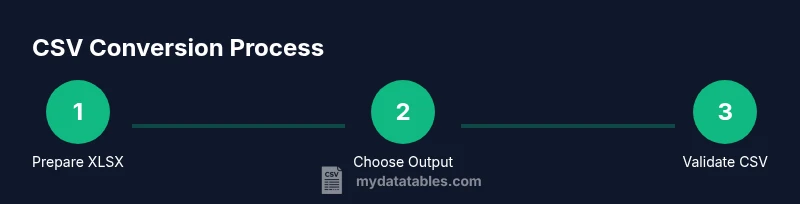
Prepare your XLSX workbook
Open the file, remove unused sheets, ensure headers are clean, and verify there are no merged cells that could disrupt CSV alignment. This helps prevent unexpected shifts after export.
Tip: Back up the original workbook before making changes. - 2
Choose the Zamzar XLSX to CSV option
Navigate to Zamzar and select XLSX as the input format and CSV as the output format. Confirm you’re converting the correct file and target sheet if applicable.
Tip: Double-check the sheet selection if your workbook contains multiple sheets. - 3
Configure output settings
If available, set encoding to UTF-8 and delimiter to comma (or your regional default). Consider specifying whether to include headers and how to handle empty cells.
Tip: UTF-8 avoids many character-encoding issues in downstream tools. - 4
Upload and start the conversion
Upload the file, review the conversion settings, and initiate the process. Monitor progress and prepare to download the CSV when complete.
Tip: Larger files may take longer; ensure you stay on the page until finished. - 5
Download the CSV output
Save the converted CSV to your preferred folder and rename it for clarity. Keep a backup copy alongside the original XLSX.
Tip: Use a consistent naming convention to track versions. - 6
Open the CSV for a quick check
Open the CSV with a viewer or editor and skim the first few lines to verify structure, headers, and data alignment.
Tip: Look for misaligned columns or stray quotes that indicate delimiter issues. - 7
Validate encoding and delimiters
Inspect a sample of non-ASCII characters to confirm UTF-8 encoding. Verify that fields containing commas are properly quoted.
Tip: If issues appear, re-export with a different delimiter or enable quoting. - 8
Finalize and document
Document the settings used and perform a final sanity check in your downstream application. Save notes for future reproducibility.
Tip: Maintain an auditable trail for repeatability.
People Also Ask
What is Zamzar and can it convert XLSX to CSV?
Yes, Zamzar is an online converter that supports many formats including XLSX to CSV. It’s convenient for quick, one-off conversions.
Yes, Zamzar can convert XLSX to CSV for quick tasks.
Do I need to install software to convert XLSX to CSV?
No. You can use Zamzar via the web or export directly from spreadsheet apps like Excel or Google Sheets. For automation, consider APIs or scripting.
No software installation is required; you can use online tools or export from spreadsheet apps.
What about data privacy when using online converters?
Be mindful of sensitive data. Use local tools when privacy is critical, and review the service’s privacy policy and data retention terms.
Be careful with sensitive data; local tools may be safer for confidential information.
Why might CSV output show garbled characters?
Encoding mismatches are the most common cause. Ensure UTF-8 encoding is selected and that the data doesn’t rely on regional encodings.
Encoding issues cause garbled text; use UTF-8 and verify characters.
Can Zamzar handle multi-sheet XLSX exports to CSV?
Many converters export a single sheet per CSV by default. Check settings or export sheets individually if you need all data.
Most tools export one sheet; if you need multiple sheets, export them separately or choose a tool that supports multi-sheet export.
How can I automate XLSX to CSV conversions?
If you have API access, you can automate the workflow and integrate it into your data pipeline with proper error handling and logging.
You can automate with an API and integrate into your data workflow.
Watch Video
Main Points
- Plan the conversion by confirming sheets and headers.
- Use UTF-8 encoding and proper quoting to preserve data integrity.
- Validate the CSV in downstream tools to catch format issues early.
- Document settings for reproducibility and audit trails.
- Choose Zamzar or alternatives based on privacy, size, and automation needs.