Can You Password Protect a CSV File? A Practical Guide
Learn how to securely protect CSV data with encryption, password-protected archives, and best practices for password management. A practical, step-by-step guide for data professionals.


Can you password protect a CSV file? Not directly. CSVs are plain text; to secure them you must encrypt the data or wrap the file in a password-protected container. Options include GnuPG encryption, password-protected ZIPs, or using encrypted storage. This article shows practical steps.
Why password protection matters for CSV files
CSV files store tabular data in plain text, which means anyone with access to the file can read its contents. In many organizations, CSVs travel across networks, email, or shared drives, making accidental exposure common. Regulatory pressures, data governance, and audit requirements amplify the need to protect sensitive information contained in CSVs. Can you password protect a csv file? The short answer is: not by altering the CSV format itself. Instead, you secure the file using encryption or by placing it inside a password-protected container. According to MyDataTables, the safest approach is to treat the CSV as sensitive payload and protect it at rest and in transit. In practice, that means combining strong access controls with robust encryption, so even if someone gains access to the storage location, they cannot read the data without the password or key. This mindset—protecting data where it resides—helps maintain data integrity and reduces risk during sharing, analysis, and collaboration.
Quick takeaway
- CSVs are plaintext: encryption is essential for security.
- Protect data in transit and at rest with proven methods.
- Align protections with your organization's data governance policy.
Practical context: where protection fits in the data lifecycle
In modern data workflows, CSVs are created, transformed, shared, and archived across tools like databases, spreadsheets, and data pipelines. Each handoff is a potential exposure point. Password protection is not a cure-all; it must be part of a layered security approach that includes access control, versioning, and secure key management. MyDataTables emphasizes that password protecting a CSV is not about the file format—it's about choosing a protective wrapper (encryption, archive, or secure container) and enforcing strong passphrases and key storage.
What people often get wrong about CSV password protection
Many teams rely on spreadsheet software to ‘password-protect’ a CSV by saving as a workbook or using an application password. Unfortunately, CSV encryption isn’t preserved when converting back to CSV, and some tools ignore the protection when exporting. The reliable solution is to encrypt the CSV file itself or to wrap it in a password-protected file format such as a ZIP archive or an encrypted container. This long-term strategy reduces risk even if the CSV is opened by different tools.
Encryption vs. simple password hints
A common pitfall is using weak passwords or reusing passwords across systems. Password hints or simple phrases are easy to crack with modern attacks. Instead, generate a strong, unique passphrase for each protected CSV, store it in a reputable password manager, and rotate keys periodically. This practice aligns with industry standards and supports compliance with data protection guidelines.
Key design decisions you will face
- Must you encrypt the CSV itself or a container? Both options exist, each with trade-offs in performance and compatibility.
- Which platform will be used for encryption? GnuPG, ZIP with password, and OS-level encryption are all viable.
- How will you share the access password securely? Plan a separate, secure channel for passphrase distribution.
- What is the desired balance between usability and security? Aim for the strongest protection that does not hinder legitimate analysis.
MyDataTables practical tip: integrate encryption into your data workflow
If you’re working with CSVs regularly, consider embedding encryption into your pipeline. For example, protect archived exports automatically, and ensure decrypted data is only accessible to authorized analysts via secure workflows. This approach minimizes human error and strengthens your data governance posture.
Tools & Materials
- GnuPG (gpg) or another encryption tool(Install from official sources or your OS package manager. Use symmetric encryption for simple protection.)
- Password-protected archive tool (e.g., ZIP/7-Zip, WinZip, or macOS zip with -e)(Encrypt the CSV by creating a password-protected archive; ensure you test extraction with the chosen tool.)
- A copy of the CSV to protect(Always work on a copy when testing encryption and backups.)
- Password manager(Store the passphrase securely; avoid reusing passwords across tools.)
- Encrypted container (optional)(For larger datasets or ongoing protection, consider an encrypted volume (e.g., VeraCrypt).)
Steps
Estimated time: 30-60 minutes
- 1
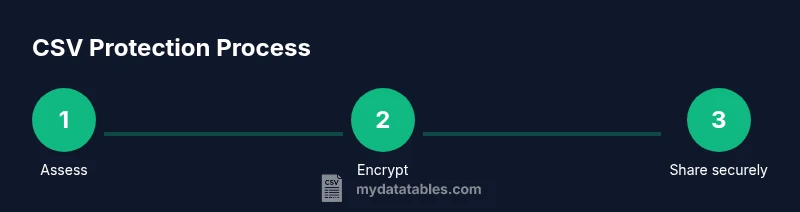
Assess the protection need
Identify which CSVs contain sensitive data and who needs access. Define a clear scope, including retention period and sharing boundaries. This step determines the encryption method and policy you will enforce.
Tip: Document access requirements in your data governance plan to avoid over- or under-protecting data. - 2
Choose your protection method
Decide between encrypting the CSV file directly or placing it inside a password-protected archive or encrypted container. Consider performance, cross-tool compatibility, and how recipients will access the data.
Tip: For short-term sharing, a password-protected archive is quick; for long-term protection, an encrypted container provides stronger security. - 3
Prepare a strong passphrase
Create a long, random passphrase. Do not reuse passwords from other systems. Use a password manager to generate and store it securely.
Tip: Aim for 20+ characters with a mix of upper, lower, numbers, and symbols. - 4
Apply encryption with your chosen tool
Encrypt using your selected method. For GnuPG, use gpg -c data.csv; for ZIP, create a password-protected archive; test the result by attempting to decrypt.
Tip: Always test decryption with a non-admin account to validate the end-user experience. - 5
Test access and integrity
Verify that authorized users can decrypt and access the data without corruption. Compare a decrypted copy with the original to ensure integrity.
Tip: Keep a separate, non-encrypted checksum or hash for validation. - 6
Document the protection in governance and train users
Record the encryption method, key management approach, and access controls. Provide a short training for analysts on handling encrypted CSVs securely.
Tip: Periodic reminders about password hygiene help maintain security over time.
People Also Ask
Can you password protect a CSV file directly?
No. The CSV format itself has no built-in password protection. You must encrypt the file or wrap it in a password-protected container to secure the contents.
CSV protection isn’t built into the format; encryption or password-protected archives are required.
Is a password-protected ZIP sufficient for security?
Password-protected ZIPs provide a layer of security, but the strength depends on the encryption method and password quality. They are convenient for distribution but may be weaker than full-disk or container encryption.
A ZIP with a strong password helps, but strong, unique keys and additional protections are recommended.
What makes a good password for protecting a CSV?
A good password is long, random, and unique for each protected file. Avoid common words and reuse. Use a password manager to generate and store keys securely.
Aim for 20+ characters with mixed types and no reuse.
Will encryption affect compatibility with tools like Excel or Python?
Yes, encrypted data must be decrypted before analysis or viewing. Some workflows use decrypted temp files, which requires careful handling to avoid leaks. Always plan for your analysis tools and pipelines.
Encryption means you decrypt to work; plan for secure handling of decrypted copies.
How should I share an encrypted CSV securely?
Share the protected file over secure channels and distribute the password via a separate channel. Consider access controls and revocation in case a key is compromised.
Send the file and password through separate, secure paths.
Are OS protections like BitLocker or FileVault helpful for CSVs?
Yes. Full-disk or container encryption protects files on disk, but it does not protect data when the file is accessed by an authorized user. Use OS protections in combination with file-level encryption for best results.
OS encryption helps on-disk protection, not per-file access control.
Watch Video
Main Points
- CSV files are plaintext by design; encryption is essential.
- Choose encryption (GnuPG) or a password-protected archive to secure data.
- Use strong, unique passphrases stored with a password manager.
- Validate access by decrypting and verifying data integrity.