How to Create CSV Files in Java
Learn how to create CSV files in Java using plain I/O and popular libraries like OpenCSV and Apache Commons CSV. This practical guide covers headers, encoding, quoting, and robust writing for reliable data exports in Java projects.


Learn how to create a CSV file in Java using plain I/O and popular CSV libraries. This guide covers writing a header and rows with proper escaping, choosing between FileWriter, OpenCSV, and Apache Commons CSV, and handling UTF-8 encoding for reliable data exports. It outlines three approaches and gives runnable, maintainable guidance for both small scripts and production pipelines.
CSV basics and encoding
CSV stands for Comma-Separated Values. It is a simple, human-readable format for tabular data. In Java projects, CSV is commonly used to export results, log structured information, or exchange data with downstream systems. The core idea is that each line represents a record, and each field within a line is separated by a delimiter, most often a comma. Some regions or tools prefer semicolons, so you may encounter variations. When writing CSV, always decide on a consistent delimiter and a consistent newline sequence (LF for Unix, CRLF for Windows). Encoding matters too: UTF-8 is the safest default to preserve non-ASCII characters.
Quoting rules are another pitfall. If a field contains a delimiter, newline, or quote, the field must be quoted, and internal quotes should be escaped by doubling them. This ensures the produced file remains parseable by CSV readers across platforms and languages. Before you write any data, confirm these basics: delimiter, quote character, encoding, and whether to include a header row. Clear conventions here save hours of debugging later.
In practice, you’ll choose between a hands-on plain-Java approach and library-based solutions. The right choice depends on data complexity, performance needs, and how often you export CSV in your workflows. The rest of this guide expands on these options with concrete methods and examples.
Plain Java I/O approach: FileWriter and manual CSV construction
A straightforward way to create a CSV file is to assemble lines yourself using Java I/O. Start by choosing a target path, open a writer, write a header line, then loop through records and write each row separated by commas. This approach is educational and useful for small tasks, but it becomes fragile as data grows or when fields contain commas or quotes. The key is to ensure escaping is performed consistently: if a field includes a comma or quote, enclose it in quotes and double any internal quotes. Also decide on a newline convention and close the resource properly to avoid data loss.
A minimal, conceptual example would write a header like id,name,age and then a data row like 1,John Doe,30. You would repeat writing steps for each row. To avoid resource leaks, wrap the writer in a try-with-resources block. For modest datasets, this approach is perfectly adequate; for larger exports, consider buffered writing or library support to handle edge cases automatically.
Using BufferedWriter for performance
BufferedWriter reduces the number of system calls by buffering output before flushing to disk. This is especially beneficial when exporting thousands of rows. The pattern remains similar to FileWriter: open a BufferedWriter, write the header once, then iterate and write each line, followed by a newline. The main advantage is speed, but you still must handle escaping manually if you go with plain strings. If your data contains embedded commas, quotes, or newlines, relying on manual concatenation becomes error-prone. For more robust projects, a library offers built-in escaping rules and formatting options, but BufferedWriter gives you a clear performance improvement when data volumes are moderate and formatting requirements are simple.
OpenCSV: a lightweight library for robust CSV writing
OpenCSV provides high-level helpers to write CSV data with proper escaping and quoting. It’s great for simple headers and rows and scales to more complex data with minimal code changes. A typical flow is to create a writer, write a header row, then write each data row as an array of fields. OpenCSV handles quoting, escaping, and alignment with the chosen CSVFormat. If you already use Maven or Gradle, add OpenCSV to your dependencies and swap in the library calls; your production code will be shorter, less error-prone, and easier to maintain. This approach aligns with best practices in Java CSV handling and reduces the risk of malformed output when data contains commas or quotes.
Apache Commons CSV: a robust, flexible option
Apache Commons CSV is another popular library for CSV handling in Java. It offers a rich API for reading and writing CSV with flexible formats and header handling. The recommended approach is to create a writer using a standard UTF-8 charset, then instantiate a CSVPrinter configured with a header and a format. You can write records one by one, or print in batch. Because the library enforces correct escaping and quoting, your output is reliable across CSV readers. If you need standards-compliant output or non-default delimiters, Commons CSV provides great configurability, including different quote policies and newline handling. In production pipelines where data quality and portability matter, Commons CSV is often the safer long-term choice.
Handling headers, quoting, and escaping
Headers should be written exactly once and kept in a consistent order. When a field contains a delimiter, newline, or quote, enclose it in quotes and escape internal quotes by doubling. Libraries do this automatically by default, but if you implement a manual writer, you must implement quoting rules yourself. Some projects prefer always-quote mode to simplify parsing; others opt for minimal quoting for readability. If you produce files that will be consumed by many systems, stick to standard rules and test with common CSV readers. Also remember that different environments may interpret CRLF vs LF differently; pick one convention and document it so downstream processes don’t fail.
Encoding and newline considerations
UTF-8 encoding avoids many character issues across locales and tools. When writing, specify UTF-8 to ensure non-ASCII data (names, symbols, accents) is preserved. Line endings matter for diff tools and Windows-based consumers; choose LF for cross-platform compatibility or CRLF for compatibility with Windows environments, and document the choice. If you choose a library, you can often configure the charset and newline via the format options. For maximum compatibility, emit a header line and ensure a consistent encoding and newline strategy across all exports in your project.
End-to-end example: write a small dataset to CSV
Imagine you have a simple in-memory dataset of people with id, name, and age. Start by creating a collection and a target output path. Write a header row, then iterate over the records and append each line. If you’re using a library, you’ll call printRecord or writeNext; with plain I/O, you manually assemble strings with commas and a newline. The important parts are: consistent header order, correct escaping for special characters, and UTF-8 encoding. After you finish, validate the file by inspecting the first few lines and counting lines to ensure the number of rows matches your dataset plus the header.
Testing and validating the output
Testing is essential to prevent silent data corruption. Start by checking that the file exists and is non-empty. Then read back a portion of the file and verify the header matches your expected column names and that data rows were written in the correct order. Use a CSV reader to parse and confirm that fields preserve values, especially for entries with commas or quotes. For production pipelines, automate spot checks as part of your build or CI workflow, and consider adding tests that simulate edge cases such as empty fields, long text, or multi-line fields.
Tools & Materials
- Java JDK 11+(Ensure JDK is installed and JAVA_HOME is set)
- IDE or build tool (Maven/Gradle)(For dependency management and project setup)
- OpenCSV library(Optional if using the plain I/O approach or alternative libraries)
- Apache Commons CSV library(Optional alternative to OpenCSV)
- Sample dataset (in-memory collection)(Used to demonstrate writing to CSV)
- Text editor/IDE(Helpful for editing code and projects)
Steps
Estimated time: 30-90 minutes
- 1
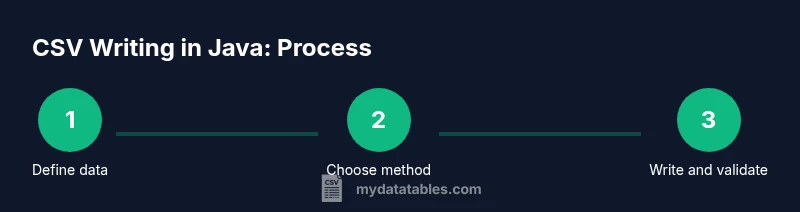
Define your data model
Decide the fields to export (for example, id, name, age) and organize your data in a structure such as a POJO or a List of records. Establish a consistent column order to prevent mismatches between header and rows.
Tip: Use a simple POJO to map data cleanly, or a List<String[]> for quick scripts. - 2
Choose a writing method
Decide between a plain Java I/O approach (FileWriter/BufferedWriter) for small tasks or a library (OpenCSV or Commons CSV) for robust handling of quotes, escaping, and encoding.
Tip: Libraries reduce edge-case bugs and simplify maintenance. - 3
Set up dependencies
If using a library, add it to your project’s dependencies (Maven or Gradle) so you can leverage CSV-specific helpers and formats.
Tip: Keep dependencies minimal and align with your project’s version policy. - 4
Prepare the output path
Choose a stable directory for the CSV file and ensure the directory exists before writing. Handle possible IO errors gracefully.
Tip: Use Files.createDirectories to avoid missing path errors. - 5
Write the header row
Write the column names as the first line to enable readers to map fields correctly without requiring separate schema files.
Tip: Write the header once and keep the order consistent with data rows. - 6
Write data rows
Iterate your data source and write each record as a delimited line. Ensure values are converted to strings in a predictable format and handle nulls appropriately.
Tip: For large datasets, batch writes to minimize I/O operations. - 7
Close resources safely
Use try-with-resources or explicit finally blocks to ensure files are closed and data is flushed.
Tip: Unclosed streams can lead to data loss or corrupted files. - 8
Validate the generated file
Read back a portion of the CSV to verify header correctness and row data, ensuring there are no missing fields or misformatted lines.
Tip: Automate a lightweight read-back check in tests. - 9
Handle encoding and newline
Consistently use UTF-8 and a single newline convention (LF or CRLF) across all exports to maximize compatibility.
Tip: Document the chosen encoding and newline policy for downstream users. - 10
Scale with libraries when needed
If you hit edge cases or volume, switch to a library API for improved performance and reliability, keeping the same header and row structure.
Tip: With libraries you can leverage CSVFormat and printRecord APIs for consistency.
People Also Ask
What is the simplest way to create a CSV file in Java?
For tiny tasks, plain Java I/O with FileWriter can work. For reliability and edge cases, use a library such as OpenCSV or Apache Commons CSV to handle escaping and quoting automatically.
You can start with plain I/O for small tasks, but libraries are safer for real-world use.
Do I need external libraries to write CSV in Java?
No, you can write CSV with core Java I/O, but libraries reduce bugs related to escaping, quoting, and encoding, especially with complex data.
Libraries are optional, but they make CSV writing more robust and less error-prone.
How do I ensure UTF-8 encoding when writing CSV in Java?
Specify UTF-8 when creating the writer, for example using standard charset APIs or Files.newBufferedWriter with UTF-8 to preserve non-ASCII characters.
Always encode in UTF-8 to avoid character corruption.
What about different CSV dialects or delimiters?
Delimiters and quote rules vary by region and tool. Libraries let you configure the delimiter and quote policy to match your target readers.
Dialects vary; choose a library to configure formats consistently.
How can I test the CSV export function?
Write tests that generate a CSV, then read it back with a parser to verify header and data integrity, including edge cases like commas or quotes.
Test by re-reading the CSV to ensure data integrity.
Which approach scales best for large datasets?
For large exports, streaming APIs and libraries with buffered I/O scale better than naïve string concatenation, reducing memory usage and I/O calls.
Streaming and library-based approaches scale better for big data.
Watch Video
Main Points
- Choose a consistent delimiter and encoding for all CSV exports.
- Use a library to handle quoting and escaping reliably.
- Validate exports by reading back and comparing headers and rows.
- Prefer UTF-8 and a single newline convention across pipelines.