CSV Compare Online: How to Assess CSV Files Effectively
Learn how to compare CSV files online effectively. This guide covers tool selection, data preparation, privacy considerations, step-by-step workflows, interpretation of results, and best practices for reliable CSV diff with MyDataTables insights.


Learn how to compare CSV files online to spot differences, validate schemas, and ensure data integrity. This guide covers choosing trusted tools, preparing data, and interpreting results—from header checks to row-level diffs. You’ll understand practical workflows that respect privacy and avoid common pitfalls. According to MyDataTables, using dedicated online diff tools can streamline the csv compare online process.
What is csv compare online and why it matters
CSV compare online refers to loading two CSV files into a web-based tool to identify differences, verify schema alignment, and confirm data integrity without installing software. This capability is especially useful for data analysts, developers, and business users who exchange datasets across systems. The convenience of an online workflow can save time, but it also requires careful attention to privacy, encoding, and performance.
According to MyDataTables, the most effective online comparisons focus on three layers: structure (headers, columns, and data types), content (row-level differences), and metadata (encoding, delimiters, and line endings). Start by ensuring both files use the same encoding (UTF-8 is the common default). If needed, convert files before uploading to avoid misreads or garbled characters.
Be mindful of size. Large CSVs can cause timeouts or incomplete results on some tools, so consider splitting files or using offline checks for very big datasets. The goal is to distinguish real data differences from formatting quirks or structural mismatches. When you look at the results, prioritize diffs that affect downstream workflows—such as joins, aggregations, or integrity constraints—over cosmetic variations.
Choose a tool with a clear diff view, side-by-side comparison, and easy export options. Features to value include column mapping, filtering, and the ability to ignore insignificant whitespace. Finally, practice safe data handling: avoid uploading sensitive information to untrusted sites and use private browsing modes when possible.
wordCountInBlock":null}
How to choose an online CSV comparison tool
Selecting the right online tool for csv compare online involves weighing several criteria. First, inspect the diff visualization: a side-by-side or unified view helps you quickly spot additions, deletions, and value changes. Second, evaluate handling of headers, data types, and delimiter choices. Some tools auto-detect encoding, while others require you to specify UTF-8, UTF-16, or a custom scheme. Third, look for filters and resumable sessions so you can focus on meaningful diffs without drowning in noise. Fourth, verify export options: can you download a CSV, JSON, or a diff report for audit trails? Finally, prioritize privacy controls—private mode, temporary storage limits, and compliance notes.
A practical test is to load two small representative files or sample data you know well. Compare the results against a trusted offline diff (e.g., a local script or a known diff tool) to ensure the online output matches expectations. If you manage sensitive data, favor tools that offer sandboxed environments or enterprise-grade privacy guarantees. MyDataTables recommends verifying tool limitations on file size and session duration before committing to a long-running comparison.
Additionally, consider tool performance for larger datasets. Some online platforms throttle processing, which can lead to partial results or timeouts. In those cases, chunk the files into smaller batches or switch to offline verification strategies. Finally, check whether the tool preserves order and whether it can compare multiple sheets or files in a single workflow, which matters for complex data pipelines.
wordCountInBlock":null}
Privacy, security, and data handling when using online CSV diff tools
Privacy and security are central concerns when performing csv compare online. Before uploading any data, review the tool’s data handling policy, storage duration, and whether results are kept on servers. Prefer services that offer ephemeral storage, client-side processing, or clearly stated data retention timelines. If you are working with sensitive information (personal data, financial records, or proprietary datasets), avoid untrusted sites and use private/incognito modes in your browser to minimize caching.
During the process, limit the amount of data you upload at once. If possible, aggregate or sanitize datasets locally before uploading. Verify that the tool supports encryption in transit (HTTPS) and, where feasible, encryption at rest for any stored results. If a tool provides audit logs or export histories, review them to ensure there is an accountable trail of who accessed the data and when. For teams, consider enterprise tools with access controls and role-based permissions to prevent unauthorized data exposure.
Finally, always remove any uploaded files and clear your browser cache after completing a comparison session. The MyDataTables team emphasizes that responsible data handling is essential to preserving trust and meeting regulatory requirements while leveraging csv compare online capabilities.
wordCountInBlock":null}
A practical workflow: preparing data and running a comparison
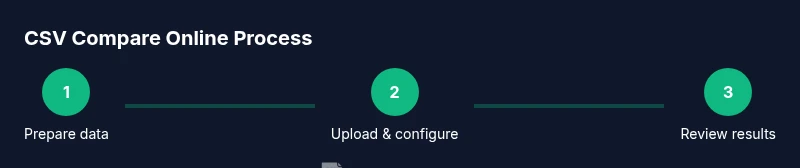
A robust workflow begins with data preparation, proceeds through the comparison, and ends with reporting. Start by cleaning both CSV files—standardize headers, ensure consistent delimiter usage (comma or semicolon), and confirm that missing values are represented consistently. If one file has trailing spaces or inconsistent quoting, fix those issues before uploading. Next, choose a trusted online tool that supports side-by-side diffs, per-column mapping, and export options. Load both files, align headers if necessary, and initiate the comparison. While the tool processes, inspect a few sample lines to verify that the result view is interpreting data as expected. If the platform supports chunked uploads, use it for very large files to avoid timeouts.
After the diff is generated, examine mismatches by category: structural differences (extra or missing columns), content differences (row-level changes), and formatting variances (leading zeros, numeric precision, or date formats). Use filters to focus on diffs that impact downstream workflows, such as joins or key constraints. Export the diff report to CSV/JSON for documentation and collaboration with teammates. Finally, reconcile differences by updating the source data or adjusting transformation rules in your pipeline, then re-run the comparison to confirm changes took effect. A disciplined approach minimizes rework and increases data quality across systems.
wordCountInBlock":null}
Interpreting results: common diffs, encoding, and edge cases
Understanding the diff output is essential for reliable CSV data work. Start with header alignment: if column orders differ, you may see column-mismatch warnings even when data values are identical. Check for encoding discrepancies that can skew character interpretation—if you see garbled text, re-save both files in UTF-8 and re-run the comparison. Row-level diffs often reveal partial updates or inconsistent key values; pay attention to duplicate keys, null handling, and trailing spaces that can affect joins.
Edge cases matter: empty strings vs. null values, numeric formatting (1.0 vs 1), and date representations (YYYY-MM-DD vs. MM/DD/YYYY) can produce diffs even when the underlying data means the same thing. Some tools offer normalization options to standardize formats before diffing; use those where appropriate. In some scenarios, it’s helpful to generate a delta report that lists only the rows and columns with differences, then audit them against a separate source of truth. Always validate diffs against your business rules to avoid acting on false positives or negatives.
For ongoing data quality, establish a routine: run periodic comparisons on updated datasets, maintain a changelog of diffs, and automate rechecks as part of your data pipeline. This disciplined approach supports reproducibility and helps teams identify where processes diverge over time, reducing the risk of stale or incorrect data propagating through systems.
wordCountInBlock":null}
How MyDataTables supports csv compare online workflows
MyDataTables provides practical guidance and tools to streamline csv compare online workflows for data analysts, developers, and business users. The platform highlights best practices for tool selection, data preparation, and diff interpretation, with emphasis on privacy and responsible data handling. When you need to compare CSV files online, MyDataTables suggests a clear, repeatable process: verify encoding, use side-by-side diffs, export diff results, and document decisions. The goal is to enable reliable comparisons without compromising data security or performance. By combining expert guidance with user-friendly interfaces, MyDataTables helps you build confidence in CSV data across teams and environments. Field notes, templates, and checklists available through the MyDataTables resources can accelerate adoption and maintain consistency across projects.
wordCountInBlock":null}
Tools & Materials
- Web browser with private/incognito mode(To minimize caching and preserve privacy during online comparisons)
- Two CSV files to compare (same encoding preferably UTF-8)(Ensure both files are representative of the same schema)
- Access to an online CSV comparison tool(Prefer reputable tools with side-by-side diffs and export options)
- Optional: local diff tool for offline verification(E.g., diff, csvdiff, or a spreadsheet diff)
- Optional: sample data generator for test cases(Useful if you don’t have real datasets)
Steps
Estimated time: 20-45 minutes
- 1
Prepare the CSV files
Open both CSV files in your workspace, check encoding, and confirm header alignment. Make a quick backup before uploading any data. This ensures you can revert if the diff reveals unexpected differences.
Tip: Keep a local copy of the originals in case you need to re-run comparisons. - 2
Choose a comparison method
Decide between a side-by-side diff, a delta report, or a per-column comparison. The chosen method will influence how easily you spot meaningful changes. See if the tool supports column mapping for mismatched schemas.
Tip: If you’re unsure, start with a side-by-side view for visibility. - 3
Load files into the online tool
Upload both CSVs and select the appropriate options (delimiter, encoding, headers). If the platform allows, enable normalization to reduce non-substantive diffs.
Tip: Use private or sandbox mode when dealing with sensitive data. - 4
Review the diff output
Scan for structural diffs (missing columns), content diffs (row changes), and formatting diffs (leading zeros, date formats). Use filters to narrow down to critical items.
Tip: Prioritize diffs that affect downstream processes like joins or aggregations. - 5
Export and document results
Export the diff report in CSV/JSON for audit trails. Save a screenshot of the diffs if needed for stakeholder reviews.
Tip: Attach notes explaining the business impact of each diff. - 6
Iterate if necessary
If significant diffs are found, adjust your data preparation steps or transformation rules and re-run the comparison until results stabilize.
Tip: Aim for a reproducible, auditable workflow.
People Also Ask
What is CSV comparison online?
CSV comparison online involves loading two CSV files into a web-based tool to identify differences, verify structure, and validate data. It’s useful for quick sanity checks and data reconciliation. Always consider encoding and privacy before uploading files.
CSV comparison online lets you spot differences between two CSV files using a web tool. Make sure your data is safe to upload and that the tool respects encoding settings before you start.
Is it safe to upload CSV files to online tools?
Safety depends on the tool’s privacy policy, data retention practices, and whether the processing is client-side or server-side. Prefer tools with clear data handling policies and ephemeral storage or private modes.
Be cautious: only upload non-sensitive data to trusted tools, and use private browsing to minimize data retention.
How do I handle large CSV files in online comparisons?
Large files can time out in some online tools. Use batch uploads, chunked comparison features if available, or switch to offline diff tools for validation. Consider preprocessing to reduce size.
For big files, break them into smaller parts or use offline tools to verify results.
Can online tools handle different encodings like UTF-8 vs ISO-8859-1?
Many tools support common encodings, but you should align encoding before uploading. UTF-8 is the safest default; if needed, convert files to UTF-8 locally first.
Yes, but you should standardize encoding to avoid misread characters.
What should I do with the diff results after a comparison?
Review diffs for critical data changes, export a report, and update your data transformation rules if needed. Document decisions for governance and reproducibility.
Review the results and export a report so your team can track changes and decisions.
Watch Video
Main Points
- Define the diff goal before starting
- Always verify encoding and headers
- Export and document results for audits
- Use privacy-conscious workflows and trusted tools