CSV HTML: How to Convert CSV Data into Accessible HTML Tables
Learn how to convert CSV data into accessible HTML tables, covering client-side and server-side approaches, encoding considerations, and practical examples for robust csv html workflows.


By the end of this guide, you will learn how to convert CSV data into an accessible HTML table, render it in a web page, and apply basic styling and validation. We'll cover client-side and server-side approaches, key accessibility considerations, and simple code snippets to get you started with 'csv html' workflows.
What is CSV HTML and why it matters
CSV HTML describes the practical workflow of turning CSV data into HTML tables for display on the web. CSV files store data in plain text, separated by commas, tabs, or other delimiters; they are easy to generate, share, and parse. HTML tables render structured data in browsers and support accessibility features that make information available to assistive technologies. When you combine CSV with HTML, you create a repeatable, shareable representation of data stories that can be embedded in dashboards, docs, and reports. In real-world scenarios, teams often generate HTML tables from CSV feeds to ensure consistency across platforms and devices. According to MyDataTables, a well-designed CSV HTML workflow avoids manual copy/paste and reduces rendering drift across browsers. The benefits include faster iteration, auditable data provenance, and the ability to apply styles and interactivity without altering the source data.
Common workflows for turning CSV into HTML
There are several approaches, each with trade-offs. Client-side rendering uses JavaScript in the user's browser to parse CSV data and build the HTML table on the fly. This is fast for small datasets and enables dynamic features like sorting and filtering, but it can strain the browser for large CSV files. Server-side rendering processes the CSV on the server, then sends ready-made HTML to the client. This eases browser load, enhances security for sensitive data, and scales better for big datasets, at the cost of additional server resources and deployment steps. A build-time approach uses static site generation to convert CSV into HTML during deployment, offering predictable performance and versioned outputs. Regardless of method, ensure your CSV is UTF-8 encoded, includes a header row, and uses a clear delimiter. You should also define a small, focused scope for the HTML output to avoid feature creep and keep maintenance manageable.
Designing accessible HTML tables from CSV
Accessibility-first design ensures your CSV HTML tables work for everyone. Use semantic elements: <table>, <thead>, <tbody>, and <tfoot> (if needed). Provide a <caption> that describes the table's purpose, and use <th> with scope attributes for column and row headers. Keep the language simple, add meaningful header labels, and ensure keyboard navigation with standard HTML table semantics. If the CSV contains numeric data, consider including data attributes or aria-labels to assist screen readers. The goal is to create a predictable, navigable structure that assistive technologies can interpret reliably. As a best practice, verify that header cells align with data cells and that long headers do not force horizontal scrolling on small devices.
Tools and techniques: client-side vs server-side parsing
Client-side parsing runs in the user's browser and is ideal for light, interactive displays and rapid prototyping. It keeps data on the client but may not scale to very large CSVs. Server-side parsing runs on your web server or in a backend job, offering better control, security, and the ability to stream results. For both approaches, begin with a robust CSV parser that handles quotes, escaped characters, and different delimiters. Choose based on dataset size, hosting constraints, and security requirements. This decision determines how you structure your code, where data resides, and how you manage updates to the HTML output. In practice, a hybrid approach can also work: perform initial parsing server-side and fetch incremental updates on the client for interactivity.
Practical examples: pseudo-code walkthrough for CSV -> HTML
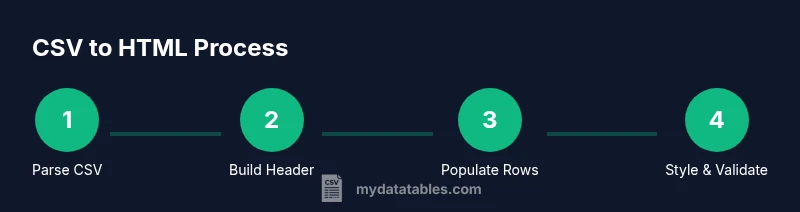
This section provides a high level walkthrough of turning a CSV into an HTML table without relying on language-specific libraries. 1) Read the CSV into a structured array or object. 2) Create an HTML table with a header row derived from the CSV headers. 3) Iterate data rows to fill the body. 4) Apply basic styling and accessibility attributes. 5) Validate the output and adjust rendering for responsive layouts. The core idea is to preserve the data integrity while mapping headers to cells in a predictable, accessible way.
Validation, testing, and performance considerations
Always validate the generated HTML with standard validators and run accessibility checks. Test the table in multiple browsers and screen readers. For large CSV files, implement streaming or pagination to avoid long load times and high memory usage. Cache rendered HTML where possible and profile the rendering process to identify bottlenecks. Consider lazy loading for extremely large datasets and provide a fallback for environments with limited JavaScript support. Regularly review dependencies and ensure that encoding remains consistent across data sources.
Best practices and real-world patterns
Adopt consistent header naming, ensure UTF-8 encoding, and map headers to stable data keys. Use responsive table layouts with CSS like display: block on small screens, and provide print-friendly versions when needed. Document your CSV schema and maintain an automated workflow to reproduce results. Establish a versioned pipeline so that changes to CSV sources do not unexpectedly alter HTML output. Finally, test across common browsers and devices to guarantee compatibility and a11y conformance.
Tools & Materials
- CSV file (UTF-8 encoded)(Header row recommended to generate headers automatically.)
- Code editor(Examples: VS Code, Sublime Text.)
- Web browser for testing(Chrome/Firefox/Edge with developer tools.)
- JavaScript runtime (optional for client-side)(Use browser or Node.js for testing.)
- CSV parsing library (optional)(Examples: generic CSV parsers.)
- HTML validator / accessibility checker(W3C validator and accessibility tooling.)
- Sample dataset(Use a small dataset to validate output.)
Steps
Estimated time: 30-60 minutes
- 1
Define objective and scope
Clarify what CSV data you are rendering and whether you need a basic or interactive HTML table. Align with accessibility goals and audience needs.
Tip: Write a concise spec before coding. - 2
Prepare input CSV
Inspect the CSV to ensure a header row exists, consistent field counts, and UTF-8 encoding for reliable rendering.
Tip: Validate delimiter and encoding early. - 3
Choose parsing approach
Decide between client-side parsing (in-browser) or server-side rendering (back-end). Consider data size and security implications.
Tip: Avoid exposing sensitive data in client-side scripts. - 4
Create HTML skeleton
Set up an HTML table structure with table, thead, tbody, and a caption describing the data purpose.
Tip: Include a descriptive caption for screen readers. - 5
Parse CSV into data structure
Convert CSV rows into an array of objects or arrays to simplify DOM creation or templating.
Tip: Handle quotes and escaped delimiters robustly. - 6
Build header row from CSV headers
Create the thead row using the CSV header values and assign scope attributes to headers.
Tip: Escape header text to prevent XSS. - 7
Populate table body
Iterate data rows to generate tr and td elements aligned with headers.
Tip: Maintain data types and avoid collapsing whitespace. - 8
Add accessibility features
Use semantic table markup, caption, and scope attributes; ensure keyboard operability.
Tip: Keep accessible naming consistent with headers. - 9
Style with CSS
Apply readable typography, borders, and contrast; consider responsive tweaks for small screens.
Tip: Use CSS variables for easy theming. - 10
Optimize for large CSVs
Implement streaming or pagination to manage memory and render times.
Tip: Test with datasets near production size. - 11
Validate and test
Run validators and screen-readers checks; verify cross-browser rendering.
Tip: Automate tests where possible. - 12
Deploy and monitor
Publish the HTML; monitor for errors, and prepare for updates when the CSV schema changes.
Tip: Document the pipeline for reproducibility.
People Also Ask
What is CSV HTML?
CSV HTML refers to rendering CSV data as HTML tables, combining parsing with semantic HTML for web display.
CSV HTML means turning CSV data into HTML tables for display on the web.
How do you convert CSV to HTML with JavaScript?
Parse the CSV into a data structure, then create a table element with a header and body based on the data, and insert it into the page.
In JavaScript, parse CSV into data, build a table with header and body, and insert it into the DOM.
Should I parse in the browser or on the server?
Choose based on data size and security. Client-side is quick for small datasets, while server-side can handle larger data safely.
Pick client-side for small data; server-side for bigger datasets and better security.
How do I ensure CSV HTML is accessible?
Use thead, tbody, caption, and th with proper scope. Ensure readable contrast and keyboard navigability.
Make sure headers are properly labeled and the table is keyboard accessible.
What are common pitfalls?
Mismatched headers, inconsistent delimiters, encoding issues, and not escaping user input can lead to broken tables.
Watch out for header mismatches and encoding problems that break your table.
How can I validate the generated HTML?
Run the HTML validator and accessibility checks to ensure standards compliance.
Use validators to ensure your HTML is valid and accessible.
Watch Video
Main Points
- Plan before coding to align with accessibility goals.
- Use semantic HTML to improve accessibility and searchability.
- Choose client or server-side parsing based on data size and security.
- Test with real datasets and validate output.