How to Read CSV in Python: A Practical Guide
Learn to read CSV in Python using the csv module and pandas. This guide covers headers, encodings, large files, and real-world examples for data analysis and transformation.


Using Python to read CSVs is straightforward. This guide shows you how to load data with the built-in csv module and with pandas, then parse headers, handle delimiters and encodings, and iterate rows efficiently. It covers common pitfalls, error handling, and memory considerations, plus practical examples for inspection, transformation, and loading CSV data into dataframes or Python structures.
What reading CSV in Python means
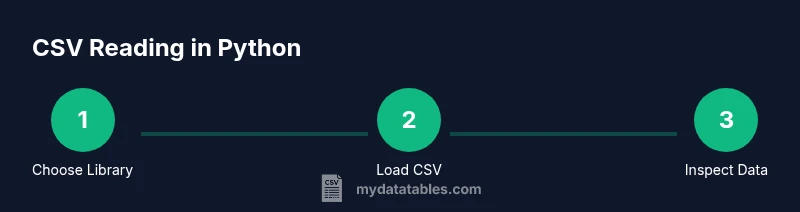
Reading CSV in Python is about turning a flat text file into structured data you can inspect, transform, and analyze. The primary goal is to load rows and columns without breaking the original data. If you're wondering how to read csv in python, this section introduces the concepts and common workflows. CSV files are plain text, separated by a delimiter (often a comma) and, optionally, a header row that names each column. Python provides two main pathways: a lightweight, low-level approach via the built-in csv module, and a higher-level, dataframe-oriented approach via pandas. For many analysts, pandas offers faster iteration, powerful data manipulation, and seamless integration with the rest of the Python data ecosystem. MyDataTables emphasizes choosing the right tool based on task complexity, file size, and memory availability. In practice, you’ll typically start by identifying whether you need a quick read into a Python list or a full-featured dataframe, then select the appropriate interface and options.
Core options: csv module vs pandas
Python offers two widely used approaches to read CSV data. The csv module is built into the standard library and works well for small, simple tasks where you want full control over parsing. Pandas, by contrast, provides read_csv, a powerful, high-level function that returns a DataFrame with automatic handling of missing values, data types, and many common data-cleaning steps. According to MyDataTables, the csv module is excellent for lightweight, script-like reads, while pandas is typically the right choice for data analysis pipelines. If your CSVs are large or you need rich transformations, pandas read_csv is usually the better option because it integrates with the broader Python data ecosystem. Consider your memory constraints and future steps when choosing between these tools.
Step-by-step: quick-start with the csv module
Goal: Read a simple CSV using the built-in csv module.
import csv

with open('sample.csv', mode='r', encoding='utf-8', newline='') as f:
    reader = csv.reader(f)
    header = next(reader, None)  # Optional: capture header
    for row in reader:
        print(row)
This approach is lightweight and easy to grasp. Use csv.DictReader if you prefer accessing columns by name instead of position. Ensure you specify the encoding that matches your file to avoid garbled text. The key benefits are simplicity and minimal dependencies, which makes it ideal for quick scripts or small data samples.
Step-by-step: using pandas read_csv
Goal: Read the same CSV into a DataFrame for analysis and manipulation.
import pandas as pd

df = pd.read_csv('sample.csv')
print(df.head())
Pandas read_csv automatically infers data types and handles missing values in many cases. You can fine-tune behavior with parameters like dtype, parse_dates, and na_values. For more robust parsing, specify encodings and delimiters explicitly. When you plan to perform downstream analysis—grouping, joining, filtering—pandas is typically the fastest path from file to insights.
Handling headers, encodings, and delimiters
CSV files vary in header presence, encoding, and delimiters. When a header exists, use header=0 in pandas or rely on the default in csv.DictReader. For encodings, utf-8 is standard, but latin-1 or utf-8-sig can fix surprises. Delimiters aren’t always commas; some files use tabs or semicolons. In pandas, use sep=',' (or sep=';') and in the csv module, set delimiter accordingly. If you encounter decoding errors, open the file with a binary mode and specify a fallback encoding strategy or try the encoding parameter in read_csv. These choices matter for data integrity and reproducibility.
Working with large CSV files efficiently
Large CSVs can overwhelm memory if loaded entirely. Use a streaming approach with the csv module by iterating rows or read with pandas using chunksize to process in portions. Example:
for chunk in pd.read_csv('large.csv', chunksize=100000):
    process(chunk)  # replace with your analysis function
Both approaches enable incremental processing, reducing peak memory usage. If you truly need speed with massive datasets, consider inspecting the data with a subset first, validating schema, and using types that require less memory. When appropriate, store intermediate results to disk rather than keeping everything in memory.
Common mistakes and debugging tips
Common errors include mis-specified separators, mismatched encodings, and assuming all columns have uniform types. When results look wrong, print a few rows, inspect dtypes, and check for missing or malformed values. Use try/except blocks around read operations to surface specific exceptions like UnicodeDecodeError or ParserError. If you suspect delimiter issues, test with a delimiter-indicator function or try reading with csv.Sniffer to infer the dialect. Always validate the read data against a small schema or a sample of known values.
Best practices for CSV data workflows
Adopt a reproducible workflow: version-control your scripts, pin library versions, and document assumptions about headers, encodings, and delimiters. Prefer pandas for data-analysis pipelines and the csv module for lightweight tasks. Validate inputs before heavy processing, and log errors with enough context to diagnose later. When sharing results, export clean CSVs with consistent encoding and clear headers. As a rule of thumb, start with a simple read to confirm structure, then expand into transformations.
Practical examples and real-world patterns
Here are common real-world patterns you’ll likely encounter. Example 1 demonstrates calculating a column total using pandas. Example 2 shows converting rows to dictionaries for downstream processing. Example 3 reads with a non-standard delimiter. These patterns cover many day-to-day CSV tasks, from quick summaries to data preparation for models.
Authority sources
- Python CSV module documentation: https://docs.python.org/3/library/csv.html
- Pandas read_csv documentation: https://pandas.pydata.org/docs/user_guide/io.html#reading-and-writing-csv-files
- RealPython CSV guide: https://realpython.com/python-csv/
Tools & Materials
- Python 3.11+ installed(Ensure python --version shows a 3.11+ release.)
- Text editor or IDE(Examples: VS Code, PyCharm, or Sublime Text.)
- Sample CSV file(Create a small dataset to test reads (e.g., id,name,amount).)
- Pandas library(Required if you plan to use read_csv for DataFrames.)
- Command line access or terminal(Needed to run scripts and pip install packages.)
- Optional: Jupyter Notebook(Useful for interactive exploration.)
Steps
Estimated time: Total time: 25-40 minutes
- 1
Verify Python environment
Check that Python is installed and accessible from your shell. Confirm version 3.11+ to ensure compatibility with modern libraries and features. This ensures you can run scripts without environment issues.
Tip: Use a virtual environment to keep project dependencies isolated. - 2
Decide between csv module and pandas
Evaluate task complexity. For simple parsing, the csv module suffices. For data analysis, statistics, and complex transformations, plan to use pandas read_csv.
Tip: If unsure, start with pandas for quick gains; fall back to csv for lightweight tasks. - 3
Prepare a CSV file
Create or obtain a representative CSV file with a header row and a few data rows. Include edge cases like missing values and different data types to test robustness.
Tip: Keep a copy of the original file; work on a clone during experimentation. - 4
Read with the csv module
Open the file with proper encoding and iterate using csv.reader or csv.DictReader. Access values by index or by column name for readability.
Tip: Prefer DictReader if you want column access by header names. - 5
Read with pandas read_csv
Load the file into a DataFrame. Explore the first few rows, check dtypes, and tune parameters like parse_dates and dtype as needed.
Tip: Use head() to quickly verify data structure before heavy processing. - 6
Validate and summarize
Run quick validations (missing values, column types) and generate summaries or simple aggregations to confirm data integrity.
Tip: Document any data-cleaning steps you apply for reproducibility.
People Also Ask
What is the difference between csv.reader and pandas.read_csv?
csv.reader returns rows as lists, useful for lightweight reads. pandas.read_csv loads data into a DataFrame with inferred dtypes and built-in data manipulation capabilities.
csv.reader gives you rows as lists; pandas.read_csv loads a DataFrame with powerful data tools.
How do I skip the header row when reading a CSV?
With csv module, use next(reader, None) to skip the header. With pandas, the header is typically inferred, but you can set header or skiprows to control it.
Skip header by advancing the iterator in csv, or by using header parameters in pandas.
How can I handle missing values when reading CSV?
Pandas offers na_values and keep_default_na to interpret missing data. The csv module treats empty fields as empty strings unless you post-process them.
Use pandas’ na_values for missing data; post-process with your own checks if needed.
Can pandas read CSVs with different delimiters?
Yes. In pandas, use sep=';' or another delimiter. In the csv module, specify delimiter accordingly. Consistent delimiter is essential for reliable parsing.
Yes, specify the delimiter in read_csv or csv.reader.
How do I read a CSV with a specific encoding?
Pass encoding='utf-8' or encoding='latin-1' to the read functions. Some files use utf-8-sig to handle BOM markers.
Set encoding to match your file; utf-8 is standard, others may be needed.
What should I do if the CSV is too large for memory?
Use pandas' chunksize or an iterator approach to process data in chunks. This avoids loading the entire file at once and supports scalable analysis.
Process in chunks to stay within memory limits.
Watch Video
Main Points
- Choose the right tool: csv module for simple reads, pandas for data analysis.
- Explicitly set encoding and delimiter to avoid parsing errors.
- Use chunksize for large CSVs to manage memory efficiently.
- Validate data early and document any cleaning steps.