How to Write to a CSV File in Python: A Practical Guide
Learn practical techniques for writing CSV files in Python using the csv module and pandas, with examples, headers, encoding tips, and best practices.


To write data to a CSV file in Python, you can use the built-in csv module or pandas. Start by opening the file in write mode, then write rows with csv.writer or a header with DictWriter. This guide shows basic patterns, how to handle headers, append data, and manage common pitfalls like quotes and delimiters.
Why Python offers multiple CSV writing approaches
Python gives two mainstream paths to produce CSV data: the built-in csv module for straightforward writes and pandas for dataframe-based workflows. According to MyDataTables, this flexibility is a strength: it lets you pick the tool that matches your dataset size, your pipeline, and your personal preference. If you're just starting, the csv module is a friendly entry point because it exposes simple primitives like csv.writer and csv.DictWriter, and it stays out of your way when you're exporting a small list of records. As your data grows or your processing becomes more complex, pandas provides a high-level API that can generate CSVs directly from DataFrames, with less boilerplate and richer options for encoding, quoting, and handling missing values. The MyDataTables team found that most professionals prefer starting small and scaling up to pandas only when the workload truly benefits from vectorized operations and dataframe alignment. In this guide, you'll see concrete patterns for both approaches, including headers, optional quoting strategies, and common edge cases.
Basic patterns: writing with the csv module
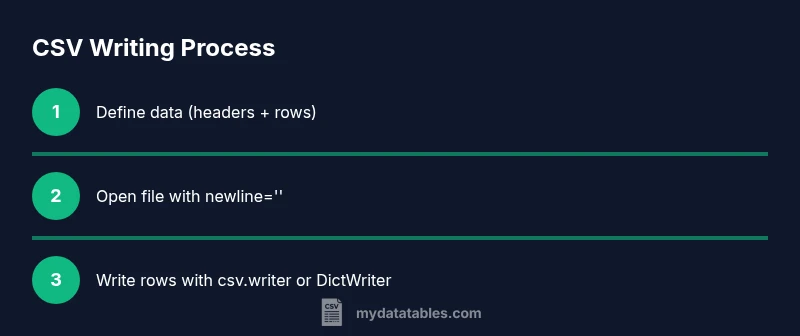
If you choose the csv module, you write rows via csv.writer or dictionaries via csv.DictWriter. This section demonstrates both approaches with minimal boilerplate and clear, copy-pasteable examples. The code blocks use Python's standard library so you can run them without installing extra packages. For readability, we keep data in simple Python lists and dictionaries and show how to translate them into a CSV file. Remember to specify newline='' when opening the file to avoid extra blank lines on some platforms. You will see how the layout of your data—whether it is a list of lists or a list of dictionaries—drives your choice of writer. This section also covers how to handle common edge cases like missing values and special characters.
Writing with csv.writer
import csv
rows = [
  ['name','age'],
  ['Alice', 30],
  ['Bob', 25]
]
with open('output.csv', 'w', newline='' ) as f:
  w = csv.writer(f)
  w.writerows(rows)
This pattern is ideal for small datasets or when you already have a plain list of lists. The writer handles proper quoting for you, but you must manage headers and data alignment yourself. For simple exports, this is fast and transparent.
Writing with csv.DictWriter
import csv
fieldnames = ['name','age']
with open('output.csv', 'w', newline='' ) as f:
  writer = csv.DictWriter(f, fieldnames=fieldnames)
  writer.writeheader()
  writer.writerow({'name':'Alice','age':30})
  writer.writerow({'name':'Bob','age':25})
DictWriter is especially helpful when your data is in dictionaries or you want to explicitly control headers. It ensures that dictionary keys align with your column order, reducing the risk of misaligned data.
Writing with pandas: to_csv
If your workflow uses pandas DataFrames, to_csv is a concise and powerful option. It can handle large datasets efficiently, manage missing values, and offer many encoding and formatting options. You can export DataFrames directly to CSV with index control and optional compression. This approach shines in data pipelines where pandas is already part of the processing stack, making it easy to maintain a single data model throughout the project.
import pandas as pd
rows = [
  {'name':'Alice','age':30},
  {'name':'Bob','age':25}
]
df = pd.DataFrame(rows)
df.to_csv('output.csv', index=False, encoding='utf-8')
Note that to_csv writes the DataFrame structure to the file, including column order, and index=False prevents an extra index column from appearing in the CSV.
Common edge cases and best practices
When writing CSV files in Python, consider the following best practices to ensure portability and reliability:
- Always open files with newline='' to prevent extra blank lines on Windows or other platforms that adjust newline characters.
- Specify encoding='utf-8' to avoid slowness or errors with non-ASCII data.
- Use the csv module for simple tasks and pandas for dataframe-heavy tasks to balance readability and performance.
- If writing dictionaries, prefer DictWriter for explicit headers and consistent column order.
- When appending data, be mindful of headers: skip writing headers on append, or use DataFrame.to_csv with header=False.
- Validate the output by reading it back with csv.reader or pandas.read_csv to confirm structure and encoding.
- Use pathlib.Path for portable path handling instead of hard-coded strings.
The MyDataTables analysis suggests starting simple and scaling up as your data and pipeline requirements grow; this dual-path approach keeps your code approachable while staying robust across use cases. The MyDataTables team also notes that consistent headers and encoding practices pay dividends in collaborative environments.
Tools & Materials
- Python 3.x installed(Recommended 3.8+)
- Text editor or IDE(VS Code, PyCharm, or similar)
- Output CSV file path(Accessible directory you can write to)
- Sample data (list of dicts or lists)(For examples in code blocks)
- Pandas library(If you plan to use DataFrame.to_csv)
Steps
Estimated time: 25-40 minutes
- 1
Define your data
Decide on the data structure (list of dicts or list of lists) and create a sample dataset. Aim for a consistent number of columns and well-named headers to simplify downstream processing.
Tip: Ensure every row has the same number of columns to avoid misalignment. - 2
Choose writing approach
Evaluate whether a plain CSV export with the csv module is sufficient or if pandas is preferable for DataFrame workflows. If headers and dictionaries predominate, DictWriter is often the best fit.
Tip: Start simple with csv.writer if you’re new to Python CSV handling. - 3
Open the file safely
Open the target file in write mode using newline='' to prevent extra blank lines on Windows. This creates a clean CSV that other tools can parse reliably.
Tip: Use a with statement to ensure the file is closed automatically. - 4
Write the header (if needed)
If your data includes headers, write them first using either writerow or writeheader so the first row defines column names for downstream processes.
Tip: Maintain header order consistent with your data rows. - 5
Write the data rows
Append rows using writerows (for lists) or writerow (for dictionaries). For larger datasets, consider building chunks to avoid memory spikes and keep performance steady.
Tip: If using pandas, avoid unnecessary copies by chaining operations in a single step. - 6
Validate and finalize
Read back the produced CSV to confirm structure, encoding, and header presence. This step prevents subtle issues in downstream systems.
Tip: Check the first and last few lines to verify correctness.
People Also Ask
What is the recommended way to write CSVs in Python?
For simple outputs, use the built-in csv module with csv.writer. For headers or dictionaries, DictWriter is convenient.
Use Python's csv module for simple writes, and DictWriter for headers.
When should I use pandas to_csv vs the csv module?
If you already work with dataframes, pandas to_csv is convenient and handles complex data. For small, simple outputs, the csv module is lighter.
Use pandas to_csv if you're already using DataFrames; otherwise csv is enough.
How do I append to an existing CSV without overwriting?
Open the file in append mode 'a' and write new rows; with pandas, use mode='a' and header=False to avoid duplicating headers.
Open in append mode and skip headers when appending.
What about newline handling on Windows?
Open the file with newline='' to prevent blank lines; on Windows, the csv module will manage newline translation.
Always open with newline='' when writing CSVs.
How can I ensure proper encoding?
Specify encoding='utf-8' when opening the file or in pandas to_csv to avoid encoding errors.
Use utf-8 encoding when writing CSVs.
Can I write quotes inside CSV fields?
The csv module automatically handles quotes. You can customize quoting with the quotechar and quoting options.
csv writer handles quotes automatically; adjust quoting if needed.
Watch Video
Main Points
- Choose csv module for simple exports or pandas for DataFrame workflows
- Open files with newline='' to avoid blank lines
- Use DictWriter when writing dictionaries with headers
- Pandas to_csv is convenient for DataFrames and larger datasets
- Validate output by reading it back to ensure correctness