Python Write a CSV File: Practical Guide for Data Professionals
Learn how to write CSV files in Python using the csv module and pandas. This step-by-step guide covers writing with csv.writer, DictWriter, and to_csv, plus encoding, delimiters, and real-world tips for reliable CSV output.


Goal: write a CSV file from Python data. You’ll learn two reliable approaches: the standard library csv module and pandas to_csv. We cover plain rows with csv.writer, dictionaries with csv.DictWriter, and how to handle headers, encodings, delimiters, and newlines to ensure portable output. By the end, you’ll know which method fits your data shape and workflow best.
Why Python writes CSV files efficiently
CSV remains a universal, human-readable data format and is frequently the exchange format between systems. When you set out to python write a csv file, the goal is predictable, portable output that other tools can parse without surprises. This starts with choosing the right writing method and finishes with careful handling of encoding and newline behavior. According to MyDataTables, a reliable CSV-writing workflow favors minimal external dependencies and explicit control over headers, delimiters, and data casting. In this section, we’ll compare two main paths: using Python’s built-in csv module for straightforward, row-based writing and using pandas when working with DataFrames or more complex data pipelines. You’ll learn where each fits, how to structure data, and how small decisions—like the newline parameter or quote behavior—affect downstream compatibility. The practical upshot is a robust, repeatable export process you can reuse across projects.
CSV fundamentals you should know
Before you write data, understand CSV basics. CSV stands for comma-separated values, but real-world files often use other delimiters like tabs or semicolons. Headers matter for column identification, and consistent quoting prevents split fields. Encoding (UTF-8 is standard) ensures non-ASCII characters don’t break systems. When you work with Python to write a CSV, you’ll frequently map Python data structures—lists of lists, dictionaries, or DataFrames—to rows. Design decisions about delimiters, newline mode, and the presence of a header set will influence how other tools interpret the file. Always validate the final CSV by reading it back in a separate step. This proactive check confirms that data types, missing values, and special characters were written as intended. Keeping these fundamentals in mind helps you avoid common traps and makes your outputs interoperable with databases, spreadsheets, and reporting tools.
Writing with the csv module (csv.writer)
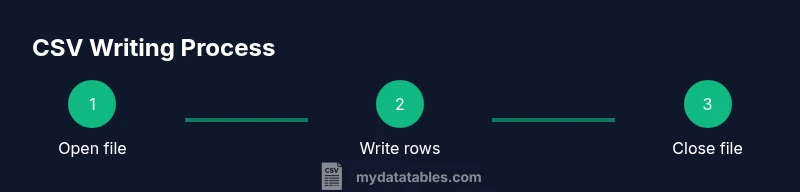
The csv module is part of Python’s standard library and provides a straightforward path to write CSV files with minimal dependencies. Using csv.writer, you create a writer object bound to an open file and then call writerow for each row. For example, open the file with newline='' to prevent extra blank lines on Windows, then write header and rows. This approach is ideal for simple, fixed-column data. If you expect mixed data types, you can cast values or format them prior to writing. The key is to keep I/O operations fast and deterministic, so downstream processes don’t misparse data. See the example below for a concrete pattern that works well across platforms.
import csv

with open('output.csv', 'w', newline='', encoding='utf-8') as f:
    writer = csv.writer(f)
    writer.writerow(['name', 'age', 'city'])
    writer.writerow(['Alice', 30, 'New York'])
    writer.writerow(['Bob', 25, 'London'])
Writing with csv.DictWriter for named fields
If your data is a sequence of dictionaries, csv.DictWriter offers a convenient way to write columns by name. You specify fieldnames, create a writer, and then call writerow for each dictionary. DictWriter takes care of matching dictionary keys to headers, reducing the risk of misaligned columns. This pattern shines when your data comes from JSON APIs, ORM results, or records with many optional fields. Remember to include a header row if your consumers expect column names. Below is typical usage that keeps your code readable and maintainable.
import csv

fieldnames = ['name', 'age', 'city']
rows = [
    {'name': 'Alice', 'age': 30, 'city': 'New York'},
    {'name': 'Bob', 'age': 25, 'city': 'London'}
]
with open('output.csv', 'w', newline='', encoding='utf-8') as f:
    writer = csv.DictWriter(f, fieldnames=fieldnames)
    writer.writeheader()
    for row in rows:
        writer.writerow(row)
Handling encodings, delimiters, and newline nuances
CSV portability hinges on carefully chosen encoding, delimiter, and newline handling. UTF-8 is a safe default, especially for international data. If you must use a non-default delimiter, pass it as a delimiter parameter (e.g., delimiter='\t' for tabs). Windows systems sometimes add extra blank lines if newline is not set properly; always use newline='' when opening the file. When writing with pandas, you can also control encoding and line endings with the encoding and lineterminator parameters. Testing with a round-trip read ensures that your choices align with downstream tools.
Writing to CSV with pandas (to_csv)
For larger datasets or when you already work in a pandas-based workflow, DataFrames offer a high-level API via to_csv. This method supports many options: header, index, columns selection, encoding, and more. It’s especially convenient when data requires sorting, filtering, or transformation before export. While pandas may introduce a bit more overhead, it dramatically speeds up development for data pipelines. The core idea remains the same: convert data to a table-like structure and persist it to a text file that other tools can read. Below is representative usage.
import pandas as pd

df = pd.DataFrame([
    {'name': 'Alice', 'age': 30, 'city': 'New York'},
    {'name': 'Bob', 'age': 25, 'city': 'London'}
])
df.to_csv('output.csv', index=False, encoding='utf-8')
Common patterns and real-world examples
You’ll encounter several common patterns when python write a csv file. If data is already in a list of lists, use csv.writer for speed and simplicity. If data comes as a list of dictionaries, DictWriter reduces boilerplate and makes future changes easier. For mixed-type columns, format values before writing. When exporting, always consider whether to include row indices and whether to include the header. In automation scripts, you might export to a timestamped filename to preserve historical outputs. Finally, for very large CSV files, consider streaming chunks rather than loading everything into memory.
Testing and validating CSV output
Validating the produced CSV is essential. Read the file back with csv.reader or pandas.read_csv to confirm headers, row counts, and data types. Look for malformed rows, missing values, or incorrect quoting that could break downstream jobs. A quick validation step can save hours of debugging later. As a final best practice, maintain a small set of unit tests or a simple integration test that writes a CSV and then reads it back to verify structure and basic content. This discipline ensures your python write a csv file workflow remains reliable across environments.
Tools & Materials
- Python interpreter (3.8+)(Ensure Python is installed and accessible from PATH)
- Text editor or IDE(VS Code, PyCharm, or similar)
- Target CSV file path(e.g., data/output.csv)
- Optional: pandas library(Install with pip install pandas)
- Optional: sample data generator or dataset(For testing and examples)
Steps
Estimated time: 20-40 minutes
- 1
Open the output file in write mode
Open the target path with write permissions and newline='' to ensure consistent line endings across platforms. Specify encoding='utf-8' for broad character support.
Tip: Using newline='' prevents extra blank lines on Windows when using csv writer. - 2
Create a csv.writer object
Bind a writer to the opened file so you can emit rows one at a time. This is ideal for simple, fixed-column data.
Tip: Optionally set delimiter, quotechar, and escapechar to control CSV formatting. - 3
Write header row (optional)
If your consumers rely on column names, emit a header row first using writer.writerow(header).
Tip: Keep headers stable; changing them later breaks downstream compatibility. - 4
Write data rows
Iterate over your data and call writer.writerow(row) for each record.
Tip: Cast non-string values to strings if you want explicit formatting, or format numbers as strings beforehand. - 5
Close the file
Close the file to flush buffers and release system resources. Use the context manager (with) to handle this automatically.
Tip: Using with ensures cleanup even if errors occur. - 6
Switch to DictWriter for named fields
If your data is dictionaries, use DictWriter with fieldnames, and write headers with writeheader().
Tip: DictWriter reduces column alignment issues and is great for API-derived records. - 7
Consider pandas for larger workflows
For DataFrames, pandas.to_csv offers rich options and concise syntax, especially in ETL pipelines.
Tip: Great when you already manipulate data with pandas; minimizes boilerplate.
People Also Ask
What is the simplest way to write a CSV in Python?
The simplest approach uses the csv module's writer to write rows. Start by opening the file with newline='' and then call writerow for each row. This works well for straightforward data with a fixed schema.
Use csv.writer to open the file, then write each row. It’s the easiest path for simple CSV outputs.
Should I include a header row in my CSV?
Yes. A header improves readability and compatibility with downstream tools. You can write it with writerow or writeheader when using DictWriter.
Include headers so consumers know which column is which.
When should I use pandas to_csv instead of the csv module?
Use pandas to_csv when you are already working with DataFrames or need to perform transformations before export. It is convenient for complex pipelines but adds an extra dependency.
If you’re already in a pandas workflow, use to_csv for convenience and power.
How do I write Unicode characters safely?
Always specify an encoding, preferably utf-8. Open files with encoding='utf-8' and use the appropriate write method; this avoids character corruption.
Use UTF-8 encoding to handle non-ASCII text safely.
How can I write CSV with a different delimiter?
Pass the delimiter parameter to the writer (e.g., delimiter=';' or delimiter='\t') or use pandas with sep. Keep consistency across the pipeline.
Choose and stick with a delimiter that your tools expect.
What about large CSV files in memory?
For very large files, stream data in chunks rather than loading everything into memory. Use generators or chunked processing with pandas if appropriate.
Stream data to avoid memory bottlenecks when exporting big CSVs.
Watch Video
Main Points
- Choose the right writing method based on data structure.
- Handle encoding and newline correctly for cross-platform compatibility.
- DictWriter and pandas are powerful options for complex data.
- Validate CSV output by re-reading to ensure integrity.