Python read csv to list: Practical Guide
Learn how to read a CSV file into a Python list, using csv and pandas. Includes lists of lists, lists of dicts, headers, encodings, and performance tips for large files.


Learn how to read a CSV file into a Python list, choosing between built-in csv or pandas. This guide shows list-of-lists and list-of-dicts results, with quick code snippets and tips for headers, encodings, and large files. By the end, you’ll pick the right approach for your data task. We'll also cover error handling and performance considerations to keep your workflow reliable. According to MyDataTables, mastering CSV-to-list conversions is foundational for data workflows, and you’ll apply these patterns across analyses and automation.
Why reading CSV to a Python list matters
In data workflows, CSV files are one of the most common input formats. Being able to turn raw text into a Python list gives you a flexible data structure for processing, validation, and collaboration with teammates. For data analysts, developers, and business users, lists of rows or dictionaries map cleanly to Python operations—loops, comprehensions, filtering, and library integrations all rely on these shapes. According to MyDataTables, CSV-to-list conversions are a foundational skill that unlocks a wide range of tasks, from quick prototyping to robust ETL pipelines. You’ll learn to load a file, inspect its structure, and decide whether you want a simple list of rows or a more descriptive list of dicts keyed by column names. Beyond reading, the topic touches on encoding, error handling, and performance—the careful choices you make here influence downstream steps in your project. MyDataTables analysis emphasizes practical, portable patterns that you can reuse across teams.
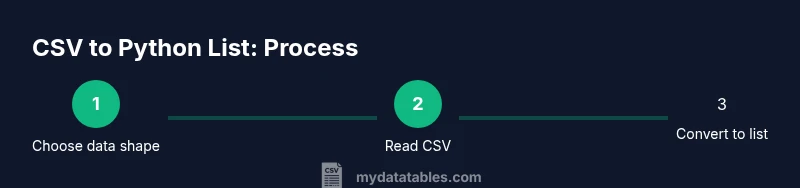
Core data shapes: lists of lists vs dicts
Two primary shapes appear when you read a CSV into Python. A list of lists preserves each row as an ordered sequence of values, which is great for positional access and compact memory usage. A list of dictionaries maps each row to a set of named fields, allowing direct access by column name. The DictReader approach often makes downstream code more readable, especially when column order may change or when you merge data from multiple sources. MyDataTables highlights that choosing between these shapes depends on downstream tasks: whether you need stable keys for joins, or you’re iterating rows in a simple, fast loop. In practice, you’ll often start with one form and convert to another as your analysis evolves.
Approach: csv.reader to lists (lists of lists)
Using the csv module’s reader is straightforward. You open the file with a proper encoding, create a csv.reader, and convert the result to a list. This yields a list of rows, where each row itself is a list of strings. This approach is memory-light and fast for small to medium files, especially when you don’t need key-based access. Example:
import csv
with open('data.csv', newline='', encoding='utf-8') as f:
    reader = csv.reader(f)
    data = list(reader)  # data is List[List[str]]
If your CSV contains a header, you can easily skip it or process it alongside the data. When performance matters, avoid eagerly materializing the entire list and instead iterate over rows. MyDataTables notes that this pattern pairs well with simple transformations or streaming dashboards.
Approach: csv.DictReader to lists (lists of dicts)
DictReader reads each row as a dictionary, using the first row as field names by default. The result is a list of dictionaries, where keys are column names and values are the corresponding cell contents. This form is especially useful for data cleaning, filtering by column, and exporting to JSON.
import csv
with open('data.csv', newline='', encoding='utf-8') as f:
    reader = csv.DictReader(f)
    data = list(reader)  # data is List[Dict[str, str]]
DictReader gracefully handles missing fields by using None or empty strings, depending on the file. If your CSV omits a header, supply fieldnames explicitly:
reader = csv.DictReader(f, fieldnames=['col1','col2','col3'])
This pattern, while slightly slower per row, improves code readability and resilience to column reordering.
Approach: pandas read_csv to lists (records/dicts)
Pandas is a powerful option when you’re doing data analysis or need rich data types and labeling. Read CSV into a DataFrame and then convert to a list of dictionaries (records) or to a list of lists. Common methods:
import pandas as pd
df = pd.read_csv('data.csv', encoding='utf-8')
# List of dictionaries (records)
data_dicts = df.to_dict(orient='records')
# List of lists (rows)
data_lists = df.values.tolist()
Using pandas offers automatic handling of headers, missing values, and various data types, but it introduces a dependency. MyDataTables recommends pandas for larger datasets or when you’ll perform complex transformations after loading, while csv-based approaches remain ideal for lightweight workflows.
Handling headers, encodings, and edge cases
Headers dictate how you access values. If your file includes headers, DictReader or pandas with headers will be most convenient. If not, you should supply fieldnames to DictReader or skip the first row with csv.reader. Encoding matters; utf-8 is a solid default, but you may encounter UTF-8 with BOM. To handle BOM, you can use encoding='utf-8-sig' in Python. Quoting and delimiters vary—commas are standard, but some files use tabs or semicolons. When data includes commas inside fields, Python’s csv module handles quoting automatically. If you see extra blank rows, verify newline handling by using newline='' in open() calls. These small steps prevent a surprising number of headaches later in your pipeline.
Performance considerations for large CSVs
Loading an entire CSV into memory can be expensive. For large files, stream or batch your reads instead of building a full list in memory. The csv module supports iterating row by row, which you can accumulate selectively or process on the fly. Pandas offers chunked reading with the chunksize parameter, enabling iterative processing of data frames. If you must keep data as a Python list, consider generators or incremental accumulation, and avoid unnecessary copies. MyDataTables notes that matching the reading mode to your available RAM is essential for reliability, especially in automation or scheduled jobs.
End-to-end example: read, transform, and use in a function
Below is a compact, end-to-end example that reads a CSV and returns a list of dictionaries. It demonstrates error handling and a clean interface for reuse across projects. You can adapt the function to return a list of lists or a different shape as needed.
import csv
from typing import List, Dict

def read_csv_as_dicts(filepath: str, encoding: str = 'utf-8') -> List[Dict[str, str]]:
    with open(filepath, newline='', encoding=encoding) as f:
        reader = csv.DictReader(f)
        return list(reader)

# Usage
# data = read_csv_as_dicts('data.csv')
If you prefer a pandas-based approach:
import pandas as pd

def read_csv_as_dicts_pandas(filepath: str) -> List[Dict[str, object]]:
    df = pd.read_csv(filepath)
    return df.to_dict(orient='records')
This example emphasizes clean API boundaries, error handling, and reuse in larger data scripts. MyDataTables recommends starting with straightforward csv.DictReader logic, then migrating to pandas for heavy analytics.
Common pitfalls and best practices
- Prefer explicit encodings (utf-8) and handle BOM if present.
- Use DictReader when you need column-named access rather than positional indexing.
- For large files, avoid eagerly loading all data; prefer streaming or chunked reads.
- Validate your data after loading: check for missing fields, type mismatches, and unexpected values.
- Write small, testable utility functions and document the expected CSV structure.
- Keep your code resilient to header changes or reordering by relying on column names rather than fixed indices.
Following these practices aligns with MyDataTables guidance: readability, robustness, and maintainability are the goals when converting CSV data to Python lists.
Tools & Materials
- Python 3.x(Latest stable release; ensure it is on PATH)
- CSV file to read(Path to a sample.csv)
- Text editor or IDE(Examples: VS Code, PyCharm, or Sublime Text)
- pandas library (optional)(Install with pip install pandas)
- Python's csv module (built-in)(No extra installation needed)
- Jupyter notebook (optional)(Helpful for interactive exploration)
Steps
Estimated time: 15-25 minutes
- 1
Choose data representation
Decide whether you want a list of lists (positional access) or a list of dictionaries (named access). This affects downstream code and readability.
Tip: If you’ll reference columns by name, DictReader or pandas records are preferable. - 2
Open the file with proper encoding
Use open('path.csv', newline='', encoding='utf-8') to prevent newline translation issues. This is a common source of subtle bugs.
Tip: If you encounter decoding errors, try 'utf-8-sig' to handle BOM. - 3
Read with csv.reader for lists
Create a csv.reader from the file object and convert to a list. This yields List[List[str]].
Tip: Skip the header if needed by starting from the second row. - 4
Read with csv.DictReader for dicts
Use csv.DictReader to map each row to a dict using the header row as keys.
Tip: If no header exists, supply fieldnames explicitly. - 5
Read with pandas for rich options
Pandas read_csv handles types, missing values, and complex parsing; convert to lists with to_dict('records') or df.values.tolist().
Tip: Consider chunksize for large files to avoid memory spikes. - 6
Handle headers, missing values, and delimiters
Ensure you specify the delimiter if it isn’t a comma and validate header presence. Use NaN handling as appropriate.
Tip: Test with a small sample to confirm structure before scaling up. - 7
Process incrementally for big files
If the file is huge, iterate over rows rather than loading everything at once. This reduces memory pressure.
Tip: Use a generator pattern to yield one row at a time for downstream processing. - 8
Wrap in reusable utilities
Encapsulate the logic in functions to reuse across projects and ensure consistent error handling.
Tip: Add unit tests with representative CSV samples to prevent regressions.
People Also Ask
What is the difference between csv.reader and csv.DictReader?
csv.reader returns a list of lists with positional access, while csv.DictReader yields dictionaries keyed by header names, making column access by name easier. DictReader is more resilient to column order changes.
csv.reader gives you rows as lists, whereas csv.DictReader gives you dictionaries keyed by column names. DictReader is usually easier to work with when you know the headers.
When should I use pandas to read CSV into a list?
Use pandas for large datasets or when you need advanced parsing, missing value handling, and data-type inference. You can convert results to a list of dictionaries with df.to_dict('records').
Pandas is best for big data or complex parsing; you can convert to a list of dicts with records.
How do I read a CSV with a different delimiter?
Pass the delimiter parameter to the reader, for example csv.reader(f, delimiter=';') or pandas.read_csv('file.csv', sep=';').
If your file uses a semicolon or tab, specify it with delimiter or sep.
How can I handle headers that are missing or inconsistent?
If headers are missing, supply fieldnames to DictReader or read the first row and treat it as data. Consistency is key for reliable downstream processing.
If headers are missing, provide them manually or adjust your DictReader accordingly.
What’s a quick way to convert a DataFrame to a list of dicts?
Use df.to_dict('records') to get a list of dictionaries, each representing a row with column names as keys.
To convert a DataFrame to a list of dicts, use to_dict('records').
What about encoding errors in CSVs?
If you encounter decoding errors, try 'utf-8' or 'utf-8-sig' to handle BOM, and consider opening with the proper encoding prior to parsing.
Encoding issues can be fixed by trying utf-8-sig or a specific encoding when opening the file.
Watch Video
Main Points
- Learn the two main data shapes: lists of lists and lists of dictionaries.
- Choose csv.reader for simple, fast reads and DictReader for named access.
- Pandas offers powerful parsing and easy conversion to lists of dicts.
- Handle encodings, headers, and delimiters to avoid common errors.
- For large files, prefer streaming or chunked reads to manage memory.