Change Separator in CSV: A Practical Step-by-Step Guide
Learn how to change the delimiter in CSV files across Excel, Google Sheets, Python, and command-line tools. This educational guide covers best practices, edge cases, and validation to ensure clean data imports and exports.


This guide shows you how to change the separator in csv across popular tools, so your data imports and exports stay consistent. You’ll learn how delimiters affect parsing, how to choose a suitable separator (comma, semicolon, tab), and how to convert files safely without corrupting fields. Practical steps cover Excel, Google Sheets, Python, and shell utilities.
Understanding CSV separators and why you might need to change them
In data workflows, the delimiter you choose for a CSV affects how software parses fields. Understanding CSV separators helps prevent misreads when importing data into spreadsheets, databases, or BI tools. According to MyDataTables, separator choices often reflect regional conventions and the target application, so selecting the right delimiter is not just a habit but a practical necessity. This guide explains how to change the separator in csv and what to consider when selecting a delimiter. Whether you import into a database, share data with a colleague, or feed a reporting tool, the delimiter you pick should align with the consumer’s expectations and the software’s parsing rules. By choosing thoughtfully, you reduce errors and downstream rework, and you keep your data pipeline robust across platforms.
We start with the big picture: why separators exist, what happens when they’re wrong, and how to diagnose delimiter-related problems. From there, you’ll gain hands-on, tool-specific guidance and best practices for testing and validating your converted files. The goal is to give you a reliable, repeatable approach to changing separators that works whether you’re handling small ad hoc files or processing large datasets.
Common separator options and how they affect parsing
Delimiters are characters that mark the boundary between fields in a CSV. The most common choice is the comma (,) in many U.S. contexts, but other regions and tools prefer semicolons (;) or tabs (\t). The decision often hinges on compatibility with software like Excel, Google Sheets, or database import routines. For example, semicolon-delimited CSVs are popular in locales where the comma is used as a decimal separator, since a comma would otherwise confuse numeric data. Tabs are preferred when fields include many punctuation marks since they’re less likely to appear in ordinary data, although tab-delimited files can be harder to read in simple text editors. Pipes (|) and other rarer delimiters are used when data itself contains common punctuation.
Key takeaway: choose a delimiter that minimizes the need for escaping and reduces parsing ambiguity across your primary tools. You’ll also want to consider how your data will be consumed downstream and whether the target environment can reliably handle the chosen separator.
How to change separators in popular tools
Changing a delimiter is not a one-size-fits-all operation. Here’s a quick map of how to approach the task in common environments. In Excel, you typically use the Import Text Wizard or Power Query to specify the delimiter, then load the data into a worksheet. In Google Sheets, you can import the CSV and choose custom delimiter settings during the import step. In Python with pandas, you specify the delimiter with the sep parameter inside read_csv, for example read_csv('file.csv', sep=';'). For shell users, you can use tools like awk, sed, or tr to transform delimiters (e.g., tr ',' ';' < input.csv > output.csv) while preserving encoding. LibreOffice Calc offers a similar “Import” dialog where you can set the separator. The exact steps vary, but the logic remains consistent: identify the target delimiter, apply it during import/export, and verify the data parses correctly.
If you’re converting large files, consider programmatic approaches to automate the process and reduce manual errors. Always work on a backup copy of the original file to protect against accidental data loss or formatting issues.
Handling quotes, escaped separators, and multi-line fields
CSV fields can contain delimiters when enclosed in quotes. The standard practice (RFC 4180) allows quotes around fields with embedded separators, and doubled quotes inside quoted fields to escape a quote character. When changing delimiters, you must decide how to handle existing quoted fields so that the content remains intact after re-serialization. If a field contains the new delimiter, you’ll need proper quoting; otherwise, the parser may split a single field into several. Be mindful of multi-line fields, as line breaks inside quoted fields can cause some parsers to misinterpret the end of a row. A robust conversion preserves the original data without introducing new artifacts.
Best practice: test with edge cases—strings with commas, semicolons, quotes, and newlines—to ensure your chosen delimiter doesn’t produce unexpected splits.
Real-world scenarios and safe conversion practices
In real-world data projects, you often receive CSVs with a delimiter that doesn’t align with your downstream systems. In such cases, plan a safe conversion workflow: start with a small sample, copy the original file to a test version, choose a delimiter that minimizes escapes, convert, and then re-import the test file to verify integrity. MyDataTables analysis shows that practitioners who validate the conversion with a round-trip test (import then export) catch most delimiter-related issues early. If the data will cross systems that depend on specific locales, document the chosen delimiter and encoding, and circulate a short guide for teammates. This proactive approach reduces troubleshooting time in production and improves collaboration across teams.
Troubleshooting common issues when changing separators
If parsing fails after a delimiter change, inspect the following: unexpected field counts, broken multi-line fields, and stray quotes. Reopen the file with a robust editor that highlights mismatched quotes and missing separators. Check the encoding; some CSVs use UTF-8 with a Byte Order Mark (BOM) which can affect parsers. Ensure that the new delimiter is not present in unescaped form within actual data; if it is, you may need to enclose affected fields in quotes. When automating, log transformation steps so you can reproduce or revert changes if needed. If you notice inconsistent rows, split analysis into smaller chunks or validate row-by-row before applying a file-wide change.
To avoid surprises, always perform a final quick import test in the target tool to confirm that all fields align with column headers and that numeric values retain their precision.
How to validate your updated CSV and confirm compatibility
Validation is about confidence, not guesswork. After changing the delimiter, re-import the file into the original or target tool and confirm that every row yields the same number of columns as the header row. Use a small subset first to verify that quoted fields and multi-line content survive the transition intact. You can also write a lightweight validator that checks for irregular row lengths, unexpected empty fields, or non-UTF-8 characters. If you’re sharing the file with teammates, provide a brief README explaining the delimiter choice and any encoding considerations. Finally, consider keeping a changelog entry describing the rationale and method used for the delimiter change.
Best practices and quick checks for ongoing delimiter changes
Keep a centralized reference for delimiter policies: what will be used in what context (e.g., comma for internal dashboards, semicolon for European data feeds). Always test with representative data samples and maintain a rollback plan. Use explicit encoding (UTF-8 is typical) and include a sample file to illustrate the expected format. When possible, automate the validation with a small script that asserts column counts and sample value patterns. This discipline reduces the risk of downstream failures and makes CSV workflows more predictable across teams.
Tools & Materials
- A text editor (e.g., VS Code, Sublime Text, Notepad++)(For viewing and editing CSVs safely, especially with large fields or unusual characters)
- Spreadsheet software (Excel, Google Sheets, or LibreOffice Calc)(Useful for manual inspection and quick testing of imports/exports)
- Python with pandas (optional)(For programmatic read_csv with a chosen delimiter and bulk validation)
- Command-line tools (optional)(Tools like awk, sed, or tr can help in quick delimiter transformations)
- Sample CSV file(Include mixed data types, quotes, and potential multi-line fields to test edge cases)
- Delimiter reference sheet(A quick reference for comma, semicolon, tab, and pipe choices)
- CSV validator(A lightweight checker can help verify row consistency and encoding)
- Encoding awareness guide (UTF-8, UTF-16, BOM)(Important to preserve data integrity during conversion)
Steps
Estimated time: 30-60 minutes
- 1
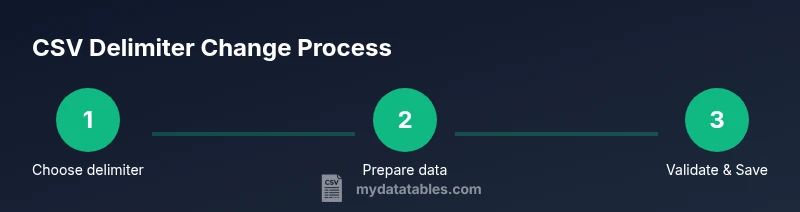
Identify the target delimiter
Decide which delimiter will be used for the conversion based on downstream requirements and regional practices. Document the choice and rationale to keep teams aligned.
Tip: If data already contains frequent occurrences of a potential delimiter, pick a different option and plan for proper quoting. - 2
Create a backup of the original CSV
Make a copy of the file before any transformation so you can revert if needed. This protects against accidental data loss.
Tip: Store backups in a versioned folder or with a timestamp in the filename. - 3
Open the file in a suitable tool
Use a text editor to inspect headers and examples or load the file into Excel/Sheets to preview field counts and quoting behavior.
Tip: Check for inconsistent quoting or irregular line breaks early. - 4
Choose the conversion method
Decide whether to change the delimiter manually in a UI, or programmatically with a script or command-line tool.
Tip: For large datasets, programmatic methods reduce human error and enable repeatability. - 5
Apply the new delimiter
Transform the file so that all fields are separated by the new delimiter, ensuring quoted fields remain intact if necessary.
Tip: Avoid changing encoding during this step to prevent character corruption. - 6
Save/export with the new delimiter
Export or save the file using the new delimiter and verify the encoding (UTF-8 is common).
Tip: If using Excel/Sheets, re-check import settings after saving to ensure compatibility. - 7
Validate the updated CSV
Re-import into the target tool and verify column counts, sample values, and edge cases.
Tip: Run a quick round-trip test (import then export) to confirm integrity. - 8
Document the change
Record the delimiter decision, tools used, and validation results for future audits.
Tip: Include a short README with a sample file demonstrating the new format.
People Also Ask
What is a CSV delimiter and why does it matter?
A CSV delimiter is the character that separates fields in a CSV file. Using the correct delimiter ensures each field is parsed correctly by software. Inconsistent delimiters can lead to misaligned data and failed imports.
A CSV delimiter is the character that separates fields in a CSV. Using the right delimiter ensures fields parse correctly and prevents misreads during imports.
Which delimiter should I use for European versus US locales?
Many European systems prefer semicolons due to decimal notation conventions, while US systems commonly use commas. Check your target software’s documentation and validate with a small sample.
European systems often use semicolons; US systems use commas. Always verify with the target tool before large-scale conversions.
Can I change the delimiter in Excel?
Yes. Use the Import Text Wizard or Data/From Text to specify a new delimiter, then load the data into a sheet. Re-save using the desired delimiter if needed.
In Excel, use Import Text or Get Data to set a new delimiter and load the data. Save with the new delimiter to finalize.
Is it safe to convert to a non-standard delimiter?
It can be safe if all downstream tools support it. Ensure that the chosen delimiter does not appear unescaped in your data, or else you must enclose fields in quotes.
You can use a non-standard delimiter if every tool in your workflow supports it, and you avoid the delimiter appearing in data without quotes.
What about quoted fields and embedded delimiters?
Quoted fields allow embedded delimiters. When changing delimiters, preserve proper quoting and escaping to avoid splitting fields unintentionally.
Quoted fields let you include delimiters inside data. Keep proper quoting when changing delimiters to avoid misparsing.
How do I revert to the original delimiter?
Keep a backup and apply the original delimiter using the same steps you used for the change. Validate by re-importing to confirm data integrity.
If you need to revert, use the original delimiter and test a quick import to ensure the data matches the prior state.
Watch Video
Main Points
- Choose a delimiter that matches downstream tools and regional conventions.
- Test changes with a representative sample before full-scale conversion.
- Maintain encoding integrity to avoid character misreads.
- Document the rationale and validation results for future use.