CSV Delimiter Change: A Practical How-To
Learn how to change the delimiter in CSV files across Excel, Google Sheets, Python, and the command line. Practical steps, tips, and best practices from MyDataTables to ensure clean, interoperable data.


You will learn how to change the delimiter in CSV files across popular tools, including Excel, Google Sheets, Python (pandas), and the command line. This guide covers common delimiters (comma, semicolon, tab), how to export with the new delimiter, and validation steps. From reading and exporting to testing results, you’ll gain reliable control over CSV formats.
What 'csv how to change delimiter' means
Delimiters are the characters that separate fields in a CSV file. The most common is a comma, but many locales use a semicolon or even a tab. Understanding delimiter behavior is essential because it directly affects how data is parsed by import tools, spreadsheets, and scripts. If a file uses a delimiter that your software doesn’t expect, you’ll see misaligned columns, broken headers, or data that looks like a single long field. The phrase csv how to change delimiter captures a common data engineering task: tailoring the file’s separator to fit an ingestion point, a downstream system, or a locale-specific convention. Changing a delimiter is not just a cosmetic edit; it changes how parsers scan the text, how quotes are interpreted, and how multi-field records are reconstructed.
According to MyDataTables, you should plan delimiter changes with a test file that includes typical edge cases: quoted fields, embedded separators, and missing values. Without a controlled test, you may introduce subtle errors that propagate downstream. This section explains why a delimiter matters, what counts as a “change,” and how to think about compatibility with other tools. You’ll also learn when to avoid changing a delimiter—for example, when you must maintain strict compatibility with a single ingestion pipeline or when your data contains fields that themselves include the delimiter.
In practice, getting this right means documenting the chosen delimiter, testing across readers and writers, and being mindful of locale conventions. A well-executed delimiter change supports data sharing, reduces import failures, and improves automation reliability across teams.
Tools & Materials
- Text editor or IDE(Use for inspecting raw CSV and editing small samples.)
- Spreadsheet software (Excel or Google Sheets)(Used to export CSV with a chosen delimiter or to inspect data visually.)
- Python with pandas(For programmatic read/write with a custom delimiter.)
- Command-line access (Terminal/PowerShell)(Needed for quick conversion or validation using common utilities.)
- Sample CSV file(Include quoted fields and embedded delimiters to test edge cases.)
- Delimiter reference cheat sheet(A quick reference to common separators and quoting rules.)
- Regex tester or simple validator(To verify delimiter boundaries and field counts.)
Steps
Estimated time: 45-90 minutes
- 1
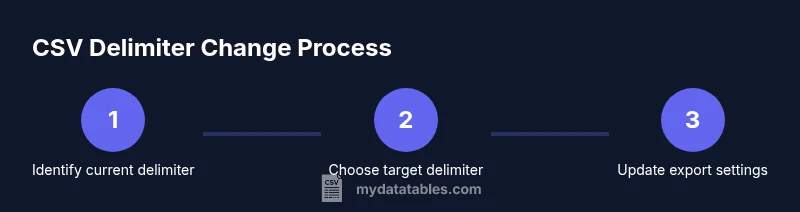
Identify the current delimiter
Open the CSV in a text editor or import it into a spreadsheet to observe how fields are separated. Note whether quotes surround fields with embedded delimiters. This baseline step ensures you understand the starting point before attempting changes.
Tip: If you see inconsistent separators in different lines, your file may use multiple delimiters or be corrupted. - 2
Choose a target delimiter
Decide which delimiter fits your downstream systems and locale. Common choices are comma, semicolon, tab, and pipe. Record the choice in your data dictionary to maintain consistency across teams.
Tip: Prefer a delimiter that minimizes the need for escaping within fields. - 3
Update export/save settings in Excel or Google Sheets
In Excel, use Save As and select CSV with your chosen delimiter if your locale supports it; in Sheets, export to CSV and adjust locale-based separators if available. For Calc or other tools, use Text CSV export and specify the separator explicitly.
Tip: Back up the original file before exporting and verify the new file uses the desired delimiter. - 4
For Python/pandas: read with old delimiter, write with new delimiter
If you’re changing a delimiter via code, load the data with the original delimiter and save using the new one (df.to_csv(..., sep=';')). This keeps data integrity while shifting the format.
Tip: Ensure quoted fields remain properly escaped when writing with the new delimiter. - 5
For command-line tools: convert or normalize
Use awk or tr to convert delimiters in a robust one-liner (e.g., awk -F',' -v OFS=';' '{print $1, $2, $3}' infile.csv > outfile.csv or tr ',' ';' < infile.csv > outfile.csv).
Tip: Always test on a small sample first to confirm field alignment. - 6
Validate the result
Inspect the header and a few data rows in a text editor and by importing into a destination system. Check that fields align correctly and that no data has been lost or merged.
Tip: Count columns per row to confirm consistency across the file. - 7
Update downstream workflows
Modify any automation scripts, ETL jobs, or documentation to reflect the new delimiter. Communicate changes to team members and update data contracts.
Tip: Create or update a data lineage note describing the delimiter decision. - 8
Troubleshoot common issues
If you still see misparsed data, verify that no fields contain the delimiter unquoted, confirm the encoding is correct (UTF-8 is common), and re-check locale settings. If needed, consider using a more distinctive delimiter.
Tip: Some tools don’t expose delimiter options; in those cases, preprocess the file with a script.
People Also Ask
What is a CSV delimiter?
A delimiter is the character that separates fields in a CSV file. The most common choice is a comma, but semicolons, tabs, and pipes are also used in different locales and contexts. The delimiter determines how parsers split the line into separate fields.
A delimiter is the character that separates fields in a CSV file, most often a comma, but it can be a semicolon, tab, or pipe depending on the locale and tool.
Can I use more than one delimiter in a single CSV file?
CSV files are designed to use a single delimiter for consistent parsing. Mixing delimiters can lead to misaligned data and parsing errors unless the reader explicitly supports multiple delimiters.
Generally, a CSV uses one delimiter, so mixing delimiters can cause issues for readers and writers.
How do I determine the current delimiter of a CSV file?
Open the file in a text editor and observe the characters between fields. If unsure, look for repeated patterns across multiple lines or try importing with different delimiters in your tool until the data aligns.
Look at the separators between fields in the first few lines and verify with a test import.
Why do I need to escape quotes when changing delimiter?
Fields containing the delimiter must be quoted to avoid breaking the structure. Proper quoting prevents the delimiter from being interpreted as a field separator inside data.
If a field contains a comma or semicolon, it should be quoted to keep the field intact.
Is there a way to convert a CSV delimiter in place?
You can convert delimiters using scripts or command-line tools, but it’s usually safer to create a new file and verify it before replacing the original. Always back up before doing any in-place edits.
Yes, you can convert delimiters with scripts, but make a backup first and test the new file thoroughly.
What errors should I expect after changing a delimiter?
Mismatched separators can cause fields to shift, headers to misalign, or imports to fail. Validate by inspecting multiple rows and testing a sample import into the target tool.
Delimiter mistakes often show up as misaligned columns; verify with a sample import.
Watch Video
Main Points
- Choose a single delimiter and document it
- Test with edge cases before deploying
- Validate by importing sample files in target tools
- Watch locale-related behavior and quoting rules
- Update all downstream processes and docs when you change delimiters