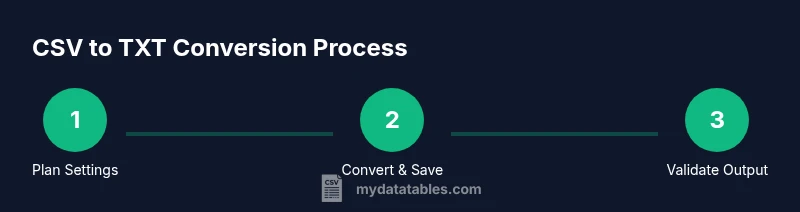
Convert from CSV to TXT: A Practical How-To
Learn practical methods to convert from CSV to TXT with consistent delimiters, encodings, and quotes handling. Step-by-step approaches using Excel/Sheets, PowerShell, Python, and shell scripting for reliable, repeatable results.


You can convert from CSV to TXT by changing the delimiter and handling quotes, encoding, and line endings. This quick guide shows step-by-step methods using spreadsheet apps, command-line tools, and scripting with Python or PowerShell. You’ll input a CSV file, choose a TXT delimiter (tab or space by default), and export with consistent encoding for downstream workflows.
What converting CSV to TXT means
In data workflows, converting from CSV to TXT is not just changing a file extension. It entails selecting a text-delimited format where fields are separated by your chosen delimiter (such as a tab, space, or a custom string), ensuring consistent encoding (UTF-8 is typical), and preserving data integrity during export. According to MyDataTables, these conversions are common when you need a plain-text representation for legacy systems, log ingestion, or simple, line-based processing. The MyDataTables Team emphasizes that the most important choices are delimiter, encoding, handling of quotes, and normalization of line endings across platforms. A well-done conversion yields a predictable, machine-friendly text file that downstream tools can easily parse. If you start with a clean CSV and a clearly defined target TXT format, you can avoid many headaches later in your pipeline. In this block we’ll lay out core concepts and define a practical approach that works across Windows, macOS, and Linux environments.
Key concepts: delimiter, encoding, quotes, and line endings
To understand CSV-to-TXT conversion, you must grasp four core ideas. Delimiter: CSV uses commas, but TXT can use other separators like tabs or spaces. Encoding: choose UTF-8 or another standard encoding to avoid corrupted characters. Quotes: fields containing delimiters or newlines may be quoted; decide how to preserve or remove quotes. Line endings: Windows uses CRLF, Unix uses LF; inconsistent endings can break downstream parsing. These choices shape the resulting TXT file and influence compatibility with tooling such as log parsers, text editors, or BI pipelines. In practice you’ll define the target delimiter, confirm the encoding, plan how to treat quoted fields, and standardize line endings before exporting. The goal is a consistent, repeatable output that remains faithful to the original data while fitting the requirements of the consuming system. It helps to keep a small reference sheet for your team showing the chosen settings for each conversion project.
Methods overview
There are several reliable paths to convert CSV to TXT, each with trade-offs. Spreadsheet-based methods are quick and human-friendly but less scalable. Command-line approaches are fast and scriptable, ideal for automation. Python-based solutions provide portability and strong data-validation capabilities. Shell scripting on macOS/Linux offers light-weight, text-oriented pipelines. In this guide, we’ll cover representative methods for each pathway, illustrate typical commands or scripts, and point out common pitfalls to watch for, such as quoting and escaping, or handling very large files. Regardless of method, the core workflow remains the same: load the CSV, map fields to the TXT format, apply the chosen delimiter, ensure encoding, and write the output with consistent line endings. By understanding these paths, you can select the most efficient route for your project and team.
Method 1: Spreadsheet approach (Excel/Sheets)
Spreadsheet tools provide a fast, visual way to convert CSV to TXT. In Excel, open your CSV, then choose File > Save As and select "Text (Tab delimited) (*.txt)". In Google Sheets, File > Download > Tab-separated values (.tsv) can be repurposed as TXT by changing the extension if your downstream tool expects .txt. When you need a non-tab delimiter, export to TXT and then replace the delimiter in a text editor or with a small script. If your dataset contains embedded delimiters or quotes, ensure you review the sheet’s cell formatting and use the sheet’s text import options to avoid misinterpretation. This method is ideal for small to medium datasets and for quick ad-hoc conversions, especially when you want to visually inspect the data before export.
Method 2: Command-line conversion (Windows)
PowerShell provides a robust path for automation. A common pattern is to import the CSV, then export to TXT with a tab delimiter. Example: Import-Csv -Path input.csv -Delimiter ',' | ConvertTo-Csv -Delimiter 't' -NoTypeInformation | Out-File -Encoding UTF8 output.txt. For large datasets or strict quoting rules, you can also use: Import-Csv input.csv -Delimiter ',' | ForEach-Object { $.psobject.Properties | ForEach-Object { $.Value } -join '\t' } | Out-File output.txt -Encoding UTF8`. These commands preserve encoding and produce a consistent TXT file that downstream tools can parse reliably.
Method 3: Python approach (minimal, portable)
Python’s csv module makes this straightforward and portable across platforms. A minimal script reads a CSV and writes a tab-delimited TXT file:
import csv
with open('input.csv', newline='', encoding='utf-8') as f:
    reader = csv.reader(f)
with open('output.txt', 'w', newline='', encoding='utf-8') as out:
    for row in reader:
        out.write('\t'.join(row) + '\n')
This approach handles quoting nuances consistently and works well for larger files when you stream data rather than loading everything into memory.
Method 4: Shell scripting on macOS/Linux
For quick, scriptable conversions, you can use awk or paste with custom delimiters. A common pattern uses awk to rejoin fields with a chosen delimiter, e.g. awk -F',' -v OFS='\t' '{print $1, $2, $3}' input.csv > output.txt for a known column count. For variable column counts, a loop that prints all fields joined by tabs is more robust. Shell methods are lightweight and excellent for automation in Linux or macOS environments, especially in ETL pipelines or CI workflows.
Validation and pitfalls
After converting, validate that the TXT file preserves the essential data: row counts, header integrity, and correct field separation. Check for characters that didn’t survive encoding, such as non-ASCII symbols, and verify line endings match your target system (CRLF vs LF). Common pitfalls include losing quotes around fields, accidentally introducing extra delimiters due to missing fields, and subtle changes in whitespace. A small sample comparison using a diff tool or a simple script can help confirm that the TXT output aligns with the original CSV content. If discrepancies arise, revisit the delimiter choice, encoding, and any pre-processing steps like trimming whitespace or removing embedded newlines within fields.
Real-world guidance: performance, size, and automation
For large datasets, prefer streaming methods that process data in chunks rather than loading entire files into memory. In automated environments, integrate the conversion step into an ETL pipeline or a scheduled job. Maintain a simple versioning scheme for output files and store a short manifest of the settings used for each conversion (delimiter, encoding, and date). By applying consistent conventions and documenting decisions, teams can reuse the same process across multiple projects. MyDataTables’s practical recommendations emphasize reproducibility and alignment with downstream consuming systems.
Quick validation checklist and next steps
- Confirm the delimiter and encoding match the target system requirements.
- Inspect a small sample of the output to ensure headers and data align.
- If automation is desired, wrap the chosen method in a script and integrate it into a workflow manager.
- Keep a log of conversions and any edge-case handling for future audits.
Closing thoughts and next steps
Converting CSV to TXT is a foundational data engineering task that pays dividends when done consistently. By choosing a clear delimiter, stable encoding, and a repeatable process, you reduce downstream errors and save time in data pipelines. The MyDataTables team recommends starting with a safe default (tab-delimited TXT, UTF-8) and adapting as your ecosystem requires. With the methods outlined here, you can perform conversions reliably across environments and scales.
Tools & Materials
- CSV input file(Source data in comma-separated format to be converted.)
- Spreadsheet software (Excel or Google Sheets)(Useful for quick manual conversions to TXT with tab delimiters.)
- Text editor(Optional for quick checks or small edits to the TXT output.)
- Scripting runtime (Python 3.x or PowerShell 7+)(Required for automated or scalable conversions.)
- Command-line interface (Terminal / PowerShell / CMD)(Needed to run CLI-based conversion commands or scripts.)
- Target TXT encoding reference (UTF-8 recommended)(Ensures consistent character representation across systems.)
Steps
Estimated time: 30-60 minutes
- 1
Assess needs and choose method
Identify whether the task is a one-off, a routine process, or part of a larger pipeline. Choose the approach (spreadsheet, PowerShell, Python, or shell) that best fits your environment and data size.
Tip: If you’re uncertain, start with spreadsheet-based conversion for a quick check, then move to scripting for automation. - 2
Prepare the CSV
Verify that the CSV uses a consistent encoding (prefer UTF-8) and that fields with delimiters are properly quoted. Clean up any stray line breaks inside fields to avoid broken TXT lines.
Tip: Run a quick encoding check on a sample to prevent data loss later. - 3
Set the target delimiter
Decide whether the TXT will be tab-delimited, space-delimited, or a custom delimiter. Consistency here is critical for downstream parsing.
Tip: Document the chosen delimiter so other team members reuse the same standard. - 4
Perform the conversion
Execute the conversion using the chosen tool. Ensure the output path is correct and that the encoding is preserved in the resulting TXT.
Tip: Test with a small sample first to verify that quotes, line endings, and delimiters render correctly. - 5
Validate the result
Open the TXT to confirm delimiter placement, line endings, and data integrity. Compare a subset with the source CSV where possible.
Tip: Automate a comparison script to flag mismatches across large outputs. - 6
Automate and document
If this is a repeatable task, wrap the method in a script and add it to your workflow. Keep a short doc that records settings and any caveats for future runs.
Tip: Include error-handling and logging for robust automation.
People Also Ask
What is the difference between CSV and TXT formats?
CSV is a structured format with comma-separated fields and optional quotes. TXT is plain text that uses a chosen delimiter to separate fields. The key is to decide on a consistent delimiter and encoding so the TXT output is predictable for downstream tools.
CSV uses commas and sometimes quotes; TXT uses a delimiter you pick. The important part is consistency in delimiter and encoding.
Can I preserve quotes from the CSV in TXT output?
Yes, but it depends on the tool. Some exporters keep quotes; others strip them. If you need quotes preserved, configure the export to keep or escape quotes, or post-process the TXT to reintroduce quotes as needed.
Some tools remove quotes by default; you may need to adjust export settings or post-process the file.
What encoding should I use when converting to TXT?
UTF-8 is the recommended default because it supports a wide range of characters and is widely compatible. If your data contains legacy characters, you may need a different encoding, but ensure the source and destination share the same encoding.
Start with UTF-8; always match the source and destination encoding to avoid corruption.
How to handle very large CSV files during conversion?
For large files, stream the data rather than loading it all at once. Use a tool or script that processes lines in chunks or uses generators, so memory usage stays manageable.
Process big CSVs in chunks to avoid high memory use.
Is there an automated way to convert CSV to TXT as part of a workflow?
Yes. Wrap the method in a script (Python, PowerShell, or shell) and integrate it into an ETL pipeline or scheduler. This ensures consistent, repeatable conversions without manual steps.
Yes—automation is possible with scripts and schedulers.
Which method is best for beginners?
Spreadsheet-based conversion is the easiest entry point for beginners, while scripting offers long-term benefits for repeatability and automation. Start with a manual test in a spreadsheet, then incrementally adopt scripting for repeatable tasks.
Start with a spreadsheet to learn the basics, then move to scripting for repeatability.
Watch Video
Main Points
- Plan delimiter before exporting
- Choose UTF-8 encoding by default
- Automate for repeatable conversions
- Validate output against source data
- Handle quotes and multi-line fields carefully