Convert to CSV: A Practical Step-by-Step Guide
Learn how to convert any data source into CSV with best practices for delimiters, encoding, and validation. This MyDataTables guide covers Excel, Google Sheets, Python, and automation to help data analysts export clean, interoperable CSV files.


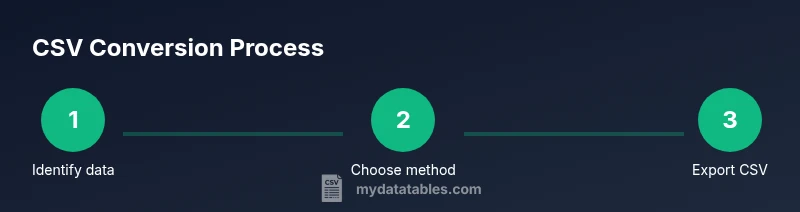
Goal: convert diverse data sources into a clean CSV file ready for analysis. You’ll learn practical methods for spreadsheet programs (Excel, Google Sheets) and programmatic options (Python, shell scripts), plus how to choose reliable delimiters and encoding. This quick answer highlights essential steps and confirms what you’ll need before you start the conversion.
What is CSV and why it's essential
CSV stands for comma-separated values, a plain-text format that stores tabular data in a simple, portable way. When you convert to csv, you gain a lightweight file that can be read by almost any data tool, from spreadsheets to databases. According to MyDataTables, CSV remains the most interoperable format for exchanging data between teams and applications. This universality makes it the first choice for exports, backups, and data sharing. In practice, a CSV file uses a delimiter to separate fields, a line break to separate rows, and a header row to describe columns. Although the name implies commas, many contexts use other delimiters such as semicolons or tabs. The choice of encoding matters as well: UTF-8 is the default for modern systems because it preserves characters from diverse languages. Understanding these building blocks helps you plan a clean, reliable conversion from any source into csv. By focusing on structure—field boundaries, row boundaries, and encoding—you reduce the risk of misaligned data when it travels across tools or teams. MyDataTables emphasizes reproducibility and clarity, so document your choices and test the result before sharing.
Key CSV concepts: delimiters, encoding, quoting, headers
CSV is simple on the surface, but small choices determine long-term compatibility. The delimiter is the character that separates fields; the comma is standard in many regions, but semicolons or tabs are common when the data contains many commas. Quoting rules determine when fields are wrapped in quotation marks to protect embedded commas or newlines. Headers describe each column and are crucial for downstream processing; they should be unique and stable across exports. Encoding defines how characters are represented; UTF-8 covers most languages, while legacy data may use Latin-1 or Windows-1252. When you convert to csv, decide whether to include a header row and how to handle missing values. Finally, line endings (LF vs CRLF) affect cross-platform compatibility, especially on Windows versus Unix-like systems. These concepts—delimiters, encoding, quoting, headers, and line endings—are the backbone of reliable csv exports. MyDataTables notes that consistent rules across projects reduce confusion and speed up data sharing.
Typical conversion scenarios and outcomes
Most teams convert data to csv to enable universal import into analytics tools, databases, or data warehouses. A common path starts with a spreadsheet file (XLSX/ODS) and ends with a CSV that preserves the essential rows and columns. MyDataTables analysis shows that many projects fail when headers drift or encoding changes mid-transfer, causing misaligned columns or garbled text. When exporting from a relational database or a JSON source, you should flatten nested data, select relevant fields, and ensure consistent naming. If you must convert from a PDF or image table, expect additional cleanup after extraction. In all cases, aim for a stable delimiter, consistent header names, and UTF-8 encoding to maximize compatibility with downstream systems and collaborators. The broader lesson is to test with representative data to catch edge cases early.
How to prepare data before converting
Preparation is often the most time-saving step. Start by reviewing the source data, removing unnecessary columns, and standardizing header names across sources. Clean data types (convert dates to ISO format, normalize numbers, and handle missing values consistently). Remove formulas and export only final values to avoid dynamic content in the CSV. Make sure there are no merged cells; unmerge or flatten important data to single cells. If you anticipate special characters, decide on an escaping strategy and consider wrapping text fields in quotes. Finally, test with a small sample to verify that all columns align after export, then apply the approach to the full dataset. A disciplined prep phase reduces downstream rework and makes automation easier.
Conversion methods overview: GUI, CLI, and code
There are three primary paths to convert data to csv: graphical user interfaces (GUIs), command line interfaces (CLI), and code. GUIs in Excel or Google Sheets let you save or download as CSV, handling typical tasks automatically but offering limited control over encoding and quoting. CLIs such as csvkit, shell tools, or small scripts provide repeatable, scriptable exports that scale for large datasets. Programmatic code using languages like Python lets you tailor the conversion: read the source, transform if needed, and write CSV with explicit encoding and delimiter choices. For many teams, a hybrid approach works best: use a GUI for quick one-offs and scripts for repeatable pipelines. In all cases, confirm the resulting file uses UTF-8, includes a header when needed, and preserves numeric precision. MyDataTables highlights that reproducibility is the cornerstone of trustworthy CSV exports.
Validation, cleaning, and post-export checks
Exporting is not the end of the job. Validate the CSV by checking row counts, column counts, and a few representative rows to confirm data integrity. Open the file in a viewer that highlights quotes and delimiters to catch mis-escaped fields. If you see unusual characters or a broken header, re-export with the chosen encoding and delimiter. Some teams perform automated checks: reading the CSV back into a data frame, ensuring all columns exist, and verifying that key numeric fields are within expected ranges. After passing tests, store the file with a clear naming convention and metadata describing the source, export date, and encoding. These checks reduce downstream surprises and support reliable data sharing. MyDataTables teaches a pragmatic, test-driven approach to CSV quality.
Automation and best practices
To scale convert-to-csv workflows, build automation that triggers on a schedule or data arrival. Use versioned file names, centralize delimiter and encoding choices, and log outcomes for auditing. Keep a small, testable sample as a baseline and reuse conversion templates across projects. As you automate, consider edge cases: non-ASCII characters, embedded newlines, and very large files. Parallelize where safe and monitor performance to avoid timeouts. Document every parameter (source, delimiter, encoding, and header policy) so colleagues can reproduce results consistently. The MyDataTables team recommends creating a reusable blueprint that teams can adapt, ensuring the CSVs you generate are reliable from start to finish.
Authority sources
To deepen your understanding of CSV fundamentals and best practices, consult authoritative references. This section collates essential resources that underpin the guidance above.
Authority sources
To deepen your understanding of CSV fundamentals and best practices, consult authoritative references. This section collates essential resources that underpin the guidance above.
Tools & Materials
- Original data file (XLSX/ODS/CSV/JSON or data source exports)(Ensure you have permission to access and export the data.)
- Spreadsheet software (Excel or Google Sheets)(Needed for GUI-based conversions and quick checks.)
- CSV viewer/editor or text editor(Required to inspect delimiter, encoding, and quotes.)
- Python with csv or pandas libraries(Useful for programmatic conversion and automation.)
- Command-line tools (optional: csvkit, awk, or similar)(Helpful for batch processing and scripting.)
Steps
Estimated time: 40-60 minutes
- 1
Identify source and target format
Determine where the data currently lives (e.g., Excel, JSON, SQL query, PDF table) and decide on the target CSV delimiter and encoding (UTF-8 is preferred). This early decision sets the rest of the workflow.
Tip: Write down the chosen delimiter and encoding before exporting. - 2
Prepare data and schema
Review headers for consistency, remove unused columns, standardize data types, and ensure there are no merged cells. Clean up missing values so the CSV will export cleanly.
Tip: Keep header names stable across related datasets to simplify merging later. - 3
Choose conversion method
Decide whether to use a GUI export (fast for small data), a CLI tool for batch jobs, or a small Python script for complex transformations. Each method has trade-offs in control and repeatability.
Tip: For repeatable pipelines, prefer scripted or automated exports. - 4
Perform the conversion
Run the export using the chosen method. If you’re scripting, surface delimiter and encoding parameters explicitly and avoid implicit defaults.
Tip: Verify that the resulting file uses UTF-8 and includes a header if required. - 5
Validate the CSV
Open the file and check a sample of rows for correct delimiter usage, properly quoted fields, and no broken headers. Count rows and columns to confirm alignment.
Tip: Back-check with a quick read-back into a data frame or spreadsheet. - 6
Handle edge cases and large files
If you’re exporting large datasets, consider streaming exports, chunking, or incremental saves to avoid memory issues and timeouts. Track any characters that need escaping.
Tip: Use incremental tests with sample subsets before full-scale runs. - 7
Automate and document
If this is a recurring task, automate the flow with a script or scheduler and document parameters, source, and expected outputs for reproducibility.
Tip: Maintain a changelog of export iterations for traceability.
People Also Ask
What is the simplest way to convert data to CSV?
Export the data from your source (Excel, Sheets, or a database) using the built-in CSV option. Ensure UTF-8 encoding and a header row, then verify a few rows for correctness.
Export the data using CSV, verify encoding and headers, and check a few rows for accuracy.
Should I always use UTF-8 encoding?
UTF-8 covers a broad range of characters and languages, making it the recommended default for CSV exports. If you must use another encoding, document it and test round-trips.
Yes, UTF-8 is generally best; if you must use another encoding, document and test it.
What delimiter should I use?
Comma is standard, but semicolons or tabs are common when data contains many commas. Pick one delimiter and apply it consistently across the export.
Use comma by default, but switch to semicolon or tab if your data has many commas.
How do I handle commas inside data fields?
Wrap fields containing a delimiter in quotes and escape quotes if needed. Ensure the tool you use can correctly handle quoted fields during read-back.
Quote fields with commas and ensure they’re properly escaped when read back.
Can I convert from PDF to CSV?
PDF to CSV typically requires data extraction and manual cleanup. Expect imperfect results and plan for post-processing to fix structure and headers.
Converting from PDF usually needs extraction and cleanup; expect some manual fixes.
How can I automate CSV conversion for large datasets?
Use a script or CLI tool to read the source, apply transforms, and write CSV with explicit encoding and delimiter. Schedule the job and log outcomes for reproducibility.
Automate with a script or CLI tool, schedule it, and log results.
Watch Video
Main Points
- Export to CSV with UTF-8 to maximize compatibility.
- Choose a stable delimiter and keep header names consistent.
- Validate row/column counts and sample data after export.
- Automate recurring conversions to improve reproducibility and speed.