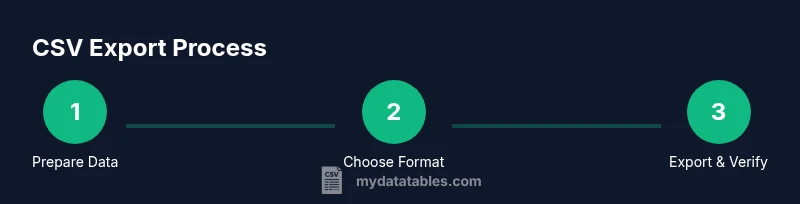
How to Export CSV: A Practical Step-by-Step Guide
Learn how to export CSV from Excel, Google Sheets, Python, and databases with best practices for encoding, delimiters, and data integrity. A comprehensive 1800-word guide by MyDataTables.


You will learn how to export CSV from common tools (Excel, Google Sheets, Python) and from databases, covering delimited formats, encoding, and data integrity. This guide explains when to choose UTF-8, how to handle headers, and how to verify exports for reliable data sharing.
What exporting CSV means and when to use it
Exporting to CSV is a practical way to share structured data between applications because CSV files are plain text with a simple structure: rows and comma-separated fields. According to MyDataTables, exporting to CSV is a portable choice that preserves data while keeping file sizes small and broadly compatible across systems. CSVs are widely supported by spreadsheet programs, database tools, scripting languages, and data visualization platforms. When you export, you decide on encoding (for example UTF-8), delimiter (comma by default, but semicolon or tab are common), and whether to include headers. Understanding these choices helps ensure your data remains interpretable when opened by colleagues or automated pipelines. In this section we’ll set the stage for a consistent export workflow that minimizes encoding pitfalls and preserves data integrity across environments.
Common scenarios for exporting CSV
CSV export is a recurring task across roles. Data analysts often export from spreadsheets to share filtered results; developers export from databases to seed data in pipelines; business users export from dashboards to attach current figures to reports. Google Sheets, Excel, Python with pandas, SQL clients, and various CRM or ERP systems all support CSV exports. MyDataTables analysis shows that teams who standardize their export settings—UTF-8 encoding, a consistent delimiter, and clear headers—reduce downstream errors in data loading and analysis. The goal is to create a predictable, repeatable process that reduces manual tweaking and saves time for repeatable reports.
Choosing the right CSV format
CSV is simple but not one-size-fits-all. Key decisions include delimiter choice (comma, semicolon, or tab), text encoding (UTF-8 is the safest default to handle international characters), and how to quote fields that contain delimiters or line breaks. Some tools add a Byte Order Mark (BOM); consider whether your downstream systems expect BOM or not. In practice, UTF-8 without BOM avoids many problems when files pass between Windows, macOS, and Linux. Also decide whether to include a header row; headers help downstream users understand data columns and simplify automation. MyDataTables recommends documenting your export profile so others can reproduce it exactly.
Step-by-step: exporting CSV from Excel
Exporting CSV from Excel is common in business workflows. Start by opening the workbook containing your data and ensuring the active sheet contains the data you intend to export. Then choose File > Save As, select CSV (Comma delimited) (*.csv), and save. If your workbook has multiple sheets, Excel will ask which sheet to save; CSV only saves the current sheet by default, so plan accordingly. After saving, close Excel to avoid accidentally overwriting with a non-CSV format. If you see a second prompt about keeping workbook in compatibility mode, acknowledge that CSV does not support multiple sheets or formatting. This path is straightforward but note the sheet limitation and encoding consequences.
Step-by-step: exporting CSV from Google Sheets
In Google Sheets the export path is File > Download > Comma-separated values (.csv, current sheet). If you need multiple sheets, export them one by one, naming each file to reflect its content. Google Sheets exports are UTF-8 by default, which is generally safe for international text. After download, verify the file extension and ensure the sheet you intended to export matches the CSV. If you have subtle regional settings (like decimal separators), confirm the exported data aligns with your downstream parser. This approach keeps your workflow cloud-based and shareable with teammates quickly.
Step-by-step: exporting CSV with Python (pandas)
Python offers a programmable approach to CSV export, ideal for automation. Install Python 3 and the pandas package, then load your data into a DataFrame and call df.to_csv('output.csv', index=False, encoding='utf-8'). This method is scalable and reproducible, letting you integrate export steps into ETL pipelines. If your data contains non-ASCII characters, UTF-8 encoding will preserve them accurately. To ensure reproducibility, wrap the script in a function and parameterize file paths. This approach is especially valuable for data engineers and developers who need to export regularly from dashboards or data stores.
Step-by-step: exporting CSV from database clients
Most database tools include an export or query result save option. Run your query to fetch the data you need, then choose export or save results as CSV. Before exporting, confirm column order, data types, and any special characters that might require quoting. If you’re exporting large tables, consider exporting in chunks or using a server-side export to avoid memory issues. After export, inspect a sample of rows to confirm that null values, date formats, and numeric precision are preserved as expected.
Common pitfalls and how to avoid them
CSV is simple, but small mistakes cause big headaches. Beware trailing delimiters, inconsistent quoting, and mixed line endings, which can break parsers. Ensure UTF-8 encoding to avoid mojibake, and confirm whether the target system expects a BOM. If your data contains commas, quotes, or line breaks, ensure proper escaping or quoting settings. Always test by importing the CSV back into a target tool to verify structures and types. This practice catches issues before they propagate through your data pipeline.
How to verify your CSV is ready for use
Verification should be automatic and human-friendly. Open the file in a text editor to confirm line endings and encoding; inspect the header row for accuracy. Check a random sample of 10–20 rows to ensure values align with their columns and that numeric fields did not convert to strings inadvertently. Use a lightweight parser or a quick Python snippet to count rows and confirm the expected number of fields per row. A quick health check like this reduces downstream surprises in analysis or ingestion jobs.
Automating CSV export in workflows
Automation reduces manual work and ensures consistency. Schedule exports via cron jobs, Windows Task Scheduler, or workflow automation platforms (e.g., Airflow, Zapier) to run at regular intervals. Parameterize file paths and destinations, implement error notifications, and store logs for auditability. For sensitive data, apply access controls and secure transfer methods. Automating exports helps teams deliver timely data without sacrificing accuracy or reproducibility.
Accessibility and encoding considerations
Accessibility extends to data portability. Ensure that non-English characters render correctly by using UTF-8 encoding and avoiding nonstandard characters in headers. If your audience uses assistive technologies, keep headers clear and consistent. Consider providing alternative formats (like JSON or XLSX) for different consumption modes, but remember CSV excels in simplicity and machine readability. Encoding quality directly affects downstream parsers and users with diverse language requirements.
Best practices for sharing, storing, and versioning CSV files
Share CSVs through controlled channels, with versioned filenames and clear documentation of the export profile (date, source, encoding, delimiter). Store backups in a versioned repository or a dedicated data lake to track changes over time. When sharing externally, consider compressing large files to reduce transfer size and protect data integrity. Clear naming conventions and documented metadata help recipients understand the data lineage and use it confidently in analyses.
Tools & Materials
- Computer or device with internet access(Any OS; ensures you can install apps and save files)
- Spreadsheet software (Excel, Google Sheets, or equivalent)(Excel: Save As > CSV; Sheets: File > Download > Comma-separated values)
- Source data file(The dataset you plan to export from)
- Text editor (optional)(Useful to inspect the CSV for encoding or delimiter issues)
- Python 3 and pandas (optional)(For Python-based export; not required for GUI tools)
Steps
Estimated time: 25-45 minutes
- 1
Prepare your data
Inspect the source data to ensure headers exist and data types are consistent. Remove extraneous columns and fix obvious errors before exporting. This prevents misinterpretation downstream.
Tip: Keep a backup workbook before making changes. - 2
Decide CSV format
Choose your delimiter, encoding, and quote rules. UTF-8 encoding is recommended for international text; decide whether to include a header row.
Tip: Document your choices for reproducibility. - 3
Open the export destination
Open the source program (Excel/Sheets or a database tool) and prepare the destination folder where the CSV will be saved.
Tip: Verify you have write permissions to the target folder. - 4
Export from Excel
In Excel, go to File > Save As, select CSV (Comma delimited) (*.csv), and confirm. Remember CSV saves only the active sheet.
Tip: If you need multiple sheets, export them separately. - 5
Export from Google Sheets
In Sheets, select File > Download > Comma-separated values (.csv, current sheet). Ensure you export the correct sheet.
Tip: Use the exact sheet you intend to share. - 6
Export with Python
Load data into a pandas DataFrame and call df.to_csv('output.csv', index=False, encoding='utf-8').
Tip: Set index=False to avoid an extra index column. - 7
Export from a database
Run the export via your database client’s export wizard or a query that outputs CSV. Confirm column order and data types.
Tip: Use LIMIT in sample tests to verify quickly. - 8
Verify encoding and structure
Open the file in a text editor and verify line endings and encoding. Check the header and first few data rows for accuracy.
Tip: Look for mojibake or missing quotes. - 9
Validate data integrity
Count rows, confirm field counts per row, and ensure that numeric fields are not turned into strings.
Tip: Automate with a lightweight checker when possible. - 10
Automate recurring exports
Wrap export logic in a script or workflow and schedule it. Include logging and error notifications.
Tip: Version control your export scripts. - 11
Share and store securely
Use secure transfer methods if needed and store in a controlled location with access controls.
Tip: Compress large files for transmission. - 12
Document the export profile
Record the source, date, encoding, delimiter, and any transformations applied. This aids future audits.
Tip: Keep a changelog for data lineage.
People Also Ask
What does exporting to CSV do?
Exporting to CSV converts tabular data into a plain text file with a simple, comma-separated structure. It enables easy sharing across apps and platforms while preserving the data layout. The process is supported by Excel, Google Sheets, Python, and many database tools.
Exporting to CSV creates a plain text file with comma-separated values that is easy to share across apps. It works with many tools like Excel, Sheets, Python, and databases.
Which encoding should I choose when exporting CSV?
UTF-8 is the recommended encoding because it supports international characters and minimizes misinterpretation. Some legacy systems may require UTF-16 or ANSI; verify downstream requirements before exporting.
UTF-8 is the best default for CSV exports, but check downstream systems for any encoding requirements.
Can I export multiple sheets from Excel to CSV?
CSV format supports a single sheet per file. If you need multiple sheets, export each sheet as its own CSV file and name them clearly to reflect their content.
Excel exports one sheet per CSV file. Export each sheet separately and label the files clearly.
Does CSV support formulas?
No. CSV stores plain data. If a spreadsheet contains formulas, exporting to CSV will save the resulting values, not the formulas.
CSV saves the data values, not formulas. Formulas aren’t preserved.
How do I export CSV from Google Sheets?
In Google Sheets, use File > Download > Comma-separated values (.csv, current sheet). Ensure you export the correct sheet and check encoding if you plan further processing.
In Sheets, go to File > Download > CSV for the current sheet, then verify the correct sheet.
What are common CSV export problems and how to fix them?
Typical issues include incorrect delimiters, misquoted fields, missing headers, and encoding mismatches. Review the exported file in a text editor or import it into a target tool to confirm structure and data integrity.
Common problems are wrong delimiters, bad quotes, or encoding mismatches. Check the file by re-importing it.
Watch Video
Main Points
- Choose UTF-8 encoding by default
- Test export by re-importing to verify
- Document export settings for reproducibility
- Automate for recurring exports
- Verify header and data integrity