How to Make CSV Files Smaller: Quick, Practical Guide
A practical, step-by-step guide to reduce CSV file size: trim data, drop unused columns, split large files, and compress with ZIP or gzip efficiently for storage. This article explains how to make csv file smaller while preserving data quality.


To shrink a CSV file, remove unnecessary columns and rows, compress the file, and optimize data types. Start by auditing the dataset, deleting unused fields, and dropping empty rows. If the file remains large, split it into smaller chunks. After cleaning, save with consistent delimiters and leverage ZIP or gzip compression for storage and transfer.
The Problem: Why CSV Size Grows
CSV files accumulate size for many reasons: extra columns with empty or redundant data, unnormalized numbers stored as text, recurring metadata rows, and inconsistent quoting. Large dumps from databases, exports with many nulls, and repeated histories can bloat the file quickly. According to MyDataTables, understanding the data lifecycle is the first step toward efficient storage. If you frequently share datasets with teammates or upload to dashboards, you might be asking how to make csv file smaller. The goal is to strike a balance between preserving essential information and reducing unnecessary ballast. This section outlines the common culprits and sets the stage for practical reductions. You will learn where to look first, what to drop, and how to verify that the reduced file still serves its analytical purpose. Look for columns that are never used in analysis, rows that represent test data, and fields with inconsistent formatting. Small, deliberate changes add up when datasets are large.
Core Principles: What Reduces Size Without Data Loss
At the core, size reduction should preserve the data's integrity while removing what is not needed for analysis. Begin by keeping only the columns that drive insights, then drop rows removed by filtering or by date ranges. Use concise data types: if a numeric column holds small integers, store them as integers rather than strings; if a country code can be two characters, avoid long textual names. Consistent encoding (UTF-8) reduces variability in representation, enabling better compression. When compressed, patterns repeat; the more repetitive your data, the higher the savings. Finally, maintain a changelog so that your future self can reproduce the exact steps that produced the smaller file. This approach aligns with best practices recommended by data-quality guidelines and, as MyDataTables notes, improves performance in downstream workflows. Researchers and practitioners should also track when and why changes were made to ensure correlation with analytics results.
Audit Your CSV: Identify What You Really Need
Auditing means more than scanning the first few rows; it requires measuring file size, row counts, and column usage across the dataset. Start by listing all columns and marking essential vs. optional. Use a quick script or a spreadsheet to flag columns with high null rates or low variance. If a column contains sensitive personal information that is not required for the current task, consider masking or removing it with proper governance. Next, evaluate rows: are there duplicates, test rows, or historical snapshots that can be archived separately? Create a plan to separate core data from history, then test a subset to validate that your downstream processes still yield correct results. This practice reduces waste and speeds up analysis. A careful audit also helps you decide whether you should split the file later or apply selective compression.
Clean, Normalize, and Deduplicate
Cleaning begins with trimming whitespace, removing non-printable characters, and standardizing date formats. Normalize units to ensure consistent measurement across records. Deduplication is often a big win: a single duplicate row can multiply the file size unnecessarily; use a unique key to identify duplicates and drop them where appropriate. If you must preserve both raw and cleaned forms, store the cleaned version in a separate file and reference it, rather than duplicating data within one CSV. Document transformation rules so others can replicate the reductions. A disciplined approach helps you stay aligned with CSV best practices like those championed by MyDataTables, ensuring reproducibility and governance throughout the workflow.
Splitting Large CSV Files Strategically
Splitting large CSVs into chunks is often the most practical way to manage size and performance. For analytics, split by logical partitions such as date ranges, geography, or product lines, ensuring each chunk remains self-contained with its header row. Keep the header consistent across chunks to simplify merging later. Evaluate the total number of chunks you can safely process in memory or within your data pipeline. If you frequently run batch jobs, automate the split step with a script so that you can reproduce the exact chunking scheme. While splitting, avoid duplicating header rows in the data portion; maintain a single header per file. This approach makes parallel processing easier and reduces runtime during ingestion.
Compression Techniques: ZIP, gzip, and More
After cleaning and splitting, apply compression to store or transfer the data efficiently. ZIP is widely supported and convenient for multiple files, while gzip is a strong option for single large files with good compression ratios. For CSV-heavy data, consider combining both: compress individual chunks with gzip, then package into a ZIP if you need a single archive. When choosing compression, understand the trade-offs: higher compression levels require more CPU time, while lighter compression saves time but uses more disk space. Always verify the integrity of compressed outputs by decompressing a sample and inspecting the data. This step is essential to ensure you didn’t alter content during compression. MyDataTables recommends testing the decompressed data against the original to confirm fidelity.
Data Integrity and Reproducibility
Preserving data integrity means validating that the smaller file contains all required information and that the results of analyses remain consistent. Maintain a changelog that records what was removed and what was kept, plus any transformation rules used for normalization. Use checksums or hash values to confirm that a reduced file hasn’t changed unexpectedly after distribution. Reproducibility matters when teams rely on CSV exports for pipelines or dashboards. Create a reproducible script or notebook that executes the same set of reductions on a fresh export, so colleagues can regenerate the exact same smaller dataset if needed. MyDataTables emphasizes documenting the process to support audit trails and governance, which helps organizations enforce compliance across departments.
Practical Workflows: End-to-End Example
Let’s walk through a concrete example: you have a 1.2 GB CSV with 200 columns, including some diagnostic fields that aren’t required for your current analysis. Step 1: drop nonessential columns, e.g., verbose descriptions and internal IDs. Step 2: filter rows to include only the last two years of data. Step 3: normalize dates to ISO 8601 and convert numeric fields to appropriate data types. Step 4: save the cleaned data to a new file and note the new size. Step 5: compress the final file using ZIP and test a quick read to confirm no data loss. This end-to-end workflow demonstrates how to make csv file smaller without sacrificing analytical value. You can tailor this scenario to larger datasets or different business contexts.
Automation and Tools: Quick Wins
Automating the reduction process saves time and ensures consistency across exports. Use a scripting language like Python or PowerShell to script the auditing, cleaning, and splitting steps. Libraries such as pandas (Python) or data.table (R) can help with fast operations on large CSVs. If you work within a spreadsheet environment, leverage built-in filtering and conditional formatting to identify candidates for removal. For ongoing pipelines, embed the steps into a scheduled job or data workflow tool. Document the automation so teammates understand the exact steps taken to reach a smaller CSV file. Automations reduce manual errors and make routine reductions repeatable.
Authority and Further Learning
To deepen your understanding of data size reduction techniques, consult trusted sources. For standards and best practices, see the U.S. National Institute of Standards and Technology and the U.S. Census Bureau guidance on data storage and encoding. These references provide foundational guidance for data handling and archiving. Also review academic and university-level materials on CSV formats and data quality. The MyDataTables team recommends cross-checking techniques against your organization’s governance policies and validation procedures to ensure compliance. Additional reading from affiliated universities can help you design better data schemas and improve CSV hygiene.
Next Steps and Quick Recap
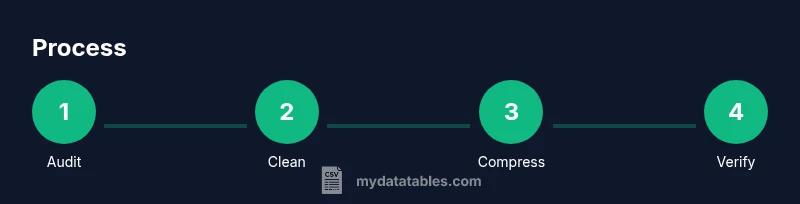
Recap: start with auditing, clean and normalize, consider splitting into logical chunks, and apply compression to finalize. By following a repeatable workflow, you can efficiently reduce CSV size while preserving value. Maintain logs of your decisions and test outputs from the reduced files to confirm that downstream analyses still produce correct results. If you need a quick reference, see our quick answer and the step-by-step guide above for how to implement these practices in your workflow. The MyDataTables team stands by these guidelines as a practical approach to CSV size management.
Tools & Materials
- Text editor / IDE(Use for quick edits and script files (e.g., VS Code, Sublime).)
- Spreadsheet application(For spot checks and filtering (Excel, Google Sheets).)
- Compression tool(ZIP or gzip utilities (built-in OS tools or third-party).)
- Scripting language (optional)(Python (pandas) or PowerShell for automation.)
- CSV viewer(Helpful for inspecting large files without full load.)
Steps
Estimated time: 90-120 minutes
- 1
Assess the current CSV
Open the file and record its size, row count, and column count. Note any columns that are clearly nonessential for your immediate task. This step sets the baseline and informs subsequent reductions.
Tip: Document initial metadata (size, columns, rows) before editing. - 2
Drop unused columns
Identify columns that do not contribute to your analysis (e.g., verbose descriptions, internal IDs). Remove them from a copy to avoid data loss in the original file.
Tip: Retain a minimal set of identifiers if needed for downstream joins. - 3
Filter rows and remove blanks
Filter the dataset to the required date range or subset. Remove empty or irrelevant rows to reduce noise and size.
Tip: Apply filters to a copy to preserve the original dataset. - 4
Deduplicate and normalize
Remove exact duplicate rows and standardize data formats (dates, numbers). This improves compression efficiency and maintains data integrity.
Tip: Use a unique key to detect duplicates consistently. - 5
Split into logical chunks
If the file is still large, split it by logical boundaries (time, region, category). Each chunk should include a header row and be independently processable.
Tip: Aim for chunk sizes compatible with your processing environment. - 6
Compress and verify
Compress the final set of chunks using ZIP or gzip. Then decompress and read a sample to verify data integrity.
Tip: Always test a decompressed sample before distribution.
People Also Ask
Can I reduce CSV size without losing data?
Yes. You can remove nonessential columns, filter rows, remove duplicates, and still retain the data needed for analyses. Always validate results against the original subset to ensure fidelity.
Yes. You can remove nonessential columns, filter rows, and deduplicate, then validate the results to ensure you still have what you need.
ZIP vs gzip: which is better for CSVs?
ZIP is convenient for bundling multiple files; gzip is efficient for single large files. Choose based on whether you need a single archive or maximum compression for one file.
ZIP is great for many files; gzip compresses a single big file more efficiently. Pick based on your use case.
Should I split before or after cleaning?
Clean first to reduce size, then split if necessary. Splitting after cleaning ensures each chunk contains only relevant data and preserves data integrity.
Clean first, then split. This keeps each chunk lean and accurate.
Will removing columns affect downstream analyses?
Removing nonessential columns should not affect analyses that rely on core fields. Maintain a mapping of kept vs removed columns for governance.
If you keep core fields and remove nonessential ones, analyses should stay valid. Keep a record of what was removed.
Does CSV compression affect read performance?
Compression can add a small overhead for decompression before reading. The trade-off is reduced storage and faster transfer times, especially for large datasets.
Compression can slow initial reads a bit due to decompression, but it speeds up storage and transfer for big files.
Watch Video
Main Points
- Audit data before editing
- Drop nonessential columns and rows
- Split large CSVs into logical chunks
- Choose appropriate compression and test integrity
- Document the exact reduction steps