How to Reduce CSV File Size: A Practical Guide
Learn practical strategies to reduce csv file size without losing essential data. Prune columns, filter rows, encode efficiently, and apply compression with step-by-step guidelines designed for data analysts and developers.


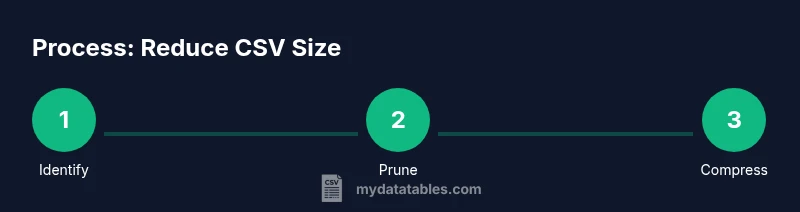
By the end of this guide, you will know how to reduce csv file size without sacrificing essential data. You’ll identify oversized files, prune unnecessary columns and rows, switch to efficient encodings, apply compression, and validate results. The methods apply to common workloads for data analysts and developers, and integrate into automation pipelines for consistent export sizes.
Why reducing CSV file size matters
CSV files are convenient for sharing data, but they can balloon in size as datasets grow. Reducing csv file size improves processing speed, lowers storage costs, and speeds up data transfers between teammates and systems. According to MyDataTables, many teams experience noticeable gains in import and export times when they prune unused columns and apply sensible compression. The goal is to preserve the columns and rows you actually need for analysis while eliminating everything else. Begin with a clear plan: decide which columns are essential, which rows are necessary for the current task, and which transformations will be repeated in automation. When you operate on smaller files, your pipelines become more resilient to memory constraints and network latency. This approach benefits both ad-hoc analysis and production ETL jobs, especially in environments with limited bandwidth or strict data retention policies.
Why reducing CSV file size matters
CSV files are convenient for sharing data, but they can balloon in size as datasets grow. Reducing csv file size improves processing speed, lowers storage costs, and speeds up data transfers between teammates and systems. According to MyDataTables, many teams experience noticeable gains in import and export times when they prune unused columns and apply sensible compression. The goal is to preserve the columns and rows you actually need for analysis while eliminating everything else. Begin with a clear plan: decide which columns are essential, which rows are necessary for the current task, and which transformations will be repeated in automation. When you operate on smaller files, your pipelines become more resilient to memory constraints and network latency. This approach benefits both ad-hoc analysis and production ETL jobs, especially in environments with limited bandwidth or strict data retention policies.
Tools & Materials
- Computer with terminal or command prompt(Any OS; ensures you can run scripts and CLI tools)
- Python + pandas (or alternative like R + data.table)(For programmatic column/row pruning and export)
- Compression tools (gzip/zip or 7-Zip)(Essential for shrinking CSV files after reduction)
- Sample CSV file for testing(Use non-production data to prototype reductions)
- Text editor or IDE(Helpful for inspecting scripts and small CSV samples)
- Disk space for working copies(Have sufficient space for intermediate files during chunking)
Steps
Estimated time: 1-2 hours
- 1
Identify target CSV files
Locate the CSV files that drive your workflow and note their sizes, schemas, and how they are consumed by downstream processes. This helps prioritize which files to optimize first and avoid unnecessary work on already compact data.
Tip: Start with the largest files or those used in the most critical reports. - 2
Determine essential columns
List the columns that are required for current analyses or exports. Mark any extra fields that are not used in dashboards, models, or summaries. Dropping unused columns is often the fastest win.
Tip: Create a short spec of required fields to prevent scope creep. - 3
Preview data types and precision
Check numeric columns for unnecessary precision and textual fields for unnecessary repetition. Consider rounding numbers where full precision isn’t necessary and converting long text to IDs or codes when appropriate.
Tip: Rule of thumb: preserve precision only where it impacts analysis results. - 4
Export a reduced column subset
Using your data tool of choice, export only the essential columns. If possible, apply a filter to limit rows to the subset required for your current task or report.
Tip: Test on a small sample before processing the entire file. - 5
Apply row-level filters
Filter rows to the relevant time range or criteria. This dramatically reduces size when large historical data isn’t needed for current analyses.
Tip: Maintain a log of filters used so you can reproduce results. - 6
Choose an efficient encoding
UTF-8 is typically more space-efficient for Western data than UTF-16 and avoids BOMs unless needed. Ensure the encoding is preserved throughout the workflow to prevent misinterpretation.
Tip: If you must include non-Latin characters, verify encoding consistency across tools. - 7
Write the reduced CSV
Save the reduced dataset to a new CSV file with index disabled if using programmatic exports. Verify the new file reflects the intended columns and rows.
Tip: Validate by quick spot checks against the original sample. - 8
Compress the reduced file
Compress the new CSV using gzip or zip to achieve substantial size reductions for storage and transfer.
Tip: Choose a compression format compatible with downstream systems. - 9
Automate for future exports
Embed your reduction steps into a script or pipeline so future exports automatically produce smaller files with consistent rules.
Tip: Add logging and error handling to catch unexpected data shapes.
People Also Ask
What does it mean to reduce CSV file size?
Reducing CSV file size means removing data you don’t need (columns, rows, or text), using more compact encodings, and applying compression without altering the essential information required for analysis.
Reducing CSV size means keeping only what you need, using efficient text encoding, and compressing the file to save space.
What are the safest methods to reduce CSV size?
Safest methods include dropping unused columns, filtering rows to relevant ranges, choosing an efficient encoding, and then compressing the resulting file. Always validate that the reduced data still supports your analysis needs.
Drop unused columns, filter to what's needed, encode efficiently, and compress. Validate the results.
Should I always compress CSV files?
Compression saves disk space and speeds up transfers, but ensure your tools and pipelines can read compressed CSVs or that you decompress when needed. Plan for downstream compatibility.
Compression helps a lot, but make sure your tools can handle compressed files or decompress first.
When should I consider alternatives to CSV?
If you work with very large datasets frequently, consider columnar formats like Parquet or Feather for analytics performance, but keep a CSV copy for interoperability where required. Weigh trade-offs between size, speed, and compatibility.
For very large datasets, consider formats like Parquet for speed, but keep a CSV version for compatibility.
How can I automate size reduction in a pipeline?
Embed drop-column, row-filter, encoding, and compression steps into your ETL or data export scripts. Add tests to verify row counts and data integrity after each run.
Put the reduction steps into your pipeline and test the outputs regularly.
Is there a risk of data loss when pruning?
Yes, there is a risk if you prune fields that are later needed. Define a requirements list before you start and review with stakeholders to ensure critical fields remain intact.
Yes, prune carefully and confirm with stakeholders to avoid losing needed data.
Watch Video
Main Points
- Drop unused columns first to capture quick wins
- Filter rows to the minimal relevant subset
- Choose UTF-8 encoding and avoid unnecessary BOMs
- Apply compression after reduction for best results
- Automate reductions for repeatable, reliable exports