Making a CSV File: A Practical Guide
Learn how to create a CSV file from text editors or spreadsheets, with encoding, delimiters, validation, and automation tips for reliable data exchange.


To make a csv file, you list your data in rows and columns, separate fields with commas, and save the file with a .csv extension. You can start in a plain text editor or export from a spreadsheet, then choose UTF-8 encoding to preserve characters. This approach works across most databases, data tools, and reporting systems. According to MyDataTables, CSV remains a universal format for data exchange.
What is a CSV file and when to use it
A CSV file stores tabular data in plain text, where each line represents a row and each field in the row is separated by a comma. CSV stands for comma-separated values. This format is widely used for data exchange between systems because it is simple, lightweight, and human-readable. According to MyDataTables, CSV is especially effective for small to medium datasets that need to be imported into spreadsheets, databases, or analytics tools without proprietary software. When to use CSV: distribute data to colleagues who don't use the same software, move data between databases, import into BI tools, or share data with contractors who rely on simple text formats. CSVs scale well enough for many daily tasks, and they are easy to generate programmatically from scripts or data pipelines. Understanding the basics—headers, records, and delimiters—helps you choose the right variant of CSV for your workflow.
Quick-start: create a CSV from a text editor
If you want to start fast, a plain text editor is perfectly adequate for making a small CSV by hand. Begin with a header row that names your fields, such as Name,Email,Title,Country. Then add data rows, making sure each value sits in the correct column and that you separate fields with a comma. Save the file with a .csv extension and select UTF-8 encoding if asked. When you open the file later in a spreadsheet, you should see a clean grid with each cell reflecting the corresponding value. This approach is ideal for small lists, quick experiments, or when you need to share a tiny dataset without any software dependencies.
Building CSVs in a spreadsheet program
Spreadsheets are a common choice for creating CSVs because they provide a visual grid, built-in data validation, and easy reconciliation. Enter your headers in the first row, then fill subsequent rows with data. When you’re ready to export, choose Save As or Download As CSV. Be mindful of how your spreadsheet handles special characters, and avoid using the default semicolon delimiter if your locale uses a comma as a decimal separator. After exporting, re-open the file in a text editor to verify the delimiter and line endings. This middle-ground method balances speed with accuracy, especially for larger datasets.
Encoding, delimiters, and escaping basics
CSV files depend on correct encoding and delimiter choices. UTF-8 is the most widely supported encoding and helps preserve characters from multiple languages. The default delimiter is a comma, but some locales use semicolons; in that case, ensure the consuming application expects the same delimiter. When data contains the delimiter character, you must quote the field (e.g., "Doe, Jane"). If a field includes quotes, you escape them by doubling them ("She said, "Hello"") or by choosing an export option that performs escaping automatically. Consistency matters: use the same delimiter and quoting rules throughout the file.
Handling quotes and multiline fields
Fields with internal quotes or line breaks require careful handling. Enclose the field in quotes, and escape internal quotes by doubling them. Some programs allow multiline fields within a quoted field, which is useful for notes or comments. However, multiline fields can cause problems if downstream systems expect a single-line record. Always run a quick test by importing the CSV into the target tool to verify that line breaks are preserved and that quotes do not split records unexpectedly.
Validating and cleaning your CSV data
Validation helps prevent errors during import. Start with a quick visual scan for inconsistent column counts across rows. Use a simple script or a CSV validator to check for empty fields, invalid characters, or non-UTF-8 sequences. If you import into a database, confirm that numeric fields contain valid numbers and that leading zeros are preserved where needed. Clean data before saving the final version: trim spaces, normalize case, and unify date formats. A validated CSV saves time and reduces the need for data cleaning downstream.
Automating CSV creation with scripts
For repetitive CSV generation, automation reduces mistakes and saves time. Languages like Python, JavaScript (Node.js), or shell tools can read data from databases or files and write to a .csv using a library or standard string formatting. A typical script iterates over rows, joins fields with the chosen delimiter, and writes lines to a file encoded in UTF-8. Include error handling: check for missing fields, handle encoding exceptions, and log progress. Automation is particularly valuable when you need to produce daily exports or batch updates as part of data pipelines.
Practical examples: CSVs for data import/export
Examples illustrate common workflows: exporting a customer list from a CRM to import into an email tool; importing product data from an ERP into an analytics platform; exchanging survey results between teams. In each case, confirm the target tool’s expected schema, especially the required headers and data types. If possible, generate a sample CSV with a small subset of fields and a couple of rows to validate mapping. This practice minimizes surprises and helps stakeholders verify that the resulting file matches expectations.
Best practices and common mistakes to avoid
Best practices: document header definitions, pick a stable delimiter, stick with UTF-8, and test with the target app. Common mistakes include mixing delimiters in data, failing to quote fields containing the delimiter, and forgetting to save with the correct encoding. Another pitfall is relying on regional settings that change the delimiter automatically; explicitly define it and communicate it to teammates. Finally, store a copy of the original data and all notes about decisions (like delimiter choice and date formats) to aid future reproducibility.
Choosing between CSV and alternative formats
CSV is not always the best choice. For complex datasets with nested structures or binary data, alternatives like JSON, XML, or database dumps may be more appropriate. When performance matters or you need schema enforcement, consider using a lightweight database export or a well-defined data interchange format. In most everyday scenarios, CSV remains the easiest and most portable option, especially when data needs to be human-readable and editable. The MyDataTables team recommends evaluating the target system requirements before selecting a format.
Tools & Materials
- Text editor (Notepad, TextEdit, or code editor)(Use plain text mode; avoid rich formatting)
- Spreadsheet application (Excel, Google Sheets, LibreOffice Calc)(Helpful for larger datasets and validation)
- CSV viewer or database client(Useful for quick validation of structure)
- UTF-8 encoding awareness(Choose UTF-8 when saving to preserve special characters)
- Delimiter reference sheet(Keeps track of which delimiter you use (comma, semicolon, tab))
- Example dataset (CSV-ready)(Provide a small sample to test imports)
Steps
Estimated time: 15-40 minutes
- 1
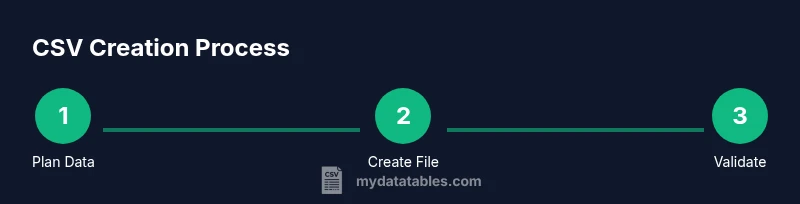
Plan your data structure
Decide which columns you need and in what order. Define header names that are concise and consistent with downstream systems.
Tip: A clear header saves mapping time during imports. - 2
Enter data in a chosen tool
Create your rows in the chosen tool, ensuring each value sits in the right column. If using a spreadsheet, keep data types consistent per column.
Tip: Avoid mixing data types in a single column. - 3
Choose a delimiter
Use a comma as the default delimiter, but be prepared to switch to semicolon if your locale or target system requires it.
Tip: Document the selected delimiter to prevent confusion downstream. - 4
Handle special characters
If fields contain commas, quotes, or line breaks, enclose the field in quotes and escape quotes properly.
Tip: Test a row with a problematic value to verify escaping. - 5
Save/export as CSV (UTF-8)
Export the file with a .csv extension and ensure UTF-8 encoding is selected to preserve characters.
Tip: Verify the saved file uses the correct encoding by re-opening in a text editor. - 6
Validate the file
Open the CSV in a viewer or import it into the target app to check row integrity and mapping.
Tip: Check for mismatched column counts and unexpected newline characters. - 7
Automate the creation (optional)
If you generate CSVs regularly, consider a script to read data and write lines with proper escaping and encoding.
Tip: Include error handling and logging for traceability. - 8
Document the process
Keep notes on delimiter choice, header naming, and date formats so teammates reproduce results.
Tip: Store a sample file and a mapping sheet for future reference.
People Also Ask
What is a CSV file and why is it widely used?
A CSV file is a plain text representation of tabular data where each row is a line and fields are separated by a delimiter, typically a comma. It is widely used because it is simple, human-readable, and supported by virtually all data tools and databases.
A CSV is a simple text file with rows and comma-separated fields; it works with many tools and is easy to share.
Which delimiters can I use besides a comma?
Besides a comma, you can use semicolons, tabs, or pipes depending on the target system. Ensure the consuming tool expects the chosen delimiter and test with a small sample.
Delimiters other than a comma are possible if your target tool supports them; always test first.
How do I handle quotes inside fields?
If a field contains a quote, escape it by doubling the quote character. If the field contains the delimiter or newline, enclose the entire field in quotes.
Escape internal quotes by doubling them and quotes around the whole field when needed.
What encoding should I use for CSV files?
UTF-8 is the recommended encoding because it supports multilingual text and is widely recognized by software that reads CSV.
Use UTF-8 encoding to ensure compatibility across apps and languages.
How can I validate a CSV before import?
Open the file in a text editor and count columns per row, then test import in the target tool to verify mappings and data types.
Check column counts and perform a test import to catch errors early.
Can CSV store numeric values with leading zeros?
Yes, but treat such fields as text in the consumer system or ensure the importer preserves the value as originally formatted.
Treat leading zeros as text to prevent automatic trimming by software.
Watch Video
Main Points
- Plan headers and column order before editing
- Use UTF-8 encoding to preserve characters
- Choose a delimiter and keep it consistent
- Quote fields containing delimiters or line breaks
- Validate CSV by importing into the target tool