Open a Large CSV File: Practical Guide for Analysts
Discover memory-friendly methods to open and inspect large CSV files. This guide covers practical tools, safe preview techniques, and scalable workflows to prevent crashes.


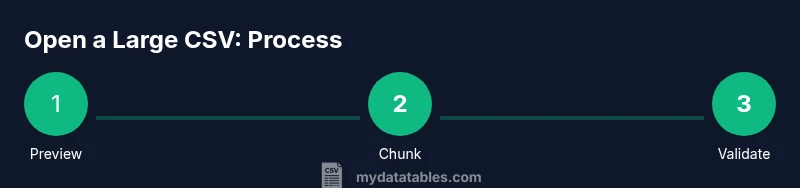
Open a large CSV file efficiently by using streaming reads, chunked processing, and memory-aware tools. Start with a quick preview to assess structure, then choose the right approach: a text editor for small previews, Python or command-line tools for large data, and spreadsheet software only for manageable subsets. This guide walks through practical options.
What makes opening a large CSV file challenging
Opening a large CSV file is not about a single trick; it’s about managing memory, latency, and tooling compatibility. Large CSVs can contain gigabytes of textual data, with fields that include quotes, commas, and embedded newlines. This combination often triggers parsing quirks: inconsistent delimiters, varying encodings, and long multi-line fields. The result can be slow responses, editor crashes, or even partial loads that omit rows or columns. For data analysts using MyDataTables guidance, the key is to design a workflow that avoids loading the entire file into memory at once. Start by understanding the file’s structure—headers, delimiter, encoding, and typical row length—and then choose an approach that scales. In practice, you’ll combine lightweight previews, streaming reads, and chunked processing to inspect, transform, and validate data without overwhelming your system.
From a practical perspective, remember that not every CSV requires a full-load solution. For recurring tasks, build a pipeline that reads data in chunks, processes or aggregates on the fly, and writes out summarized results. This keeps your workstation responsive and reduces the risk of crashes when working with large data sets. MyDataTables’s guidance emphasizes adopting scalable methods early, especially when data grows beyond comfortable manual review sizes.
Quick-start strategies for immediate access
When you’re first faced with a large CSV, you want fast, safe visibility into the data. Here are practical, low-friction strategies to get started:
- Preview the file structure without loading everything: use command-line previews (head, tail) or editor features that limit loaded content. This gives you headers, a sense of delimiter, and common data types.
- Validate encoding and delimiter upfront: if the file isn’t UTF-8 or contains a nonstandard delimiter, parsing can fail or mis-parse fields. Confirm encoding before loading into analytical tools.
- Use chunked reading when possible: instead of bringing the whole file into memory, read fixed-size blocks or line-based chunks and process them incrementally.
- Start with a small sample: copy a subset of lines to a separate file for experimentation. This reduces risk while you experiment with parsing rules.
- Document your decisions: note the delimiter, encoding, sampling size, and chosen tool. Reproducibility matters for teams and audits, including MyDataTables users.
Choosing the right tool for the job
The best tool depends on what you want to achieve and the file’s characteristics. Here’s a quick guide to common approaches:
- Text editors: Good for quick, linear inspection of headers and a few hundred lines. Not suitable for full data exploration.
- Command-line tools: Excellent for fast previews, filtering, and basic validation without loading data into memory. Utilities like head, tail, cut, and awk support streaming and on-the-fly processing.
- Scripting languages (Python, R): Ideal for chunked reads, data transformations, and reproducible pipelines. Libraries like pandas support read_csv with explicit chunk sizes and iterators.
- Spreadsheet software: Useful only for small, representative slices of data. Large CSVs can exhaust memory or hit software-imposed row limits, so use external data import options when you must view or summarize.
- Database or data warehouse: Best for truly large datasets and repeated analytical workloads. Load in chunks and use SQL for selective querying and aggregation.
Preview and sampling: inspect without loading
Previewing a large CSV safely helps you understand shape before heavy processing. Try:
- Use head to view the first lines: head -n 20 large.csv
- Inspect a sample of lines: sed -n '1,25p' large.csv | sed -n '1,25p' (adjust as needed for your shell)
- Check the header row and field counts: awk -F, 'NR==1{print NF}' large.csv
- Look for encoding hints: file -i large.csv or python -c 'import chardet; print(chardet.detect(open("large.csv","rb").read())' 2>/dev/null
These steps help you decide how to parse the data and which tools to rely on when you proceed to processing.
Memory-aware approaches: streaming, chunks, and incremental loading
The core idea is to avoid a full in-memory load. Techniques include:
- Streaming parsing: feed lines to a parser one by one or in small batches and process as you go.
- Chunk-based reading: read fixed numbers of lines or bytes, process each chunk, and accumulate results when appropriate.
- Streaming pipelines: connect commands or scripts in a pipeline so data flows from source to processor without ever being fully loaded.
- Incremental aggregation: compute aggregates on-the-fly and write out intermediate results to disk to prevent peak memory usage.
By combining these approaches, you can analyze datasets that would otherwise overwhelm a single application session. This improves responsiveness and reduces the chance of out-of-memory errors, especially on machines with modest RAM.
Excel, Google Sheets, and alternative tools: tradeoffs
Personal spreadsheets are familiar but not always suitable for large CSVs. Excel and Google Sheets impose practical limits on rows and columns, performance, and features. If you must use a spreadsheet, import only a portion of the data or use a data model/exported subset. For full-scale work, consider code-based or database-backed workflows that stream data or load in chunks. CSVs are plain-text, so robust parsing is key; misreads can cascade into incorrect analyses if you rely on a single load.
Remember: the goal is correctness and efficiency. If a single open operation blocks your UI or consumes all memory, step back and switch to a streaming or chunked approach. MyDataTables recommends prioritizing reproducibility and scalability over convenience.
Step-by-step workflow: open, sample, filter, and export
A practical workflow combines several techniques into a repeatable process:
- Identify objective: what subset or summary do you need? Define a plan before loading.
- Confirm encoding and delimiter: ensure the parser uses the correct settings.
- Preview structure with small samples: confirm headers and column counts.
- Read data in chunks: implement a chunk size that balances performance and memory.
- Apply filters or transforms incrementally: avoid creating massive intermediate structures.
- Validate results on a subset: check for missing values, inconsistent types, and duplicates.
- Export a summarized view or cleaned subset: write out a new CSV for downstream tasks.
- Archive the workflow: document steps and save configuration for repeat runs.
- Re-run with the full dataset if needed: only after validating on a smaller scale.
- Back up originals: keep pristine copies for reference.
Estimated time depends on dataset size and tool choice; allocate time for testing on small samples first and then scaling up.
Validation, cleaning, and exporting results
After loading or streaming the data, perform validation to ensure integrity. Check header consistency, detect missing values in critical fields, and ensure data types align with expectations. Use sampling to spot anomalies that broad scans might miss. When exporting results, consider separate cleaned data from raw input and preserve both in case you need to revisit the original. Create a well-documented export schema so downstream users understand field meanings, formats, and any transformations applied.
Tools & Materials
- A computer with adequate RAM and CPU power(Avoid attempting large file opens on underpowered devices; prefer SSD and ample RAM where possible)
- Command-line shell (bash, PowerShell, or CMD)(For streaming, sampling, and chunked operations with commands like head, tail, awk, sed, or mlr)
- Text editor capable of large files(Examples: Notepad++, Sublime Text, VSCode with large file support)
- Spreadsheet software with external data import features(Use only for small subsets or final review, not full-scale loading)
- Python with pandas (optional)(Useful for robust chunked reads and reproducible pipelines)
- CSV tooling (csvkit, Miller, xsv)(Helpful for quick sampling, validation, and column operations)
- Backup copy of the original CSV(Always keep an untouched version before processing)
Steps
Estimated time: 60-120 minutes
- 1
Define objective
Clarify what you need from the CSV (summary, subset, or transformations) before loading. Clear goals prevent unnecessary data loads and guide tool selection.
Tip: Write a one-sentence goal and list required columns. - 2
Check encoding and delimiter
Ensure the file’s encoding (e.g., UTF-8) and delimiter align with your parser to avoid misreads or field splitting errors.
Tip: If unsure, attempt to detect encoding with a quick command or tool. - 3
Preview headers and sample lines
View the header row and a few lines to confirm column structure, data types, and potential anomalies.
Tip: Use a small sample file for early testing before handling the full dataset. - 4
Choose a chunk size
Decide how many lines or megabytes to read per chunk based on tool and memory constraints. Tune as needed.
Tip: Start with a conservative chunk size and adjust after profiling memory use. - 5
Read data in chunks
Implement chunked loading using your chosen tool (Python iterator, command-line streaming, etc.). Process each chunk independently.
Tip: Avoid building a large in-memory accumulator; aggregate results on disk if possible. - 6
Validate incrementally
Check each chunk for missing values, inconsistent types, and unexpected categories. Log issues for later review.
Tip: Maintain a lightweight log of anomalies rather than repeating scans. - 7
Filter and transform carefully
Apply only the necessary transformations during the streaming pass to minimize memory usage.
Tip: Prefer streaming predicates over full data reshaping. - 8
Export or save summaries
Write out a cleaned subset or a summary file to disk, preserving the original data intact.
Tip: Name outputs clearly to reflect the operation and date. - 9
Document the workflow
Capture the steps, parameters, and tools used so others can reproduce the process.
Tip: Store a small README with tool versions and commands. - 10
Back up and verify
Keep a pristine backup of the original CSV and verify that exported results align with the input.
Tip: Use checksum or a simple hash to confirm integrity. - 11
Scale up if needed
If initial work on a sample proves successful, repeat the process on larger portions or the full dataset.
Tip: Incremental scaling reduces risk of unexpected failures. - 12
Review performance
Assess time and resource usage; refine chunk size, tool choice, or pipeline steps for future runs.
Tip: Keep a performance log for continuous improvement.
People Also Ask
What is the best way to open a very large CSV file without crashing?
Use streaming reads and chunked loading, and avoid loading the entire file into memory at once. Start with a small sample to validate your approach.
Open it in chunks or stream it so you don’t overload memory.
Can I use Excel to view large CSVs?
Excel can handle only smaller portions of data in practice. For truly large files, rely on scripting, command-line tools, or a database-backed workflow.
Excel isn’t ideal for very large CSVs; use streaming or chunked approaches instead.
What encoding should I choose when opening a CSV?
Choose a standard encoding like UTF-8 and confirm whether a Byte Order Mark (BOM) is present. Align your parser’s encoding with the file to avoid misread characters.
UTF-8 is a common default; adjust if you know the file uses another encoding.
Is it worth converting the CSV to another format for analysis?
Conversion is useful only if required by a downstream tool or if it improves performance. For most analyses, keep the data as CSV and stream processing as needed.
Convert only if a downstream tool requires it or improves performance.
What are common signs that a CSV is too large for a certain tool?
Performance slowdowns, editor warnings about file size, or memory errors indicate the tool cannot handle the full file in memory.
If the tool slows down or crashes, it’s a sign to switch to chunked loading.
Watch Video
Main Points
- Plan before loading large CSVs to prevent wasteful steps.
- Choose the right tool for the data size and goal.
- Use streaming or chunking to avoid memory issues.
- Validate data incrementally to catch problems early.
- Document, back up, and reproducibly share your workflow.