How to Open a CSV That Is Too Big for Excel
Learn practical strategies to open and work with CSV files that exceed Excel’s row limit. Split files, import into databases, or use scripting to process huge datasets without Excel.


You will learn how to open a CSV that’s too large for Excel by using practical workarounds like splitting the file, importing with a CSV-aware tool, or using scripting. Requirements: a text editor or command line, and access to tools that support large files (OpenRefine, Python, Google Sheets, or database import).
Why opening a CSV that is too big for Excel matters
If your dataset has more rows than Excel can handle in a single sheet, you’re stuck trying to find a workable path forward. This is exactly the scenario behind the question how to open a csv that is too big for excel. While Excel remains a powerful tool for many analysts, its row limit (1,048,576 rows in modern Excel workbooks) means any larger file cannot be loaded directly. In practical terms, attempting to open such a file can crash Excel, truncate data, or require tedious manual splitting. The good news is there are reliable strategies that preserve data integrity and keep you productive. The MyDataTables team emphasizes practical, scalable approaches rather than forcing a single tool to bend beyond its architectural limits. In this guide you’ll learn a sequence of options that fit different environments—whether you prefer code, a database, or a capable spreadsheet alternative.
Common strategies at a glance
When a CSV exceeds Excel’s capacity, you have several robust options. You can split the file into smaller parts, import the data into a database and query from there, or read the file in chunks with a script. For teams uncomfortable with command-line tools, there are GUI-based solutions that gracefully handle larger files with streaming or lazy loading. The goal is to preserve all records and columns, avoid data corruption, and maintain reproducibility. In many cases, a hybrid approach works best: preprocess the data in chunks and then combine results downstream. This section outlines each path with the trade-offs so you can choose the one that aligns with your project’s scale and your preferred workflow. According to MyDataTables, customizing the approach to your current tech stack yields the best balance between speed and reliability.
Using Python and pandas to read large CSVs
Python with pandas is a natural choice for large CSVs because it can stream data and avoid loading everything into memory at once. The technique is to read the file in chunks and process each chunk individually. This preserves data fidelity and gives you control over memory usage. A minimal example:
import pandas as pd

chunksize = 100000
for i, chunk in enumerate(pd.read_csv('big.csv', chunksize=chunksize)):
    # process each chunk
    chunk.to_csv(f'big_part_{i}.csv', index=False)
Alternatively, you can load in chunks and perform incremental aggregations or filters, then write final results. If you only need a subset of rows or columns, specify usecols and nrows. For memory-constrained devices, consider dtypes and low_memory flags. This approach scales well for files with millions of rows. The MyDataTables team recommends starting with pandas for reproducible workflows.
Splitting large CSV files into smaller chunks
Split the file into chunks with a simple, reliable split tool, or write a lightweight Python script to insert a header line on every chunk. On Linux/macOS, the coreutils split tool is straightforward:
split -l 100000 big.csv part_
for f in part_*; do
  head -n1 big.csv > header
  tail -n +2 "$f" >> "$f".csv
  mv "$f".csv "$f"
done
For Windows, a Python-based splitter works across platforms:
import pandas as pd

for i, chunk in enumerate(pd.read_csv('big.csv', chunksize=100000)):
    chunk.to_csv(f'big_part_{i}.csv', index=False)
This preserves headers and makes Excel-friendly files from the original. Data integrity is easier to maintain when you validate headers and encoding during splitting. In practice, you’ll want to set a chunk size that fits your memory and workload; keep the same chunk size for reproducibility. The MyDataTables guidance is to document the chunking process so others can reproduce it with minimal friction.
Importing into a database for queries
Loading into a local SQLite database lets you run SQL queries across the entire dataset without loading it into memory. Steps:
- Install sqlite3
- Create a database and import the CSV using a staging table
- Use SELECT queries with filters and aggregations
Example:
sqlite3 big.db
.mode csv
.import big_part_0.csv big_table
SELECT COUNT(*) FROM big_table WHERE some_condition;
Alternatively, use PostgreSQL or MySQL for larger workflows. The key is to create proper indexes on join keys and avoid full-table scans when possible. This approach shines for analytical tasks, joins, and filtering across massive datasets. MyDataTables notes that databases excel at handling large CSV workflows when Excel cannot.
Using Google Sheets or LibreOffice Calc as alternatives
Google Sheets offers online collaboration and can ingest CSVs in chunks, but it has cell limits and slower import for very large files. LibreOffice Calc supports larger sheets in some cases though still not unlimited. A practical approach is to import partial data into Sheets to verify structure, then migrate data into a database or a local CSV again. For simple previews or ad-hoc analysis, these tools can be convenient, but they are not designed for very large datasets. The MyDataTables recommendation is to use them sparingly for light exploration, not as a substitute for scalable data pipelines.
Validating and cleaning after import
After splitting or importing, verify you didn’t lose fields or misinterpret encodings. Validate that all rows are accounted for by summing the counts of chunks and comparing with the original. Check for header misalignment, quoting issues, and delimiter inconsistencies. Tools such as Python, OpenRefine, or database checks can help. Inconsistent encodings (like mismatched UTF-8 vs Windows-1252) can create invisible errors, so normalize encoding at import time. Again, the MyDataTables guidance emphasizes reproducible, testable steps to ensure data quality.
Practical workflow: recommended path
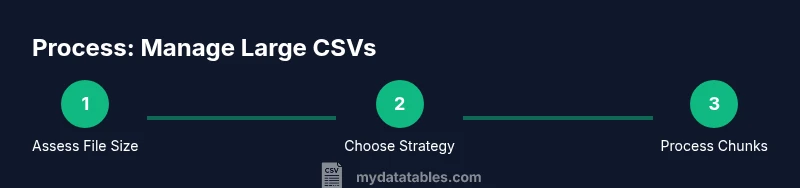
This section presents a practical, end-to-end approach that works for most analysts. Step 1: quickly assess the file size and composition. Step 2: choose a splitting or database route based on your environment. Step 3: implement chunking with a small test using a subset (10,000 rows) to validate the process. Step 4: process each chunk with your chosen tool, applying filters or transformations as needed. Step 5: roll up results into a final dataset or database table. Step 6: document your workflow so others can reproduce it. This approach minimizes memory pressure, ensures accuracy, and scales with file size. The MyDataTables team recommends starting with a chunk-based Python workflow if you’re comfortable with code, otherwise consider a database-based approach for complex analyses.
MyDataTables practical tips
- Tip: Always include a header row in each chunk to preserve column names
- Pro tip: Use explicit data types to prevent misinterpretation during import
- Warning: Do not assume a single tool can handle all rows; split or batch as needed
- Note: Always back up the original CSV before starting the split
- Pro tip: Validate results by recombining chunks and comparing row counts to the source
Authority sources
- RFC 4180: Common Format and Interchange for CSV Files – https://www.ietf.org/rfc/rfc4180.txt
- W3C: Tabular Data on the Web – https://www.w3.org/TR/tabular-data-primer/
- Pandas Documentation: Reading and writing CSV files – https://pandas.pydata.org/docs/user_guide/io.html
Tools & Materials
- CSV file (source data)(Original file that won’t fit Excel)
- Text editor or file viewer(For quick inspection of headers and encoding)
- Python 3.x with pandas(Read CSV in chunks and process)
- SQLite or another SQL database (optional)(For scalable querying and analysis)
- Command-line shell (bash, PowerShell, or Git Bash)(Use for splitting or quick scripts)
- OpenRefine (optional)(Good for cleaning large datasets)
- Google Sheets or LibreOffice Calc (optional)(For light exploration or quick validation)
Steps
Estimated time: 2-6 hours depending on file size and tooling
- 1
Assess the file
Check the CSV size (rows and columns) and confirm it exceeds Excel’s capacity. This determines which strategy will be most efficient. If you’re unsure, start with a small test subset to validate the workflow.
Tip: Use wc -l on Unix-like systems or Measure-Object on PowerShell to count rows. - 2
Choose a strategy
Decide between chunking, database import, or scripting based on your environment and goals. Consider data transformations and downstream needs before proceeding.
Tip: If you’ll perform heavy queries, a database approach scales better than repeated Excel imports. - 3
Split into chunks (if choosing splitting)
Split the file into smaller parts with headers preserved. Ensure each chunk has the same columns and includes the header row to keep downstream processing consistent.
Tip: Keep a fixed chunk size and store a manifest with chunk names for reproducibility. - 4
Read in chunks with Python
Use pandas read_csv with chunksize to iterate through the file and perform processing or aggregation on each chunk before writing results.
Tip: Tune chunksize to balance memory usage and speed (e.g., 50k–200k rows). - 5
Load into a database (optional)
Create a staging table and import chunks; add indexes on key columns to speed up queries. This enables sophisticated analysis without loading the full file at once.
Tip: Index join keys and use incremental loads to avoid failures. - 6
Validate integrity
Verify row counts and basic checksums between original and processed data. Check for encoding issues and header consistency across chunks.
Tip: Compare sum of row counts across chunks to the source total. - 7
Test a representative query
Run a representative analysis query to ensure the workflow returns correct results and performance is acceptable.
Tip: Use LIMIT clauses to test without full scans during development. - 8
Document the workflow
Write a concise runbook describing steps, commands, and parameters so teammates can reproduce the process.
Tip: Version control your scripts and include environment details. - 9
Optionally reassemble results
If needed, combine results from chunks into a final dataset for reporting, or keep chunked results organized in a database.
Tip: Keep transformations idempotent to enable safe re-runs. - 10
Review and optimize
Periodically re-evaluate chunk size, encoding handling, and tooling choice as data scales or project needs change.
Tip: Automate memory profiling for long-running tasks.
People Also Ask
Can Excel ever open a CSV bigger than 1,048,576 rows?
No. Excel has a hard row limit of 1,048,576 rows per worksheet. For files larger than this, you must use splitting, database, or scripting solutions described in this guide.
Excel cannot open files larger than about a million rows; you’ll need to split, import into a database, or read in chunks with code.
What is the simplest non-Excel method to view a large CSV?
Using Python with pandas to read in chunks is a straightforward approach that scales well and preserves data integrity. For quick exploration, you can also load smaller previews in Google Sheets.
Python with pandas is a great way to handle very large CSVs; you can also use Sheets for quick previews, but not for massive datasets.
How do I preserve headers when splitting a CSV?
When splitting, ensure each chunk includes the header row. You can do this with a small Python script or by prepending the header to each chunk during a shell or batch process.
Each chunk should keep the header row so downstream tools know the column names.
Is SQLite suitable for working with huge CSVs before analysis?
Yes. SQLite lets you load large CSV segments, run SQL queries, and join data without loading everything into memory. For very large datasets or concurrent access, consider PostgreSQL or MySQL.
SQLite works well for local analysis, but for heavy workloads consider a full database system.
Can Google Sheets be used for large CSVs?
Google Sheets supports collaboration and some large imports, but it has limits on cells and performance with very large datasets. Use Sheets for exploration or as a staging area, not as the primary data store.
Sheets is good for quick checks, but not for very large CSVs.
What should I do to ensure data integrity after processing?
Count rows in each chunk, verify headers, and compare aggregated results with the source. Maintain a change log and run reproducible tests on re-runs.
Always verify row counts and headers, and keep a reproducible test plan.
Watch Video
Main Points
- Split or chunk large CSVs to bypass Excel limits
- Leverage Python/pandas for scalable, reproducible workflows
- Databases offer robust querying when Excel can’t handle size
- Validate data integrity at every step