How to Get Rid of Extra Commas in CSV Files
A comprehensive, step-by-step guide to remove stray commas from CSV data, ensuring clean parsing, correct delimiting, and reliable downstream processing. Learn manual methods, Excel/Sheets workflows, Python scripts, and automated checks.


This guide helps you learn how to get rid of extra commas in csv file by applying reliable cleanup techniques, validating results, and preventing recurrence. You’ll see concrete steps for manual cleanup, Excel/Sheets workflows, and Python-based automation. Core requirements: a copy of the CSV, a backup, and a plan to preserve quoted fields while removing stray delimiters.
How to get rid of extra commas in csv file: A practical introduction
How to get rid of extra commas in csv file is a common data-wrangling task for data analysts, developers, and business users. When CSVs contain extra commas, parsers can misinterpret columns, leading to misaligned data, failed imports, and downstream calculation errors. According to MyDataTables, many CSV issues arise from inconsistent delimiter use and improper handling of quoted fields. This guide walks you through practical, repeatable methods to clean up commas without breaking data integrity, with real-world examples and safeguards to keep your datasets reliable. By the end, you’ll have a toolkit that works across manual edits, spreadsheet workflows, and small Python scripts, plus validation steps to confirm correctness. MyDataTables Analysis, 2026 suggests that adopting a consistent cleanup routine reduces downstream errors and saves time over ad hoc fixes.
The goal is to preserve the structure of your data, ensure each value stays within its column, and maintain the ability to re-import the cleaned file into your analytics stack. We’ll begin with quick detection, then move to hands-on fixes in various environments, and finish with checks to prevent future occurrences. This approach emphasizes transparency, reproducibility, and clear traceability of changes. Read on to learn how to systematically remove extra commas while keeping your data intact.
Key concepts you’ll use include: recognizing when commas are legitimate field delimiters versus characters inside text fields, leveraging proper quoting rules, and validating the resulting CSV with automated checks. The strategies apply whether you work with small samples or larger datasets. The emphasis is on practical, proven techniques that minimize risk and maximize consistency.
As you follow these steps, consider how your team handles CSV imports, how you name and version your data, and how you document any cleanup performed for future audits. The focus remains on producing clean, reliable CSV files that behave predictably in your data pipelines.
If you want to skip ahead, use the step-by-step section to jump to the method you prefer: manual editor cleanup, spreadsheet-based workflows, or programmatic solutions in Python or the command line. Regardless of the route, the core principles stay the same: identify the problem, separate content from structure, and verify your results with a reproducible check.
note_type:null}
Understanding how extra commas arise: common patterns and pitfalls
Extra commas in CSV files can appear for several reasons, and recognizing patterns helps you choose the right cleanup approach. One frequent culprit is data entry errors where fields are left blank or fields with embedded commas are not properly quoted. Another common source is exporting data from systems that use inconsistent quoting conventions or that switch between delimiter characters without updating the export settings. When commas appear spuriously, parsers may treat them as new fields, shifting every subsequent column and corrupting the data structure.
A practical way to think about this is to imagine your CSV as a table with fixed columns. If a comma appears outside of quoted text or inside an unquoted numeric field, it creates an extra column during parsing. You’ll often see this in lines that have trailing commas, missing values, or text fields containing commas that were not properly escaped. This section provides guardrails to tell you when a comma is legitimate and when it is not.
The fix depends on the data’s semantics. If your delimiter is indeed a comma, you must ensure fields containing a comma are enclosed in quotes. If you see unquoted commas inside a field that should be a single value, you likely have to remove or replace those commas during cleanup. The goal is to maintain a stable structure while removing only those commas that should not be part of the data.
Understanding these patterns helps you pick the right tool for the job, whether you’re editing small samples in a text editor or writing a reusable script that handles thousands of rows. The rest of this guide walks you through practical techniques for multiple environments, so you can choose the approach that fits your workflow and data hygiene standards.
note_type:null}
Quick wins: spot-checking a CSV for obvious stray commas
Before diving into heavy cleanup, perform a quick pass to identify obvious stray commas. Open the file in a text editor and look for lines with trailing commas, consecutive delimiters, or visible misalignment between headers and rows. A small sample (the first 20–50 lines) can reveal patterns such as a missing quote, an extra comma at the end of a line, or inconsistent use of quoted fields. Quick spot checks reduce the risk of applying a blanket fix that creates new issues.
- Scan for lines that have more or fewer fields than the header.
- Check for fields that begin or end with a comma.
- Look for quotes that do not enclose a field containing a comma.
If you notice obvious mismatches, note the affected lines for targeted remediation rather than applying sweeping changes. This approach saves time and minimizes unintended consequences while you plan a fuller cleanup. For larger datasets, you can extract a representative subset for initial validation before committing to edits across the entire file.
note_type:null}
Clean cleanup in a text editor: when small files justify manual fixes
For small CSV files, you can perform precise edits in a plain text editor, provided you keep a careful backup and a clear plan. Start by backing up the original file so you can revert if needed. Then, locate lines where commas appear outside of quotes or where trailing commas create extra fields. Use the editor’s search function to find patterns like ,,, or ,$ (comma at line end) that signal anomalies. When you identify a problematic line, adjust the content so that only actual delimiters separate fields and ensure text fields containing commas are wrapped in quotes.
A practical approach is to create a “cleaned” copy with line-by-line edits while preserving the original line numbers. If you’re editing a lot of lines, consider using a macro or a simple replace with a careful, test-driven plan. After edits, compare the header row to the first data row to verify field counts and verify a few sample lines to ensure quotes remain balanced. This method is quick for small files but becomes error-prone as size grows.
Pros:
- Minimal tooling required
- Very transparent edits
Cons:
- Prone to human error on larger datasets
- Hard to audit for reproducibility without a change log
note_type:null}
Spreadsheet sanity: cleaning with Excel or Google Sheets
Spreadsheet tools offer powerful features for CSV cleanup, especially when data is human-readable and you need quick visual validation. Start by importing the CSV with the correct delimiter (comma) and enabling text qualifiers/quoting if your tool supports it. Inspect the columns for misaligned data, and use find-and-replace cautiously to remove unnecessary trailing commas in empty fields. Use the “Text to Columns” feature to re-import data from a single column if stray commas have split the data into extra columns. Ensure that any missing values are represented consistently (for example, leaving blanks rather than inserting placeholders).
Best practices:
- Use the tool’s built-in import wizard to enforce quoting and delimiter rules.
- Avoid manual edits in wide datasets; grade your edits by checking a few representative rows.
- Validate key columns after changes (e.g., IDs, dates) to confirm that data alignment is preserved.
Limitations:
- Spreadsheets can mask structural problems that become apparent only when processed by a script or database import.
- Large CSVs may be slow or error-prone in spreadsheet apps; use programmatic methods for large-scale cleanup.
note_type:null}
Programmatic cleanup with Python’s csv module or pandas
Programmatic cleanup provides repeatable, auditable transformations that scale beyond manual editing. The Python csv module is a robust option for handling quoted fields and embedded commas. A minimal script reads the CSV with proper dialect settings, iterates rows, and rebuilds a new CSV with only valid delimiters. If you prefer a higher-level interface, pandas can read_csv with engine='python' or 'c' and offers powerful data cleaning utilities. The key is to preserve the integrity of quoted fields while removing stray, unquoted commas that should not denote a new column.
A typical approach:
- Read rows with csv.reader using skipinitialspace=True and quoting=csv.QUOTE_MINIMAL.
- Detect rows where the number of columns mismatches the header.
- For mismatches, either fix by quoting embedded commas or drop problematic columns if they’re clearly artifacts.
- Write to a new file using csv.writer or DataFrame.to_csv to ensure balanced quotes and proper escaping.
Tip: Always backup before running scripts and test on a small subset first. Document the logic in comments to aid reproducibility and future audits.
note_type:null}
Command-line cleanup: using sed, awk, or csvkit
For those who prefer the command line, lightweight tools like sed/awk or csvkit offer fast, scriptable cleanup. A typical workflow is to first normalize line endings and ensure consistent quoting, then filter lines with anomalous field counts. csvkit’s csvclean utility can help identify malformed rows and fix or report issues. These tools are especially useful when you need repeatable, machine-readable cleanup that can be integrated into CI pipelines.
- Normalize line endings to CRLF or LF depending on your target system.
- Use csvclean to test conformance and report errors without overwriting original data.
- If you must patch lines in-place, use a safe approach such as creating a temporary file and validating before replacing the original.
Be mindful of the risk that automated replacements may misinterpret fields containing legitimate commas if quoting is inconsistent. Always verify with a sample before applying to the entire dataset.
note_type:null}
Validation after cleanup: ensuring structure and data integrity
Validation is a critical final step to ensure your cleanup didn’t introduce new problems. Validate structural consistency by checking that every row has the same number of fields as the header, and that the header itself contains the expected column names. Use a CSV validator or a small script to compare field counts across rows, and test a subset by importing into the downstream system (database, analytics tool, or model) to confirm that data aligns with expectations. If issues surface, backtrack to the last good backup and re-apply a more conservative cleanup.
Key validation checks:
- Uniform column count per row
- Balanced quotation marks throughout the file
- No unescaped delimiters inside quoted fields
- Correct data types in critical columns (e.g., dates, IDs)
Automated tests on a replica of the data help create a reproducible cleanup process that you can reuse for future CSVs. This reduces the chance of accumulating drift in your data pipeline and makes it easier to explain changes during reviews.
note_type:null}
Automation and future-proofing: turning cleanup into a repeatable workflow
Once you’ve established a reliable cleanup approach, turn it into an automated workflow to prevent future backlogs. Create a small utility or script that takes a CSV as input, validates, cleans, and outputs a new file with a versioned name. Store the script in your version control system and document its usage with a README, including a sample dataset and expected outputs. Consider adding a quick pass that checks for new anomalies (e.g., unexpected trailing commas) and sends a summary to your team.
Practical automation ideas:
- Schedule nightly cleanup for fresh CSV dumps.
- Integrate the cleanup into data ingestion pipelines to catch issues before analytics processing.
- Include logging and error reporting that highlights lines with anomalies.
Better data hygiene reduces downstream friction, speeds up analysis, and improves project reproducibility. The MyDataTables team recommends building a small, auditable test suite around your cleanup steps to ensure you won’t regress on future CSV inputs.
Tools & Materials
- Plain text editor (e.g., VSCode, Notepad++)(Use to inspect and edit small CSV samples safely.)
- Spreadsheet software (Excel, Google Sheets)(For visual checks and quick fixes on small datasets.)
- Python (with csv module or pandas)(Useful for repeatable, scalable cleanup.)
- Command-line tools (sed, awk, csvkit)(Ideal for automation and integration into workflows.)
- CSV validator tool (e.g., csvlint)(Helps confirm structural integrity after cleanup.)
- Backup copy of original CSV(Always preserve the original before edits.)
Steps
Estimated time: 2-4 hours
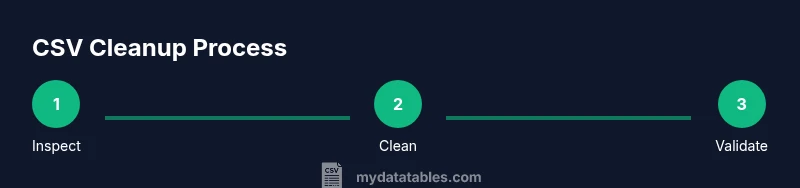
- 1
Inspect and back up the file
Open the CSV in a safe editor or viewer and compare the header to the first data row. Create a timestamped backup copy before making any changes so you can revert if something goes wrong.
Tip: Keep a separate changelog noting any edits and their rationale. - 2
Choose cleanup method based on file size
If the file is small, manual or spreadsheet-based cleanup may suffice. For large files, plan a scripted approach to ensure consistency and auditability.
Tip: Use a subset (e.g., 1–5% of rows) to prototype before scaling up. - 3
Normalize quoting and delimiters
Ensure that fields with embedded commas are properly quoted and that the delimiter is consistently a comma across the file. If your data uses a different delimiter, convert accordingly.
Tip: Do not remove quotes around fields unless you are sure they are unnecessary. - 4
Identify lines with structural anomalies
Search for rows with more or fewer fields than the header. Mark any anomalies for targeted remediation rather than blanket edits.
Tip: Use a simple diff to compare the number of columns per row. - 5
Fix trailing or unquoted commas
Remove trailing commas at line ends and ensure any internal commas are inside quotes when the field is text. This preserves column alignment.
Tip: Avoid removing commas inside legitimate text fields. - 6
Handle embedded commas in quoted fields
If a field contains a comma, verify that it is enclosed in quotes. Unquoted internal commas indicate a need for quoting or removal depending on the data.
Tip: Ensure quotes are balanced after edits. - 7
Validate cleaned output against the header
Read the cleaned CSV with the same tool you’ll import it into later and confirm the column count and field types. Repeat the validation after any major change.
Tip: Create a quick unit test: one line per expected schema. - 8
Document the cleanup steps
Write a short document describing what was changed, why, and how to reproduce the cleanup. Store it with the dataset for future audits.
Tip: Include sample before/after lines for clarity. - 9
Automate for future CSVs
If you handle CSVs regularly, turn the steps into a script or pipeline, so future files are cleaned consistently with minimal manual intervention.
Tip: Version-control your cleanup script and reference dataset.
People Also Ask
Why do extra commas appear in CSV files?
Extras usually come from unquoted fields containing commas, inconsistent quoting rules, or trailing delimiters after blank fields. Understanding the cause helps you choose the right cleanup strategy.
Extra commas come from unquoted commas, inconsistent quoting, or trailing delimiters—knowing the cause guides your cleanup approach.
How can I tell if a line has the wrong number of fields?
Compare each row’s field count to the header. If a row has more or fewer fields, it’s a signal to inspect that row for missing quotes or stray commas.
Check if each row has the same number of fields as the header; mismatches indicate issues to fix.
Is it safe to use Excel for cleanup?
Excel is convenient for small datasets, but it can hide structural problems in large files. Use it for quick checks, and validate results with a CSV validator or script.
Excel is okay for small datasets, but verify results with a validator to catch hidden issues.
What about Python—can I automate this?
Yes. Using the csv module or pandas, you can automate normalization, quoting, and validation in a reproducible script. Start with a small subset and expand.
Python can automate cleanup, but start with a small subset to confirm it works.
How do I validate that my cleaned CSV is correct?
Run a validator that checks consistent column counts and balanced quotes, then test a sample import into your target system to confirm data integrity.
Validate with a CSV checker and a sample import to ensure data integrity.
Watch Video
Main Points
- Identify whether extra commas are structural or inside quotes
- Choose a method consistent with file size and environment
- Preserve original data with backups and versioned scripts
- Validate thoroughly after cleanup to prevent downstream errors
- Automate cleanup to ensure repeatable data hygiene practices