CSV Looks Like: Formatting Variations and Normalization
Understand how CSV looks vary across sources and tools, why that happens, and how to standardize formatting for reliable parsing, validation, and collaboration in data workflows.


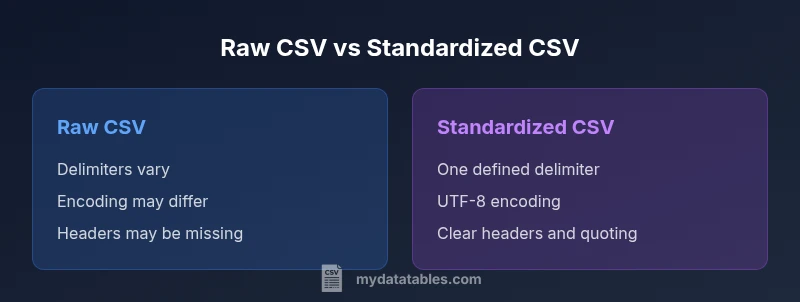
CSV looks like varies dramatically across sources and tools. Delimiters, text qualifiers, line endings, and encoding all shape how data appears at first glance. This quick comparison outlines the two common ends of the spectrum—raw CSV from diverse sources versus standardized CSV in a controlled workflow—and why matching visuals matters for parsing, validation, and collaboration.
What CSV Looks Like in Practice
The phrase csv looks like is more than a casual observation—it's a practical cue about how data is stored and displayed. In real-world datasets, you will see a mix of commas, semicolons, or tabs acting as delimiters. Some files begin with a header row, others omit headers, and a few include trailing delimiters or quoted fields. The visual layout is also colored by the tool used to open the file: Excel may auto-detect delimiters, Python libraries may default to UTF-8, and older systems might add Byte Order Marks (BOM). As a result, the same logical table can look completely different depending on where you view it. Paying attention to these cues helps you assess data quality, plan parsing strategies, and avoid misinterpretation before you start transforming the data. In practical terms, csv looks like is a proxy for the underlying rules that govern the file, such as encoding, delimiter choice, and quoting conventions.
The Role of Delimiters and Qualifiers
Delimiters define where one field ends and the next begins. The most common choice is a comma, but semicolons, tabs, and pipes are frequent alternatives, especially in regions that use comma as a decimal separator or in datasets with embedded commas. Text qualifiers—typically double quotes—wrap fields that contain delimiters or newlines. If a file uses quotes inconsistently, or omits them when necessary, the visual cue of a field containing a comma may become a parsing trap. When csv looks like shows a mix of quoted and unquoted fields, you should inspect for escaping patterns ("" inside quoted fields), check for inconsistent quoting, and verify whether the consumer expects a particular qualifier. A well-formed CSV will reveal a consistent delimiter and clear use of qualifiers across many rows.
Encoding and Line Endings: Why Looks Vary
Unicode encodings (UTF-8, UTF-16) and line-ending conventions (CRLF vs LF) create strong visual signals in a file. A BOM at the start of a file indicates UTF-8 or UTF-16; some tools drop the BOM, others preserve it, which changes the first visible bytes and can affect how the file is opened. Line endings influence how many lines are displayed and parsed in different editors. If csv looks like shows a file with CRLF in one viewer and LF in another, parsing logic may fail or miscount rows. Inconsistent encodings can also corrupt non-ASCII data, producing garbled text that looks like gibberish in some editors while appearing perfectly fine in others.
Multiline Fields and Quoting: Visual Cues
Multiline fields complicate the simple row-per-record mentality. When a field contains a newline character, many tools wrap the value in quotes and escape internal quotes. The result is a visually longer row that includes embedded line breaks. If your CSV shows abrupt wrapping or broken rows, check whether multiline fields are being properly quoted and whether the consuming tool respects newline semantics inside quoted fields. csv looks like that includes multiline data often signals the need for a dedicated parser or a library that handles quoting rules robustly.
How Tools Interpret the Same File Differently
Different tools implement CSV parsing with subtle defaults. A viewer might auto-detect delimiters, a library might assume UTF-8, and a spreadsheet app could reinterpret missing values as empty strings or NULL. As a result, two people opening the same file in different environments can see divergent layouts and even different row counts. csv looks like thus becomes a critical diagnostic: if your team sees inconsistent visuals, you should agree on a standard parser configuration, such as explicit delimiter choice, encoding, and how to treat headers. Establishing a shared baseline minimizes surprising visuals during data reviews.
Strategies to Normalize CSV Looks for Teams
A practical normalization plan starts with a documented standard: pick a delimiter, encoding, and header policy; apply consistent quoting rules; and decide how to handle missing values and line endings. Use a reliable CSV library or utility that adheres to a published standard (for example, RFC 4180) and avoid ad-hoc adoptions of tool-specific quirks. When possible, convert incoming CSVs to a canonical form—for example, UTF-8, LF line endings, and consistent double-quote escaping—before sharing with teammates. This reduces interpretation errors and makes automated parsing more predictable.
Common Pitfalls: Headers, Missing Values, and BOM
Headers can be present in one dataset and absent in another, yet both may be used in downstream pipelines. Missing values can be represented differently (empty fields vs explicit markers), and the presence of a BOM can confuse some tools. csv looks like artifacts of poor data hygiene—misaligned headers, inconsistent row lengths, and unexpected non-printables. To avoid these pitfalls, validate files with a simple check: confirm a single, consistent delimiter across the header and several data rows; confirm the header matches the schema; and verify that the encoding is what downstream processes expect.
Practical Validation: Quick Checks You Can Run
Start by inspecting a small sample of rows with a plain-text viewer, counting delimiters per row and checking for uniform field counts. Then open the same CSV in at least two tools to observe any visual or parsing differences. If you see mismatches, re-save using a known-good configuration: a single delimiter, UTF-8 encoding, and LF endings. Use a library that enforces RFC 4180 rules to catch edge cases such as embedded newlines within quoted fields. These checks help ensure csv looks like remains stable across environments.
When to Trust a CSV Visual: Rules of Thumb
Visual consistency is more trustworthy when it aligns with a documented standard and when multiple tools render the same file in the same way. Treat any deviation as a signal to pause and validate: verify delimiter, encoding, line endings, and quoting. For collaboration, agree on a canonical format used for data exchange, and only accept files that conform to that format. A well-documented standard reduces surprises and increases the speed of data-driven decisions.
Example Scenarios: From Real Data to Clean CSV
Consider a data-export from a legacy system that uses semicolon delimiters and UTF-16 encoding. The csv looks like will show a file that looks very different from a clean CSV produced by a modern data pipeline using UTF-8, comma delimiters, and LF endings. In practice, you would convert the legacy export to the canonical format, re-check headers, ensure proper quoting, and validate across representative samples. This disciplined approach makes downstream analytics more reliable and easier to automate.
Comparison
| Feature | Raw CSV from Diverse Sources | Standardized CSV in a Controlled Workflow |
|---|---|---|
| Delimiter consistency | Often inconsistent across files | Consistent, defined delimiter across all files |
| Text qualifier usage | Inconsistent or missing qualifiers | Uniform qualifiers around fields with embedded delimiters |
| Encoding | Varies (UTF-8, UTF-16, BOM present or absent) | UTF-8 with BOM handling defined or BOM-free |
| Line endings | CRLF, LF, or mixed endings | Single standard (LF) for cross-platform compat |
| Headers | May be present or absent | Explicit headers that match schema |
| Quoting rules | Irregular or absent quoting | Strict quoting for embedded delimiters |
| Missing values | Represented inconsistently or as empty fields | Explicitly defined placeholders or empty fields with standard interpretation |
| Multiline fields | Common but error-prone when not quoted | Handled safely with consistent quoting and escaping |
Pros
- Promotes data quality through predictable visuals
- Facilitates automated parsing and cross-team sharing
- Reduces parsing errors caused by mismatched delimiters or encodings
- Improves reproducibility of data workflows
- Supports tool-agnostic data validation
Weaknesses
- Initial setup may require preprocessing of incoming files
- Some legacy sources resist standardization efforts
- Over-standardization can obscure source-specific metadata
- Small teams may perceive normalization as overhead unless automation is in place
Standardized CSV visuals win for reliability and collaboration
Adopting a canonical CSV format reduces surprises during analysis and automation. Raw CSVs are acceptable for quick ad-hoc checks but should be validated and transformed before formal reporting.
People Also Ask
What does 'csv looks like' tell you about data quality?
It signals the visual and structural consistency of a CSV file. A consistent look across files and tools indicates better data hygiene and easier downstream parsing. When looks vary, it’s a cue to validate encoding, delimiters, headers, and quoting rules before analysis.
CSV looks like helps you spot consistency issues early so you can validate encoding, delimiters, and headers before analyzing.
How can I tell what delimiter a CSV uses?
You can inspect the first few lines with a plain text editor and count the occurrences of common delimiters. Many tools offer a delimiter-detection option. If you exchange files regularly, enforce a single, documented delimiter in your workflow to minimize ambiguity.
Check the first lines with a text editor, and use a delimiter-detection option when available.
Why do CSVs look different across tools?
Different parsers apply defaults for encoding, line endings, and quoting. Excel, Python, and databases might interpret headers or missing values differently, leading to visible differences. Standardizing the format and using explicit parsing rules reduces these discrepancies.
Different tools apply varying defaults, so standardizing format helps reduce differences.
What is a text qualifier and why is it important?
A text qualifier (usually a double quote) encloses fields containing delimiters or newlines, preventing misinterpretation. Proper quoting ensures that embedded commas or line breaks stay part of the same field, preserving data integrity.
Text qualifiers prevent embedded delimiters from splitting a field.
How can I standardize CSV appearance for a project?
Define a canonical format (delimiter, encoding, line endings, quoting), implement a conversion step to that form on all incoming files, and validate a sample before use. Document the standard and enforce it across teams.
Create a canonical CSV format and convert incoming files to it before use.
Do line endings affect parsing?
Yes. Inconsistent line endings can cause misalignment of rows or parsing errors in some tools. Choose a single convention (usually LF) for cross-platform workflows and ensure imports respect that setting.
Inconsistent line endings can break parsing; pick one convention and stick to it.
Main Points
- Standardize delimiter, encoding, and line endings
- Validate headers and quoting consistently across files
- Prefer canonical CSVs for data exchange and automation
- Test with real-world samples across tools to detect differences
- Document the agreed CSV format to guide teammates