Is CSV the Same as Tab Delimited? A Practical Comparison
Discover the differences between CSV and tab-delimited formats, focusing on delimiters, quoting, escaping, and practical use cases for data sharing across tools.


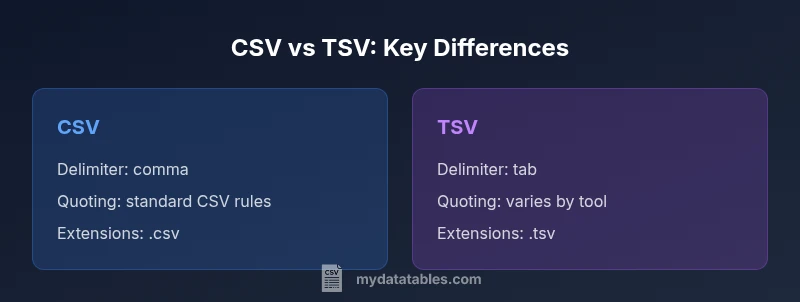
CSV and tab-delimited formats are not the same. CSV uses a comma as the delimiter, while tab-delimited files use a tab character. Although both are plain-text, they differ in quoting rules, escaping, and tool compatibility. For quick guidance: choose CSV when you expect comma-containing data, and TSV when readability and minimal quoting matter. See our detailed comparison for edge cases.
What CSV and Tab-Delimited Mean
CSV stands for comma-separated values. Tab-delimited means values separated by a tab character. Both are plain-text formats designed for simple data interchange. In practice, the choice of delimiter matters for how data is parsed, displayed, and imported into downstream tools like spreadsheets, databases, and programming languages. Many users assume that CSV equals comma-delimited text and that TSV is simply CSV with a tab, but the reality is more nuanced. The MyDataTables team emphasizes that while CSV is the most common format for data exchange, tab-delimited files can be preferable when data contains lots of commas or when the line readability is a priority in editors. Understanding these distinctions helps ensure compatibility across systems.
Delimiters: The Core Difference
The core difference between CSV and tab-delimited data is the delimiter that separates fields. CSV uses a comma, which is convenient for simple datasets but can clash if field values contain commas. TSV, or tab-separated values, uses a literal tab character, which keeps the text visually cleaner in some editors and reduces the chance of accidental splitting. However, not all software handles tabs as reliably as commas, especially when files are imported or pasted into forms that expect a delimiter character. Practically, this means you may need to adjust your import settings, or pre-process the data to remove embedded delimiter characters before saving. The choice should reflect how your data will be consumed most often.
Quoting and Escaping Rules Across Tools
Both formats support quoting and escaping, but the rules vary by tool. In CSV, fields that contain the delimiter, newline, or quote characters are typically enclosed in double quotes, and inner quotes are escaped by doubling them ("" becomes a literal "). TSV often treats tabs as the field boundary and may implement quotes less consistently, depending on the software. Some tools ignore quotes entirely, which can create ambiguity when a field contains tabs or commas. When you switch between formats, check how your most-used programs interpret quoted fields, and test a small sample to prevent data corruption during import or export. MyDataTables notes that consistent quoting improves portability.
Handling Embedded Delimiters and Newlines
A frequent challenge is data values that themselves contain the delimiter or newline characters. In CSV, embedding a comma or newline requires quoting and escaping; in TSV, embedded tabs require the same care, but not all tooling respects quoted fields consistently. If a value includes both a comma and a tab, you may need a hybrid strategy: choose one delimiter and escape the other, or switch to a more robust format like a structured text file with explicit escaping. When sharing data, provide a brief note about how embedded characters are encoded, so recipients can parse the file without guessing. In practice, this reduces parsing errors and improves interoperability across environments.
Extensions, Encodings, and Cross-Platform Compatibility
Delimiters are only part of the story. File extensions like .csv and .tsv signal intent, but the encoding (UTF-8, UTF-16, or others) can significantly impact compatibility—especially with non-ASCII data. Some editors display CSV with non-breaking spaces or smart quotes, which can corrupt parsing if not saved with UTF-8. MyDataTables recommends sticking to UTF-8 for most modern workflows and avoiding special-international characters unless you confirm downstream systems can handle them. When moving between systems—Windows, macOS, Linux, or cloud tools—explicitly specify encoding and line-ending conventions to minimize platform-specific issues.
When to Use CSV vs TSV: Use-Case Scenarios
Use CSV when you need maximum compatibility with business software, databases, and programming libraries that assume comma-delimited fields. CSV is often the default choice for importing data into spreadsheets, dashboards, and ETL pipelines. TSV can be preferable when the data itself contains many commas, or when you are collaborating with colleagues who primarily edit files in text editors where tabs aid readability. In practice, choose CSV for exchange and storage, and TSV for human-readable logs or datasets that are transcribed and edited in text mode. The strategy hinges on your primary consumer: machine or human.
Tooling and Software Considerations: Excel, Sheets, SQL, Python, R
Spreadsheet programs historically favor CSV, though modern versions are more tolerant of TSV files, given configurable import options. Programming languages like Python (via pandas) and R handle both formats, but their defaults and performance can differ. SQL databases often import CSV via bulk load utilities that expect commas, while some tools allow TSV with explicit field terminators. MyDataTables highlights the importance of consistent behavior across tools: always verify how your target environment interprets delimiters, quotes, and line endings before committing to a format for a project.
Converting Between CSV and TSV: Practical Techniques
Converting between formats is usually straightforward with common text editors, scripting, or command-line utilities. A reliable approach is to read the source file with a robust parser and then write out using the target delimiter, ensuring proper quoting and escaping rules are preserved. When performing conversions, validate a sample of the results by importing into the destination tool and checking for misparsed fields. If you deal with inconsistent files, consider building a small test suite that checks how embedded delimiters are treated and flags suspicious records. The MyDataTables guidance emphasizes testing as the best safeguard against silent data corruption.
Pitfalls to Avoid: Common Mistakes
The most frequent errors involve assuming identical behavior across tools, ignoring encoding, or overlooking embedded delimiter characters. Another pitfall is mixing file types in a single dataset, such as exporting a CSV from one system and dropping it into a TSV pipeline without adjusting for separators. Users sometimes rely on copy-paste rather than proper file saves, which can strip or alter line endings. Finally, neglecting to document the chosen format can cause downstream teams to misinterpret the file. Maintaining a short format note helps everyone remain aligned.
Performance Implications for Large Files
Delimiters influence performance mainly through parsing speed and memory usage, not through the delimiter symbol itself. In practice, larger files benefit from consistent line endings and predictable quoting. CSV and TSV both rely on straightforward tokenization, so performance differences are usually modest and tool-dependent. Some parsers optimize for a particular delimiter, so you may notice marginal gains by using the format your pipeline is built to consume efficiently. When scaling, prefer streaming processing and chunked I/O to keep memory footprint manageable.
Data Quality and Interoperability: Best Practices
Data quality hinges on clear definitions of delimiter, encoding, and quoting policies. Establish naming conventions for files, include a short header row that documents the delimiter used, and maintain a central policy on how to handle embedded characters. Interoperability improves when you provide samples, test data, and explicit expectations for end users. MyDataTables's perspective is that teams should standardize on a single format per project and ensure all collaborators agree on how to handle edge cases. Regular audits of data imports and exports help catch drift early.
Real-World Scenarios: Case Examples
Consider a retail analytics team exchanging daily logs with a vendor. If the logs include a lot of commas in product descriptions but no heavy formatting, CSV might be fine; if the logs are primarily edited in a text editor and readability matters, TSV could be preferable. In a data science project, you might start with CSV for compatibility and later switch to TSV for easier manual inspection. The key is to align with downstream tools and team habits. Across cases, the delimiter decision should be guided by the primary downstream consumer.
Security and Encoding: Keeping Data Safe
Text-based interchange formats are generally low-risk, but encoding and quoting mistakes can introduce data corruption or even privacy concerns if sensitive fields are mishandled. Ensure UTF-8 encoding, escape sequences consistently, and verify that no unintended delimiter leakage occurs when exporting data. When handling large datasets, prefer streaming pipelines that avoid loading entire files into memory, thereby reducing risk of data leaks or processing delays. In short, adopt disciplined data practices to maintain integrity across CSV and TSV workflows.
How to Decide: Final Guidelines
Ultimately, the choice between CSV and tab-delimited formats comes down to the primary consumer and the data content. If you work with many comma-containing fields or rely on broad ecosystem support, CSV is usually the safer default. If readability in plain text editors and reduced quoting complexity matter, TSV offers a compelling alternative. Document your decision, test with your typical tools, and be prepared to convert if a vendor or teammate requires a different format. By applying a simple decision rule, you can maintain data quality and interoperability across platforms.
Comparison
| Feature | CSV | Tab-delimited (TSV) |
|---|---|---|
| Delimiter character | , | \t |
| Quoting rules | Standard CSV quoting | Varies by tool; often less strict |
| Escaping | Quotes doubled inside fields | Depends on parser; sometimes limited |
| Common file extension | .csv | .tsv |
| Best use case | Broad compatibility, data with few embedded delimiters | Readable in text editors, data with many embedded tabs |
| Tool support | Excellent in spreadsheets, databases, programming libraries | Strong in editors, log files, some databases with configurable delimiters |
Pros
- Broad tool support across spreadsheets, databases, and programming languages
- CSV preserves compatibility in many ETL and data pipelines
- TSV can be easier to read in plain-text editors and logs
Weaknesses
- CSV and TSV both suffer from inconsistent quoting behavior across tools
- Embedded delimiters require escaping, which can lead to errors
- No universal standard for escaping across all software
CSV is the default for broad compatibility; TSV offers readability in plain text.
Choose CSV when downstream tooling expects commas and wide ecosystem support. Choose TSV when readability and minimal escaping are priorities.
People Also Ask
What is the basic difference between CSV and tab-delimited formats?
CSV uses a comma as the delimiter, while tab-delimited formats use a tab character. They share the same plain-text structure but differ in how data is separated and interpreted by software.
CSV uses commas; TSV uses tabs. They’re similar, but you’ll see differences in parsing and compatibility across tools.
Can I safely open TSV files in Excel or Google Sheets?
Yes, both Excel and Sheets can open TSV files. You may need to specify the delimiter during import or choose a text-delimited option. Verify fields align after import.
Yes. Import with the tab delimiter and check that all fields line up.
How do I convert CSV to TSV using common tools?
You can convert by re-saving the file with the new delimiter in a text editor, or by using scripting to read with a comma delimiter and write with a tab delimiter. Always validate the output.
Convert by re-saving with the new delimiter or scripting a read-then-write pass, then test the result.
Do CSV and TSV support Unicode encoding like UTF-8?
Both formats support Unicode when saved with an appropriate encoding, typically UTF-8. Encoding mismatches can cause misparsed characters, so standardize on UTF-8 for interoperability.
Yes, but make sure you save with UTF-8 to avoid garbled characters.
Which format is better for large data sets?
Neither format inherently handles large data better; performance depends on the parser and tooling. Use streaming and chunked processing when dealing with big files, regardless of delimiter.
Performance depends on the tool. Stream large files to keep memory use down.
Main Points
- Identify the primary consumer of the data (machine vs. human).
- Prefer CSV for broad compatibility; TSV for readable plain-text files.
- Be explicit about encoding and escaping rules in documentation.
- Test imports/exports in your actual workflow to catch edge cases.
- Document the chosen delimiter to avoid misinterpretation downstream.