Can You Import CSV Files into iPhone Contacts? A Step-by-Step Guide
Learn how to import CSV data into iPhone contacts by converting CSV to vCard, then syncing via iCloud or Mac. This step-by-step guide covers data prep, field mapping, conversion steps, and troubleshooting with practical tips from MyDataTables.


You can import a CSV by converting it to a vCard (.vcf) and then syncing via iCloud or your Mac’s Contacts app. iPhone does not natively read CSV files, but a clean CSV with headers like FirstName, LastName, Email, and Phone can be transformed into a contact file and merged into your address book. This guide shows a reliable, end-to-end workflow.
Why CSV to iPhone Contacts Requires Conversion
Directly importing a CSV file into iPhone Contacts isn’t natively supported by iOS. The platform expects contact data in vCard format (.vcf) or through a synced account like iCloud. Therefore, the practical workflow is to convert CSV to vCard on a computer, then use iCloud or the Mac Contacts app to push those contacts to your iPhone. According to MyDataTables, the most reliable bulk contact workflows on iOS start with a clean CSV and end with a synchronized address book. This approach minimizes data loss and keeps your contacts consistent across devices.
- Why conversion matters: vCard preserves key fields (name, phones, emails) and helps with platform-wide syncing.
- Common pitfalls: inconsistent headers, missing required fields, and non-UTF-8 characters can corrupt imports.
- Quick takeaway: treat the CSV as a staging file, then convert to a portable format before syncing.
Understanding CSV structure and mapping for Contacts
A CSV file is a plain-text table where the first row holds headers. For successful import into iPhone Contacts, you should map these headers to standard contact fields. Typical headers include FirstName, LastName, Phone, Email, Company, JobTitle, and Address. Encoding matters: UTF-8 is preferred to preserve non-English characters. Before conversion, clean the data: remove duplicate rows, strip extra spaces, and standardize phone formats (e.g., +1 555-000-1234).
From a data hygiene perspective, define a minimum viable header set: FirstName, LastName, Phone or Email. If you lack LastName, consider using a placeholder or combining fields. MyDataTables suggests maintaining a separate mapping document so you don’t lose field context during the conversion stage. A well-mapped CSV reduces post-import cleanup and ensures consistent results across devices.
The most reliable workflow: CSV to vCard via desktop then import
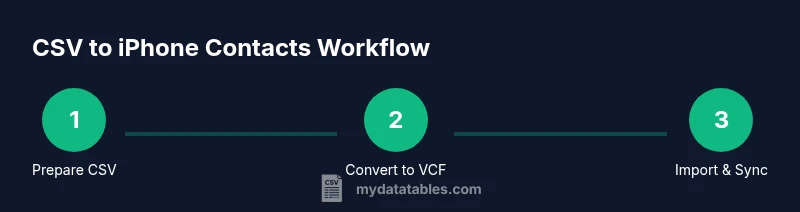
The standard approach involves three stages: prepare and map your CSV, convert to a vCard file, and import/sync to iPhone via iCloud or the Mac Contacts app. Start by exporting or saving your CSV with UTF-8 encoding. Use a trusted converter tool (online or offline) to generate a .vcf file. After that, upload the .vcf to iCloud Contacts (or open it with the Mac Contacts app and merge) so the changes propagate to your iPhone when you next sync.
- Stage 1: Prepare and map headers (FirstName, LastName, Phone, Email).
- Stage 2: Convert to .vcf using a reliable converter, verify sample output, and review for errors.
- Stage 3: Import to iCloud or Mac Contacts and enable syncing to your iPhone.
If you prefer not to build a local workflow, you can use a reputable offline tool to generate the vCard and then proceed with iCloud import. The goal is to maintain data integrity during the transfer and avoid per-contact edits on the iPhone itself.
Tips for clean data: headers, formats, and deduplication
- Use consistent headers: FirstName, LastName, Phone, Email. Include optional fields only if populated.
- Normalize phone numbers: include country codes and remove non-numeric characters except plus signs used for international format.
- Clean up emails: ensure each contact has a valid address or leave the field blank.
- Separate duplicates: run a pre-import deduplication pass in your source file or via a batch tool before conversion.
- Verify character encoding: ensure the CSV is UTF-8 without Byte Order Mark (BOM) to avoid character loss in vCard.
MyDataTables emphasizes testing with a small batch before bulk importing. This helps catch mapping mistakes and formatting issues early, reducing painful rework later. After conversion, review the .vcf file in a text editor to confirm fields are correctly labeled before importing.
Troubleshooting common issues during import
- Issue: Some contacts fail to import or display as blank fields. Solution: Revisit header names and ensure all required fields are present. Re-run conversion with corrected headers and re-import.
- Issue: Duplicates appear after sync. Solution: Use iCloud or Mac Contacts’ built-in deduplication tools, then re-sync. Consider importing in smaller batches to isolate problematic records.
- Issue: Special characters appear garbled. Solution: Confirm CSV is UTF-8 encoded and re-export if necessary. Re-run conversion with correct encoding.
How MyDataTables guides this process and best practices
From the field guidance we publish, the CSV-to-VCF workflow is the most robust route for iPhone contacts. MyDataTables notes that preparation, encoding, and field mapping are the top levers for a smooth import. The guidance below reflects real-world best practices: validate headers, run a trial import, and keep a backup copy of your original CSV and contacts before making bulk changes. By following the end-to-end approach, you can migrate large contact lists with confidence and minimal manual cleanup afterward.
Quick workflow recap (high level)
- Clean and map CSV headers to standard contact fields.
- Convert CSV to vCard (.vcf) using a trusted tool.
- Import the .vcf into iCloud or Mac Contacts and enable sync to iPhone.
- Verify results on the iPhone and address any duplicates.
toolsMaterialsNoteBaseUrlParagraphs_removed
Tools & Materials
- CSV file(Headers: FirstName, LastName, Phone; UTF-8 encoding preferred.)
- CSV to vCard converter(Choose a reputable tool (offline preferred for privacy).)
- Mac or PC with internet(For running the converter and syncing via iCloud or Contacts app.)
- iCloud account or Mac Contacts app(Needed to import and push contacts to iPhone.)
- Backup of existing contacts(Always backup before bulk imports.)
- Phone or iPhone with sufficient storage(Ensure enough space for merged contacts.)
- Optional deduplication tool(Useful post-import to clean duplicates.)
Steps
Estimated time: 45-75 minutes
- 1
Prepare your CSV data
Open the CSV in a spreadsheet tool and verify header names align with standard contact fields. Clean up incomplete rows, standardize phone formats, and ensure UTF-8 encoding. Save a backup copy before proceeding.
Tip: Keep a separate mapping sheet that records which CSV headers map to which contact fields. - 2
Define your field mapping
Create a clear mapping from CSV headers to contact fields (FirstName, LastName, Phone, Email, Company, JobTitle). Remove any nonessential columns to minimize import complexity.
Tip: If LastName is missing, consider using a placeholder or combining another field. - 3
Convert CSV to vCard
Use a trusted converter to generate a .vcf file from the CSV. Check the output for proper encoding and verify that the fields align with the mapping.
Tip: Test with a small sample first to confirm formatting. - 4
Import the vCard to iCloud or Mac Contacts
Import the .vcf file into your iCloud Contacts or the Mac Contacts app. Ensure the import completes and the new records appear in the local Contacts view.
Tip: Choose merge duplicates if prompted to prevent unwanted replacements. - 5
Sync to iPhone
Enable iCloud Contacts syncing on the iPhone and trigger a sync by pulling down in Settings or restarting the device. Ensure your iPhone is connected to the internet.
Tip: If you use a different account (Google, Exchange), verify that account’s sync is enabled as well. - 6
Verify and deduplicate
Open the Contacts app on the iPhone and check several new entries for accuracy. Use built-in deduplication tools if duplicates exist, and tidy up any incorrect fields.
Tip: Filter by recently added contacts to review the new batch quickly.
People Also Ask
Can I directly import CSV into iPhone Contacts?
No. iPhone Contacts expects data in vCard format for bulk imports. Convert CSV to a VCF file and then import or sync via iCloud or Mac Contacts to populate your iPhone.
You can't import a CSV directly; convert to VCF and use iCloud or Contacts app to sync.
What CSV headers are required for a successful import?
A practical minimum is FirstName, LastName, and Phone or Email. Include additional fields like Company or JobTitle if you want richer contact details.
Make sure you have FirstName, LastName, and a way to contact, like Phone or Email.
How do I convert CSV to vCard safely?
Use a trusted converter tool, ensure UTF-8 encoding, and verify the resulting .vcf file by opening it in a text editor before importing.
Use a reliable converter and check the .vcf file to confirm fields look right.
Will imports create duplicates, and how can I avoid it?
Duplicates can occur if the same contact exists with slightly different data. Use iCloud or Mac Contacts merge features, and consider deduplication tools after importing.
Yes, duplicates can happen. Use built-in merge features to clean them up.
Is importing via iCloud the recommended approach?
Yes. Import the vCard into iCloud Contacts, then enable Contacts syncing on the iPhone to push changes to the device.
Import through iCloud, then sync to your iPhone for easiest delivery.
What about privacy and security during CSV import?
Treat the CSV as sensitive data. Use trusted tools, keep devices secure, and avoid sharing CSVs over insecure channels.
Be mindful of privacy; use trusted tools and secure devices during import.
What if I only need a few contacts instead of the full CSV?
Filter the CSV to a smaller subset before conversion or split the import into batches to control which records are added.
If you only need a few contacts, limit the CSV size before converting.
Watch Video
Main Points
- Back up before importing
- Convert CSV to vCard for iPhone compatibility
- Map headers precisely to avoid data loss
- Sync via iCloud or Mac Contacts for reliable delivery
- Verify and deduplicate after import