Export Apple Address Book to CSV: A Practical How-To
Learn to export Apple Address Book to CSV with a practical, step-by-step guide. Convert vCards, map fields, and apply CSV best practices for interoperability.


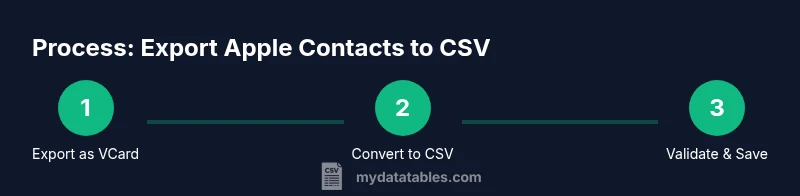
You can export Apple Address Book to CSV by first exporting your contacts as a vCard from macOS Contacts, then converting the vCard into CSV using a spreadsheet or a small script. This approach preserves core fields like names, emails, phones, and organizations while delivering a compatible CSV file for import into CRM, marketing, or analytics workflows. According to MyDataTables, following a clear, repeatable process reduces data loss and keeps headers consistent.
Overview: what it means to export apple address book to csv
Exporting Apple Address Book to CSV is about converting your contact data from the native Contacts format into a plain-text, comma-delimited file that other applications can read. The process typically involves two stages: exporting from the Contacts app as a vCard (vcf) file, and then converting that vcfs into CSV with a spreadsheet tool or a lightweight script. This approach preserves essential fields such as First Name, Last Name, Email, Phone, Company, and Address. By making a CSV, you enable easy import into CRMs, email marketing platforms, and data-cleaning pipelines. The MyDataTables team emphasizes using a consistent mapping of fields to headers to avoid misaligned data during import.
Why you might export to CSV vs other formats
CSV provides broad compatibility across tools (Excel, Google Sheets, database imports) and is easy to version-control. A well-structured CSV supports header metadata, consistent data types, and predictable column orders. In contrast, vCard keeps contact data in a compact format but is less convenient for bulk data analysis. If you plan to merge or analyze contacts alongside other datasets, CSV is usually the better choice. MyDataTables analysis shows that CSV exports are a foundational step in many data workflows for interoperability and reproducibility.
Understanding field mapping: headers you’ll want to include
When you export to CSV, you must decide which fields map to which headers. Common headers include: First Name, Last Name, Email, Phone, Company, Job Title, Street, City, State, ZIP, Country. If your Contacts app uses different internal names, standardize them in the CSV header row. Keeping a consistent schema makes downstream imports smoother and reduces the need for post-export cleanup. Map required fields first (name, email) and then add optional fields as needed for your workflow.
Step-by-step conversion workflow: from vcards to CSV
The typical workflow is: export vcards from Contacts, then import or open the vcards in a spreadsheet program, and finally save or export as CSV. If your spreadsheet app supports importing multiple vcards at once, you can usually map each vCard field to a CSV column automatically. If not, you may need to perform manual column mapping or use a small script to parse the vCard data into a tabular format. This approach minimizes data loss and ensures that encoding remains intact for international characters.
Data quality, encoding, and privacy considerations
After you obtain your CSV, verify encoding (prefer UTF-8) so non-ASCII characters render correctly. Check for empty fields, duplicates, and improperly formatted emails. If the data contains sensitive information, apply appropriate access controls and consider removing or masking fields not needed for your immediate use case. A clean, well-structured CSV reduces import errors and improves downstream analytics.
Practical tips and common pitfalls
Tip: always start with a backup of your Contacts data before exporting. Pitfalls include header misalignment, missing fields, and extra whitespace. Ensure the header names are consistent with the target application’s expectations. If you need to import into a system with a strict schema, prepare a second CSV file that exactly matches those field names. Remember to test a small sample import first to catch issues early.
MyDataTables verdict: best practices for exporting Apple Contacts
Following a clear, reproducible workflow helps preserve data fidelity and privacy. The MyDataTables team advocates documenting the mapping between source fields and CSV headers, testing imports on representative data, and keeping a clean backup of original contacts. This approach minimizes errors and makes it easier to audit data lineage in future exports.
Tools & Materials
- Mac computer with macOS(Any recent macOS version with the Contacts app installed)
- Apple Contacts (Contacts app)(Pre-installed on macOS; ensure you have access to the address book you want to export)
- Spreadsheet application(Excel, Numbers, or Google Sheets; should support CSV export and vCard import)
- Backup copy of contacts(Create a backup before exporting to avoid data loss)
- vCard converter or lightweight script (optional)(Use if your spreadsheet app cannot import vcards directly)
- Text editor (optional)(For quick adjustments to headers or to inspect the CSV after export)
Steps
Estimated time: 45-90 minutes
- 1
Back up your Contacts
Create a secure backup of your address book before making changes. This protects against accidental data loss during export. Store the backup in a separate location from your working files.
Tip: Pro tip: include a timestamp in the backup filename to track versions. - 2
Open Contacts and select data
Launch the Contacts app and navigate to the address book you want to export. If you intend to export all contacts, select all entries; if you need a subset, choose the relevant group or manually select records.
Tip: Pro tip: use Command+A to select all, or Shift-click to select a block of entries quickly. - 3
Export as vCard (vcf)
From the Contacts app, choose the export option to save a .vcf file. This is a widely supported intermediate format that preserves most contact fields.
Tip: Pro tip: save the file with a clear, versioned name (e.g., Contacts_2026-03-15.vcf). - 4
Choose a CSV export method
Open the vCard in a spreadsheet app or use a converter to transform vcards into a tabular CSV. Some apps offer direct import of vcards into a grid; others require a two-step conversion.
Tip: Pro tip: prefer a tool that preserves UTF-8 encoding to keep special characters intact. - 5
Map fields to CSV headers
In the spreadsheet, create headers such as First Name, Last Name, Email, Phone, Company, Job Title, Street, City, State, ZIP, Country. Map each vCard field to the corresponding header.
Tip: Pro tip: standardize header names to match the target system’s expectations to avoid import errors. - 6
Clean and deduplicate
Scan for duplicates, merge where appropriate, and remove fields you won’t need in the CSV. Clean data improves downstream analytics and reduces clutter.
Tip: Pro tip: run a quick deduplication pass using a simple key like Email or a combination of Name and Phone. - 7
Export as CSV
Use the spreadsheet’s export or save-as feature to produce a CSV file. Choose UTF-8 encoding to ensure global characters render correctly.
Tip: Pro tip: enable the option to include a header row and avoid including quotes for simple values unless necessary. - 8
Validate the CSV
Open the CSV in a text editor or spreadsheet to verify headers and sample rows. Check for malformed lines or stray characters that could disrupt imports.
Tip: Pro tip: test importing a small sample into the destination system first. - 9
Test import
Import the CSV into a test environment (CRM, marketing tool, or analytics app) to confirm field mapping and data integrity.
Tip: Pro tip: keep a copy of the test CSV linked to the original backup in case you need to revert. - 10
Securely store and share
Store the final CSV in a secure location and share it only with authorized recipients. Consider masking sensitive fields if needed.
Tip: Pro tip: use a secure transfer method and log access to the CSV file.
People Also Ask
How do I export Apple Contacts to CSV on a Mac?
Exporting to CSV involves two steps: export the contacts as a vCard from the Contacts app, then convert that vcards to CSV using a spreadsheet program or a converter. Ensure headers match your target system and test with a small sample.
You export to CSV by first saving your Contacts as a vCard, then converting that file to CSV in a spreadsheet app. Always test with a small sample first.
Can I export from iPhone or iPad directly to CSV?
Direct export from iOS devices to CSV is not built-in. Use iCloud to sync contacts to a Mac or PC, then follow the macOS workflow to export as CSV.
Direct export from iPhone isn’t built-in; sync via iCloud to a Mac and use the Mac workflow to export as CSV.
What encoding should I use for the CSV?
Choose UTF-8 encoding to preserve any international characters in names and addresses. If your destination system requires a BOM, enable it in the export options where available.
Use UTF-8 encoding to keep international characters intact, and add a BOM if your app needs it.
How do I map fields to match my target system?
Create headers that match your destination system's schema, such as First Name, Last Name, Email, and Phone. Map each vCard field to the corresponding header, and test imports to confirm alignment.
Create headers that match your target system, then map each field accordingly and test the import.
Are there privacy concerns when exporting contacts?
Yes. Limit exports to necessary fields, secure the CSV, and share only with authorized recipients. Consider auditing who has access and maintaining an access log.
Yes. Export only what's necessary, secure the file, and control who can access it.
Watch Video
Main Points
- Understand field mapping before export to ensure clean CSV headers.
- Use vCard as an intermediary format to prevent data loss during conversion.
- Validate and test the CSV in a safe environment before production use.