vcard to csv converter: practical guide to exporting contacts
Learn how to convert vCard (.vcf) contacts to CSV with manual mapping, scripts, or dedicated tools. This step-by-step guide covers field mappings, encoding, validation, and best practices for clean imports.


This guide helps you convert vCard (.vcf) contact data to CSV, preserving fields like name, phone, and email. You’ll learn three reliable methods: manual mapping in a spreadsheet, a small Python script, or a dedicated converter tool. Before you begin, ensure you have a vCard file, a target CSV schema, and a plan for handling duplicates and multiline notes.
What is the vcard to csv converter process and why it matters
A vcard to csv converter workflow enables you to transform contact data stored in the vCard format (.vcf) into a tabular so that it can be imported into spreadsheets, CRMs, and contact management systems. The vCard format is flexible and can store multiple entries per file, including names, phone numbers, emails, addresses, organizations, and notes. CSV, by contrast, is a simple, row-based structure that most apps natively support. For teams handling customer data, integrating vCard exports with CSV workflows reduces manual data entry, supports bulk imports, and improves consistency across tools. According to MyDataTables, starting with a clear target schema helps prevent data loss during conversion. For reproducibility, document your mappings and encoding choices as you design the workflow. This page provides a practical, task-oriented path from raw .vcf to a clean CSV ready for import and deduplication.
Typical vCard fields and their CSV equivalents
When you map vCard fields to CSV columns, you’ll commonly cover the following pairs. Understanding these mappings helps you design a stable schema before you convert.
- FN (Formatted Name) -> full_name
- N (Name components) -> last_name, first_name, middle_name (or a combined name field)
- TEL (Telephone) -> phone
- EMAIL -> email
- ADR (Address) -> address, city, region, postal_code, country
- ORG -> company
- TITLE -> job_title
- URL -> website
- NOTE -> notes
- UID -> id
- BDAY -> birth_date
- PHOTO -> photo_reference (often omitted or stored as a URL)
If your downstream system supports a single address column, you can concatenate ADR subfields into one string, or keep separate columns for city, state, and country depending on the import requirements. The goal is a consistent, predictable schema that you document and reuse across files. This approach aligns with best practices for CSV formats and data cleanliness (RFC 4180).
Choosing your conversion approach: manual mapping, script, or tool
There are three common paths to convert vCard to CSV. Each has trade-offs related to data size, repeatability, and error tolerance.
- Manual mapping in a spreadsheet: Best for tiny datasets or one-off tasks. Pros include immediate visibility and control; cons include time cost and risk of human error for large batches.
- Script-based conversion: Ideal for large datasets or automated workflows. Pros include repeatability, validation, and easier handling of multiple entries and duplicates; cons include setup time and a basic familiarity with scripting.
- Dedicated converter tools: Quickest path for non-programmers. Pros include user-friendly interfaces and built-in validation; cons include potential latent issues with unusual fields and licensing considerations.
A balanced approach often works: prototype with a small sample using a script or tool, then scale up with a repeatable workflow. The MyDataTables analysis suggests starting with a defined CSV schema and a small test file to ensure mappings behave as expected before touching the full dataset.
Example: a simple Python-based converter workflow (high-level view)
If you opt for scripting, a minimal Python workflow typically follows these phases: read the VCF file, parse each card, map fields to CSV columns, handle multiple values (such as several phone numbers), and write rows to a CSV file with UTF-8 encoding. You can start with a small, well-documented example and adapt it to your schema. The following is a concise illustration using pseudocode and notes rather than a full library-specific tutorial.
# Pseudo-code for vCard to CSV conversion
# 1. Load vCard entries from a .vcf file
# 2. For each entry, create a dict with keys matching your CSV headers
# 3. Normalize multi-value fields (e.g., take the first TEL if multiple exist)
# 4. Write the dicts to a CSV file with UTF-8 encoding
# 5. Save and verify the output in a spreadsheet
If you choose a library like vobject or another parser, replace the pseudo-steps with concrete library calls, but keep your mapping dictionary as the single source of truth for consistency. Remember to handle duplicates and encoding issues explicitly, as these are common sources of errors in conversion workflows.
Validation and normalization: ensuring clean CSV
After you generate the CSV, validate several aspects to ensure the file is import-ready. Check that all required fields exist in the header, that headers use consistent naming, and that values do not break CSV formatting (for example, commas inside fields should be quoted properly). Ensure UTF-8 encoding to preserve non-Latin characters and special symbols. Normalize phone numbers to a uniform format (e.g., E.164) if your downstream system requires it.
A practical validation checklist:
- Confirm the header row matches your schema.
- Open the CSV in a real spreadsheet app to spot anomalies (unquoted commas, extra quotes, misaligned columns).
- Validate counts: number of rows equals number of vCard entries; if you duplicate some entries, confirm intent.
- Test an import into a target system with a small subset before full-scale import.
This validation helps you catch edge cases early and reduces follow-up clean-up work. MyDataTables emphasizes documenting the mapping decisions and validation tests for auditability and repeatability.
Handling multiple vCards per file and duplicates
A single .vcf file can contain multiple vCards. Each vCard typically expands into one CSV row, potentially with multiple similar or conflicting fields (e.g., multiple phone numbers or emails). Decide how you want to treat these scenarios ahead of time. Approaches include:
- Take the first value only (simplest for clean imports).
- Concatenate values into a single CSV cell with clear separators.
- Create additional columns (phone_2, phone_3) if the target system supports them.
Deduplication is another key concern. If a single person appears multiple times, you can deduplicate based on a unique identifier (UID) or a combination of name and email. Establishing a deduplication rule before you convert saves time during import.
Next steps: automation, logging, and maintenance
For ongoing workflows, automation is the most scalable path. Set up a small script or tool to watch a folder for new .vcf files, perform the conversion, verify encoding, and save the output with a timestamped filename. Logging each run helps you troubleshoot issues and build an audit trail for compliance. As you mature the process, you can add validation hooks that compare import results against a known-good baseline to detect regressions. Finally, maintain a changelog of your field mappings so future users understand why certain columns exist and how they were derived.
Tools & Materials
- vCard file(s) (.vcf)(Source data to convert; may be a single file or a folder with many cards.)
- CSV schema or target spreadsheet(Define headers like full_name, phone, email, address. Plan multi-value fields.)
- Computer with a text editor or IDE(For manual edits or script development.)
- Python 3 installed(Needed if you choose the scripting path.)
- Python libraries (optional but helpful)(e.g., vobject or other vCard parsers; use a virtual environment.)
- Spreadsheet application (Excel, Google Sheets, etc.)(Useful for quick validation and manual mapping.)
- UTF-8 capable text encoding(Ensure your output CSV uses UTF-8 to preserve characters.)
Steps
Estimated time: 45-60 minutes
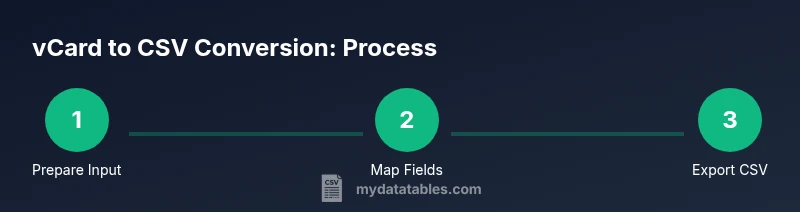
- 1
Prepare input and target schema
Identify the .vcf file(s) you will convert and draft your target CSV schema with headers like full_name, phone, and email. Define handling rules for multi-value fields and encoding.
Tip: Create a header row early and keep a mapping document for future reuse. - 2
Choose a conversion method
Decide between manual spreadsheet mapping, a script-based approach, or a dedicated converter tool based on data size and repeatability.
Tip: If you expect ongoing conversions, plan for automation from the start. - 3
Set up your environment
Install Python 3 if you’re scripting. Create a virtual environment to isolate dependencies, and install any required libraries.
Tip: Use virtualenv or conda to keep projects separate. - 4
Parse vCards and map fields
Read each VCard entry, extract fields, and map them to your CSV columns. Handle multiple values gracefully according to your schema.
Tip: Decide how to handle multiple phone numbers before you start. - 5
Write to CSV with proper encoding
Open the output file with UTF-8 encoding and write rows, ensuring proper quoting for commas within fields.
Tip: Use newline='' in Python to avoid extra blank lines on Windows. - 6
Validate output and perform QA
Open the CSV in a spreadsheet app, verify row counts, and test an import in your target system. Check for non-ASCII characters and misquoted fields.
Tip: Run a small test import before processing large batches.
People Also Ask
What is a vCard file and what data does it typically contain?
A vCard file (.vcf) stores contact data such as names, phone numbers, emails, addresses, and notes. It can include multiple entries in a single file. Understanding the typical fields helps you map them accurately to a CSV schema.
A vCard file stores contact data like names, phones, and addresses, and can have many entries in one file. It helps you plan how to map fields to CSV.
Can every vCard field map to a CSV column?
Most common fields map cleanly to CSV columns, but some complex fields (like multiple phone numbers or notes with embedded line breaks) require decisions about quoting, combining values, or creating additional columns.
Most fields map to CSV, but you may need extra columns or formatting for duplicates and multiline notes.
What encoding should I use for the CSV file?
Use UTF-8 encoding to preserve international characters and symbols across import pipelines. Specify UTF-8 in your CSV header or import settings when possible.
Use UTF-8 so non-English characters import correctly, and specify it in your settings when possible.
How do I handle multiple vCards in one file?
Each vCard entry typically becomes one CSV row. Decide in advance how to handle multiple values (e.g., first phone only, or separate columns for phone1, phone2).
Treat each vCard as one row; decide how to handle multiple values upfront.
Is there a recommended default CSV schema for contact imports?
A practical default includes headers like full_name, phone, email, address, and notes. Adapt columns to the target system’s import requirements and maintain a mapping doc for future use.
A good default includes name, phone, email, address, and notes; adapt to your target system.
What are the risks of using automated tools for vCard to CSV conversion?
Automated tools can misinterpret fields or mishandle encoding if not configured correctly. Always validate output with a test import and review mappings before processing the full dataset.
Tools can misread fields or mishandle encoding; always validate with a test import.
Watch Video
Main Points
- Map vCard fields to a stable CSV schema
- Normalize and validate data before import
- Choose automation for large datasets
- Validate with a small test import first
- Document mappings and validation steps