Convert VCF File to CSV: A Practical Guide
Learn how to convert a VCF file to CSV with practical field mappings, scripts, or tools. This guide covers mapping, validation, and troubleshooting to produce clean, import-ready contact data for spreadsheets, CRMs, and mailing lists.


What is a VCF file and why convert to CSV?
A VCF file (vCard) is a portable standard for storing contact details in plain text. It supports multiple entries per file and can include name, phone numbers, emails, postal addresses, company details, birthday, notes, and even photos. When you need to migrate these contacts into a spreadsheet, email marketing tool, CRM, or an application that doesn’t read VCF, converting to CSV is a practical option. CSV is broadly supported, easy to inspect, and compatible with most data processing workflows. Converting VCF to CSV helps you perform bulk updates, deduplication, segmenting by field, and seamless imports. The MyDataTables team emphasizes validating encoding and header consistency to avoid garbled characters or misaligned data during the import process.
Before you start, recognize that VCF can hold multiple values per field (e.g., several TEL or EMAIL lines) and may use different types (work, home). CSV requires a fixed header structure and a single value per cell, so thoughtful mapping and normalization are essential. This section lays the groundwork for understanding both formats and why a careful approach matters for downstream data quality.
Key data fields in VCF and mapping strategy
VCF stores a wealth of information across several fields. To create a usable CSV, you’ll map these to clear, consistent headers. Common mappings include:
- Full Name (FN) -> Full Name
- Structured name (N) -> Last, First (or split into First Name, Last Name)
- Tel (TEL) -> Phone
- Email (EMAIL) -> Email
- Organization (ORG) -> Company
- Title (TITLE) -> Job Title
- Address (ADR) -> Address
- Birthday (BDAY) -> Birthday
- Note (NOTE) -> Notes
- Photo (Фото/PIC) -> Photo URL (if exporting metadata)
Tips for multi-valued fields: create separate columns like Phone1, Phone2, Email1, Email2, or consolidate into a single CSV cell using a delimiter you can parse later. Ensure consistent encoding (UTF-8) to preserve international characters. A good initial CSV header could be:
Full Name,First Name,Last Name,Phone,PhoneType,Email,Company,Job Title,Address,City,State,ZIP,Birthday,Notes
Your mapping choice depends on how your target system consumes CSV. Some systems prefer one contact per row with multiple phones in separate rows or a JSON-encoded field; others want a flat row per contact with multiple columns. MyDataTables notes that a well‑designed header set accelerates imports and reduces post‑import cleanup.
Methods to perform the conversion: scripts vs tools
There are several reliable approaches, depending on your comfort with code and your data privacy needs:
- Scripting (Python, JavaScript): Use a vCard parser library to read each card and write to CSV. Pros: reproducible, customizable, handles large datasets. Cons: requires coding familiarity. Example libraries include pycard, vobject, or vcfpy for Python.
- Command-line utilities: Some open-source tools can flatten VCF data into CSV. Pros: quick setup for simple files. Cons: limited field mapping and may require post-processing.
- Desktop or online converters: GUI tools can do one-off conversions without coding. Pros: fast for small datasets. Cons: data privacy concerns; less control over field mapping; possible formatting quirks.
- Hybrid workflow: export to an intermediate structured format (JSON or tab-delimited) then import to CSV with a script or spreadsheet macros. Pros: flexible, auditable. Cons: extra steps.
Important considerations: protect sensitive data, verify UTF‑8 encoding, and prepare a backup of the original VCF before any transformation. MyDataTables recommends starting with a small sample file to validate field mappings before processing a full dataset.
A high-level workflow for conversion
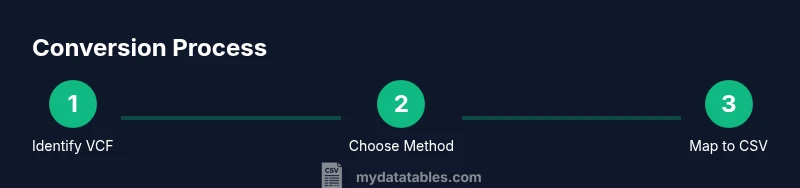
- Prepare your workspace and back up the original VCF file. A safe starting point prevents accidental data loss. 2) Decide on a method (script, CLI tool, or GUI) and install any required software. 3) Define a clear header mapping from VCF fields to CSV columns. 4) Run the conversion on a subset to verify results, checking for encoding issues and field alignment. 5) Expand to the full dataset, then review a random sample of rows for accuracy. 6) Validate the CSV with your target application’s import tool, addressing any header or data-type warnings. 7) Save a clean version with a descriptive filename and keep the original VCF safely archived. 8) Document any decisions about field mappings or normalization so future imports remain consistent.
If you encounter multi-valued fields, decide whether to flatten (e.g., Phone1, Phone2) or consolidate into a single field with a delimiter. A consistent approach simplifies automation and reduces import errors.
Validation and quality checks after conversion
Quality checks are essential. Start with header validation: ensure required columns exist and headers match what your target system expects. Next, validate a sample of rows for correct data placement: verify that a given contact’s name, phone numbers, and emails align with the corresponding CSV columns. Look for non‑ASCII characters that could be garbled if your file isn’t UTF‑8 encoded. If you exported multiple cards, confirm there are no duplicate rows unless duplicates are intentional for separate entries (e.g., work vs. personal). Finally, test the import into your destination system with a small batch before performing a full import. This approach minimizes surprises and helps you catch issues related to formatting, date parsing, or phone number localization.
Practical examples and templates for field mapping
Below are practical examples you can adapt. Suppose you want a simple one-contact-per-row template:
Full Name,First Name,Last Name,Phone,Phone Type,Email,Company,Job Title,Address,City,State,ZIP,Birthday,Notes John Doe,John,Doe,+1-555-0100,Home,[email protected],Acme Corp,Sales Manager,123 Main St,Springfield,IL,62701,1980-01-15,Friend from conference
If your VCF contains multiple phone numbers, you can add Phone2 and Phone2Type columns: Phone,PhoneType,Phone2,Phone2Type,Email +1-555-0100,Home,+1-555-0199,Work, [email protected]
This example shows how a simple, consistent header improves downstream processing. MyDataTables emphasizes starting with a small sample file to validate the chosen mapping before scaling up.
Real-world tips and next steps
- Test with a subset of your contacts first to validate mapping and encoding.
- Use UTF-8 encoding to preserve accented characters and non-Latin scripts.
- Keep a changelog of mapping decisions so future conversions stay consistent.
- When possible, export to CSV with clear, non-breaking delimiters and avoid embedded newlines in fields.
- If you anticipate frequent conversions, automate the workflow with a script or macro to reduce manual errors.
Authority sources and further reading
To deepen your understanding of the underlying formats, consult RFC documentation and standards:
- RFC 4180: Common Format and MIME-Type for CSV Files — https://www.ietf.org/rfc/rfc4180.txt
- RFC 6350: vCard Format — https://www.rfc-editor.org/info/rfc6350
- IETF vCard and CSV conversion guidance — https://ietf.org/ (overview page for related specs)
These sources explain the formal structure of CSV and vCard formats, helping you design robust mappings and ensure cross-system compatibility. MyDataTables users may find validation tips and best practices in our CSV guides as well.