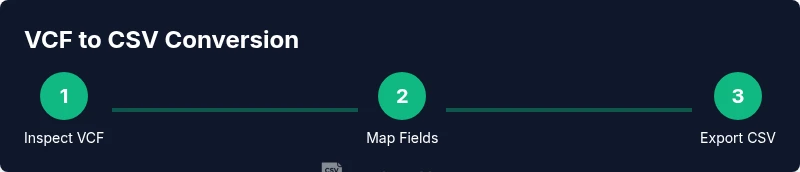
How to change vcf to csv: A practical guide
A thorough, step-by-step guide to convert VCF (vCard) files to CSV for easier contact management. Learn manual and automated methods, field mapping, validation, and best practices to successfully change vcf to csv with MyDataTables guidance.


Goal: Learn how to change vcf to csv by converting a vCard (.vcf) file into a CSV-friendly structure for spreadsheets and CRMs. This guide covers manual mapping, automated tools, and validation steps to ensure clean data. By the end, you’ll produce a reliable CSV ready for import, with preserved names, phones, emails, and addresses, plus deduplication guidance. Whether you’re a data analyst, developer, or business user, this methodical approach helps you transform contacts efficiently and accurately.
What are VCF and CSV, and why convert?
VCF (vCard) is a flexible, line-based format designed to store contact information across multiple fields, including names, phone numbers, emails, addresses, and organization details. CSV (Comma-Separated Values) is a flat-table format that makes it easy to sort, filter, and import data into spreadsheets, CRM systems, or databases. Converting from VCF to CSV is a common data-task when you need to merge contact lists from multiple sources or prepare data for bulk imports. According to MyDataTables, understanding the structure of VCF files helps you design a clean CSV schema that captures essential fields without losing important details. A thoughtful mapping avoids mismatches and ensures consistency across records, which is crucial when dealing with large contact datasets.
In practice, this means planning which VCF fields map to which CSV columns, handling multiple values (such as several phone numbers), and normalizing encodings to prevent garbled text. The goal is a CSV that is both human-readable and machine-friendly, suitable for quick lookups, mail merges, and import pipelines. With a solid plan, you can minimize manual editing and reduce errors during the conversion process.
When to convert a VCF to CSV
There are several scenarios where converting a VCF to CSV becomes valuable. If you have multiple contact sources, such as exported vCards from email clients, phones, or CRM exports, consolidating them into a single CSV simplifies data management. CSV is often preferred for bulk imports because it’s universally supported by spreadsheets and data tools. If you need to perform analytics or merge fields (for example, combining first and last names into a full name column), a well-structured CSV makes these tasks straightforward. When optimizing for downstream systems, consider the target schema and any mandatory fields (like first name, last name, or email) your import destination requires. Based on MyDataTables research, robust field mapping and data cleaning dramatically improve import success rates and downstream data quality.
When planning the conversion, ask yourself: Which fields are mandatory for my workflow? Do I need to preserve multiple values (e.g., multiple emails or phones) in separate columns, or consolidate them? Will the target system handle special characters and non-Latin alphabets without corruption? Answering these questions upfront saves time later in the process.
Methods to convert: manual mapping vs automation
You can convert VCF to CSV using two broad methods: manual mapping with a text editor or spreadsheet, or automated scripting with a programming language like Python. Manual mapping is quick for small, simple VCF files and helps you understand the field structure before automating. Automation scales to larger contact lists and reduces repetitive work, ensuring consistent mappings across hundreds or thousands of records. For many teams, a hybrid approach works best: perform a quick manual pass to establish the schema, then implement a script to apply that schema to the entire dataset.
In both approaches, you’ll typically define a CSV header that reflects the fields you need (e.g., FirstName, LastName, Phone, Email, Organization, Address). Then you’ll extract corresponding values from each VCF entry and write them into rows. Good practice includes handling values that are not always present (leaving empty cells), normalizing line endings, and enforcing a consistent encoding (UTF-8 is standard). MyDataTables recommends starting with a small sample and validating results before processing the full file.
Using spreadsheet software (Excel/Sheets)
Spreadsheets offer a familiar, GUI-based path to convert VCF data when the file is small or when you need a quick one-off transformation. Start by opening the VCF in a text editor to inspect the structure, then paste or import the relevant fields into a new spreadsheet. Create headers for the columns you want and fill in rows by mapping each VCF field to the corresponding CSV column. If the VCF contains multiple phone numbers or emails for a single contact, you have two options: split them into separate columns (Phone1, Phone2, Email1, Email2) or consolidate them into a single field with a delimiter like a semicolon.
A practical tip is to use data-cleaning features in Excel or Google Sheets (Text-to-Columns, Find and Replace, and clean functions) to normalize data before exporting as CSV. This method is accessible but becomes unwieldy as the number of records grows. For larger datasets, automation is typically preferred, as discussed in the Python section below. MyDataTables notes that spreadsheet-based conversion is excellent for quick checks and small inventories, but automation shines for larger-scale tasks.
Using Python for robust conversion
Python provides a robust, repeatable path to convert VCF to CSV, especially when dealing with large libraries of contacts or complex mappings. A small script can parse VCF entries, extract fields like FN (formatted name), N (name components), TEL (telephone numbers), EMAIL, ADR (addresses), and ORGANIZATION, and then write them into a CSV with a clean header. You can use libraries such as vobject or a simple line-based parser for predictable VCF structures. A minimal example helps illustrate the idea; you should tailor field names and parsing logic to your VCF variant and target CSV schema. Here is high-level pseudocode you can adapt: interpret VCF blocks, collect values, map to CSV columns, and write rows. For production use, add error handling, encoding checks, and deduplication logic.
Python is a powerful ally for reproducible data work. If you frequently perform this task, saving the script in your data toolkit ensures everyone in your team follows the same method and yields consistent outputs. The MyDataTables team emphasizes that scripting your conversion reduces manual errors and helps enforce your chosen data model across projects.
Mapping VCF fields to CSV columns
A clean mapping plan is essential before converting. Typical VCF fields map to CSV columns as follows: FN or N to FirstName and LastName, TEL to Phone, EMAIL to Email, ADR to Address, ORG to Organization, TITLE to JobTitle, and PHOTO can be dropped or stored separately if your workflow supports attachments. If you expect multiple numbers or emails per contact, you can either create numbered columns (Phone1, Phone2, Email1, Email2) or join them with a delimiter in a single column. Normalize the data by trimming whitespace, standardizing phone formats, and ensuring that non-ASCII characters are encoded in UTF-8. MyDataTables recommends documenting your mapping in a small data dictionary to avoid drift in future conversions.
Handling multiple contacts and deduplication
When a VCF contains multiple contact entries in one file, you’ll typically receive one row per contact in the CSV. If a single vCard represents multiple individuals (rare, but possible in merged exports), you should separate them into distinct records. Deduplication may be necessary when combining several VCFs; look for matching fields like email or phone numbers to identify duplicates. Implement a simple rule set to decide which record wins when duplicates exist, or create a deduplication pass that flags potential duplicates for manual review. Robust tooling and scripting can automate this process, significantly reducing manual review time.
Validation and quality checks after conversion
After the conversion, validate that critical fields are present and well-formed. Open the CSV in a spreadsheet to visually inspect examples, run basic data-quality checks (missing emails, malformed phone numbers, inconsistent date formats), and ensure that Unicode characters render correctly. Check for encoding issues by saving a round-trip sample and re-importing. If you are syncing with downstream systems, verify that headers match the import specification and that required fields are populated. MyDataTables analysis shows that a validation pass right after conversion catches most issues early, saving time during data integration.
End-to-end workflow: an example scenario
Consider you are consolidating card data from two sources: a personal vCard export and a company contact list. Start by inspecting each VCF, establish a unified schema (FirstName, LastName, Phone, Email, Address, Organization), and choose a conversion method for each dataset. Run the Python script on the larger file and use a spreadsheet to perform a quick cleanup on the smaller one. Merge the two CSVs by common identifiers, deduplicate, and then validate. This end-to-end flow minimizes manual edits, keeps mappings consistent, and produces a ready-to-import CSV. The MyDataTables team recommends saving a template mapping and a sample CSV to ensure repeatability across future conversions.
Troubleshooting and common pitfalls
Common issues include misinterpreting the N field, which can split a name into multiple components if not parsed correctly, encoding mishaps (non-UTF-8 characters appearing as ), and multi-valued fields that overflow a single column. When faced with missing data, decide whether to leave blanks, use a placeholder, or apply a normalization rule. If you’re using macros in Excel, ensure your delimited data does not introduce unintended separators. Always back up the original VCF before starting, and test imports incrementally to catch field-mapping errors early. As a caution, avoid loading extremely large VCF files into memory-intensive tools without chunking, which could exhaust system resources.
Tools & Materials
- Text editor (e.g., VS Code, Notepad++(Inspect VCF headers and sample records before converting)
- Spreadsheet software (Excel or Google Sheets)(Useful for quick checks and small files; not ideal for large datasets)
- Python 3.x(Helpful for scalable, repeatable conversion; use libraries like vobject or a simple parser)
- Python libraries (optional)(vobject, csv modules for structured parsing and output)
- Command line/tools for encoding checks(Useful for batch processing and validation tasks)
Steps
Estimated time: 60-120 minutes
- 1
Back up the VCF file
Create a secure copy of the original VCF so you can revert if something goes wrong. This preserves your source data for audit and reprocessing without data loss.
Tip: Store backups in a separate location or repository with a timestamp. - 2
Inspect the VCF structure
Open the VCF to identify fields like FN, N, TEL, EMAIL, ADR, ORG. Note how multi-valued fields are represented and decide which fields are mandatory for your CSV schema.
Tip: Look for common patterns across records to simplify mapping. - 3
Define the target CSV schema
Create a header row with the exact column names you will export. Include core fields (FirstName, LastName, Phone, Email) and optional ones (Address, Organization).
Tip: Document the mapping between VCF fields and CSV columns. - 4
Choose your conversion method
Decide between manual mapping in a spreadsheet or an automated script for larger datasets. Hybrid approaches work well when testing on a subset.
Tip: Test on 10–20 records before scaling up. - 5
Perform the conversion
If using a spreadsheet, paste or import the VCF-derived data and fill the CSV columns according to your schema. If using Python, run your script to generate the CSV.
Tip: Ensure consistent encoding (UTF-8) during export. - 6
Validate the results
Open the CSV and verify that key fields are present, properly formatted, and free of obvious errors. Run a quick import test in your target system.
Tip: Check for garbled characters or misinterpreted fields. - 7
Deduplicate and normalize
If multiple sources were merged, remove duplicate records based on email or phone number, and normalize values (case, formatting, delimiters).
Tip: Use a consistent rule for duplicates to avoid inconsistent data. - 8
Finalize and document
Save the final CSV, record the mapping used, and store any scripts or templates for future conversions.
Tip: Create a reusable workflow for recurring tasks.
People Also Ask
What is the difference between VCF and CSV formats?
VCF stores contact data in a structured, multi-field format suitable for individual records; CSV is a flat table ideal for bulk processing in spreadsheets and databases. Converting aligns the data to a row-and-column structure for easier manipulation.
VCF is field-based; CSV is table-based, so conversion makes it easier to sort and import.
Do I need to know programming to convert VCF to CSV?
No. You can convert VCF to CSV manually using Excel or Google Sheets for small files, or you can write a simple Python script for larger datasets. The choice depends on dataset size and repeatability needs.
Programming isn’t mandatory; for big projects, a script saves time.
Can I convert VCF to CSV with Excel or Google Sheets?
Yes, but it’s usually best for small datasets. You’ll typically export VCF data to a text-based intermediary (like CSV-like) format first, then split and map fields into columns. For large datasets, automation is safer and faster.
Excel can work for small tasks; automation scales better.
How should I map multi-valued fields like multiple phone numbers?
Decide on a strategy: create separate columns (Phone1, Phone2) or join multiple values with a delimiter in a single field. Consistency is key for downstream imports.
Choose a consistent approach for multi-valued fields.
What about encoding and special characters?
Use UTF-8 encoding and verify that all non-ASCII characters display correctly after conversion. If you encounter garbled text, re-save with UTF-8 encoding and re-import to test.
Make sure you use UTF-8 to avoid garbled characters.
What should I do if a VCF contains photos or logos?
Most CSV-based workflows don’t support images. You should drop binary data or store a link to the image instead, depending on your target system’s capabilities.
CSV usually doesn’t carry images; consider linking instead.
Watch Video
Main Points
- Plan your CSV schema before converting
- Validate results with a test import
- Prefer automation for large datasets
- Back up every VCF before starting
- Document field mappings for repeatability