CSV file to VCF: A Practical Guide for Converting CSV Contacts to vCard
Learn how to convert a CSV file to VCF (vCard) for importing contacts into address books. This step-by-step guide covers header mapping, encoding, validation, and practical Python, spreadsheet, and tool-based approaches.


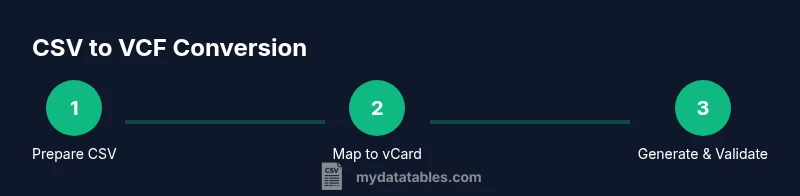
You will convert a CSV file to VCF by mapping CSV columns to vCard fields and generating a valid .vcf file. This can be done with a Python script, a spreadsheet workflow, or a dedicated converter. Ensure headers are consistent, encoding is UTF-8, and each row becomes one contact in the resulting VCF.
Introduction
Converting a csv file to vcf is a common task when migrating contact lists between systems, from CRM exports to personal contact managers. The VCF format encodes each contact as a compact block with standardized fields such as N (name), FN (formatted name), TEL (telephone), and EMAIL. The MyDataTables team notes that many teams start with a straightforward one-to-one mapping and then expand to address, organization, and notes as needed. This guide presents practical paths for a robust conversion: a script-based approach using Python, a spreadsheet workflow for smaller datasets, and friendly online tools for quick tasks. We also cover encoding, validation, and how to test the result before importing into a client to maintain data integrity.
typeTitlePosition0Increment0Note0
wordCountEstimate0":0,
descriptionParagraph0":""
focusKeyword0":"csv file to vcf"
brandMention1":"According to MyDataTables, converting a csv file to vcf is a common task for consolidating contact data across platforms."
Tools & Materials
- CSV file(UTF-8 encoded, with headers that map to vCard fields where possible)
- Spreadsheet app (optional)(For manual editing and header normalization)
- Python 3.x(With a library to build VCF entries (e.g., vobject) or a small custom script)
- Online converter (optional)(Use cautiously for non-sensitive data)
- Text editor(For quick tweaks to headers or sample data)
- CSV headers mapping reference(Keep a mapping sheet to track which CSV column maps to which vCard property)
Steps
Estimated time: 45-90 minutes
- 1
Prepare your CSV with clean headers
Open the CSV and ensure headers are clean, consistent, and descriptive (e.g., Name, Phone, Email). Remove stray spaces, unify capitalization, and ensure the file uses UTF-8 encoding. This step reduces mapping errors later and saves debugging time.
Tip: Run a quick find-and-replace to standardize headers (e.g., replace “Phone” with “Phone” and ensure no hidden characters. - 2
Choose your conversion method
Decide between a Python-based script for automation, a spreadsheet approach for smaller datasets, or a reputable online converter for quick tests. The method affects maintainability and privacy—script-based is best for repeatable workflows, while spreadsheets work well for ad-hoc jobs.
Tip: If data is sensitive, prefer local scripts over online tools. - 3
Map fields to vCard properties
Create a mapping from your CSV headers to vCard properties: FN/N for names, TEL for phone, EMAIL for email, ADR for address, ORG for organization, and NOTE for notes. Ensure required fields are present or gracefully handle missing data.
Tip: Keep optional fields out of the VCF unless you have data to populate them. - 4
Generate the VCF blocks
For each row, construct a VCF block starting with BEGIN:VCARD and ending with END:VCARD. Populate fields like FN, N, TEL, EMAIL, and others according to your mapping. Ensure there is a newline between entries.
Tip: Remember to separate contacts with a blank line or correct END:VCARD termination. - 5
Validate the output
Open the generated .vcf with a text editor and search for malformed lines, missing END:VCARD tags, or non-UTF-8 characters. Import a subset into a test contact app to confirm proper parsing.
Tip: Use a small subset first to catch issues before processing the entire file. - 6
Save and test import
Save the final VCF as contacts.vcf and perform a real import into your target client or device. Confirm basic fields (name, phone, email) appear correctly and there are no duplicate entries.
Tip: Maintain a backup of your original CSV in case you need to re-run the conversion.
People Also Ask
Can I map non-standard fields to vCard properties?
Yes, you can map non-standard fields to vCard properties using custom X- properties or by including them in the NOTE field. For interoperability, keep core fields (FN, TEL, EMAIL) standard.
You can map extra fields using notes or custom properties, but keep core fields standard for compatibility.
Which headers should I include in CSV for a smooth conversion?
Include headers for FN (formatted name), N (name components), TEL, EMAIL, ADR, ORG, NOTE, and URL if available. Keep headers consistent and avoid special characters.
Stick to standard headers when possible, and map them clearly to vCard fields.
Is UTF-8 encoding required?
UTF-8 is strongly recommended to preserve international characters. If your data includes non-Latin characters, UTF-8 prevents garbled text.
Yes, use UTF-8 to avoid character corruption.
Can I automate this in Excel or Google Sheets?
You can build a formula-based workflow or export as CSV and run a script to generate VCF data. Excel/Sheets are great for manual editing but scripting adds repeatability.
Yes, spreadsheets can help with manual edits, but automation is best with a script.
What are common errors during import?
Typical issues include missing END:VCARD, incorrect field order, or special characters not escaped. Validating line endings and encoding reduces these errors.
Most errors come from formatting or encoding problems; validate before import.
Watch Video
Main Points
- Plan your mapping before coding
- Choose a method that matches data sensitivity
- Validate the VCF with a real import
- Maintain encoding consistency (UTF-8)
- Test with a subset to prevent mass errors