CSV to VCF Conversion: A Practical, Step-by-Step Guide
Learn practical CSV to VCF conversion: map fields, handle multiple contacts, validate data quality, and export clean VCF files. Includes tools, steps, and tips.


This guide explains how to convert a CSV contact list to a VCF file in a clear, repeatable workflow. You’ll learn how to prepare your CSV, map fields to vCard attributes, process multiple records efficiently, validate data integrity, and export a ready-to-import VCF. The approach covers manual mapping as well as automated tooling for scalable conversions.
What CSV to VCF conversion is and why it matters
CSV to VCF conversion is the process of translating tabular contact data stored in a comma-separated values (CSV) file into the vCard format (VCF) used by most contact apps and services. The benefit is clear: a portable, interoperable format that makes it easy to migrate contacts between email clients, phones, CRMs, and mobile apps. A well-executed conversion preserves essential fields (name, phone, email, address, organization) and keeps data consistent across devices. From a data management perspective, a reliable CSV to VCF workflow reduces manual entry, minimizes duplicates, and speeds up onboarding of new devices or platforms. According to MyDataTables, adopting a structured conversion process reduces errors and accelerates deployment across teams that rely on accurate contact data.
Understanding the role of data quality in conversion
The quality of your CSV determines the quality of the resulting VCF. In practice, that means validating headers, ensuring consistent delimiters, and normalizing fields like phone numbers and names. Formatting issues, missing values, or characters outside the ASCII/UTF-8 range can break the import flow. MyDataTables emphasizes that pre-checks are cheaper than post-conversion corrections. Start by inspecting a sample of rows, confirm that each row contains the essential fields, and decide on a policy for optional fields. A clean input minimizes troubleshooting later in the process and improves the reliability of batch conversions when you scale up to thousands of contacts.
Running through a high-level workflow (manual vs automated)
Conversion can be done manually for small datasets or with scripts and tools for larger catalogs. The manual method gives you full control and is good for one-off transfers. Automated workflows use mapping templates, batch processing, and error handling to run conversions with minimal human intervention. The decision often hinges on data volume, frequency of conversions, and tolerance for setup time. MyDataTables suggests starting with a small, representative sample to design your mapping and then scale to larger files once the template works as expected.
Data preparation: what to standardize before you begin
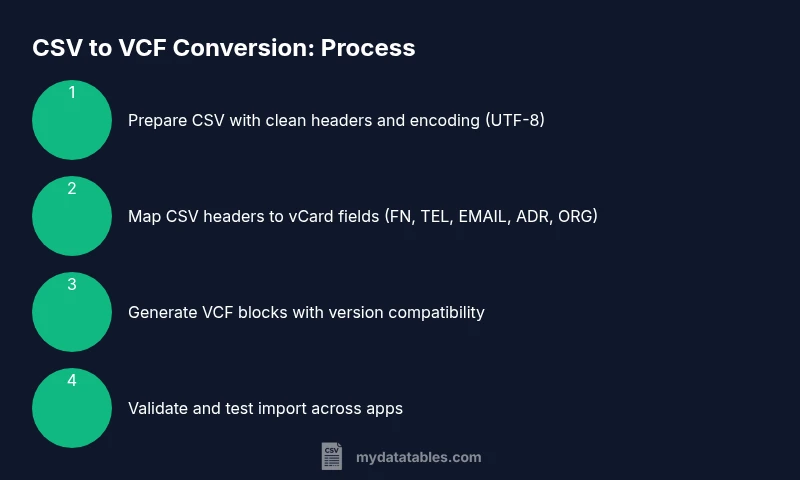
Begin by standardizing column headers to predictable names (FirstName, LastName, Phone, Email, Address, Organization). Remove extraneous columns that have no VCF equivalent and combine multi-value fields when needed (e.g., multiple phone numbers) into a repeatable schema. Decide on the delimiter (comma, semicolon) and ensure the file uses UTF-8 encoding to prevent character corruption. It’s also wise to add a sample row to verify how the converter handles edge cases. Clean input saves time later and reduces the risk of failed imports.
Field mapping basics: matching CSV to VCF attributes
A VCF entry contains fields like FN (formatted name), N (name components), TEL (telephone), EMAIL, ADR (address), ORG (organization), and TITLE. The core task is to map each CSV column to the appropriate VCF field while preserving data semantics. For example, map FirstName and LastName to N, and Email and Phone to TEL and EMAIL. You may also want to consolidate name components into FN for display purposes. Keep a changelog of mappings so you can reproduce or adjust the workflow if the CSV structure changes.
Handling multiple contacts efficiently
For large CSVs, process in batches to stay within memory limits and avoid timeouts. Use streaming reads or chunked processing so that each batch generates a corresponding segment of VCF records. Check for duplicates by comparing key fields like emails or phone numbers, and decide on a deduplication policy (e.g., keep the most recent update or merge duplicates). Batch processing also makes it easier to roll back in case of a conversion error in a particular subset.
Validation strategies: ensuring the VCF is import-ready
Validation should cover syntax, encoding, and field integrity. Verify that each VCF entry starts with BEGIN:VCARD and ends with END:VCARD. Ensure TEL values include a valid number and a country code when needed. If your target apps support specific vCard versions (2.1, 3.0, 4.0), validate compatibility and adjust fields accordingly. Use a validator tool or write a small script to parse the generated VCF and report anomalies such as missing required fields or invalid characters.
Generating VCF: choosing a method
There are several paths to generate VCF: ready-made converters (CLI or GUI), spreadsheet-to-VCF add-ons, or custom scripts in Python or PowerShell. Each approach has trade-offs between control, speed, and maintainability. A good rule of thumb is to start with a tool that provides explicit mapping options and robust validation. If your dataset contains sensitive information, consider local processing to minimize data exposure and ensure compliance with data governance policies.
Practical end-to-end example: walk-through with a tiny dataset
Imagine a CSV with three contacts: Alice Smith, Bob Chen, and Cara Patel. The mapping would assign FN as 'Alice Smith', TEL as '+15551234567', and EMAIL as '[email protected]'. Generate three VCF blocks, one per contact, ensuring the header lines reflect the chosen vCard version. Validate the generated file with a quick import into a test contact app. Review results, fix any mis-mapped fields, and re-run the export. This concrete example helps you translate theory into a tangible workflow.
Common pitfalls and how to avoid them
Common mistakes include mismatched headers, inconsistent delimiters, and failing to handle Unicode characters. Avoid relying on default CSV editors without encoding checks. Always close the input CSV in the right encoding and run a test with a small subset before full-scale conversions. Document your mapping decisions and version choices to prevent drift across future conversions. MyDataTables recommends keeping a reproducible recipe for auditability.
Best practices for production-grade conversions
Adopt a repeatable, version-controlled workflow. Use templates for field mappings, maintain a changelog for schema changes, and test across multiple devices or apps to confirm compatibility. Store both the source CSV and the generated VCF in a tracked location. Finally, consider automating the end-to-end process with a script or tool that logs successes and failures, enabling continuous improvement over time.
Tools & Materials
- CSV file containing contacts(Headers should include common fields (FirstName, LastName, Phone, Email).)
- VCF generation tool or script(CLI tool, GUI app, or custom script capable of outputting .vcf entries.)
- Text editor(Use for quick edits to headers or mapping templates (e.g., VSCode, Notepad++).)
- CSV delimiter awareness(Confirm whether the file uses comma or semicolon delimiters and configure the converter accordingly.)
- Sample VCF template(Optional starter template to validate formatting and version compliance.)
Steps
Estimated time: Total time: 60-120 minutes depending on dataset size and tooling
- 1
Prepare CSV file
Open the CSV and verify required headers exist. Create a backup copy and decide on the delimiter. Normalize field names to a consistent schema.
Tip: Keep a small sample row to test mappings before full-scale conversion. - 2
Choose VCF version
Decide whether to target VCARD 2.1, 3.0, or 4.0 based on the target apps’ compatibility. Version choice affects field availability and formatting.
Tip: If unsure, start with 3.0 for broad support and adjust as needed. - 3
Map CSV headers to VCF fields
Create a mapping table that links CSV columns to vCard fields (e.g., FirstName/LastName -> N, Email -> EMAIL, Phone -> TEL).
Tip: Document edge cases like multiple phones per contact. - 4
Decide on automation
Choose manual conversion for small datasets or automation for large volumes. Configure batch processing if needed.
Tip: Automated workflows save time and reduce human error over repeated runs. - 5
Process in batches
If processing many records, split the CSV into chunks and convert each chunk sequentially.
Tip: Batching helps manage memory usage and simplifies error handling. - 6
Generate VCF entries
Run the converter to produce VCF blocks. Ensure each contact yields a valid BEGIN:VCARD...END:VCARD block.
Tip: Use a test run to confirm formatting before full export. - 7
Validate the VCF
Run a validator or import test into a contact app to confirm fields display correctly and no syntax errors exist.
Tip: Check for Unicode encoding issues and normalize as needed. - 8
Test import in a target app
Import the VCF into at least one device or app to verify all fields map correctly and list formatting matches expectations.
Tip: If errors occur, inspect the offending VCF block and adjust mapping.
People Also Ask
Do I need programming knowledge to convert CSV to VCF?
Not necessarily. You can use GUI tools or online converters for small datasets. For larger or recurring tasks, a simple script (Python or PowerShell) can automate the mapping and validation.
No programming is required for small files, but automation with a script helps when dealing with many contacts.
Can I convert directly in Excel or Google Sheets?
Excel or Sheets can prepare the data, but you’ll still need a converter to output VCF. Use a separate tool or script to create .vcf blocks from the prepared CSV.
You can prepare the data in Excel, then use a converter to export to VCF.
What if a required field is missing in some rows?
Identify non-negotiable fields (e.g., FN or N). You can skip incomplete records or fill missing values with placeholders if appropriate for your workflow. Consistent handling is key.
Decide how to handle missing data up front and apply the same rule to all records.
How should I handle multiple phone numbers for a single contact?
Represent multiple numbers using separate TEL fields within the same VCARD entry if supported by your chosen version, or create a single composite field and document its format.
Use multiple TEL fields or a clear composite format with documentation.
Are there any Unicode or encoding concerns to watch for?
Yes. Use UTF-8 encoding for the CSV and ensure the VCF output preserves that encoding to avoid garbled names.
Always work in UTF-8 to prevent character misinterpretation.
How can I verify the final VCF file before distributing it?
Run a local import test in multiple apps and devices, and consider using a validator tool to check syntax and required fields.
Test across apps to ensure compatibility before sharing widely.
Watch Video
Main Points
- Map CSV fields to vCard attributes precisely
- Validate input and output data before importing
- Choose a VCF version compatible with target apps
- Test with real-world samples to ensure reliability
- Document the process for repeatability