Free VCF to CSV Converter: How to Transform Contacts for Free
Learn how to convert VCF (vCard) files to CSV using free tools. This step-by-step guide covers online, desktop, and scripting methods with best practices for 2026.


This guide shows you how to convert VCF (vCard) files to CSV using free tools. You’ll learn online converters, desktop applications, and a scripting approach, plus how to map common fields, verify results, and protect your data. By the end you’ll have a ready-to-use CSV from your VCF file. Whether you’re a dev, analyst, or business user, this guide keeps things simple.
What is VCF and why CSV is useful
VCF, short for vCard, is a standard for encoding contact information. A single VCF file can contain names, phone numbers, emails, addresses, photos, and more, often with multiple entries. CSV, or comma-separated values, provides a simple tabular format ideal for data analysis, CRM imports, and bulk outreach. For data analysts, developers, and business users, converting VCF to CSV unlocks easier filtering, cross-system imports, and integration with tools like spreadsheets and databases. According to MyDataTables, many teams start with a small, clean VCF file and then map fields to clearly labeled CSV columns. The MyDataTables team found that keeping field names consistent across exports reduces downstream errors. In this guide, we’ll explore free, accessible methods to perform the conversion without vendor lock-in, focusing on reproducibility and privacy.
Free tools for VCF to CSV conversion
There are several free paths to convert VCF to CSV, depending on your preferences for online ease, offline privacy, or scripting flexibility.
-
Online converters: Quick wins for a single file. These services usually require uploading the VCF, selecting CSV as output, and downloading the result. For privacy, avoid uploading sensitive contacts to unknown sites; use ephemeral sessions and delete files after download.
-
Desktop applications: Offline conversion preserves privacy; many spreadsheet programs can import VCF or be driven by CSV outputs.
-
Scripting and open-source: If you have multiple files or want repeatable results, a scripting approach in Python or Node.js gives you control, reproducibility, and automation.
In all cases, verify that the generated CSV uses UTF-8 encoding to avoid garbled characters. MyDataTables analyses show that consistent encoding prevents misread names and international characters. The goal is a clean, header-based CSV ready for import into your CRM or database.
Data mapping and data cleaning considerations
Before converting, decide how you want to structure your CSV: choose headers like FirstName, LastName, Email, Phone, Address, Organization, Title, Notes. VCF stores fields like FN (full name), N (name components), TEL (telephone), EMAIL, ADR (address), ORG (organization), TITLE, and others. A key decision is how to represent multiple values, such as multiple phone numbers; you can either flatten into separate columns (Phone1, Phone2) or repeat rows per contact. When using free tools, ensure the mapping is consistent across all records. Clean up names by trimming whitespace, normalizing case, and removing duplicate spaces. If your VCF contains photos or logos, decide whether to export these as separate binary fields or omit them for CSV.
Validation, privacy, and best practices
After conversion, validate the CSV: check header presence, ensure no trailing delimiters, and confirm all records align in rows. Open a sample in a spreadsheet to verify column alignment and data integrity. For privacy, minimize exposure by using offline tools for sensitive data, and delete local copies after you confirm accuracy. Encode in UTF-8 to support international characters. Consider running a quick spot-check on a subset of records to confirm tel, email, and address fields appear correctly. MyDataTables analysis shows that a simple validation pass dramatically reduces downstream import errors. If you need reproducibility, save your mapping as a small configuration or script and reuse it for future VCFs.
Tools & Materials
- VCF file(s) ready for conversion(Back up originals before processing.)
- A web browser (Chrome/Edge/Safari)(For online converters.)
- Optional: Python 3.x installed(If using a scripting solution (pandas, csv module).)
- Optional: Text editor or spreadsheet app(To inspect or tweak resulting CSV.)
- Stable internet connection(Needed for online services.)
Steps
Estimated time: 45-90 minutes
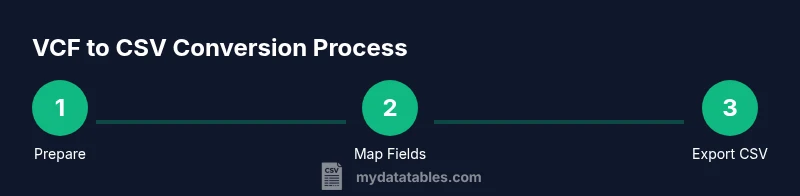
- 1
Prepare your VCF file and create backups
Locate the VCF file(s) you’ll convert and make a complete backup copy. If you have multiple contacts, consider consolidating into a single VCF to simplify mapping. This reduces the risk of partial conversions and data loss.
Tip: Pro tip: Work on a copy first to avoid accidental edits to the original file. - 2
Choose your conversion method
Decide whether you’ll use an online converter, desktop software, or a scripting approach. Online tools are fastest for a single file; scripts offer repeatability for many files; offline apps minimize privacy risk for sensitive data.
Tip: Pro tip: For sensitive data, prefer offline desktop tools or self-hosted scripts. - 3
Define your CSV column mapping
Decide which VCF fields map to which CSV headers (e.g., FN -> FullName, TEL -> Phone). Establish how to handle multiple values (Phone1, Phone2 or repeated rows).
Tip: Pro tip: Keep headers stable across files to simplify imports later. - 4
Run the conversion
Execute the chosen method and generate the CSV file. If using a script, run the appropriate command; if using an online tool, upload and export the result.
Tip: Pro tip: Start with a small subset to verify the mapping before processing the full dataset. - 5
Check encoding and headers
Open the CSV in a text editor or spreadsheet to confirm UTF-8 encoding and that all headers are present and correctly labeled.
Tip: Pro tip: Ensure there are no stray characters or invalid delimiters in the header row. - 6
Handle multi-valued fields
If a contact has multiple phones or emails, decide whether to place them in adjacent columns or to create additional rows per contact. Keep your approach consistent.
Tip: Pro tip: Document your approach so future conversions stay aligned. - 7
Validate a sample output
Spot-check several rows for correctness—names, numbers, and emails should align with their respective headers. Run a quick import test in your intended tool (CRM, spreadsheet, or database).
Tip: Pro tip: Use a small test file first to catch mapping mistakes early. - 8
Save and document the workflow
Store the mapping, tool choice, and any scripts used so you can reproduce the process on future VCFs with minimal effort.
Tip: Pro tip: Version-control your script and mapping configuration.
People Also Ask
What is the difference between VCF and CSV formats?
VCF is a vCard format designed for contact information, often including multiple fields and entries. CSV is a flat, tabular format ideal for data processing and imports. Converting from VCF to CSV lets you analyze and import contacts with standard spreadsheet or database tools.
VCF holds complex contact data; CSV puts it in a simple table for easy processing.
Can I convert multiple VCF files at once?
Yes. Use scripting or batch-processing features in desktop apps to process many VCF files in one go. This improves consistency and saves time compared with manual, single-file conversions.
Batch processing saves time and keeps mappings consistent.
Are free online converters safe for private contacts?
Online converters are convenient but pose privacy risks for sensitive data. If you must use them, limit uploads, choose reputable services, and delete files promptly after download.
Be cautious with private data; prefer offline tools when possible.
Does the tool preserve all VCF fields in CSV?
Most converters map core fields (name, phone, email) but some optional fields may be dropped or require custom scripting. Always verify the final CSV against your needs.
Core fields are usually preserved; check for extras you need.
What encoding should I use for CSV files?
UTF-8 is the recommended encoding to ensure special characters are preserved across platforms and locales.
Use UTF-8 to avoid garbled characters.
What should I do if the CSV looks garbled after import?
Check encoding and delimiter settings in the importer. Re-export with UTF-8 encoding and consistent delimiter (comma) to fix common issues.
Check encoding and delimiter; re-export if needed.
Watch Video
Main Points
- Back up your VCF(s) before converting.
- Define stable CSV headers and mapping rules.
- Prefer offline workflows for privacy-minded data.
- Validate the output with real-world tests.
- Document and save your workflow for repeatability.