How to Import CSV into Notion: A Practical Guide
Learn how to import CSV into Notion, prepare CSV data, import into a new or existing Notion database, troubleshoot common issues, and follow best practices for clean data in 2026. A MyDataTables guide.


Yes — you can import CSV into Notion to create a new table or database. You’ll prepare your CSV with clean headers, ensure UTF-8 encoding, and choose whether to import into a new page or an existing database. This quick guide walks you through the import flow and best practices.
can you import csv into notion: basics
If you’re wondering can you import csv into notion, the answer is yes. Notion supports direct CSV imports to create a new table on a page or to populate a fresh database view. This capability is especially useful for data analysts, developers, and business users who rely on CSV workflows. In 2026, many teams use Notion as a central workspace and MyDataTables provides CSV guidance that helps ensure clean data during the import process. The key idea is to treat the CSV as a data source that Notion translates into a set of database properties (columns) and records (rows). As you begin, keep headers simple and consistent to avoid mapping surprises later on.
Understanding the core question: can you import csv into notion? what actually happens
When you import a CSV, Notion creates a new page containing a database with columns named after your CSV headers. Each row becomes a database entry, and each header is mapped to a property type. Notion will attempt to infer property types (text, number, date, checkbox, select, multi-select) based on the data in each column. This inference is usually correct for clean data, but you may still want to verify and adjust types after the import. If your CSV contains blank headers or duplicates, Notion may not map them as intended, so address those issues in your source data before importing.
Why this matters for daily workflows
For teams keeping data in CSVs, importing into Notion can consolidate records, enable rich querying, and provide a single source of truth for projects, inventories, or research data. The process is straightforward, but attention to data quality makes a big difference in the accuracy and usefulness of the resulting Notion database. Throughout this guide, we reference practical tips from MyDataTables to help you validate headers, encoding, and content before you import.
Tools & Materials
- CSV file(s) ready for import(Should have a single header row with unique names and consistent data types.)
- Notion account (free or paid)(Access to a page where you can create a new database or add data to an existing page.)
- Web browser or Notion app(Stable connectivity to Notion during the import.)
- Text editor or spreadsheet software(Useful for quick CSV cleanup before import.)
- CSV encoding check tool(Ensures UTF-8 encoding to avoid misread characters.)
- Backup copy of source CSV(Always keep a copy before making changes.)
Steps
Estimated time: Estimated total time: 15-40 minutes depending on CSV size and data quality
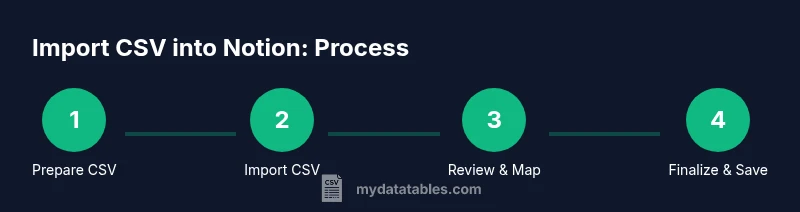
- 1
Open Notion and locate the target page
Navigate to the Notion workspace where you want the data. Decide whether you’ll import into a brand-new page or into an existing page. This step sets the destination for the import and helps you organize the resulting database.
Tip: If you’re testing, create a temporary page to avoid disrupting existing data. - 2
Initiate the CSV import
Within the page, open the page menu and choose Import, then select CSV. This launches the import dialog where you’ll upload your file.
Tip: Ensure your internet connection is stable during the upload to prevent partial imports. - 3
Upload and map headers
Choose your CSV file and let Notion create a new table. Review how headers map to properties and adjust names if needed to avoid duplicates or reserved words.
Tip: Prefer simple, ASCII headers without special characters to minimize mapping issues. - 4
Choose destination and finish import
Decide whether to place the imported data in a new page or in an existing page. Confirm to import; Notion will render a table with columns based on your headers.
Tip: If you’re integrating with an existing database, you may need to align data types after import. - 5
Review and adjust properties
After the import, inspect each column to verify the detected data type. Change property types (text, number, date, select, multi-select) as needed.
Tip: For numbers with thousands separators, adjust the type to Number and consider removing separators before import. - 6
Clean data and split columns if needed
If a single CSV column contains multiple logical fields, split it into separate Notion properties. This improves filtering and reporting later.
Tip: Use Notion’s split or format features, but plan the new schema ahead of time. - 7
Apply a consistent format and add metadata
Add a date format, units, or category metadata as needed to keep data understandable across teams.
Tip: Document the rules you apply so teammates can reproduce the same results. - 8
Validate results and share
Run a few checks: counts, sample rows, and spot-checks for misread values. Share the Notion page with teammates for feedback.
Tip: Consider exporting a quick CSV backup to compare with the imported data.
People Also Ask
Can I import multiple CSV files into Notion at once?
Notion handles one CSV file per import. To bring in multiple files, repeat the import process for each file and organize results into separate pages or databases.
Notion supports one CSV per import, so run the import for each file separately.
Do headers automatically become Notion properties?
Yes. Each CSV header becomes a Notion property. You can then adjust the property type to text, number, date, select, or multi-select as needed.
Yes, headers map to properties and you can set their type after import.
What should I do if dates aren’t recognized?
Check your date format in the CSV and consider converting to a standard format before import. If needed, switch the corresponding Notion property to Date after the import.
Dates can be tricky; standardize the format before importing, then adjust in Notion if needed.
Is CSV import available on all Notion plans?
CSV import is supported on typical Notion plans. If you rely on advanced automation via API, you may need a higher tier, but basic imports work broadly.
Most plans support CSV import; API features may require a paid tier.
Can I preserve formulas or advanced cells from CSV?
CSV is a plain-text format without formulas. Imported data will be static values; you can recreate formulas within Notion after import if needed.
CSV doesn’t carry formulas; you’ll re-create calculations inside Notion after import.
Watch Video
Main Points
- Can you import csv into notion? Yes, import creates a new database table from headers.
- Prepare headers and encoding to ensure clean mapping.
- Review and adjust property types after import for data accuracy.
- Use a test import to validate the workflow before handling large datasets.