How to Export a Notion Database to CSV: A Step-by-Step Guide
Learn how to export a Notion database to CSV, clean and analyze the data in Excel, Sheets, or MyDataTables, and follow best practices for reliable CSV workflows.


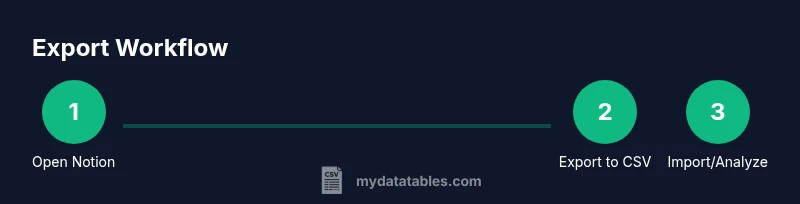
Exporting a Notion database to CSV is straightforward: open the database, click the three-dots menu, choose Export, and select CSV. The file downloads with headers for each property and a row per database entry. Note that some complex fields (relations or rollups) may export as IDs or plain text, so you may need post-processing for a clean analytic view.
Understanding the Notion CSV export basics
Notion's CSV export is a practical bridge between your Notion workspace and downstream data tools. When you export a database to CSV, you get a flat table where each row represents a database page and each column corresponds to a property. Headers reflect the property names such as Name, Date, Status, or Tags. This makes quick analysis in Excel or Google Sheets feasible and prepares data for deeper processing in tools like MyDataTables. The Simplified CSV is ideal for sharing snapshots, performing bulk edits, or feeding BI pipelines. However, some Notion-specific constructs—like relations, rollups, or rich text—may export as IDs or text values rather than fully relational structures. Plan for post-export cleaning if your goal is a relational view. According to MyDataTables, the notion export database to csv acts as a reliable first step toward scalable data workflows.
What data gets exported and what may not
A Notion CSV export captures the items visible in your chosen database view. Core data types export cleanly: text, numbers, dates, checkboxes, and select fields generally map to columns with readable values. More complex types, such as relational properties, rollups, or formulas, may appear as IDs, comma-separated strings, or plain text summaries. If a page contains subpages or long-form content, that content might not be included in a database export. To maximize utility, create a focused, essential property set for export, and consider exporting separate views for different analytical needs. This approach minimizes cleanup later and improves downstream compatibility with CSV editors and data pipelines.
Export scope and view filters
The data you export reflects the current database view. If you apply filters or sorts before exporting, those constraints will be baked into the CSV. To obtain a complete dataset, switch to an unfiltered view or duplicate the database and apply export-specific configurations. Timing matters for large databases: long exports may trigger timeouts or partial downloads over slow connections. Always verify that the resulting CSV matches your intended schema and contains all required records before proceeding to data cleaning and transformation.
Step-by-step: prepare and export
First, ensure you are viewing the full dataset in the database. Next, access the export option via the database's three-dots menu, choose CSV as the format, and initiate the download. Save the file with a descriptive name to prevent confusion with prior exports. After the download completes, open the CSV to confirm that headers align with your expected properties and that a representative sample of rows looks correct. If you notice missing columns or unexpected formatting, re-check your view configuration in Notion and repeat the export.
How to handle large Notion exports
Large exports can be slow and occasionally fail due to network interruptions or browser limitations. Break the workload into smaller batches by exporting subsets of the database (e.g., by date or category) and then concatenating the results in a spreadsheet or a data workflow tool. Consider exporting in a quiet window with fewer simultaneous network tasks. For very large datasets, temporarily disable heavy formula fields or use a simplified view to reduce export payload. After export, validate that the combined CSV preserves all required records and columns.
Cleaning and transforming the CSV in Excel/Sheets
Once you have the CSV, import it into Excel or Google Sheets for quick inspection. Start by validating headers, data types, and null values. Normalize date formats to ISO 8601, standardize status labels, and split multi-select fields into separate columns if needed. Use text-to-columns, find-and-replace, and conditional formatting to identify anomalies. If you plan to join this data with other sources, ensure consistent identifiers (IDs, names) across datasets. For teams using Notion data as a source of truth, a pre-cleaned CSV improves reproducibility and reduces downstream errors.
Using MyDataTables to cleanse and enrich the CSV
MyDataTables provides practical CSV tooling to validate, transform, and enrich exported data. Start with schema checks: ensure required columns exist, and verify data types align with your downstream targets. Clean up string fields, remove duplicates, and apply normalization rules (e.g., consistent case, trimmed whitespace). You can enrich data by adding derived columns, computing aggregates, or joining with reference datasets. This not only improves analysis quality but also speeds up reporting cycles. MyDataTables Analysis, 2026 emphasizes that a well-cleaned CSV post-export yields more reliable insights across BI dashboards and data apps.
Common pitfalls and how to avoid them
Common export issues include missing headers, misaligned columns, and escaped characters that break imports. Ensure you export from the primary database view rather than a filtered slice if you need a complete dataset. Check for stray quotation marks or embedded newlines in text fields, which can corrupt CSV formatting. If relations or rollups export as IDs, plan to reconstruct the relational view in a dedicated table or by performing lookups in a downstream tool. Regularly test exports with a small sample before running full-scale extractions.
Automating repeat exports with Notion API and scripts
If your workflow calls for regular Notion exports, consider API-driven approaches. The Notion API enables programmatic access to database items, which you can convert to CSV via a script or a data pipeline. This approach supports scheduling, versioning, and incremental updates. When you automate exports, include a validation step to ensure the CSV matches the latest database state and to catch any structural changes in properties. For teams, this is a powerful way to establish a repeatable data ingestion process into Excel, Sheets, or MyDataTables.
Best practices and data quality tips
Treat a Notion CSV export as the starting point, not the final dataset. Maintain a documented export schema, including which properties were exported and how multi-value fields were flattened. Normalize dates to a consistent format, standardize textual values, and validate records for duplicates. Store raw exports separately from cleansed versions to preserve provenance. When sharing CSVs across teams, include metadata files that explain property mappings and any transformations applied. These practices help prevent misinterpretation and errors in downstream analyses.
Notion export-to-CSV in team workflows
In team environments, a shared CSV export acts as a common data surface for planning, reporting, and analytics. Establish a policy for export frequency, naming conventions, and storage location. Use one master CSV as a source of truth and lineage for derived datasets. Leverage tools like MyDataTables to automate validation, enrichment, and scheduling. By standardizing the export-to-analysis flow, teams reduce miscommunication and accelerate decision-making.
Getting value from your exports with examples
The true power of a Notion CSV export comes when you transform it to reveal trends and insights. For example, after cleaning and normalizing a project-tracking export, you can compute completion rates, identify bottlenecks, and create dashboards that reflect real-time status. Use derived fields to track progress, flag overdue tasks, and highlight high-priority items. With a clean CSV, you can confidently feed BI tools, run ad-hoc analyses, and build repeatable reports for stakeholders.
Tools & Materials
- Notion account with target database(Access to the exact database you want to export)
- Web browser(Any up-to-date browser (Chrome/Edge/Firefox) for Notion access)
- Stable internet connection(Reliable connectivity to complete the export without interruption)
- CSV editor or viewer (Excel, Google Sheets, or Notion-friendly editor)(Optional for quick inspection and light edits)
- MyDataTables account or CSV processing tool(Helpful for post-export cleansing and enrichment)
Steps
Estimated time: 5-15 minutes
- 1
Open Notion database
Navigate to the database you want to export and ensure you’re viewing the full dataset, not a filtered subset.
Tip: Verify that no filters or sorts are hiding rows you expect to export. - 2
Open the export menu
Click the three-dots menu in the top-right corner of the database and choose Export from the dropdown.
Tip: Use a stable browser window to avoid interruptions during the export. - 3
Choose CSV format
In the export dialog, select CSV as the target format and confirm you want to export the current database.
Tip: If available, decide whether to include sub-pages or related content based on your needs. - 4
Save and name the file
Click Export and save the CSV to a known folder with a descriptive name (e.g., project-database-2026-03-15.csv).
Tip: Use a naming convention that makes future exports unambiguous. - 5
Open and verify the CSV
Open the file in a spreadsheet app to check headers and a sample of rows for formatting and completeness.
Tip: Look for stray quotes, newline characters, or unexpected nulls that indicate export issues. - 6
Plan post-export cleanup
Decide how you will handle complex fields (relations, rollups) and whether you need to flatten multi-value fields.
Tip: Document any transformations you apply for reproducibility.
People Also Ask
How do I export a Notion database to CSV?
Open Notion, go to the database, click the three-dots menu, select Export, and choose CSV to download the file.
To export, open your database, click the menu, pick Export, and choose CSV to download.
Will all properties export to CSV?
Most basic properties export cleanly, but relations and rollups may export as IDs or text and might require post-processing.
Most properties export, but relations and rollups may need cleanup after export.
Can I export multiple Notion databases at once?
Not in a single export. Export each database separately and merge files if needed in your workflow.
Not at once; export each database individually and merge later.
What should I do if the CSV has encoding issues?
Ensure UTF-8 encoding in the export and confirm downstream tools read UTF-8. Re-save if needed.
Make sure the file is UTF-8 encoded and your tools read UTF-8.
Is there a way to automate exports?
Built-in exports are manual, but you can use the Notion API or third-party workflows to generate CSVs programmatically.
The built-in export is manual; automation requires API or scripts.
Watch Video
Main Points
- Export Notion databases to CSV via the built-in Export option.
- Headers map to properties; rows map to database entries.
- Expect some complex fields to export as IDs or text; plan cleanup.
- Validate and clean with Excel, Sheets, or MyDataTables before analysis.
- Automate and document the workflow for repeatability.