Notion Import CSV to Database: A Complete Step-by-Step Guide
Learn how to import CSV data into a Notion database with a practical, repeatable workflow. Prepare your CSV, create matching Notion properties, perform the import, and verify results—backed by expert guidance from MyDataTables.


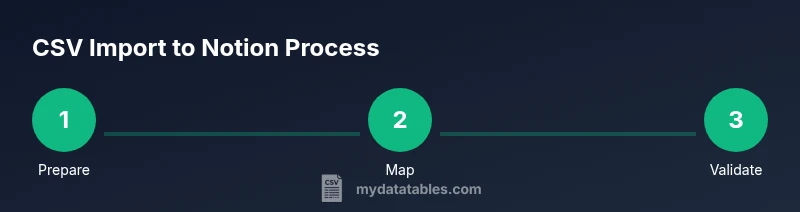
Goal: Import a CSV into a Notion database. You’ll prepare a clean CSV, create a matching Notion database, perform the import, and verify results. Requirements include a CSV file with headers, a Notion workspace, and defined properties that align with your columns. This quick guide covers practical steps and common pitfalls for a smooth import.
Understanding Notion and CSV Import Basics
Notion is a flexible workspace that uses databases to organize information. When you import a CSV into a Notion database, you map CSV columns to Notion properties. The process is straightforward for simple tables but can become tricky when headers change, data types differ, or you need to link to other databases. In this guide about notion import csv to database, we’ll walk through practical steps, common pitfalls, and best practices to ensure clean results. You’ll learn how to prep your CSV, create a matching Notion database, perform the import, and verify that all data appears correctly. According to MyDataTables, clean CSV headers and standardized data types are the foundation of a reliable Notion import.
Preparing Your CSV for Notion
The CSV you plan to import should have headers that correspond to the Notion properties you intend to create. Start by opening the CSV in a spreadsheet tool or a text editor and check for: consistent header spelling, no hidden characters, and uniform encoding (UTF-8 is standard). Normalize dates to ISO format (YYYY-MM-DD), numbers without thousands separators, and text fields without stray newlines. If your source uses special characters, ensure proper escaping. Notion can import simple types like text, number, date, and checkbox; more complex types such as select/multi-select require pre-creation of those properties. If you want not to lose alignment, consider exporting a small two-row sample and test-import it first. The goal is to minimize field-mapping changes during the live import.
Notion Import Scenarios: Manual Import vs. API/Automation
Notion supports manual CSV import by creating a database and importing via the Import action, but for repeatable workflows you can leverage Notion API or automation tools. The manual route is fast for one-off imports; API-based workflows work well for scheduled ETL or syncing data. In Notion, you create a database with properties that mirror your CSV columns. Then in the Import dialog, Notion will map columns to properties; review mappings to prevent misaligned data. If you’re dealing with large datasets, a staged approach (import in chunks, verify, then merge) reduces risk.
Field Mapping and Property Types in Notion Databases
Notion supports a variety of property types, including Title, Text, Number, Select, Multi-Select, Date, People, Files & media, Checkbox, URL, Email, Phone, and Formula. When you import, you need to map each CSV column to a compatible Notion property. For example, a numeric column should map to Number; a date column to Date; a category column to Select or Multi-Select. If a column contains mixed data, pre-cleaning or splitting into multiple columns helps. You can also create relations to other databases in advance, which allows you to establish cross-database references during or after the import. By planning your properties beforehand, you minimize post-import cleanup. Notion’s schema should be stable before import to avoid repeated edits.
Handling Common Issues: Duplicates, Formatting, and Attachments
Duplicates commonly arise when importing repeated rows or when IDs from the source do not align with Notion’s internal IDs. Decide on a deduping strategy before you import: keep only fresh rows, or update existing entries based on a unique key. Encoding issues—especially with non-English text—can appear as garbled characters; ensure UTF-8 encoding and avoid BOM where Notion struggles. Dates can drift if time zones aren’t accounted for; use a standard time zone in your CSV or harmonize with Notion’s date picker. Attachments and files require either a link or Notion files property; large files may need to be stored elsewhere with a URL reference in CSV. Finally, verify post-import data integrity by spot-checking records and running simple counts.
Best Practices and Workflows for Reusability
Create a reusable CSV import workflow by defining a standard Notion database schema and a template row, so new CSVs can be processed with minimal changes. Use a versioned CSV export process: log what changed header-wise and what mapping was selected. Apply a two-step verification: test-import a small sample, then import the full dataset. For automation, consider using Notion’s API in combination with a small script to transform CSVs to the exact JSON payload Notion expects. Document your steps, maintain a changelog, and schedule regular reviews of imported data. The MyDataTables team emphasizes that building repeatable, tested import pipelines reduces errors and saves time over ad-hoc imports.
Tools & Materials
- CSV file (source data)(Ensure it contains a header row with column names)
- Notion workspace(Access to create a database and perform imports)
- Notion database with matching properties(Properties should reflect CSV columns)
- Spreadsheet editor (Excel, Google Sheets, or CSV editor)(For cleaning and validating data)
- Text editor(For quick header fixes or escaping)
- Sample CSV (small subset)(Used for test import)
Steps
Estimated time: 60-120 minutes
- 1
Prepare your CSV
Open the CSV and verify header consistency, encoding (UTF-8), and clean data. Create a small sample to test the import, and fix any obvious issues before proceeding.
Tip: Use a sample row to validate mapping rules early. - 2
Create a matching Notion database
In Notion, create a new database or reuse an existing one. Define properties that mirror your CSV columns (Text, Number, Date, Select, etc.).
Tip: Align property names with CSV headers to minimize mapping work. - 3
Configure mappings between CSV columns and Notion properties
During the Import, review how each CSV column maps to a Notion property. Adjust types if necessary (e.g., text vs. URL).
Tip: Pre-create Select/Multi-Select options to avoid late edits. - 4
Import the CSV into Notion
Begin the import via Notion's Import option and confirm the initial mappings. If needed, split large CSVs into batches.
Tip: Start with 50–100 rows to catch issues early. - 5
Review mappings and data types after import
Spot-check records for accuracy, ensure dates and numbers are correct, and adjust any misaligned fields.
Tip: Use filters to quickly identify mismatched columns. - 6
Deduplicate and clean up
If duplicates exist, apply your de-duplication strategy (keep new rows or update existing).
Tip: Document a deduplication rule and apply it consistently. - 7
Optionally automate future imports
If you process CSVs regularly, consider a small script or API-based workflow to transform CSVs into the exact shape Notion expects.
Tip: Maintain a reusable script to minimize manual steps. - 8
Finalize and archive
Store a copy of the original CSV and document the mapping decisions for future reference.
Tip: Create a versioned import log for audits.
People Also Ask
Can Notion automatically map every CSV column to a property during import?
Notion provides an interface to map CSV columns to existing properties during import, but you must confirm mappings yourself. Automatic, perfect mappings are unlikely for complex schemas without pre-setup. Always review mappings before finalizing the import.
Notion maps columns during import, but you should check each mapping to ensure accuracy.
What file encodings does Notion support for CSV imports?
Most users should import UTF-8 encoded CSV files to avoid characters becoming garbled. If you run into encoding issues, save the file with UTF-8 encoding and re-import.
Save your CSV as UTF-8 and re-import if you see garbled text.
Is it possible to update existing Notion records via CSV import?
Notion supports adding new rows via CSV imports readily. Updating existing records requires a more controlled approach—either via API updates or an explicit deduplication/update strategy in your workflow.
You can add new rows easily; updates require API or a careful deduping plan.
What should I do if Notion imports misplace data?
Stop the import, review the mapping for the affected fields, correct the CSV headers or data types, and re-run the import on a small batch before proceeding.
If data is mis-mapped, halt, fix headers and types, and re-import a small batch first.
Are there automation options for ongoing CSV imports into Notion?
Yes. You can automate CSV-to-Notion imports using Notion’s API or integration tools to schedule ETL-like workflows. Start with a small script that transforms CSVs into the payload Notion expects.
You can automate imports using the Notion API or automation tools.
Watch Video
Main Points
- Prepare clean CSV headers.
- Map columns to properties before import.
- Test-import a small sample first.
- Validate data types after import.
- Use templates for repeatable CSV imports.