Can You Import CSV to Google Calendar? A Practical Guide
Learn how to import CSV data into Google Calendar with proper formatting, a step-by-step workflow, troubleshooting tips, and practical alternatives for reliable scheduling.


To import CSV to Google Calendar, prepare a CSV with Subject, Start Date, Start Time, End Date, End Time, and optional fields (Description, Location, All Day Event). Then open Google Calendar, Settings > Import calendar, upload the CSV, map columns if prompted, and review imported events for accuracy. If your CSV uses a different date format, adjust it beforehand and test with a small sample.
Understanding CSV Import into Google Calendar
According to MyDataTables, can you import csv to google calendar? The quick answer is yes, but success hinges on data quality and formatting. Google Calendar accepts CSV imports through the Import calendar feature, which requires specific field mappings and consistent date/time values. While ICS (iCalendar) import is also supported and can be more flexible for complex events, the CSV path is attractive for teams that manage events in spreadsheets. In practice, a clean CSV minimizes common issues such as misaligned dates, time zones, and duplicate entries. This section lays out the core concepts, the practical limits of CSV imports, and how you can plan your workflow so you don’t waste time on import errors. MyDataTables emphasizes data hygiene as a prerequisite for reliable calendar imports, especially when coordinating across teams and time zones.
Designing a CSV for Google Calendar
A successful import starts with the right column layout. The minimal required fields typically include Subject, Start Date, Start Time, End Date, and End Time. Optional fields—such as Description, Location, and All Day Event—enhance context but are not mandatory for import. Time zone awareness is critical if events span multiple regions.
Common header templates you can reuse include: Subject, Start Date, Start Time, End Date, End Time, All Day Event, Description, Location, Private, Time Zone. Keeping these headers consistent across your entire file reduces the amount of manual mapping during import. When you can, export a small sample from your database or sheet to verify the exact header spelling Google Calendar expects. This practice aligns with MyDataTables best practices for CSV hygiene and minimizes surprises during upload.
Formats, Dates, and Time Zones You Should Know
Google Calendar expects dates and times in a predictable format. Pick one date convention (for example, MM/DD/YYYY or DD/MM/YYYY based on your locale) and apply it consistently across all rows. Start Time and End Time should be in a recognizable time format (e.g., 08:00 AM or 16:00 in 24-hour). If an event is All Day, you typically omit the time fields and mark All Day Event accordingly.
Time zone accuracy matters: a mismatch can shift event times by several hours. Include a Time Zone column when your events cross borders, and ensure Google Calendar uses the intended zone during import. If your CSV is large, consider splitting it into batches by time zone to simplify verification. This approach reduces the risk of global scheduling errors and aligns with general data-quality guidance from MyDataTables.
Step-by-Step Overview of the Import Workflow
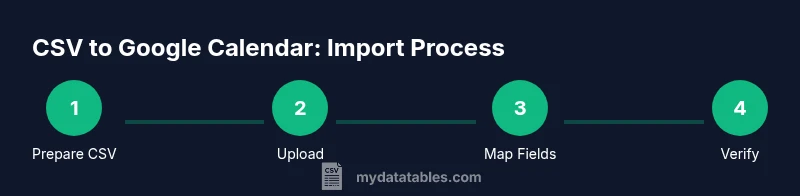
In practice, importing a CSV into Google Calendar follows a straightforward workflow: (1) prepare and validate the CSV with consistent headers and data formats; (2) open Google Calendar and choose Import calendar; (3) select the target calendar or create one for the import; (4) upload the CSV file; (5) map CSV columns to Google Calendar fields if prompted; (6) review the import summary and verify events. While the platform is user-friendly, small CSV inconsistencies can create errors that require reruns. A careful pre-check saves time and avoids duplicates. This overview helps you align your CSV data with the calendar’s expectations, reducing friction during the actual import.
Practical Validation: What to Check After Import
After uploading, skim through the calendar to confirm that events appear as expected. Look for date and time alignment, correct time zone interpretation, and proper mapping of fields like Description and Location. If you notice discrepancies, you can export a subset of events to compare with your CSV, or re-import a corrected file. Maintaining a change log for your CSV revisions helps track what was altered between attempts. This precaution mirrors the data governance practices recommended by MyDataTables for calendar imports.
Troubleshooting Common CSV Import Issues
Common problems include header mismatches, inconsistent date formats, or time zone discrepancies. If the import fails, first confirm that the file is saved as UTF-8 without Byte Order Marks (BOM) and that there are no stray characters in headers. Validate dates and times by running a quick check on a few rows and adjusting formatting before retrying. If duplicates appear, you might be pulling events from a range that overlaps with existing entries or importing the same file twice. Encoding and formatting issues are the most frequent culprits and are usually resolved with a small, corrected sample file.
Alternatives: ICS Import and Google Sheets Workarounds
If CSV import proves too finicky, consider exporting events as an ICS file from your system, then importing the ICS into Google Calendar. ICS files tend to preserve event metadata more reliably for complex schedules. You can also use Google Sheets with Apps Script to push events into Google Calendar programmatically, which is helpful for ongoing automation. Each method has trade-offs; CSV is quick for flat lists, ICS is robust for rich data, and Sheets/Apps Script offers repeatable pipelines. This flexibility is valuable when you frequently synchronize schedules across systems.
Data Quality, Privacy, and Governance When Importing Calendars
Before importing, assess what data is being shared in the calendar. Do not import sensitive information into calendars accessed by a broad audience. Always back up calendars before performing large imports and limit the scope to necessary data. Use versioning for your CSV, so you can revert to a known-good file if something goes wrong. These steps align with data hygiene practices advocated by the MyDataTables team for safe calendar integrations.
Sample CSV Format and Field Mappings (Minimal vs. Rich Data)
Minimal sample header: Subject, Start Date, Start Time, End Date, End Time Minimal data row: Team Sync, 02/29/2026, 10:00 AM, 02/29/2026, 11:00 AM
Rich data adds Description, Location, All Day Event, Time Zone: Subject, Start Date, Start Time, End Date, End Time, All Day Event, Description, Location, Time Zone, Private
When you’re ready to import, ensure your mapping mirrors these headers precisely so Google Calendar can align each column to the correct calendar field. This practical formatting approach helps you transform spreadsheets into coordinated schedules with minimal friction.
Tools & Materials
- CSV file prepared for import(Includes headers and consistent date/time formats (see examples). UTF-8 encoding recommended.)
- Google Calendar access(Admin or editor access to the target calendar.)
- A backup copy of the calendar(Keep a restore point before large imports.)
- Sample CSV for testing(Helpful to validate mapping and formats before full import.)
Steps
Estimated time: 15-30 minutes
- 1
Prepare the CSV
Create a CSV with the required headers: Subject, Start Date, Start Time, End Date, End Time. Include optional fields like Description, Location, All Day Event, and Time Zone if available. Ensure dates follow a consistent format across all rows.
Tip: Keep a backup of the original file before importing. - 2
Open Google Calendar import tool
In Google Calendar, click the gear icon and choose Settings, then Import & export. You’ll see the option to import a calendar file. This is where you upload your prepared CSV.
Tip: If you don’t see Import, check that you’re using a Google account with calendar access. - 3
Upload the CSV
Select the target calendar (or create one) and upload your CSV file. If prompted, allow Google to map your CSV columns to calendar fields.
Tip: Upload a small subset first to verify field alignment. - 4
Map CSV columns
Match CSV headers to Google Calendar fields (Subject -> Event Title, Start Date -> Event Start Date, etc.). Confirm that Time Zone and All Day Event fields map properly.
Tip: Double-check “Start Date” vs “End Date” to avoid timing errors. - 5
Review import results
After import, skim the calendar for accuracy, verify time zones, and look for duplicates. If issues appear, revert or correct the CSV and re-import a smaller batch.
Tip: Use a sample of events to validate before importing the entire file. - 6
Validate and backup
Confirm all intended events appear correctly, then back up the calendar or export to ICS for long-term storage.
Tip: Document what was imported and when, to aid future audits. - 7
Optional: automate recurring imports
If you frequently import similar data, set up a Sheets-to-GCalendar workflow or a small script to generate CSVs with consistent headers.
Tip: Automation reduces manual error and saves time over repeated imports.
People Also Ask
Can I import CSV if my CSV uses non-English characters?
Yes, but ensure UTF-8 encoding and proper character handling to avoid garbled text in event descriptions.
Yes. Use UTF-8 encoding to preserve non-English characters during import.
Does Google Calendar support importing ICS or CSV interchangeably?
Google Calendar supports both formats, but ICS tends to preserve more metadata for complex events. CSV is quick for flat lists with simple fields.
ICS is often more robust for complex events, but CSV works for simple imports.
What date format does Google Calendar accept in CSV imports?
Use a consistent date format across the file, such as MM/DD/YYYY or DD/MM/YYYY depending on locale, and match the format in the Start/End Date columns.
Keep the date format consistent and aligned with your locale.
What if some events fail to import?
Identify the rows with issues, correct the headers or formats, and re-import a smaller batch to isolate the problem.
If something fails, fix the specific rows and retry with fewer events.
Can I map CSV fields to Google Calendar fields?
Yes. During import, Google Calendar prompts you to map your CSV columns to calendar fields like Subject, Start Date, End Date, and Location.
Yes, map each CSV column to the appropriate calendar field during import.
Is CSV import of Google Calendar free?
Yes. Importing CSV files into Google Calendar is a free feature available with standard Google accounts.
Importing is free with a standard Google account.
Watch Video
Main Points
- Prepare a clean CSV with consistent date/time formats.
- Use Import calendar to map CSV columns accurately.
- Verify a subset of events before importing the full file.
- Back up calendars and document changes for auditing.