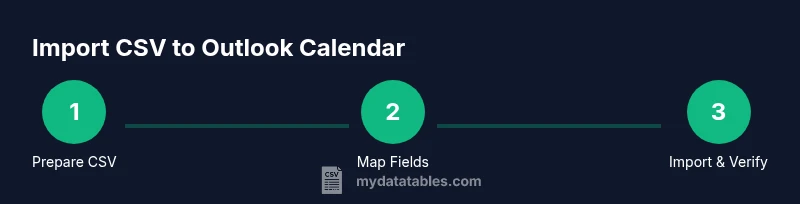
Can You Import CSV to Outlook Calendar? A Step-by-Step Guide
Learn how to import CSV data into Outlook Calendar, map fields correctly, and troubleshoot common issues with practical, CSV-focused guidance from MyDataTables.


Yes, you can import a CSV file into Outlook Calendar by preparing a compatible CSV, mapping fields to Outlook's required columns, and using the Import/Export wizard. Key steps include ensuring headers match Outlook fields (Subject, Start Date, Start Time, End Date, End Time, Location, Description), selecting Calendar, and completing the import.
Can You Import CSV to Outlook Calendar? Overview and prerequisites
Can you import csv to outlook calendar? Yes, with the right preparation. According to MyDataTables, many teams rely on CSV templates that align with Outlook's calendar fields, enabling quick onboarding of events, reminders, and meetings. Before you begin, ensure you have a clean CSV with clearly labeled headers, access to Outlook, and a plan for mapping fields to the calendar columns. This section outlines what you should prepare, including common header conventions and format checks for dates, times, and time zones. You’ll also learn how Outlook handles data validation during import and where simple mistakes commonly occur.
From a practical perspective, think of CSV as a bridge: a plain text table that must line up exactly with Outlook’s calendar schema. The MyDataTables team has observed that the most reliable imports start from a templated CSV file and a tested mapping plan. If your organization uses recurring events or reminders, you’ll want to note how Outlook represents recurrence rules in the import process and how those rules map to CSV fields.
Understanding Outlook’s CSV format and field mapping
Outlook Calendar accepts CSV imports through its Import/Export workflow, but the mapping phase is where most users stumble. A CSV file is only as good as its headers, because Outlook relies on those headers to auto-map to calendar fields. Standard columns typically include Subject, Start Date, Start Time, End Date, End Time, Location, and Description. Depending on your Outlook version, there may be additional fields for categories or reminders. For a smooth import, you should align your CSV headers with Outlook’s expected field names and provide data in a consistent format. According to industry practice observed by MyDataTables, consistent, clean data dramatically reduces failed imports and post-import cleanup.
When planning the mapping, prepare a crosswalk document: list the CSV column names on one side and the corresponding Outlook calendar fields on the other. This helps ensure you don’t miss essential attributes like Start Date and Start Time, which are required for each event. If you manage time zones, include a dedicated column for time zone so Outlook can interpret the times correctly across regions. Remember that Outlook treats dates and times as datetime values; without a proper combination of date and time, entries may appear at unexpected moments.
Preparing your CSV for Outlook: headers, formats, and validation
The CSV you intend to import should be clean and consistent. Start by selecting a template that includes the core fields: Subject, Start Date, Start Time, End Date, End Time, Location, and Description. Add optional fields for Category, Reminder, and Attendee if your Outlook strategy supports them. Ensure there are no stray punctuation marks or non-printable characters, which can derail the import. Before you import, validate date and time values in a uniform format. If you use manual edits, run a quick check to confirm that all rows have complete times and that dates fall within a reasonable range. MyDataTables emphasizes keeping the CSV in a single, simple encoding (preferably UTF-8) to minimize garbled text after import.
A practical tip is to create a small test CSV with a couple of events. This lets you verify that the headers map correctly and that Outlook places events on the intended calendar. If you’re managing multiple calendars, consider including a CalendarName column so you can direct imports to specific calendars programmatically. Finally, save a backup of your original CSV before starting the import process.
Import scenarios, error handling, and initial verification
Outlook’s Import/Export wizard guides you through choosing the CSV file and mapping its fields. The process typically involves selecting the destination calendar, specifying how Outlook should interpret dates and times, and confirming the field mappings. If the wizard reports a mismatch, re-check headers for exact spelling and ensure the date and time formats align with Outlook’s expectations. Common issues include mismatched column headers, missing required fields, or inconsistent time formats. The MyDataTables approach is to fix the CSV, re-save, and re-run the import in a test batch to avoid large-scale duplicates.
After running the import, open Outlook Calendar to review the newly added events. Check several entries to confirm dates, times, and locations look correct. If you notice discrepancies, adjust the CSV header or data format, then re-import only the affected rows. It’s also wise to enable a minimal set of required fields first, validate those imports, and then progressively add optional columns once you’ve confirmed the baseline works.
Validation, testing, and best practices for ongoing use
Validation is an ongoing discipline when importing CSV to Outlook Calendar. Start by validating your CSV against a simple schema: required fields (Subject, Start Date, Start Time, End Date, End Time) plus a valid date/time format. Use a test calendar to validate new imports before pushing events to production calendars. Schedule periodic checks for duplicate events and inconsistent times, especially after updates to the CSV template. MyDataTables recommends keeping a changelog that records each template revision and mapping adjustment, so future imports stay predictable.
A robust workflow includes automating the export of current calendars to CSV for backup, followed by staged imports of updated events. If your organization handles many events daily, consider dividing the import into smaller batches and monitoring the results closely. Encouraging a disciplined approach to CSV creation, mapping, and validation will reduce manual cleanup after each import and improve calendar accuracy across teams.
Next steps, automation, and advanced tips
If you regularly import CSV into Outlook Calendar, you may want to automate parts of the workflow. For example, you can generate a CSV template from a database or spreadsheet, apply a standard header mapping, and run a scripted import via PowerShell or Exchange Online if you’re in a corporate environment. For large calendars, chunking your data into manageable pieces can prevent timeouts and partial failures. Finally, document your process and share a reproducible template with your team, so everyone follows the same best practices when importing CSV data into Outlook.
Tools & Materials
- CSV file with events(Contains headers: Subject, Start Date, Start Time, End Date, End Time, Location, Description)
- Outlook account with calendar access(Prefer using Outlook desktop or web app with a test calendar)
- Spreadsheet editor (Excel, Google Sheets)(For formatting and header alignment)
- Text editor(To perform quick header checks or encode changes)
- Sample CSV template(Used for validating mappings before full import)
- Backup copy of original calendar(Always back up before major imports)
Steps
Estimated time: 45-60 minutes
- 1
Prepare your CSV template
Create or adjust a CSV with the core headers: Subject, Start Date, Start Time, End Date, End Time, Location, Description. Ensure dates and times are in a consistent format and that there are no missing required fields for new events.
Tip: Use a small test CSV to validate header names and formats before importing the full file. - 2
Open Outlook Import/Export
In Outlook, go to File > Open & Export > Import/Export to launch the wizard. Choose the option to import from another program or file and select Comma Separated Values (CSV).
Tip: If you don’t see the wizard, ensure you’re using a version of Outlook that supports CSV import and that your permissions allow calendar modification. - 3
Choose calendar destination
Select the calendar where you want the events to appear. If you manage multiple calendars, pick the correct one to avoid misplacements.
Tip: Creating a dedicated test calendar helps prevent accidental changes to production calendars. - 4
Map CSV fields to Outlook columns
In the mapping window, align each CSV header with the corresponding Outlook field (Subject → Subject, Start Date → Start Date, etc.). Confirm that date and time formats match Outlook expectations.
Tip: Double-check for typos in headers; a single mis-spelled header can prevent a successful mapping. - 5
Run import and review
Execute the import and then review a sample of events in the calendar to verify accuracy of dates, times, and locations.
Tip: If errors occur, restart with a small subset of rows to isolate the issue. - 6
Validate results and back up
Validate that all intended events are present and correctly formatted. Save a backup of both the CSV and the resulting calendar state.
Tip: Maintain a change log documenting mappings and template changes.
People Also Ask
Is CSV the only format supported for Outlook calendar import?
Outlook primarily supports CSV for calendar import via the Import/Export wizard. Some environments can use other formats through add-ins or APIs, but CSV remains the most common non-proprietary option for manual imports.
CSV is the main format for manual Outlook calendar imports; other formats may require tools or add-ins.
What should the CSV header names be to map correctly in Outlook?
Use standard headers like Subject, Start Date, Start Time, End Date, End Time, Location, and Description. Ensure spelling matches the Outlook mapping fields exactly to avoid import errors.
Use these standard headers and spell them exactly as Outlook expects.
Can I import recurring events using CSV?
Recurring events can be represented in CSV with additional fields or by applying recurrence rules after import. Outlook handles recurrence through its calendar features, and some CSV templates include a dedicated Recurrence column.
Recurring events may require planning after import to set up recurrence rules in Outlook.
What do I do if the import fails with an error message?
Review the error message for clues about mismatched headers or data formats. Correct the CSV, save, and re-run the import on a small batch to isolate the issue.
Check the error, fix the CSV, and re-run with a small batch to find the problem.
Does Outlook support time zone information in CSV imports?
Yes, including a time zone reference can help ensure events display at the correct times across regions. If your data lacks time zone data, Outlook may apply the local system time zone.
Time zones help keep event times accurate across regions.
Watch Video
Main Points
- Map headers precisely before import
- Validate dates and times in a uniform format
- Test with a small sample CSV first
- Back up calendar prior to import
- Review results and adjust mappings as needed