CSV for Google Calendar: Import Guide
Learn how to import events from a CSV file into Google Calendar. This guide covers formatting, headers, date/time conventions, import steps, troubleshooting, and automation strategies to streamline calendar workflows using CSV for Google Calendar.


CSV for Google Calendar lets you import events by formatting a CSV correctly and importing it into Google Calendar. Key steps include setting headers, formatting dates/times, and choosing the target calendar during import. This quick guide covers preparing the CSV, performing the import, and verifying results for accurate events.
Understanding CSV for Google Calendar
csv for google calendar describes using comma-separated values to represent a set of events you want to load into Google Calendar. In practice, most teams start with a human-readable sheet and then translate it into a format that Google Calendar can ingest. The main idea is to map event properties—title, start and end times, location, and description—into columns in a CSV file. With a clear header plan and consistent formatting, you can move from scattered calendar notes to a repeatable import workflow. This section explains what CSV for google calendar means in real-world terms and helps you recognize the limits of a simple CSV import compared with native ICS exports or automation pipelines.
Preparing Your CSV File
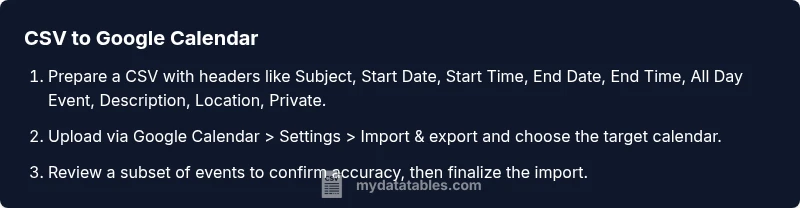
The first step is to create a clean CSV that includes the core event fields. Typical headers include Subject, Start Date, Start Time, End Date, End Time, All Day Event, Description, Location, and Private. For example:
| Subject | Start Date | Start Time | End Date | End Time | All Day Event | Description | Location | Private | |---|---|---|---|---|---|---|---|---| | Meeting with QA | 04/15/2026 | 09:00 AM | 04/15/2026 | 10:00 AM | False | Discuss testing plan | Conference Room 1 | True |
A CSV file uses plain text, so avoid embedded newlines in cells and keep characters in UTF-8 to preserve accents. If you have all-day events, you can set Start Date and End Date and leave times blank or set All Day Event to True. Ensure there are no extra columns unless you plan to map them in Google Calendar.
CSV Headers and Data Quality
Decimal precision and consistent casing matter because some import engines are strict about column names. Stick to the common headers: Subject, Start Date, Start Time, End Date, End Time, All Day Event, Description, Location, Private. Keep dates and times in uniform formats, and avoid mixed time zones in a single file. If a field is optional, you can omit it, but do not leave a column with a header if no data is present. Validate your CSV with a validator to catch stray commas, quotes, or line breaks that could corrupt the import.
Time Zones and All Day Events
Time zones are a frequent source of confusion during CSV imports. If your events use local time, specify a time zone column or ensure a default is set when Google Calendar reads the file. All Day events are best represented by not providing a time (or by setting All Day Event to True and using the date only). This reduces misalignment when events show up across calendars in different regions.
Tools & Materials
- CSV editor (Excel, Google Sheets, or compatible spreadsheet app)(Create and clean the CSV with headers: Subject, Start Date, Start Time, End Date, End Time, All Day Event, Description, Location, Private.)
- Google Calendar account(Open the target calendar for import.)
- UTF-8 encoded CSV file(Ensure characters are preserved during transfer.)
- ICS converter (optional)(Use if you decide to migrate to ICS for recurrence or compatibility.)
- CSV validator tool(Check for syntax errors (commas, quotes, line breaks).)
Steps
Estimated time: 30-60 minutes
- 1
Prepare the CSV with correct headers
Create a CSV workbook with the standard headers so Google Calendar can map fields during import. Use Subject, Start Date, Start Time, End Date, End Time, All Day Event, Description, Location, and Private as the core columns.
Tip: Use exact header names and keep date formats consistent across all rows. - 2
Format dates and times consistently
Choose a single date format (for example MM/DD/YYYY) and a single time format (12-hour with AM/PM or 24-hour) to avoid misinterpretation by the importer.
Tip: Avoid mixing date formats within the same column. - 3
Save the file as CSV with UTF-8
Save or export the file ensuring UTF-8 encoding so non-ASCII characters display correctly in Google Calendar.
Tip: Check for BOM characters if your editor adds them. - 4
Open Google Calendar and start Import
In Google Calendar, access Settings > Import & export, then upload your CSV and choose the target calendar.
Tip: If the calendar is shared, verify you have permission to import events. - 5
Review the imported events
Open the calendar and scan a subset of events to confirm titles, times, and locations are correct.
Tip: Look for misaligned times or missing fields in the new events. - 6
Troubleshoot and re-import if needed
If you see errors, fix the CSV (headers, missing values, or encoding issues) and re-run the import.
Tip: Import in small batches if the CSV is large to isolate issues.
People Also Ask
Can I import recurring events via CSV for Google Calendar?
CSV supports basic events. For recurring events, you may need to represent recurrence rules or convert to ICS format for full recurrence support.
CSV can handle basic events, but recurring events may require ICS or specific recurrence rules.
What date formats should I use in the CSV?
Use a consistent date format such as MM/DD/YYYY and keep all date cells uniform across the file.
Stick to one date format like MM/DD/YYYY for all rows.
Why are some events not showing after import?
Check for mismatched headers, incorrect field mapping, or invalid date/time values in the CSV. Also verify you imported into the correct calendar.
Look for header mismatches, bad dates, or wrong calendar during import.
Is there an automation option for CSV generation?
Yes. You can build templates and scripts to generate CSVs automatically from your data sources.
You can automate CSV creation using templates and scripts.
Can I import CSV to Google Calendar on mobile?
CSV imports are typically performed from a desktop interface. You may need to use ICS or a mobile-friendly workflow after the initial import.
CSV imports are usually a desktop task; mobile workflows may differ.
What if Google Calendar rejects my CSV file?
Check encoding, headers, and data validity. Re-save as UTF-8 CSV and try again, or convert to ICS if needed.
If it’s rejected, verify encoding and headers, then retry or switch to ICS.
Watch Video
Main Points
- Prepare a clean CSV with standard headers.
- Use consistent date and time formats.
- Import into the correct calendar.
- Validate results and adjust as needed.