CSV Can Be Opened With: A Practical Guide
This in-depth guide explains which tools can open CSV files (Excel, Sheets, Calc, Python, R), and how encoding, delimiters, and quoting affect compatibility. Learn practical strategies for analysts, developers, and business users to maximize CSV interoperability.


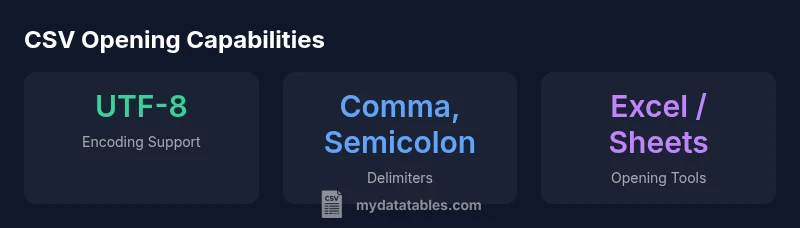
CSV can be opened with a wide range of tools, from spreadsheet apps to programming libraries. In practice, Excel, Google Sheets, and LibreOffice Calc read CSVs by default, while Python (pandas) and R offer robust import options. Because CSV is plain text, almost any modern data tool can access it, though encoding, delimiter choice, and quoting rules influence compatibility.
Why CSV interoperability matters
CSV, short for Comma-Separated Values, is the lingua franca of simple tabular data. Its plain-text structure makes it portable across environments, languages, and platforms. For data analysts, developers, and business users, the ability to open CSVs in diverse tools reduces friction when sharing datasets or ingesting data into pipelines. The phrase csv can be opened with captures this reality: you should expect broad compatibility, but you must also be mindful of subtle pitfalls—encoding, delimiters, and quoting rules can cause misreads if not standardized. According to MyDataTables, aiming for a consistent encoding (prefer UTF-8), a single delimiter, and a clear header row dramatically lowers cross-tool friction and speeds up analysis cycles. Embrace simplicity, but validate results in the tools your team relies on.
Core compatibility: encodings, delimiters, and quoting
CSV is a text file, but not every program treats it identically. Encoding determines how characters outside ASCII are stored; UTF-8 is widely portable, while UTF-16 and UTF-8 with a Byte Order Mark (BOM) can trigger misreads in some older apps. Delimiters are the character that separates fields; comma is standard in North America, but semicolons are common in Europe, and tabs appear in TSV variants. Quoting rules govern how fields containing delimiters or line breaks are enclosed, which matters when fields include commas, quotes, or newlines. The safe default: use UTF-8 without BOM, a single delimiter (prefer comma), and enclose text fields with quotes when they contain special characters. MyDataTables analysis highlights that standardizing these three aspects reduces surprises at import time.
Opening CSVs in spreadsheet apps
Spreadsheet programs are the first stop for many users evaluating CSV data. In Excel, you can open CSV directly or use the Import Text Wizard for more control over delimiter and encoding. Google Sheets accepts CSV uploads and can automatically detect delimiters, but it may apply regional formatting by default. LibreOffice Calc provides similar import dialogs with explicit delimiter and encoding options. Practical tip: always verify that the first row is treated as headers, that dates and numbers aren’t reformatted, and that non-ASCII characters display correctly after import. If you notice misreads, re-import with explicit encoding settings and delimiter selection.
Opening CSVs in programming languages
For programmers, CSV is a predictable starting point for data ingestion. In Python, pandas.read_csv is the go-to, with parameters to control delim, encoding, header, and dtype. In R, read.csv handles defaults but you can customize sep, encoding, and quote to suit your data. Other languages—Julia, Java, or Scala—offer libraries that parse CSV with streaming support for large files. The key practice is to specify the exact delimiter and encoding, validate the resulting dataframe or table, and handle missing values consistently. This reduces errors downstream in analysis pipelines and dashboards.
Handling delimiter variations and regional settings
Delimiters are not one-size-fits-all. If your data uses semicolons or tabs, you should explicitly set the delimiter during import. Regional settings can influence how numeric data is parsed (for example, decimal separators), leading to misinterpretation of values unless you configure the locale. To minimize issues, consider distributing a small, canonical example with a known delimiter and encoding, and provide guidelines for team members to reproduce the import step. When sharing CSVs across regions, include the delimiter and encoding in the accompanying metadata for reproducibility.
BOM and UTF-8: when to worry
The Byte Order Mark (BOM) can appear at the start of UTF-8 files and sometimes triggers an extra invisible character in some tools. If you encounter a stray character at the very beginning of your data, try saving without BOM or explicitly instructing your importer to ignore the BOM. Likewise, UTF-8 without BOM is the most portable option for cross-tool compatibility. Documenting the chosen encoding in your data dictionary makes it easier for others to reproduce your results and prevents rework.
Best practices for sharing and version control
When sharing CSVs, ensure a stable structure: a single header row, consistent delimiter, and UTF-8 encoding. Include a short metadata file describing encoding, delimiter, and any field quirks. Version control large CSVs with care—consider storing metadata alongside the data and using data diffs or chunking where possible. For collaborative workflows, prefer exporting a clean, trimmed sample along with a full dataset to facilitate quick previews while preserving data integrity in the main file. These practices reduce back-and-forth and keep analyses aligned across teams.
Import vs Open: choosing the right workflow in tools
Different tools expose different import experiences. In Excel or Sheets, importing often lets you validate encoding and delimiters upfront, whereas opening a CSV directly may bypass some checks. In programming environments, explicit import calls ensure reproducible behavior and clearer error handling. The decision hinges on your workflow: for human review, open with a quick glance; for data pipelines, use an import step with an explicit schema and validation rules.
Advanced topics: large CSVs, validation, and streaming
For very large CSVs, avoid loading the entire file into memory. Use streaming or chunked processing to parse rows incrementally. Validate schema and data types as you stream, and log anomalies for later review. When possible, store a separate schema file describing column names, types, and constraints, so downstream consumers can parse consistently. Combining validation with streaming reduces memory pressure and ensures robust data workflows across languages and platforms.
CSV Opening Capabilities by Tool
| Tool | Default Delimiter | Encoding Support | Notes |
|---|---|---|---|
| Excel | Comma | UTF-8, ANSI | Delimiters vary by version |
| Google Sheets | Comma | UTF-8 | Cloud-first; automatic detection |
| Python (pandas) | Comma | UTF-8, UTF-16 | Explicit sep/encoding recommended |
People Also Ask
What does CSV stand for?
CSV stands for Comma-Separated Values. It denotes a plain-text format where each line is a record and fields are separated by a delimiter, commonly a comma. Variants exist with different delimiters or quoting conventions.
CSV stands for Comma-Separated Values. It’s a plain-text format where each line is a record and fields are separated by a delimiter.
Which tools open CSVs?
Most spreadsheet programs (Excel, Google Sheets, LibreOffice Calc) can open CSVs by default. Programming languages like Python and R provide robust import options, and many databases offer CSV import utilities. When in doubt, start with a simple test file to verify import behavior.
Most spreadsheets and programming languages can open CSV files; start with a test file to check behavior.
Why is UTF-8 important for CSV?
UTF-8 is the most portable encoding for CSV because it supports international characters. Other encodings can cause garbled text when a file is opened in a tool that expects UTF-8. If you must use another encoding, document it and test compatibility across your tools.
UTF-8 is the most portable encoding; other encodings can cause garbling if not handled properly.
What about European delimiters (semicolon)?
In many European locales, semicolons are used as delimiters due to decimal formats. When importing, explicitly set the delimiter to semicolon to avoid misreads, especially in Excel or Sheets. Sharing a sample with the correct delimiter helps teams reproduce results.
Some regions use semicolons; set the delimiter accordingly to avoid misreads.
Should CSVs include a header row?
Yes, a header row is highly recommended. It makes columns self-describing, aids automated parsing, and reduces confusion for future users or tools. If you omit headers, document the column order explicitly.
Yes—headers help parsers and readers know what each column represents.
How can Excel misread data like dates?
Excel can interpret text as dates or numbers differently based on regional settings. To minimize this, export with a consistent date format, or treat dates as text and convert them in your analysis pipeline. Always verify a sample after importing.
Excel can misread dates if formats don’t match; use consistent formats or import as text and convert later.
“Interoperability begins with sensible defaults: UTF-8 encoding, a consistent delimiter, and a clearly labeled header row. When these are in place, CSVs are reliably portable across tools.”
Main Points
- Use UTF-8 encoding by default for widest compatibility
- Always specify delimiter during import to avoid misreads
- Include a header row for clear column mapping
- Test CSVs across tools to catch regional quirks
- Prefer import workflows in code for reproducibility