CSV Import File: A Practical How-To Guide
Learn how to import a CSV file effectively, covering encoding, delimiters, mapping, validation, and automation with practical steps from MyDataTables.


According to MyDataTables, importing a CSV file means loading comma-separated data into a destination like a spreadsheet, database, or analytics tool. This quick guide covers formats, encoding, and delimiter considerations, plus validation steps to ensure data integrity. By following the steps, you’ll avoid common import errors and streamline data onboarding. MyDataTables provides practical guidance to make CSV imports reliable.
Why CSV import file matters in data workflows
CSV import files are the backbone of data workflows because they enable data ingestion from many sources into spreadsheets, databases, and BI tools. According to MyDataTables, CSV imports are common touchpoints where data quality can either accelerate or derail downstream analysis. A solid import process reduces manual rekeying, minimizes errors, and supports repeatable data pipelines. In practice, you’ll encounter variations in delimiters, encodings, and header formats; understanding these nuances helps prevent surprises during loading.
Understanding CSV formats and encodings
CSV stands for comma-separated values, but real-world files often use other delimiters such as semicolons or tabs. Encoding like UTF-8 is standard; if a file uses a different encoding, you may see garbled characters or import failures. If BOM is present, some tools misread the first character. The best practice is to standardize on UTF-8 without BOM for broad compatibility and to specify the delimiter in the import dialog. Also consider whether quotes are used to escape fields containing delimiters.
Preparing your data for import
Before importing, cleanse the dataset: remove stray characters, unify date formats, and ensure consistent data types across columns. Confirm that the header row corresponds to the target destination column names. If you expect missing values, decide on a placeholder or leave blanks. Create a small test subset to validate the import steps before loading the full file. Clean prefixes/suffixes that may affect parsing.
Import paths: Excel, Google Sheets, databases, and apps
CSV imports can go to multiple destinations. In Excel or Google Sheets, you may use Import Text (CSV) or File > Open to load data and then adjust column formats. In databases, you’ll typically load into a staging table, map columns, and run data validation queries. For software applications, consult the import wizard to tailor field mappings, data types, and error handling.
Handling delimiters, quotes, and escaping
Delimiter choice determines how fields are split; ensure the same delimiter is used in both the file and the destination. If a field contains a delimiter, it should be enclosed in quotes. Some tools require double quotes to escape embedded quotes. If you encounter inconsistent quoting, use a robust importer option that detects qualifiers and escapes. Always test with values containing commas or semicolons to verify correctness.
Validation, error handling, and re-imports
After import, run quick validation checks: count rows, verify key sums or IDs, and compare a sample of records to the source. Look for common errors such as mismatched data types, truncated fields, or dropped rows. If errors occur, correct the source file or adjust import settings, then re-import the affected subset. Maintain logs to audit what changed during the load.
Best practices and automation
Adopt a repeatable workflow by storing a canonical import template, including delimiter, encoding, and mapping rules. Where possible, automate imports with scheduled jobs or data integration tools to reduce manual steps. Validate regularly with automated tests and alerting. Document the import process so teammates can replicate it, and keep a changelog of schema differences.
Tools & Materials
- CSV file (UTF-8 encoding, with header)(Contains the columns to import; ensure headers match destination schema)
- Destination software or target system (Excel, Google Sheets, database, or ETL tool)(Have credentials and access ready)
- Text editor or validator(Useful for inspecting problematic rows)
- Backup of original data(Always back up before large imports)
- Sample subset file(Useful for stepwise testing)
Steps
Estimated time: 45-90 minutes
- 1
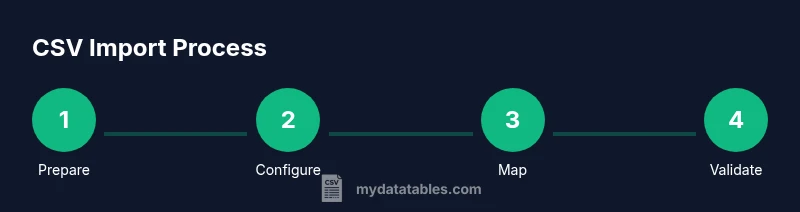
Prepare your CSV file
Ensure the file uses UTF-8 encoding and has a header row that matches the destination schema. Inspect a sample of the data for obvious issues, such as stray quotes or misencoded characters. Remove unnecessary columns that do not map to destination fields.
Tip: Run a quick check in a text editor or validator to catch obvious problems before importing. - 2
Choose destination and configure import
Open the destination tool and locate the import feature. Set delimiter, encoding, and header presence according to the file. If the tool offers an auto-detect option, consider enabling it, but verify results manually.
Tip: Prefer explicit settings over auto-detect to prevent hidden misparsing. - 3
Map columns to destination fields
Create a mapping from each source column to the destination column. Keep the source order consistent to minimize mistakes. If the destination names differ, create a clear name alignment and document it.
Tip: Use a template to reuse mappings for future imports. - 4
Run a small test import
Import a small subset (for example 20 rows) to verify that the mapping and data types align. Check for errors reported by the destination tool and adjust as needed.
Tip: Start small to catch issues without affecting large datasets. - 5
Validate results
After the test, validate row counts, field lengths, and a sample cross-check with the source. Confirm critical fields like IDs or timestamps are loaded correctly.
Tip: Write a simple diff script or use built-in checks in your tool. - 6
Handle errors and re-import
Review the error log, fix the root cause in the source file or adjust importer settings, and re-run the import for only the affected rows. Maintain a changelog.
Tip: Incrementally re-import only failing rows to save time. - 7
Automate for future imports
If you expect recurring CSV loads, save the import settings as a profile or script, and schedule regular imports. Add monitoring and rollback capabilities.
Tip: Document the profile so teammates can reuse it.
People Also Ask
What is a CSV import file?
A CSV import file is a plain-text file that uses a delimiter (commonly a comma) to separate values, which are loaded into another application or database. The import process reads each row as a record and each column as a field, applying mappings to the destination schema.
A CSV import file is a plain text file with delimited values that you load into a system, with each row a record and each column a field.
What encoding should I use for CSV imports?
UTF-8 is the recommended default because it supports diverse characters and maps cleanly across most destinations. If your file uses a different encoding, you may need to convert it before import to avoid garbled data.
UTF-8 is the recommended encoding for CSV imports to ensure compatibility.
How do I handle different delimiters during import?
Check the import dialog for the delimiter option and select the one used in the file. If the file uses a non-standard delimiter, convert the file or adapt the importer settings before loading to prevent misparsed columns.
Choose the delimiter used by your CSV file in the importer.
What are common errors during CSV import?
Mismatched columns, incorrect data types, and trailing extra characters are frequent culprits. Ensure header alignment, consistent data types, and sufficient field length to avoid truncation.
Common errors include misaligned headers and mismatched data types.
How can I verify that imported data is correct?
Compare a random sample of records against the source file, run basic aggregate checks, and confirm row counts to detect discrepancies early.
Verify by sampling records and checking counts.
When should I automate CSV imports?
Automate when you repeatedly load similar CSV files, on a schedule or trigger, and ensure you have monitoring and rollback in case of failures.
Automate for recurring imports with monitoring.
Watch Video
Main Points
- Define the CSV import format and encoding up front
- Standardize on UTF-8 and a consistent delimiter
- Map columns carefully and validate post-load data
- Test with a small subset before full imports
- Automate and document the workflow for reliability